
For the Project WebUI+ "testers" that have been running on the test tag -- now's the time to switch back to latest. @TerryD @mackid1993 @jsfullam Many thanks for your efforts!
1 Like
Thank you for building this.
2 Likes
I'm always happy to help and pleased to see the final product. For the times when I need an Olivetin Action, it really is nice to have easy access through the CDVR server GUI. 
One thing I have noticed recently in my Olivetin GUI page, one of the icons is corrupted. I am actively running the "Channel Lineup Notifications" program. So, the action button on the interface should have the green icon. It has this instead:
I'll try closing the action and re-launching it to see if it updates.
After killing the action, the purple button icon came up.
I ran the Channel Lineup Monitor from the new CDVR GUI drop-down. It seems to have completed correctly.
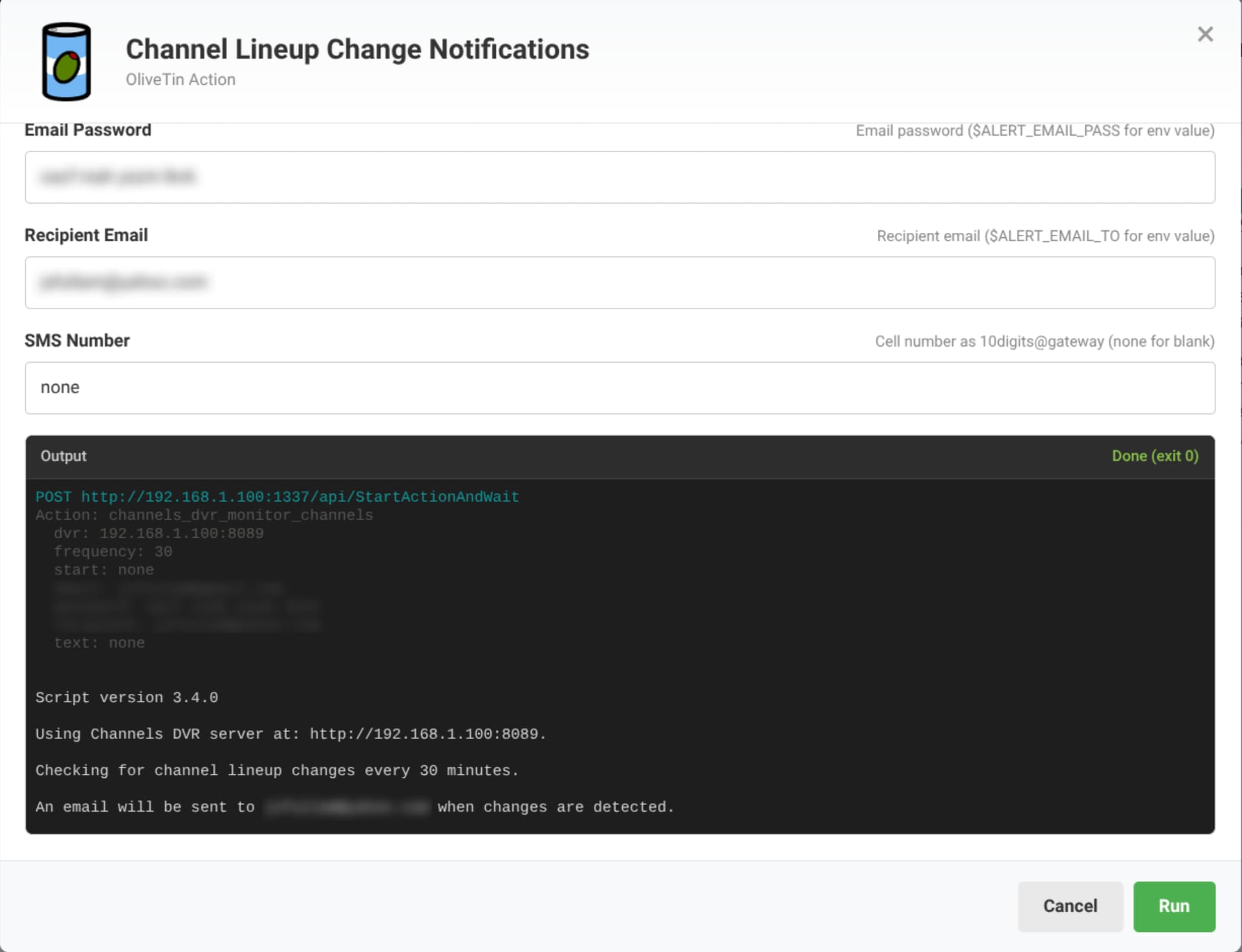
Unfortunately, the green button did not update. I still am getting the corrupted image.
Thanks for reporting this. A few scripts were missed in the transition process. They should be OK now, so Re-pull and redeploy and let me know how it goes.
That did the trick. Thanks!
1 Like
New bnhf/olivetin:latest (aka bnhf/olivetin:2026.03.07) with updates to Project WebUI+ to bring it inline with the latest updates to the "classic" OliveTin dashboard.
Also, a new userscript has been added called sticky-guide-times, that adds a floating line of time slots to grid guides in the WebUI. In other words, as you scroll down the time slots events are being broadcast in don't disappear:
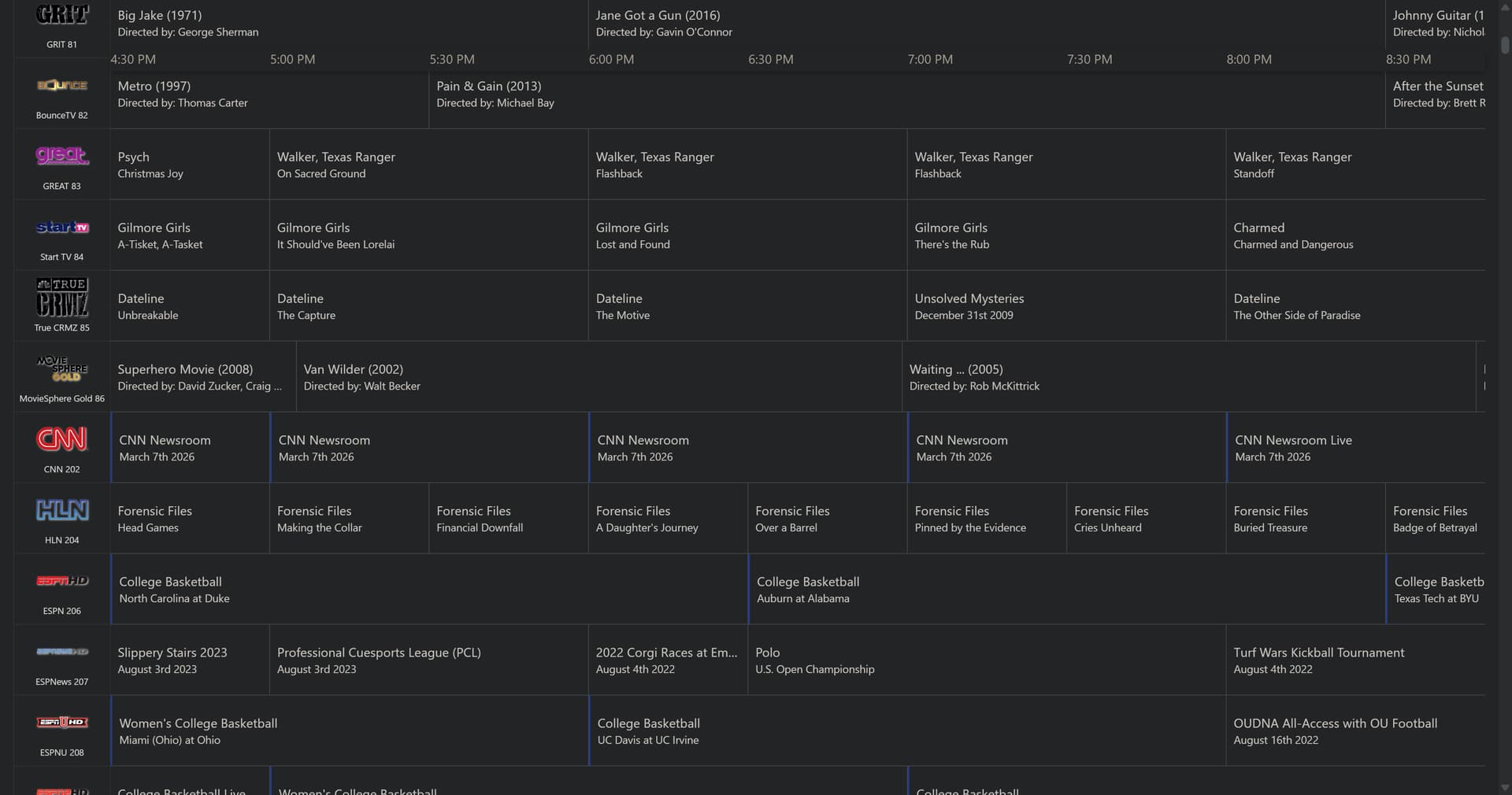
If you look closely at the above screenshot you'll see the times are still visible, even though the other header detail isn't.
If you're not familiar with Project WebUI+, it brings pretty much all of the OliveTin-for-Channels and Project One-Click Actions to the standard CDVR WebUI:
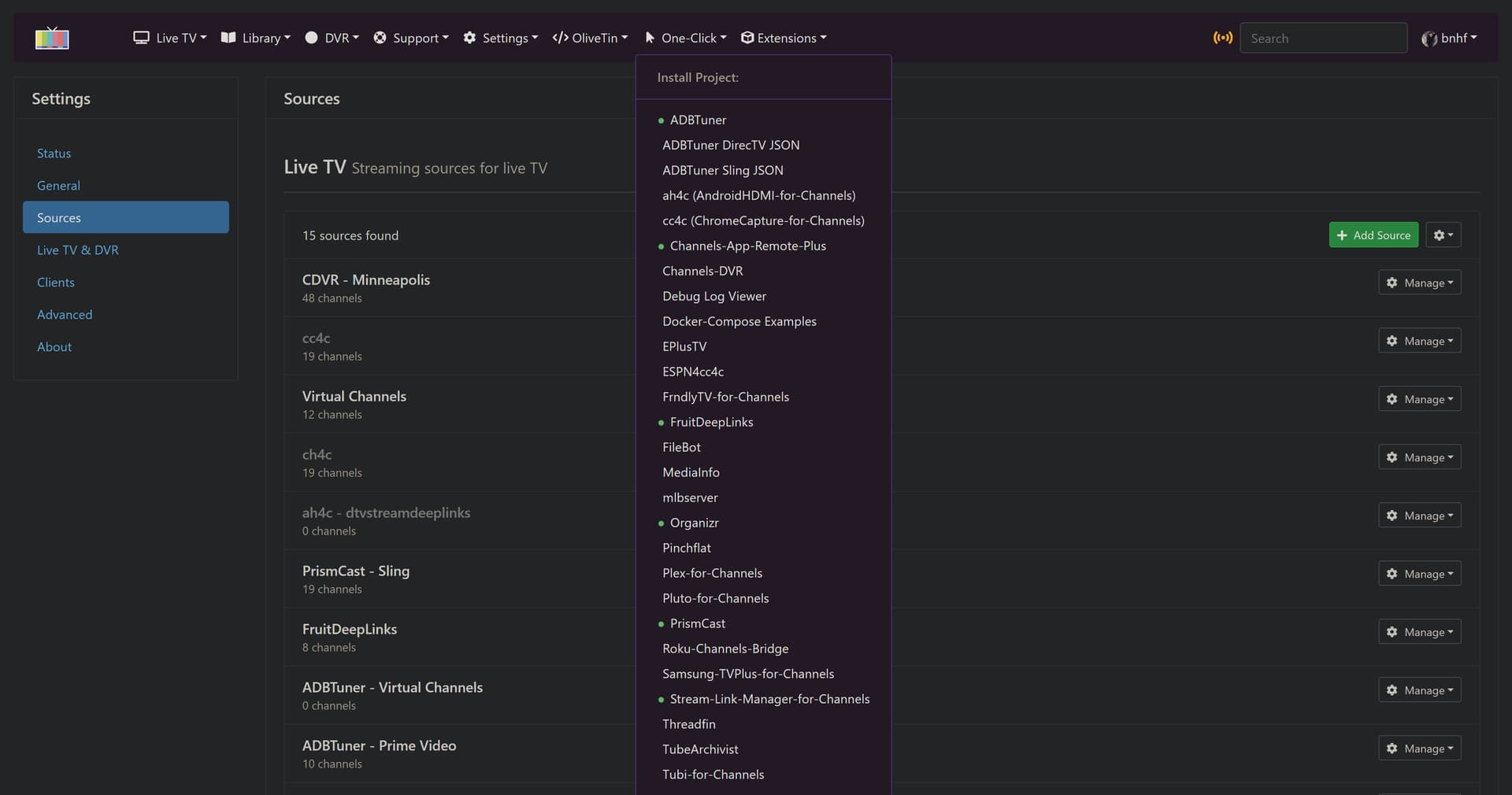
The above is the dropdown menu for all of the Project One-Click Actions. The green dots indicate projects that are already installed.
1 Like
Does this automatically show when we update OliveTin? Or, do we have to take action to enable the script?
The userscripts update (when OliveTin is updated) at the URL where they're hosted on your LAN (typically <PORTAINER_HOST>:8080), and Tampermonkey (or whatever userscript manager you're using) will automatically update them -- usually daily, though you can do it immediately from the TM extension dropdown. If all this sounds unfamiliar, see the instructions here:
Got it. I hadn't noted which port. Now, I'll save a link to them. Hey...that's the port for the static file server... I never knew what that was for...
I had to manually install it as Tamermonkey did not pick it up or find it automatically.
Good point, you do need to click on the link at PORTAINER_HOST:SFS_PORT to install any userscript initially.
Thanks, this has been on my todo list for a while, being latest made it easier 
edit @bnhf: could we get the option to open the extensions in a new tab or popup window?
New bnhf/olivetin:latest (aka bnhf/olivetin:2026.03.08) pushed this morning with support for opening a new tab for an extension's WebUI, by using a <ctrl>-click when selecting it in the Extensions dropdown. A standard click will continue to function as before.
<ctrl>-click is not working for me (chrome) right-click new tab is opening a new tab, but just goes to cdvr landing page
not sure if it's related, but the new one-click extensions are not showing up in webui+, but are in the regular olivetin page
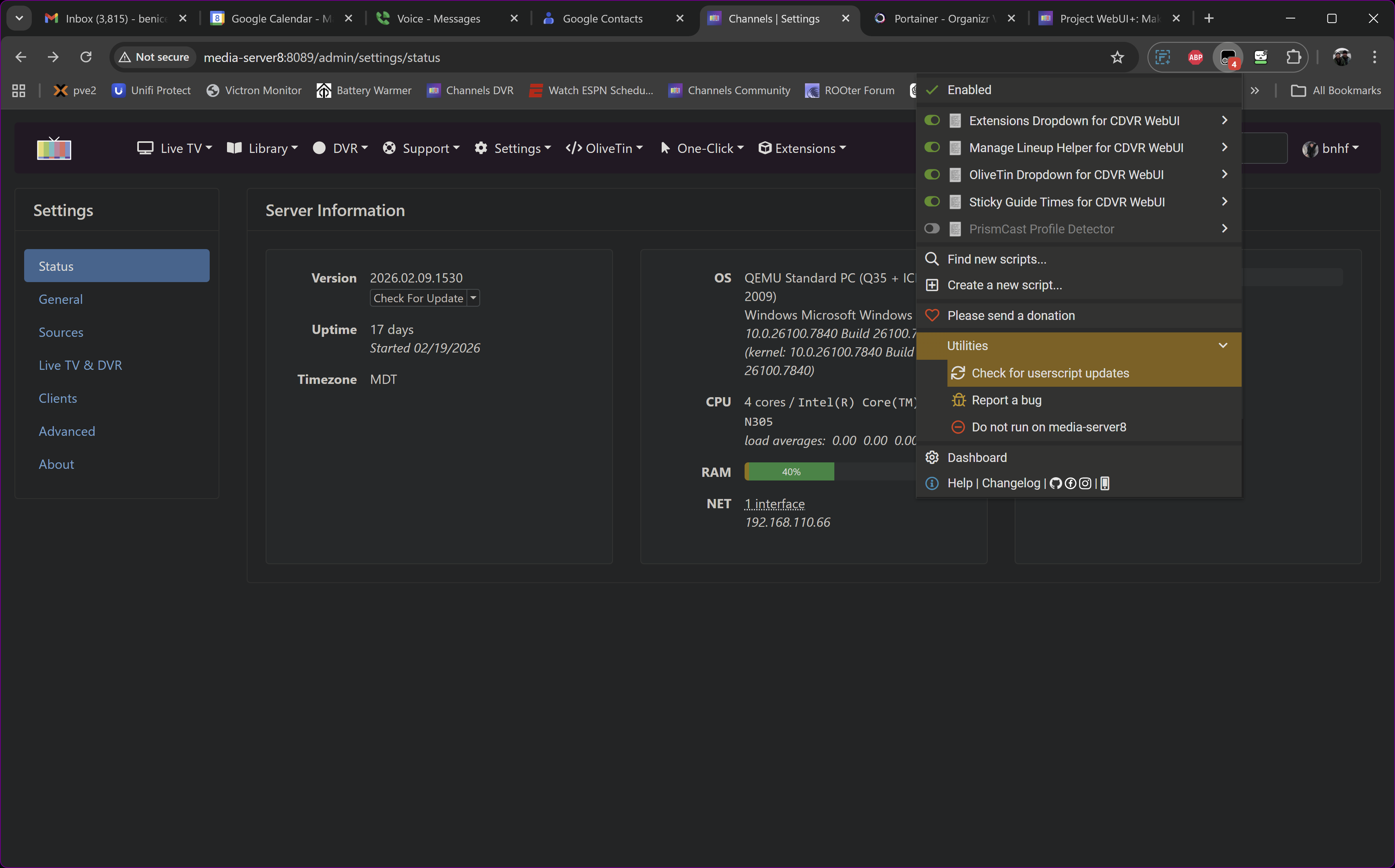
If you want the userscripts to update immediately (as opposed to whatever schedule you have set), you need to do this from the Tampermonkey dropdown, after updating OliveTin:
1 Like
got it, works great! I went ahead and changed the schedule to 6hrs.
1 Like

Matching the capitalization may matter here, so check that.
Otherwise I just tried this with a Channel collection I have called Xfinity, and although it did output the M3U data, there was some debug data included that shouldn't have been. I'm pushing an update now.
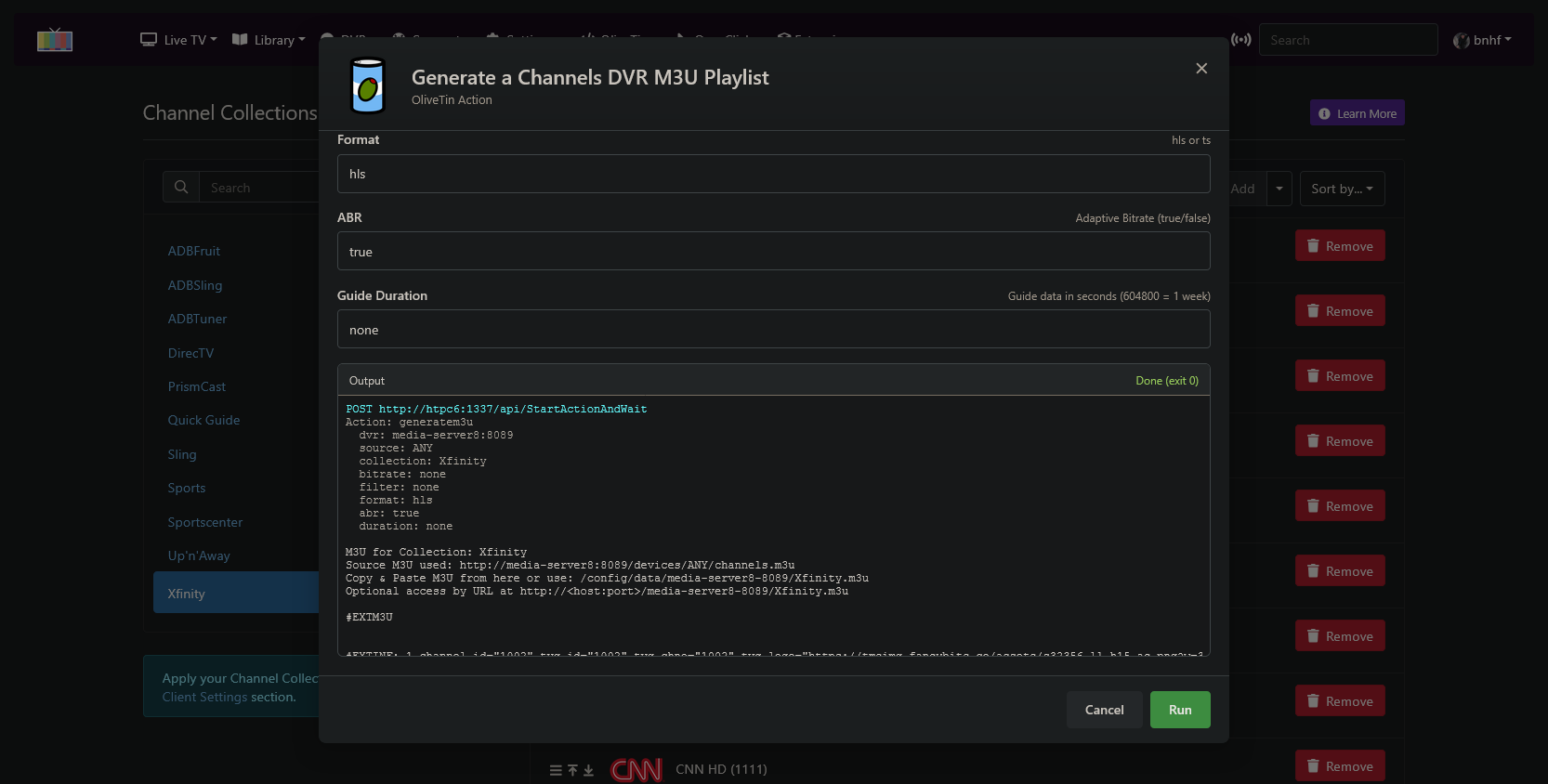
Here's what you should be seeing when generating an M3U for a valid collection:
POST http://htpc6:1337/api/StartActionAndWait
Action: generatem3u
  dvr: media-server8:8089
  source: ANY
  collection: Xfinity
  bitrate: none
  filter: none
  format: hls
  abr: true
  duration: none

M3U for Collection: Xfinity
Source M3U used: http://media-server8:8089/devices/ANY/channels.m3u
Copy & Paste M3U from here or use: /config/data/media-server8-8089/Xfinity.m3u
Optional access by URL at http://<host:port>/media-server8-8089/Xfinity.m3u

#EXTM3U


#EXTINF:-1 channel-id="1002" tvg-id="1002" tvg-chno="1002" tvg-logo="https://tmsimg.fancybits.co/assets/s32356_ll_h15_ac.png?w=360&h=270" tvc-guide-stationid="21634" tvg-name="PBS",PBS
http://media-server8:8089/devices/ANY/channels/1002/hls/master.m3u8?

#EXTINF:-1 channel-id="1004" tvg-id="1004" tvg-chno="1004" tvg-logo="https://tmsimg.fancybits.co/assets/s28711_h3_aa.png?w=360&h=270" tvc-guide-stationid="21234" tvg-name="CBS",CBS
http://media-server8:8089/devices/ANY/channels/1004/hls/master.m3u8?

#EXTINF:-1 channel-id="1005" tvg-id="1005" tvg-chno="1005" tvg-logo="https://tmsimg.fancybits.co/assets/s28708_h3_aa.png?w=360&h=270" tvc-guide-stationid="21236" tvg-name="ABC",ABC
http://media-server8:8089/devices/ANY/channels/1005/hls/master.m3u8?

#EXTINF:-1 channel-id="1009" tvg-id="1009" tvg-chno="1009" tvg-logo="https://tmsimg.fancybits.co/assets/s28719_ll_h15_ac.png?w=360&h=270" tvc-guide-stationid="24504" tvg-name="FOX",FOX
http://media-server8:8089/devices/ANY/channels/1009/hls/master.m3u8?

#EXTINF:-1 channel-id="1011" tvg-id="1011" tvg-chno="1011" tvg-logo="https://tmsimg.fancybits.co/assets/s28717_ll_h15_ad.png?w=360&h=270" tvc-guide-stationid="20505" tvg-name="NBC",NBC
http://media-server8:8089/devices/ANY/channels/1011/hls/master.m3u8?

#EXTINF:-1 channel-id="1017" tvg-id="1017" tvg-chno="1017" tvg-logo="https://tmsimg.fancybits.co/assets/s32356_h3_aa.png?w=360&h=270" tvc-guide-stationid="21865" tvg-name="PBS",PBS
http://media-server8:8089/devices/ANY/channels/1017/hls/master.m3u8?

#EXTINF:-1 channel-id="1023" tvg-id="1023" tvg-chno="1023" tvg-logo="https://tmsimg.fancybits.co/assets/s53098_ll_h15_ac.png?w=360&h=270" tvc-guide-stationid="34425" tvg-name="CW",CW
http://media-server8:8089/devices/ANY/channels/1023/hls/master.m3u8?

#EXTINF:-1 channel-id="1041" tvg-id="1041" tvg-chno="1041" tvg-logo="https://tmsimg.fancybits.co/assets/s18633_ll_h15_ac.png?w=360&h=270" tvc-guide-stationid="36071" tvg-name="ION",ION
http://media-server8:8089/devices/ANY/channels/1041/hls/master.m3u8?

#EXTINF:-1 channel-id="1111" tvg-id="1111" tvg-chno="1111" tvg-logo="https://tmsimg.fancybits.co/assets/s58646_ll_h15_ac.png?w=360&h=270" tvc-guide-stationid="58646" tvg-name="CNN HD",CNN HD
http://media-server8:8089/devices/ANY/channels/1111/hls/master.m3u8?

#EXTINF:-1 channel-id="1167" tvg-id="1167" tvg-chno="1167" tvg-logo="https://tmsimg.fancybits.co/assets/s70436_ll_h15_ab.png?w=360&h=270" tvc-guide-stationid="73502" tvg-name="METVN",METVN
http://media-server8:8089/devices/ANY/channels/1167/hls/master.m3u8?

#EXTINF:-1 channel-id="1168" tvg-id="1168" tvg-chno="1168" tvg-logo="https://tmsimg.fancybits.co/assets/s61775_ll_h15_aa.png?w=360&h=270" tvc-guide-stationid="75977" tvg-name="THIS",THIS
http://media-server8:8089/devices/ANY/channels/1168/hls/master.m3u8?

#EXTINF:-1 channel-id="1174" tvg-id="1174" tvg-chno="1174" tvg-logo="https://tmsimg.fancybits.co/assets/s109454_h3_ba.png?w=360&h=270" tvc-guide-stationid="92038" tvg-name="STARTTV",STARTTV
http://media-server8:8089/devices/ANY/channels/1174/hls/master.m3u8?

#EXTINF:-1 channel-id="1182" tvg-id="1182" tvg-chno="1182" tvg-logo="https://tmsimg.fancybits.co/assets/s97051_ll_h15_ab.png?w=360&h=270" tvc-guide-stationid="52331" tvg-name="COMET",COMET
http://media-server8:8089/devices/ANY/channels/1182/hls/master.m3u8?

#EXTINF:-1 channel-id="1183" tvg-id="1183" tvg-chno="1183" tvg-logo="https://tmsimg.fancybits.co/assets/s102148_ll_h15_ab.png?w=360&h=270" tvc-guide-stationid="69640" tvg-name="CHARGE",CHARGE
http://media-server8:8089/devices/ANY/channels/1183/hls/master.m3u8?

#EXTINF:-1 channel-id="1205" tvg-id="1205" tvg-chno="1205" tvg-logo="https://tmsimg.fancybits.co/assets/s32645_h3_aa.png?w=360&h=270" tvc-guide-stationid="32645" tvg-name="ESPN HD",ESPN HD
http://media-server8:8089/devices/ANY/channels/1205/hls/master.m3u8?

#EXTINF:-1 channel-id="1206" tvg-id="1206" tvg-chno="1206" tvg-logo="https://tmsimg.fancybits.co/assets/s45507_ll_h15_aa.png?w=360&h=270" tvc-guide-stationid="45507" tvg-name="ESPN2 HD",ESPN2 HD
http://media-server8:8089/devices/ANY/channels/1206/hls/master.m3u8?

#EXTINF:-1 channel-id="1208" tvg-id="1208" tvg-chno="1208" tvg-logo="https://tmsimg.fancybits.co/assets/s82547_ll_h15_aa.png?w=360&h=270" tvc-guide-stationid="82547" tvg-name="FS1 HD",FS1 HD
http://media-server8:8089/devices/ANY/channels/1208/hls/master.m3u8?

#EXTINF:-1 channel-id="1209" tvg-id="1209" tvg-chno="1209" tvg-logo="https://tmsimg.fancybits.co/assets/s59305_ll_h15_aa.png?w=360&h=270" tvc-guide-stationid="59305" tvg-name="FS2 HD",FS2 HD
http://media-server8:8089/devices/ANY/channels/1209/hls/master.m3u8?

#EXTINF:-1 channel-id="1223" tvg-id="1223" tvg-chno="1223" tvg-logo="https://tmsimg.fancybits.co/assets/s61854_ll_h15_ab.png?w=360&h=270" tvc-guide-stationid="61854" tvg-name="Golf Channel HD",Golf Channel HD
http://media-server8:8089/devices/ANY/channels/1223/hls/master.m3u8?

#EXTINF:-1 channel-id="1224" tvg-id="1224" tvg-chno="1224" tvg-logo="https://tmsimg.fancybits.co/assets/s60316_ll_h15_ab.png?w=360&h=270" tvc-guide-stationid="60316" tvg-name="Tennis Channel HD",Tennis Channel HD
http://media-server8:8089/devices/ANY/channels/1224/hls/master.m3u8?

#EXTINF:-1 channel-id="1250" tvg-id="1250" tvg-chno="1250" tvg-logo="https://tmsimg.fancybits.co/assets/s74436_ll_h15_aa.png?w=360&h=270" tvc-guide-stationid="74436" tvg-name="Bally Sports North HD",Bally Sports North HD
http://media-server8:8089/devices/ANY/channels/1250/hls/master.m3u8?

#EXTINF:-1 channel-id="1313" tvg-id="1313" tvg-chno="1313" tvg-logo="https://tmsimg.fancybits.co/assets/s56783_ll_h15_ab.png?w=360&h=270" tvc-guide-stationid="58774" tvg-name="Big Ten Network Minnesota HD",Big Ten Network Minnesota HD
http://media-server8:8089/devices/ANY/channels/1313/hls/master.m3u8?

#EXTINF:-1 channel-id="1403" tvg-id="1403" tvg-chno="1403" tvg-logo="https://tmsimg.fancybits.co/assets/s58452_ll_h15_af.png?w=360&h=270" tvc-guide-stationid="58452" tvg-name="USA Network HD",USA Network HD
http://media-server8:8089/devices/ANY/channels/1403/hls/master.m3u8?

#EXTINF:-1 channel-id="1404" tvg-id="1404" tvg-chno="1404" tvg-logo="https://tmsimg.fancybits.co/assets/s42642_ll_h15_ac.png?w=360&h=270" tvc-guide-stationid="42642" tvg-name="TNT HD",TNT HD
http://media-server8:8089/devices/ANY/channels/1404/hls/master.m3u8?

#EXTINF:-1 channel-id="1405" tvg-id="1405" tvg-chno="1405" tvg-logo="https://tmsimg.fancybits.co/assets/s59337_ll_h15_ab.png?w=360&h=270" tvc-guide-stationid="59337" tvg-name="AMC HD",AMC HD
http://media-server8:8089/devices/ANY/channels/1405/hls/master.m3u8?

#EXTINF:-1 channel-id="1418" tvg-id="1418" tvg-chno="1418" tvg-logo="https://tmsimg.fancybits.co/assets/s64492_ll_h15_aa.png?w=360&h=270" tvc-guide-stationid="64492" tvg-name="BBC America HD",BBC America HD
http://media-server8:8089/devices/ANY/channels/1418/hls/master.m3u8?

#EXTINF:-1 channel-id="1430" tvg-id="1430" tvg-chno="1430" tvg-logo="https://tmsimg.fancybits.co/assets/s64490_ll_h15_ac.png?w=360&h=270" tvc-guide-stationid="64490" tvg-name="truTV HD",truTV HD
http://media-server8:8089/devices/ANY/channels/1430/hls/master.m3u8?

#EXTINF:-1 channel-id="1434" tvg-id="1434" tvg-chno="1434" tvg-logo="https://tmsimg.fancybits.co/assets/s58515_h3_aa.png?w=360&h=270" tvc-guide-stationid="58515" tvg-name="TBS HD",TBS HD
http://media-server8:8089/devices/ANY/channels/1434/hls/master.m3u8?

#EXTINF:-1 channel-id="1458" tvg-id="1458" tvg-chno="1458" tvg-logo="https://tmsimg.fancybits.co/assets/s66268_ll_h15_ab.png?w=360&h=270" tvc-guide-stationid="66268" tvg-name="Hallmark Channel HD",Hallmark Channel HD
http://media-server8:8089/devices/ANY/channels/1458/hls/master.m3u8?

#EXTINF:-1 channel-id="1459" tvg-id="1459" tvg-chno="1459" tvg-logo="https://tmsimg.fancybits.co/assets/s46710_ll_h15_ab.png?w=360&h=270" tvc-guide-stationid="46710" tvg-name="Hallmark Mystery HD",Hallmark Mystery HD
http://media-server8:8089/devices/ANY/channels/1459/hls/master.m3u8?

#EXTINF:-1 channel-id="1802" tvg-id="1802" tvg-chno="1802" tvg-logo="https://tmsimg.fancybits.co/assets/s19548_ll_h15_aa.png?w=360&h=270" tvc-guide-stationid="19548" tvg-name="HBO HD",HBO HD
http://media-server8:8089/devices/ANY/channels/1802/hls/master.m3u8?

#EXTINF:-1 channel-id="1803" tvg-id="1803" tvg-chno="1803" tvg-logo="https://tmsimg.fancybits.co/assets/s10240_ll_h15_aa.png?w=360&h=270" tvc-guide-stationid="10244" tvg-name="HBO (PACIFIC)",HBO (PACIFIC)
http://media-server8:8089/devices/ANY/channels/1803/hls/master.m3u8?

#EXTINF:-1 channel-id="1804" tvg-id="1804" tvg-chno="1804" tvg-logo="https://tmsimg.fancybits.co/assets/s59368_ll_h15_aa.png?w=360&h=270" tvc-guide-stationid="59368" tvg-name="HBO2 HD",HBO2 HD
http://media-server8:8089/devices/ANY/channels/1804/hls/master.m3u8?

#EXTINF:-1 channel-id="1806" tvg-id="1806" tvg-chno="1806" tvg-logo="https://tmsimg.fancybits.co/assets/s10243_h3_ba.png?w=360&h=270" tvc-guide-stationid="10243" tvg-name="HBO Signature",HBO Signature
http://media-server8:8089/devices/ANY/channels/1806/hls/master.m3u8?

#EXTINF:-1 channel-id="1808" tvg-id="1808" tvg-chno="1808" tvg-logo="https://tmsimg.fancybits.co/assets/s16585_ll_h15_aa.png?w=360&h=270" tvc-guide-stationid="16585" tvg-name="HBO Family",HBO Family
http://media-server8:8089/devices/ANY/channels/1808/hls/master.m3u8?

#EXTINF:-1 channel-id="1810" tvg-id="1810" tvg-chno="1810" tvg-logo="https://tmsimg.fancybits.co/assets/s18429_ll_h15_aa.png?w=360&h=270" tvc-guide-stationid="18429" tvg-name="HBO Comedy",HBO Comedy
http://media-server8:8089/devices/ANY/channels/1810/hls/master.m3u8?

#EXTINF:-1 channel-id="1812" tvg-id="1812" tvg-chno="1812" tvg-logo="https://tmsimg.fancybits.co/assets/s18431_ll_h15_aa.png?w=360&h=270" tvc-guide-stationid="18431" tvg-name="HBO Zone",HBO Zone
http://media-server8:8089/devices/ANY/channels/1812/hls/master.m3u8?

#EXTINF:-1 channel-id="1840" tvg-id="1840" tvg-chno="1840" tvg-logo="https://tmsimg.fancybits.co/assets/s21868_ll_h15_ad.png?w=360&h=270" tvc-guide-stationid="21868" tvg-name="Paramount+ with Showtime HD",Paramount+ with Showtime HD
http://media-server8:8089/devices/ANY/channels/1840/hls/master.m3u8?

#EXTINF:-1 channel-id="1842" tvg-id="1842" tvg-chno="1842" tvg-logo="https://tmsimg.fancybits.co/assets/s11116_h3_aa.png?w=360&h=270" tvc-guide-stationid="11116" tvg-name="SHO2e",SHO2e
http://media-server8:8089/devices/ANY/channels/1842/hls/master.m3u8?

#EXTINF:-1 channel-id="1846" tvg-id="1846" tvg-chno="1846" tvg-logo="https://tmsimg.fancybits.co/assets/s16153_ll_h15_ac.png?w=360&h=270" tvc-guide-stationid="16153" tvg-name="Showtime Showcase",Showtime Showcase
http://media-server8:8089/devices/ANY/channels/1846/hls/master.m3u8?

#EXTINF:-1 channel-id="1848" tvg-id="1848" tvg-chno="1848" tvg-logo="https://tmsimg.fancybits.co/assets/s18086_ll_h15_ac.png?w=360&h=270" tvc-guide-stationid="18086" tvg-name="Showtime Extreme",Showtime Extreme
http://media-server8:8089/devices/ANY/channels/1848/hls/master.m3u8?

#EXTINF:-1 channel-id="1852" tvg-id="1852" tvg-chno="1852" tvg-logo="https://tmsimg.fancybits.co/assets/s25274_h3_ba.png?w=360&h=270" tvc-guide-stationid="25274" tvg-name="Showtime Familyzone",Showtime Familyzone
http://media-server8:8089/devices/ANY/channels/1852/hls/master.m3u8?

#EXTINF:-1 channel-id="1860" tvg-id="1860" tvg-chno="1860" tvg-logo="https://tmsimg.fancybits.co/assets/s35329_h3_ba.png?w=360&h=270" tvc-guide-stationid="35329" tvg-name="The Movie Channel HD",The Movie Channel HD
http://media-server8:8089/devices/ANY/channels/1860/hls/master.m3u8?

#EXTINF:-1 channel-id="1862" tvg-id="1862" tvg-chno="1862" tvg-logo="https://tmsimg.fancybits.co/assets/s60951_ll_h15_aa.png?w=360&h=270" tvc-guide-stationid="60951" tvg-name="The Movie Channel Extra HD",The Movie Channel Extra HD
http://media-server8:8089/devices/ANY/channels/1862/hls/master.m3u8?

#EXTINF:-1 channel-id="1871" tvg-id="1871" tvg-chno="1871" tvg-logo="https://tmsimg.fancybits.co/assets/s65687_ll_h15_ag.png?w=360&h=270" tvc-guide-stationid="65687" tvg-name="MGM+ HD",MGM+ HD
http://media-server8:8089/devices/ANY/channels/1871/hls/master.m3u8?

#EXTINF:-1 channel-id="1873" tvg-id="1873" tvg-chno="1873" tvg-logo="https://tmsimg.fancybits.co/assets/s67929_ll_h15_ad.png?w=360&h=270" tvc-guide-stationid="67929" tvg-name="MGM+ Hits HD",MGM+ Hits HD
http://media-server8:8089/devices/ANY/channels/1873/hls/master.m3u8?

#EXTINF:-1 channel-id="1874" tvg-id="1874" tvg-chno="1874" tvg-logo="https://tmsimg.fancybits.co/assets/s74073_ll_h15_ad.png?w=360&h=270" tvc-guide-stationid="74073" tvg-name="MGM+ Marquee HD",MGM+ Marquee HD
http://media-server8:8089/devices/ANY/channels/1874/hls/master.m3u8?

#EXTINF:-1 channel-id="1875" tvg-id="1875" tvg-chno="1875" tvg-logo="https://tmsimg.fancybits.co/assets/s103828_ll_h15_ad.png?w=360&h=270" tvc-guide-stationid="103828" tvg-name="MGM+ Drive-In HD",MGM+ Drive-In HD
http://media-server8:8089/devices/ANY/channels/1875/hls/master.m3u8?
I've been running into an issue with webui+ ever since I rebuilt my minipc now named NanoA1.
my olivetin env is set correctly
TAG=latest
DOMAIN=
HOST_PORT=1337
CHANNELS_DVR_HOST=10.0.0.7
CHANNELS_DVR_PORT=8089
but any olivetin action is still populating minipc:port
some actions will work when I correct the field to ip, but the post action still uses minipc:1337 so I get a network errror
POST http://minipc:1337/api/StartActionAndWait
Action: adbtuner
  dvr: 10.0.0.7:8089
  TAG: stable
  DOMAIN: localdomain
  HOST_PORT: 5592
  STREAM_TIMEOUT: 8
  HOST_VOLUME: adbtuner_config


ERROR: Error: Network error
everything works fine if I use the olivetin page directly
after drafting this post I gave it the ol college try again, and realized it was a tampermonkey issue.
I had to remove the scripts and re-install them. works as expected now 
1 Like