
So a while back I noticed the memory usage seemed to be slowly creeping higher and higher and the temp of the mini pc would slowly keep getting hotter if I just let the machine run forever. I started having it do automated reboots every day at like 4am and ever since I've done that, the temp and memory usage seems to be a lot more stable and stay fairly low.
1 Like
Just to make sure I'm tracking correctly, should I be able to use v2.0.1 of cc4c.exe running on Win 10? Is that working and what version of Chrome do I need to make it work? Sorry, this wasn't clear to me in the prior posts since @tmm1 mentioned the updated release. Thx
It's still not working on windows with the exe unfortunately
1 Like
Well...sadly I think I spoke too soon. Unfortunately I'm getting this same problem again where after a reboot it won't work. If you stop the stack, remove it, and re-deploy it again, it works until of course the next reboot. This happens after both automated and manual reboots. I just don't get it! Once again here's the message I'm getting:
(EE)
Fatal server error:
(EE) Server is already active for display 99
	If this server is no longer running, remove /tmp/.X99-lock
	and start again.
(EE)
08/09/2025 07:50:28 *** XOpenDisplay failed (:99)
*** x11vnc was unable to open the X DISPLAY: ":99", it cannot continue.
*** There may be "Xlib:" error messages above with details about the failure.
Some tips and guidelines:
** An X server (the one you wish to view) must be running before x11vnc is
   started: x11vnc does not start the X server.  (however, see the -create
   option if that is what you really want).
** You must use -display <disp>, -OR- set and export your $DISPLAY
   environment variable to refer to the display of the desired X server.
 - Usually the display is simply ":0" (in fact x11vnc uses this if you forget
   to specify it), but in some multi-user situations it could be ":1", ":2",
   or even ":137".  Ask your administrator or a guru if you are having
   difficulty determining what your X DISPLAY is.
** Next, you need to have sufficient permissions (Xauthority)
   to connect to the X DISPLAY.   Here are some Tips:
 - Often, you just need to run x11vnc as the user logged into the X session.
   So make sure to be that user when you type x11vnc.
 - Being root is usually not enough because the incorrect MIT-MAGIC-COOKIE
   file may be accessed.  The cookie file contains the secret key that
   allows x11vnc to connect to the desired X DISPLAY.
 - You can explicitly indicate which MIT-MAGIC-COOKIE file should be used
   by the -auth option, e.g.:
       x11vnc -auth /home/someuser/.Xauthority -display :0
       x11vnc -auth /tmp/.gdmzndVlR -display :0
   you must have read permission for the auth file.
   See also '-auth guess' and '-findauth' discussed below.
** If NO ONE is logged into an X session yet, but there is a greeter login
   program like "gdm", "kdm", "xdm", or "dtlogin" running, you will need
   to find and use the raw display manager MIT-MAGIC-COOKIE file.
   Some examples for various display managers:
     gdm:     -auth /var/gdm/:0.Xauth
              -auth /var/lib/gdm/:0.Xauth
     kdm:     -auth /var/lib/kdm/A:0-crWk72
              -auth /var/run/xauth/A:0-crWk72
     xdm:     -auth /var/lib/xdm/authdir/authfiles/A:0-XQvaJk
     dtlogin: -auth /var/dt/A:0-UgaaXa
   Sometimes the command "ps wwwwaux | grep auth" can reveal the file location.
   Starting with x11vnc 0.9.9 you can have it try to guess by using:
              -auth guess
   (see also the x11vnc -findauth option.)
   Only root will have read permission for the file, and so x11vnc must be run
   as root (or copy it).  The random characters in the filenames will of course
   change and the directory the cookie file resides in is system dependent.
See also: http://www.karlrunge.com/x11vnc/faq.html
I am running CC4C on my Channels PC using an old version of Chrome using main.js. It is working fine. I see the need to move to current versions of Chrome. My question is, can I run the docker version on my storage QNAP NAS as I do Frndly, abdtuner, pluto, tubi, EPlusTV and remote plus. If not, I will more to my exisiting PC. Just trying to manage Docker images in one place. Thanks.
Looks like the internal restart process isn't working correctly. I'm looking at it now...
1 Like
@bnhf and @Accustiver,
I had the same problem and found the below in post #1234 from @istwok. I do still have to restart the stack occasionally, but not nearly as much as I did before. Just my two cents...
Xvfb :99 -screen 0 1920x1080x16 &
while ! xdpyinfo -display :99 >/dev/null 2>&1; do
echo "Waiting for Xvfb...";
sleep 1s;
done;
OK, I believe I found the issue. It was with a tmp file that Xvfb was creating that's held over in a container restart (and apparently a system restart too).
Keeping the same Docker Compose, change your TAG value in the Environment variables section of the Portainer-Stack Editor to test. In Advanced mode it would look like this:
TAG=test
Give that a go, and let me know if it works for you (it does for me). If so, I'll update bnhf/cc4c:latest accordingly.
Nope...still no luck! Here's what my environment variables look like:
    environment:
      - VIDEO_BITRATE=6000000 # Video bitrate in bits per second  [number] [default: 6000000]
      - AUDIO_BITRATE=256000 # Audio bitrate in bits per second  [number] [default: 256000]
      - FRAMERATE=30 # Minimum frame rate  [number] [default: 30]
      - CC4C_PORT=5589 # Port number for the server  [number] [default: 5589]
      - VIDEO_WIDTH=1920 # Video width in pixels (e.g., 1920 for 1080p)  [number] [default: 1920]
      - VIDEO_HEIGHT=1080 # Video height in pixels (e.g., 1080 for 1080p)  [number] [default: 1080]
      - VIDEO_CODEC=h264_nvenc # Video codec (e.g., h264_nvenc, h264_qsv, h264_amf, h264_vaapi)  [string] [default: "h264_nvenc"]
      - AUDIO_CODEC=aac # Audio codec (e.g., aac, opus)  [string] [default: "aac"]
      - TZ=US/Eastern # Your local timezone in Linux "tz" format.
      - TAG=test
I tried adding that line that @daldana7296 mentioned as well and also no luck. Gosh this is frustrating! Appreciate you looking into it!
I just updated main.js to a new build
Added a few speedups as well. [ncc-9-2.js]
It now works with peacock live events, though you need to use the peacock epg scraper. HBOMax can scrape now too, but it wont do the clicking in puppeteer yet.
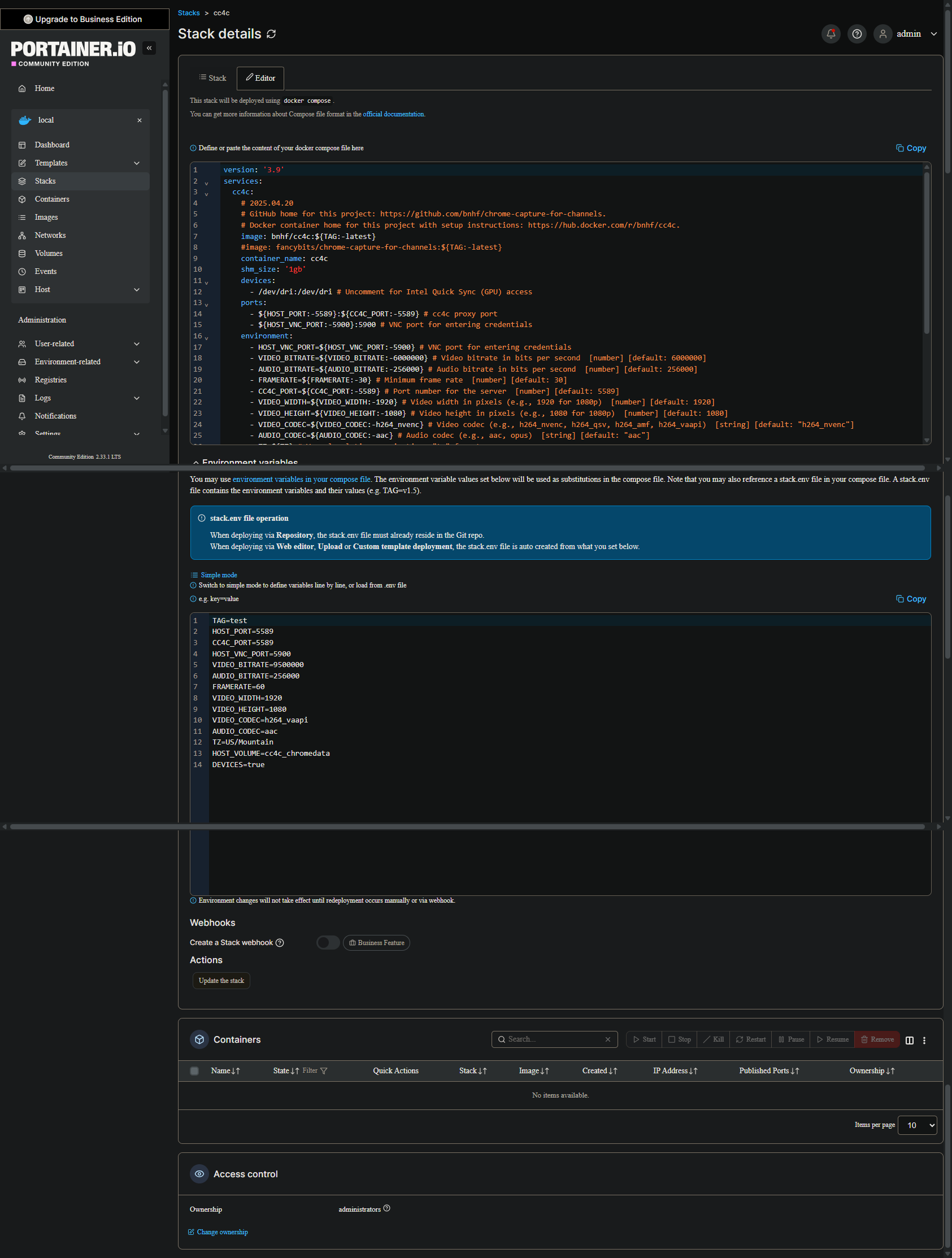
OK, let's try this again. The above is not the way I'm asking you to do this. In the Portainer-Stacks Editor, enter this Docker Compose exactly (and do NOT edit it in any way). Also, I've made one minor change:
services:
  cc4c:
    # 2025.04.20
    # GitHub home for this project: https://github.com/bnhf/chrome-capture-for-channels.
    # Docker container home for this project with setup instructions: https://hub.docker.com/r/bnhf/cc4c.
    image: bnhf/cc4c:${TAG:-latest}
    container_name: cc4c
    shm_size: '1gb'
    devices:
      - /dev/dri:/dev/dri # Uncomment for Intel Quick Sync (GPU) access
    ports:
      - ${HOST_PORT:-5589}:${CC4C_PORT:-5589} # cc4c proxy port
      - ${HOST_VNC_PORT:-5900}:5900 # VNC port for entering credentials
    environment:
      - HOST_VNC_PORT=${HOST_VNC_PORT:-5900} # VNC port for entering credentials
      - VIDEO_BITRATE=${VIDEO_BITRATE:-6000000} # Video bitrate in bits per second  [number] [default: 6000000]
      - AUDIO_BITRATE=${AUDIO_BITRATE:-256000} # Audio bitrate in bits per second  [number] [default: 256000]
      - FRAMERATE=${FRAMERATE:-30} # Minimum frame rate  [number] [default: 30]
      - CC4C_PORT=${CC4C_PORT:-5589} # Port number for the server  [number] [default: 5589]
      - VIDEO_WIDTH=${VIDEO_WIDTH:-1920} # Video width in pixels (e.g., 1920 for 1080p)  [number] [default: 1920]
      - VIDEO_HEIGHT=${VIDEO_HEIGHT:-1080} # Video height in pixels (e.g., 1080 for 1080p)  [number] [default: 1080]
      - VIDEO_CODEC=${VIDEO_CODEC:-h264_nvenc} # Video codec (e.g., h264_nvenc, h264_qsv, h264_amf, h264_vaapi)  [string] [default: "h264_nvenc"]
      - AUDIO_CODEC=${AUDIO_CODEC:-aac} # Audio codec (e.g., aac, opus)  [string] [default: "aac"]
      - TZ=${TZ} # Your local timezone in Linux "tz" format.
    volumes:
      - cookies:/home/chrome/chromedata/Default/Cookies # Creates a persistent Docker Volume in /var/lib/docker/volumes for Chrome cookie data.
      - logins:/home/chrome/chromedata/Default/Login Data # Creates a persistent Docker Volume in /var/lib/docker/volumes for Chrome user login data.
      - localstorage:/home/chrome/chromedata/Default/Local Storage # Creates a persistent Docker Volume in /var/lib/docker/volumes for Chrome user local data.
      - prefs:/home/chrome/chromedata/Default/Preferences # Creates a persistent Docker Volume in /var/lib/docker/volumes for Chrome user preferences data.
      - secure:/home/chrome/chromedata/Default/Secure Preferences # Creates a persistent Docker Volume in /var/lib/docker/volumes for Chrome user secure data.
    restart: unless-stopped

volumes:
  cookies:
  logins:
  localstorage:
  prefs:
  secure:
Then, in the Environment variables section of the Stacks Editor (in Advanced mode), you can paste in your values:
TAG=test
HOST_PORT=5589
CC4C_PORT=5589
HOST_VNC_PORT=5900
VIDEO_BITRATE=6000000
AUDIO_BITRATE=256000
FRAMERATE=30
VIDEO_WIDTH=1920
VIDEO_HEIGHT=1080
VIDEO_CODEC=h264_vaapi
AUDIO_CODEC=aac
TZ=US/Eastern
HOST_VOLUME=cc4c_chromedata
DEVICES=true
It should look like this right before you click Update the stack with the Re-pull and redeploy slider:
EDIT: And just for a sanity check -- I spun the above up in a non-production VM, that I don't mind rebooting, and it worked as expected. Interestingly though, it does behave just like a container restart, which I would not have guessed. You can tell because the Portainer log doesn't get cleared:
The VNC desktop is:      197f566593f5:0
The VNC port is:         5900
[2025/09/08 12:14:40.335] Selected settings:
[2025/09/08 12:14:40.335] Video Bitrate: 9500000 bps (9.5Mbps)
[2025/09/08 12:14:40.335] Audio Bitrate: 256000 bps (256kbps)
[2025/09/08 12:14:40.335] Minimum Frame Rate: 60 fps
[2025/09/08 12:14:40.335] Port: 5589
[2025/09/08 12:14:40.335] Resolution: 1920x1080
[2025/09/08 12:14:40.335] Video Codec: h264_vaapi
[2025/09/08 12:14:40.335] Audio Codec: aac
[2025/09/08 12:14:40.337] Chrome Capture server listening on port 5589
The VNC desktop is:      197f566593f5:0
The VNC port is:         5900
[2025/09/08 12:15:33.024] Selected settings:
[2025/09/08 12:15:33.027] Video Bitrate: 9500000 bps (9.5Mbps)
[2025/09/08 12:15:33.027] Audio Bitrate: 256000 bps (256kbps)
[2025/09/08 12:15:33.027] Minimum Frame Rate: 60 fps
[2025/09/08 12:15:33.028] Port: 5589
[2025/09/08 12:15:33.028] Resolution: 1920x1080
[2025/09/08 12:15:33.028] Video Codec: h264_vaapi
[2025/09/08 12:15:33.028] Audio Codec: aac
[2025/09/08 12:15:33.030] Chrome Capture server listening on port 5589
You can see the log from my original spin-up, and the one from after the reboot are both visible. You'd think a reboot would clear the decks.
1 Like
Some streams are higher quality. NBC/CBS are 13-15mbit. Most are like 9.5 and below. Directv isnt even 6mbit.
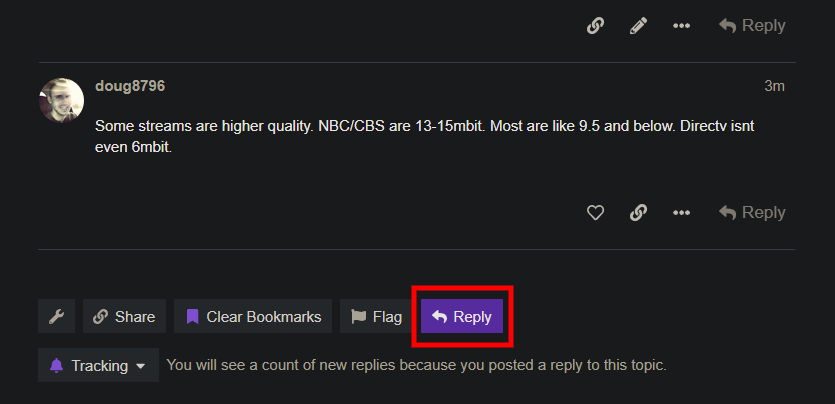
@doug8796 When you're posting a message on a thread that's not intended as a reply to the previous post, be sure to use the button highlighted in red. If you use the reply button in the previous message, that person gets a notification, which in the above message (and several others where I'm the previous poster) is not what you're intending:
1 Like
Apologies - I was somewhat responding to you as the variables seem to have a lower bitrate than they could for NBC and other high quality sources. I wish it could just differ to the js file.
Alright I think we're in business! I did things exactly how you stated this time and now all seems good! I did multiple reboots of the server and everytime it came back up, the cc4c container loaded normally and weatherscan and my various live web cams all load in channels just fine! So I won't hold my breath...lol! but this time it seems the solution may have finally worked! Thank you for all your help and hard work!
2 Likes
I am running into this same issue. I think I see that fixes were pushed to github and docker. I just installed the docker container hours ago. A thorough readthrough of this tells me that all proposed fixes apply to non-container versions (i.e. install a different version of Chrome...
(To clarify, my issue is the Chrome extension business:
179 |                     ensureNewDocumentNavigation = !!response.loaderId;
180 |                     if (response.errorText === 'net::ERR_HTTP_RESPONSE_CODE_FAILURE') {
181 |                         return null;
182 |                     }
183 |                     return response.errorText
184 |                         ? new Error(`${response.errorText} at ${url}`)
                                ^
error: net::ERR_BLOCKED_BY_CLIENT at chrome-extension://jjndjgheafjngoipoacpjgeicjeomjli/options.html#55200
      at navigate (/home/chrome/node_modules/puppeteer-core/lib/cjs/puppeteer/cdp/Frame.js:184:27)
[2025/09/09 17:14:27.694] New target page created: about:blank
Bun v1.2.21 (Linux x64 baseline)

Cleaning up...
Perhaps I could execute a Chrome reinstall using a docker exec command. Worth trying.
@tmm1 Just submitted a PR to fancybits/chrome-capture-for-channels that updates the build to use node:lts-bookworm-slim since bullseye is now oldoldstable. Resolved an issue with .X99-lock being held over on restart/reboot, plus better test for /dev/dri/renderD128 including group change to render.
README.md updated with a docker run command including env vars for settings and required Docker Volumes for maintaining site login info and other Chrome settings across deployments. Also, sample yaml and env var files for use with Portainer or Docker Compose.
Currently built and tested as bnhf/cc4c:latest
EDIT: BTW, something is amiss with the current fancybits/chrome-capture-for-channels:latest on Docker Hub, as it still exhibits the Puppeteer browser extension issue. However, I built with the current (pre-PR) codebase in the repo as a test, and it worked fine -- so something was up with the build process.
1 Like
Until a new fancybits build gets pushed to Docker Hub, you can use bnhf/cc4c:latest. Be sure to use either the full docker run command that was just merged into the fancybits repo (changing the image name), or better yet, use the Docker Compose YAML with separate env vars in Portainer:
1 Like
Thanks. Still not working. Currently still getting:
183 |                     return response.errorText
184 |                         ? new Error(`${response.errorText} at ${url}`)
                               ^
error: net::ERR_BLOCKED_BY_CLIENT at chrome-extension://jjndjgheafjngoipoacpjgeicjeomjli/options.html#55200
      at navigate (/home/chrome/node_modules/puppeteer-core/lib/cjs/puppeteer/cdp/Frame.js:184:27)
[2025/09/10 13:24:44.846] New target page created: about:blank
I tried many things, but for my last attempt to ensure nothing hanging around:
- Dropped my container,
- Dropped both your and fancybit's images
- Ran the RUN command from your PR, to whit:
sudo docker run -d --name cc4c --shm-size=1g -p 5589:5589 -p 5900:5900 -e HOST_VNC_PORT=5900 -e VIDEO_BITRATE=9500000 -e AUDIO_BITRATE=256000 -e FRAMERATE=30 -e CC4C_PORT=5589 -e VIDEO_WIDTH=1920 -e VIDEO_HEIGHT=1080 -e VIDEO_CODEC=h264_vaapi -e AUDIO_CODEC=aac -e TZ=US/Eastern -v cookies:/home/chrome/chromedata/Default/Cookies -v logins:/home/chrome/chromedata/Default/Login\ Data -v localstorage:/home/chrome/chromedata/Default/Local\ Storage -v prefs:/home/chrome/chromedata/Default/Preferences -v secure:/home/chrome/chromedata/Default/Secure\ Preferences --restart unless-stopped bnhf/cc4c:latest
- Re-enabled the source and tried to view, didn't work, got the message above.
Could you post the whole log please from container start, to after one failed virtual tune?