Customize Channel Order in Guide - messy exhaustion

Current and only way I've found to customize channel order of the Guide (sigh):

  1. Go to Server, to Settings, to Sources, and under each source choose Manage Lineup, then mark EVERY active channel as a Favorite (click the heart)
  2. Go to Channels app, to On Now, then navigate to Favorites, then highlight a channel you want to move, then click and hold on the individual channel until a menu pops up, then choose Rearrange Channels, then click the channel and move it, then click the channel again, then click the back arrow to stop the rearrange process, then do this again a thousand more times until all of your channels are in the order you wish, then take a long nap.
  3. Remember you must toggle to view Favorites in the Guide in order to see the Guide in custom order...

(And if I'm correct, this must be done PER DEVICE)

Really??

Here's how it should work:

Go to Server, Live TV, Guide, click Reorder, click to select a channel, click the up or down arrow to move the selected channel. Do this for every channel you wish to move. Click done.

:blush:

Between DirecTV Stream, HDHomeRun, Stirr, Pluto, Cutt.ly, Plex and Tubi, there are almost 1,500 channels across all of my sources... There is NO WAY I would try to customize my guide with the current method. Nor am I happy with having to import into a 3rd party editor when Channels should be able to do this so conveniently.... I am hopeful the devs will see this and help us to clean up the process. :slight_smile:

1 Like

Sounds like you haven’t yet discovered the awesome “Channel Collections” feature which makes this much, much easier.

I use this to customize channel order in various collections, including one called Favorites.

3 Likes

This is the way.

2 Likes

I appreciate the reply. I think half of my original concern is about what's intuitive.

With help (and only with help), I was made aware of Channel Collections. However, even after creating one and becoming frustrated that it still didn't show up in the Guide, I searched some more and found that you have to create a Client Setting and add Channel Collections in order for them to show up.

I don't mean to sound grumpy... I'm not. I am just trying to point out some concerns that, again, should help to make things even better.

Solution? Give people Custom Channel Order in Guide as an option, and also give people the ability to create Channel Collections (which should be a total replacement to Favorites... having both Channel Collections and Favorites seems unnecessary now).

One last thought: You currently can't customize the order of Channel Collections. It seems they show up in order based on when they were created...

You can add the collections to the client setting in the order you want them to appear

@tmm1 Oh yea how? Because the only way I’ve seen is that they appear in the order created.

Channel Collections appear in the order they are added to the server side setting. Just choose them in the order you want them to appear.

They are not ordered by the order in which the Channel Collections were actually created.

Thanks, ok I got it now. Weird thought process, but fragments of progress - all over the place. I just have to dig deeper next time...

@AeroR1 ... @maddox means you actually have to choose the order by toggling them from Available to Selected in the order you want them to appear, in the Client Settings rule - not in Channel Collections where the collections themselves live (again sigh :thinking: ).

2 Likes

Within a "Collections", see below
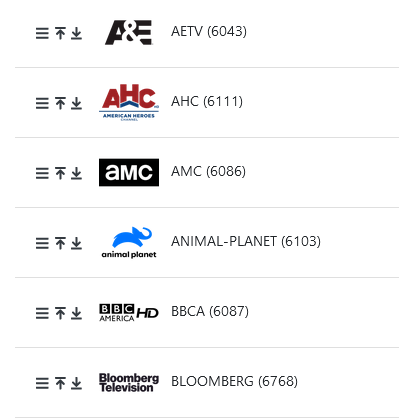
See the Hamburger symbol, 3 horizontal lines to the left of the Channel logo,
. Click and hold that and move the channel up and down to wherever you want it.
NOTE: The move may be limited by what's on the current screen, it does not seem to scroll.
Change the screens % Zoom level to see more rows per screen.
See the little Up arrow, Click to move the channel to the TOP
See the little Down arrow, Click to move the channel to the BOTTOM.
What I did:
Channel Name order on the full list.
Then Moved my favorites to the Top with the Up arrow
Then rearranged that short favorites list at the top with the hamburger symbol
End result: Favorites at the top in the order I want, the remaining are in Channel name order

image

I noticed that too… Regardless of browser, it did this, and took quite a long time (hours) to move so many channels into customized order. I’m glad I only had to make one collection…

This is not what is being talked about.

The order where you make them has zero value. There’s no point to ordering them there as they are applied with the setting.

There are many Channel Collections that may only be applied at certain times I’d the year, or never at all. Some might only exist for a specific client.

So, their order there just has no point. The order is done where you apply them.

maddox
"The order where you make them has zero value. There’s no point to ordering them there as they are applied with the setting."
.
Hmmm, maybe a misunderstanding.
After I create a Collection and go to Channel Collections under Live TV on the localhost Server, and select it
Lets say it is called "My All", I can go in and set "Sort by" to Channel Name or Channel number.
Then I can use those buttons I mentioned to rearrange them further.
Then when I push "My All" to selected Clients, the order is as I arranged them in the Collection.

You're speaking about the order of the channels. I was speaking of the order of the collections.

1 Like

That's what I suspected.
I have never figured out what meaningful significance there is to the order of the Collections,
I have seen it pop up in discussions.

1 Like

@Flt505 Since I've learned that channel list order can be reorganized with Channel Collections, not the Guide itself, it made sense to create a Collection of all channels as the default. But then later, I plan to create more collections of just movie channels, sports or news channels, or just networks, etc.

The order is important to me because I would always want my "all channels" collection to appear first.

You can reorder the Channel Collections too. On the same settings page you used to add them in the first place. Select a Channel Collection to remove it, and then re-add each of them in whatever order you wish.

@maddox Thread can be closed. Thanks everyone.

You can get it to scroll. Just left click the hamburger and hold and use the PgUp/PgDn or the arrow keys. It is not documented, just something I figured out.

1 Like