
I just switched back from a Ubuntu mini pc, and now this is all that comes up when I go to the web address. What happened?
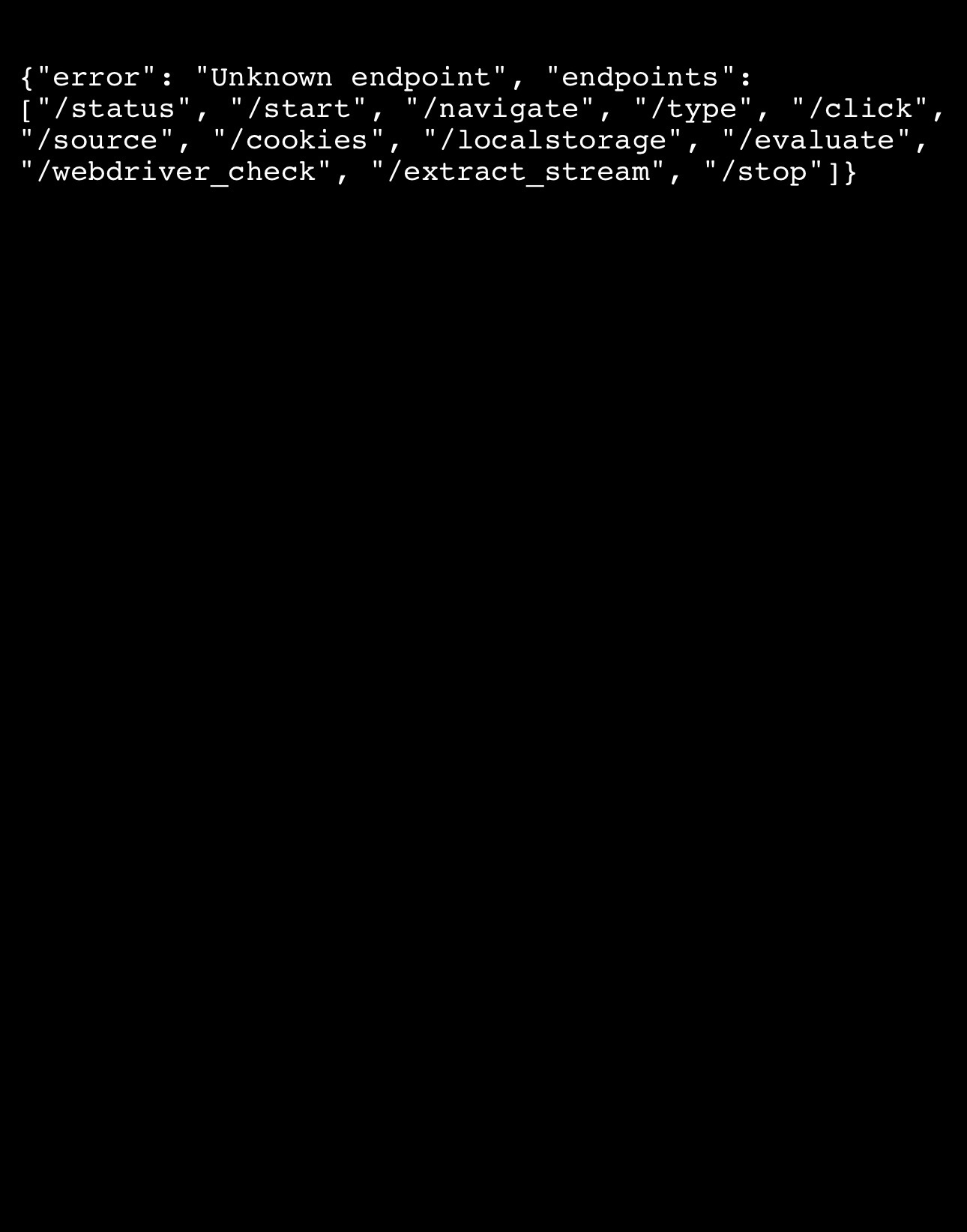
This is not from the DVR, there must be something else on your NAS using 8089
It seems like everything was showing fine until I restored it.
I seems you're right. I thought it may have been reserved in the router, but removing that didn't work. How can I tell what's using that port?
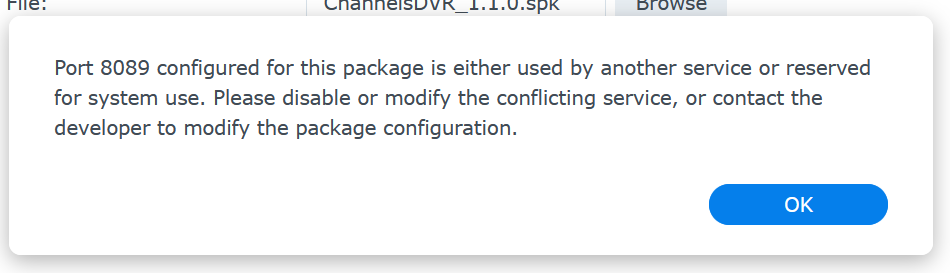
ssh in to your Synology and run this
netstat -plnt
In the results, look for port :8089 in the Local Address column
The PID and Program listening on that port appears in the column PID/Program name
Proto Recv-Q Send-Q Local Address           Foreign Address         State       PID/Program name
tcp6       0      0 :::8089                 :::*                    LISTEN      22530/../latest/cha
tcp 0 0 0.0.0.0:8089 0.0.0.0:* LISTEN -
Looks like nothing?
Try running it with sudo
sudo netstat -plnt
Sorry, I knew that..
24221/stealth_brows
1 Like
I'm assuming you know what that program is
Nope I don’t. I only have a few things installed via docker and stealth browser is not one of them, if that’s what it is.
1 Like
This might help identify what it is.
Find listening ports
sudo netstat -plnt
Active Internet connections (only servers)
Proto Recv-Q Send-Q Local Address           Foreign Address         State       PID/Program name
tcp6       0      0 :::8089                 :::*                    LISTEN      22530/../latest/cha
Find process ID 22530 and parent process ID's
sudo ps -DefFl
F S UID        PID  PPID  C PRI  NI ADDR SZ WCHAN    RSS PSR STIME TTY          TIME CMD
0 S root     22481     1  0  80   0 - 180560 futex_ 3604   3 Apr27 ?        00:04:36 /volume1/@appstore/ContainerManager/usr/bin/containerd-shim-runc-v2 -namespace moby -id 339c34bcba610c61550294c45b6812733bda395eef0e34d649d5c2c11e4300b6
4 S root     22500 22481  0  80   0 -   213 do_sig     0   1 Apr27 ?        00:00:54 /sbin/tini -- /bin/sh -c ./run.sh
4 S root     22530 22500  0  80   0 - 635840 futex_ 66312  3 Apr27 ?        06:30:45 ../latest/channels-dvr -dir /channels-dvr/data -port 8089
PID 22530 was launched by PID 22500 that was launched by PID 22481 that was launched by PID 1.
Did you figure out what was listening on port 8089
I’ve been looking and I can’t figure it out, I have no clue.
Don’t know your setup but here's some things to try.
I’d stop all containers from running.
Go to Package center and check your installed packages.
Are you installing natively or in docker? I used the package installer on both of my Synology (218+ & 220+).
From a search on DDG,
Steps to Remove StealthBrowse from Synology NAS
Uninstall via Package Center
- Open Package Center: Log into your Synology NAS and navigate to the Package Center.
- Locate StealthBrowse: Search for StealthBrowse in the installed packages list.
- Uninstall: Click on the package and select the uninstall option.
Uninstall via Command Line
If StealthBrowse is not listed in the Package Center, you can use the command line:
- Access SSH: Connect to your NAS using SSH. You may need to enable SSH in the Control Panel under Terminal & SNMP.
- Run Uninstall Command: Use the following command to remove StealthBrowse:
sudo synopkg uninstall StealthBrowse
Factory Reset (Last Resort)
If you are unable to remove StealthBrowse through the above methods, consider resetting your NAS to factory settings. This will erase all data, so ensure you have backups before proceeding.
- Backup Data: Ensure all important data is backed up.
- Reset NAS: Follow the instructions in the Synology user manual to perform a factory reset.
By following these steps, you should be able to successfully remove StealthBrowse from your Synology NAS.
Did you get the name of the process listening on port 8089?
1 Like
I thought you had it here, but none of them worked. I'll probably have to reset the damn thing at this point.
stealth_browser_api.bin
Here’s some other things a DDG search said to try.
To remove the stealth_browser_api.bin file from your Synology device, you can use the File Station application to locate the file and delete it. Make sure to check if the file is in use before deletion to avoid any issues.
Steps to Remove stealth_browser_api.bin from Synology
Using File Station
- Open File Station: Launch the File Station application on your Synology device.
- Locate the File: Navigate through the directories to find the stealth_browser_api.bin file.
- Check File Usage: Before deleting, ensure that the file is not currently in use. This helps prevent any potential issues.
- Delete the File:
- Right-click on the stealth_browser_api.bin file.
- Select the "Delete" option from the context menu.
- Confirm Deletion: Follow any prompts to confirm that you want to delete the file.
Important Considerations
- Backup Important Data: Always consider backing up important files before deletion.
- System Impact: Deleting system files may affect the functionality of certain applications. Ensure that you understand the implications of removing this file.
By following these steps, you can successfully remove the stealth_browser_api.bin file from your Synology device.
Run the Synology Security Advisor
https://kb.synology.com/en-br/DSM/help/DSM/SecurityScan/securityscan_overview?version=7
Could not be found in any directory, it seems to be hidden somewhere, I’ll have to do a deeper search.