Cool, good to know! I was just copying the PNGs I wanted to use into the organizr/www/organizr/plugins/images/tabs directory, which also worked fine.
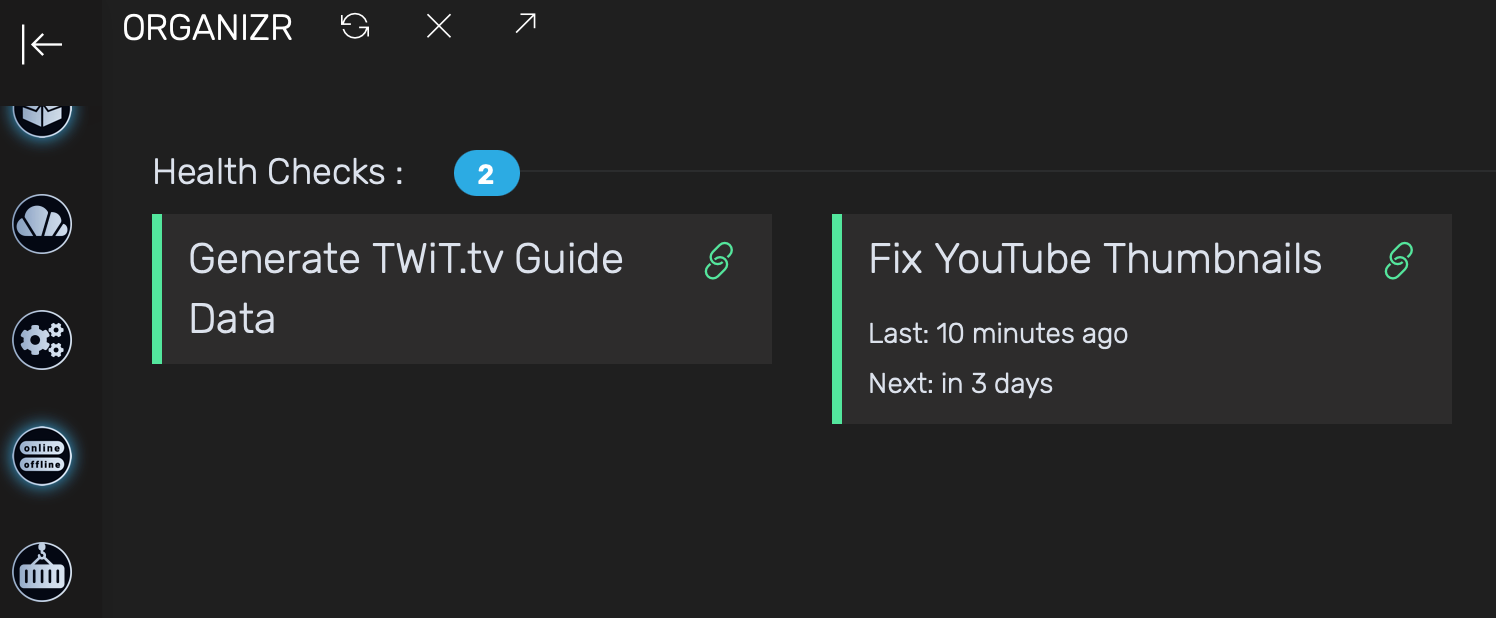
I also like the Healthchecks.io plugin, I got it integrated into an Organizr "home page:"

Cool, good to know! I was just copying the PNGs I wanted to use into the organizr/www/organizr/plugins/images/tabs directory, which also worked fine.
I also like the Healthchecks.io plugin, I got it integrated into an Organizr "home page:"
Ha! And I'd figured you chose it specifically because of its slick integration with Organizr. 
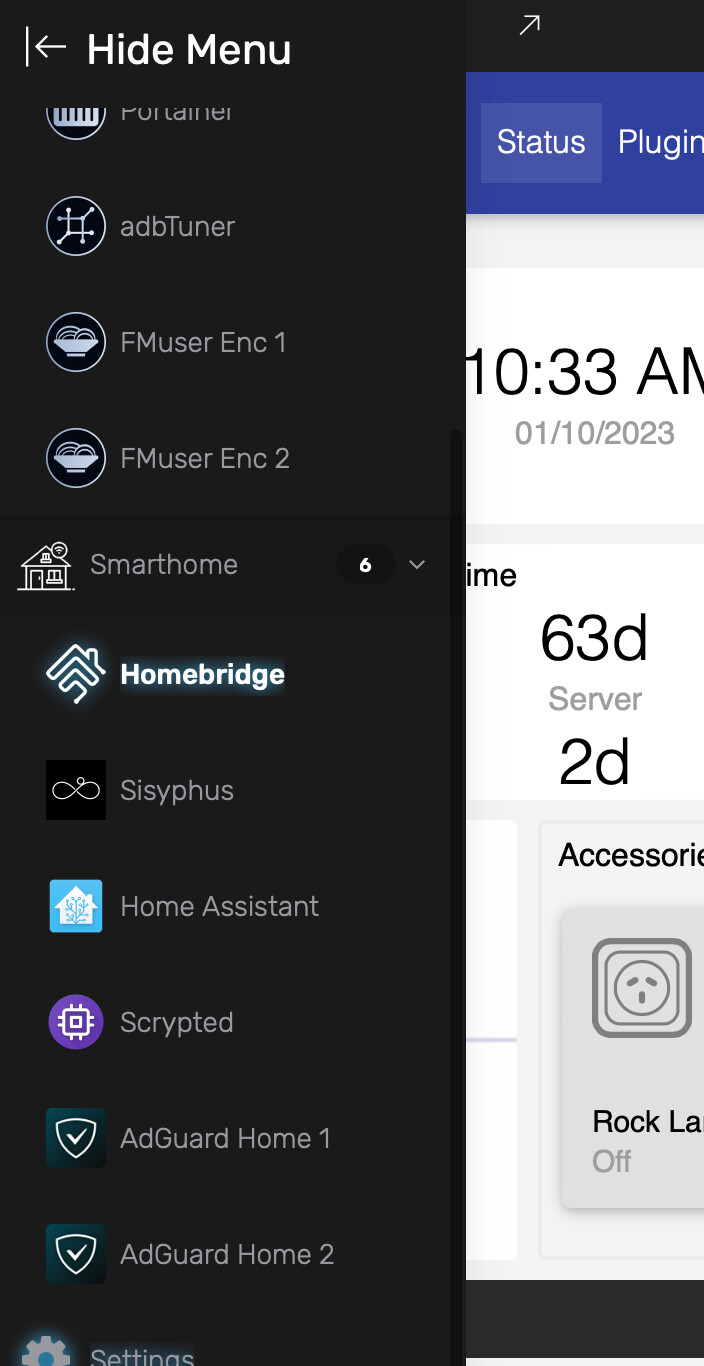
Organizr really is a great and thoughtful tool. I added bookmarks for other smarthome server stuff that I monitor and manage, into a category of its own.
All of these used to be in a bookmark group that would open many browser tabs. This "unified dashboard" approach is much more appealing.
I have several additional recommendations for Organizr-based toolkits (utilizing Docker via Portainer of course ):
These are utilities you may be using already, but running them via a WebUI makes them very nice for remote use (especially via Tailscale).
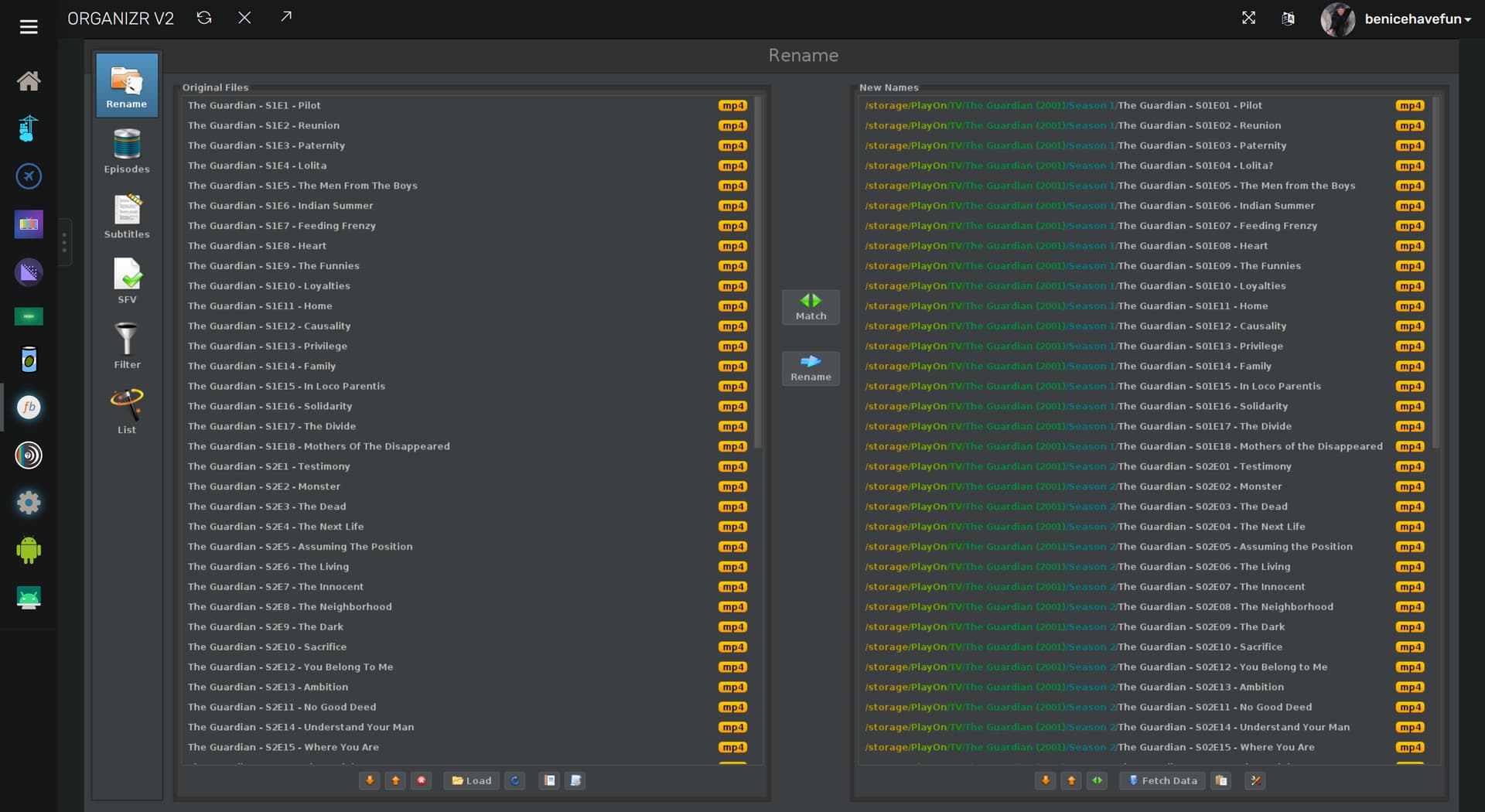
The first is FileBot, which is great for bulk file renaming:
Here's my recommended docker-compose:
version: '3.9'
services:
  filebot:
    image: jlesage/filebot:${TAG}
    container_name: filebot
    ports:
      - 5800:5800
    environment:
      - DARK_MODE=${DARK_MODE}
    volumes:
      - ${HOST_DIR}/filebot:/config:rw
      - ${DVR_SHARE}:/storage:rw
And, sample environment variables:
TAG=latest
DARK_MODE=1
HOST_DIR=/data
DVR_SHARE=/mnt/dvr
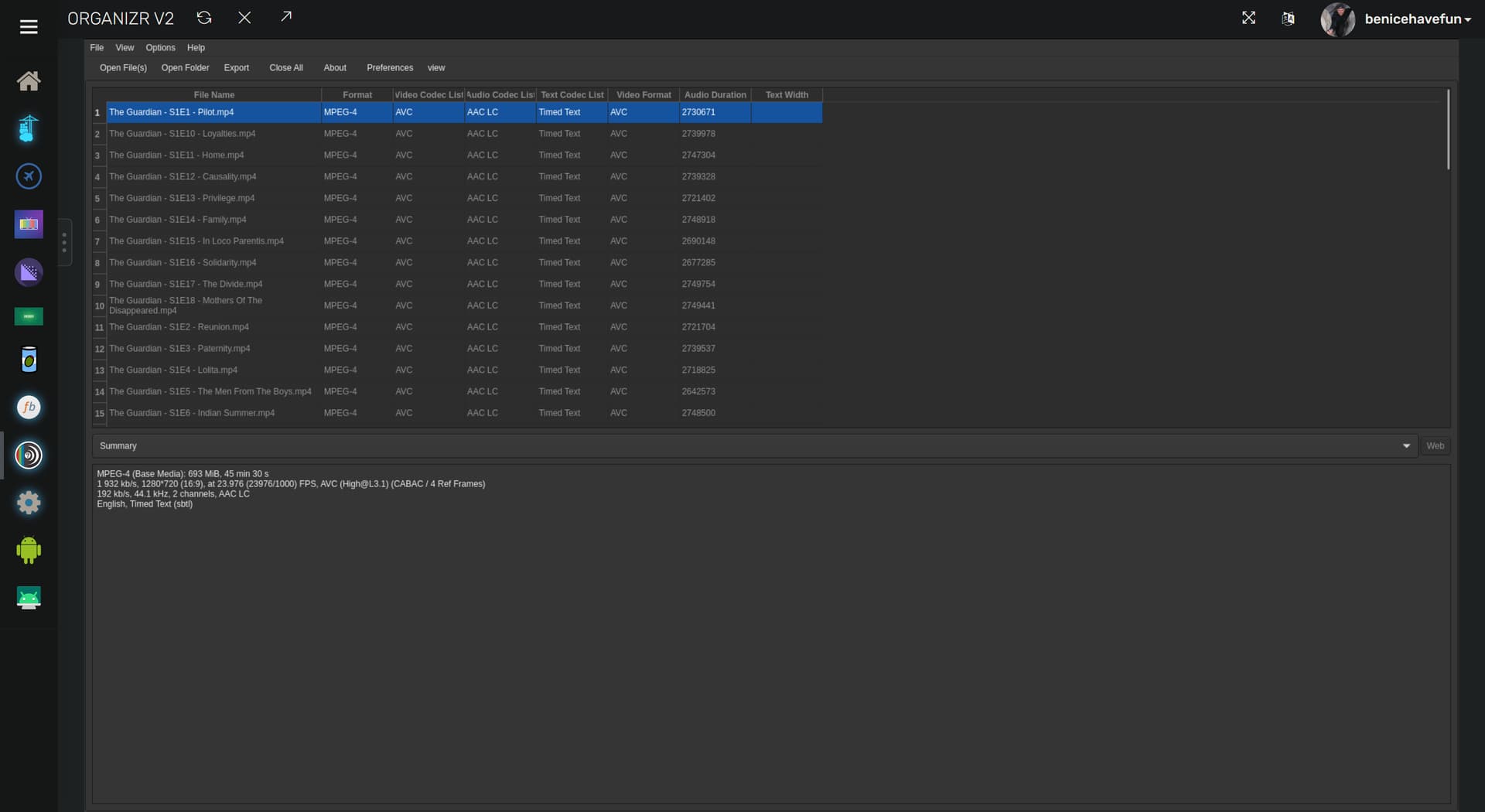
The second is MediaInfo, a well known and widely used program to list a wealth of details about a given video file:
docker-compose:
version: '3.9'
services:
  mediainfo:
    image: jlesage/mediainfo:${TAG}
    container_name: mediainfo
    ports:
      - 5801:5800
    environment:
      - DARK_MODE=${DARK_MODE}
    volumes:
      - ${HOST_DIR}/mediainfo:/config:rw
      - ${DVR_SHARE}:/storage:ro
environment sample:
TAG=latest
DARK_MODE=1
HOST_DIR=/data
DVR_SHARE=/mnt/dvr
Lastly, here are some good icon images for each you can upload to the Image Manager, since neither has stock Organizr icons:
FileBot:

MediaInfo:

If you're a regular Organizr user like me, you've probably run into a few WebUIs that don't work in an iFrame. This is often the result of X-Frame or Content-Security headers. I've implemented application-specific workarounds in the past, but these often only function until the next update to that software.
The most recent approach I'm using is the best yet, and it works everywhere -- at least for the WebUIs I want in Organizr, that have been challenging to get working. This approach uses the containerized version of Caddy, so it's easy to install and to use.
This is a reverse proxy approach, so you'll be making whatever WebUI available on a different port, in a form that can be used in an iFrame. Here's the Docker Compose, and a sample CaddyFile that needs to be placed in your bound directory:
version: '3.9'
services:
  caddy:
    # 2025.05.06
    # GitHub home for this project: https://github.com/caddyserver/caddy.
    # Docker container home for this project with setup instructions: https://hub.docker.com/_/caddy.
    image: caddy:${TAG:-latest} # Add the tag like latest or test to the environment variables below.
    container_name: caddy
    ports:
      - ${HOST_PORT}:${CADDY_PORT} # Reverse proxy port defined in Caddyfile.
    volumes:
      - ${HOST_DIR:-/data}/caddy/Caddyfile:/etc/caddy/Caddyfile # Add the parent directory on your Docker host you'd like to use.
    #extra_hosts:
      #- host.docker.internal:172.17.0.1 # host.docker.internal is generally not predefined on Linux hosts.
    restart: unless-stopped
Sample env vars:
TAG=latest
HOST_PORT=8020
CADDY_PORT=8020
HOST_DIR=/data
And, a sample Caddyfile:
:8020

  reverse_proxy http://host.docker.internal:8010 {
    header_down -X-Frame-Options
    header_down -Content-Security-Policy
    header_down Content-Security-Policy "frame-ancestors *"
}
Happy Organizring!
I really hate to ask this question, because I always struggle mightily with networking between my nas/containers/local/remote stuff. But I love using organizr while I'm at home on my local network, and yet I just can't seem to make it work connecting remotely over tailscale. The gist of the issue is that I can see the organizr homepage just fine while connecting remotely over tailscale, but I can't seem to get any of the tabs to connect to the right ip address no matter how I set it up.
For example, my local NAS IP address is 192.168.4.20, and I'm running organizr on port 8055, so when at home I can just go to 192.168.4.20:8055, and I can access all of my webui's without issue (whether they are set as the "tab URL" or "tab local URL"). But when I am connected remote over tailscale, I can see organizer at "http://my_nas_tailscale_ip:8055", but now none of the tabs will work. And this is with setting the same IP for the "tab URL" as the one I connect to for organizr. And if I hit the little diagonal arrow to pop out that tab, it always redirects to the tab local URL, even when I am remote. Can anyone point me in the correct direction at all?
Tailscale is at its best when it's installed everywhere you can, as this way whether you're home or away you can use MagicDNS and hostnames for everything (little or no need to use IP addresses, especially not two different IP addresses for local or Tailnet).
But whether you use MagicDNS or not, you should be able to do what you're after. The first question is, do you have all your WebUIs setup to load in an iFrame?
The next is, can you give me some example URLs you're using in your Organizr tabs (maybe a screenshot or two)?
And the last is, do you have a subnet router setup on your Tailnet?
In your master Tailscale settings checkout a setting called subnet routes. Under machines in Tailscale settings choose your nas then edit route settings and enable subnets. Just use chatGTP if you run into problems.
What this does, when your nas is advertising its subnet you will be able to use your local LAN ip and/or the tailnet ip addresses to reach any device on your LAN from your remote device. This includes devices that do not have tailscale installed on them for example Hdhomerun, printers, iot.
Once setup you would use local 192.168.4.20:8055 even when remoting in from a Tailscale connected device.
I guess I would be a little concerned about exposing my entire LAN to the outside world. I'm not as worried about my NAS, because it really only contains things I'm not worried too much about, such as Channels, Plex, *arr stuff. And I'm obviously not great at the network security stuff.
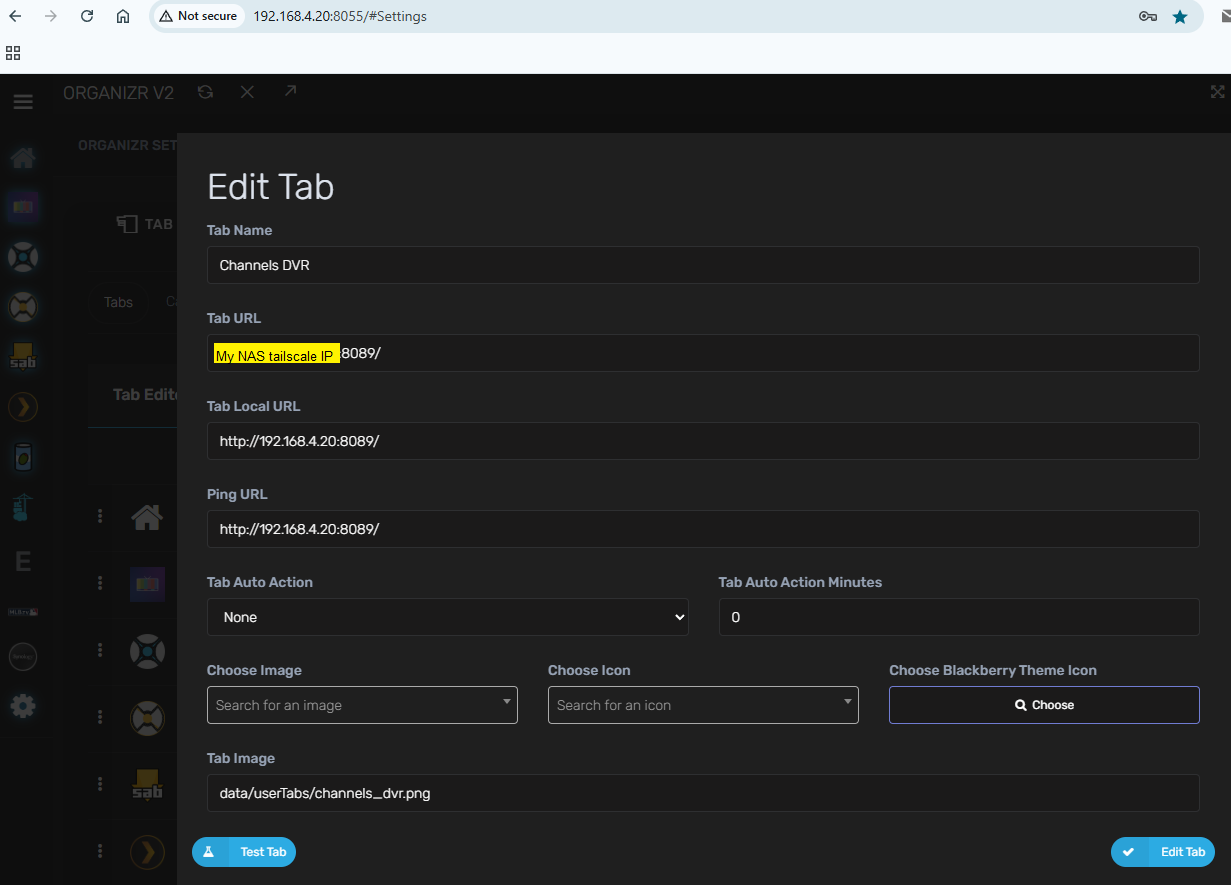
To answer bnhf's question, yes I have everything set up in iFrames. But I am not using magicDNS. Here is a screenshot of my setup for the Channels DVR tab. I have the other tabs set up similarly.
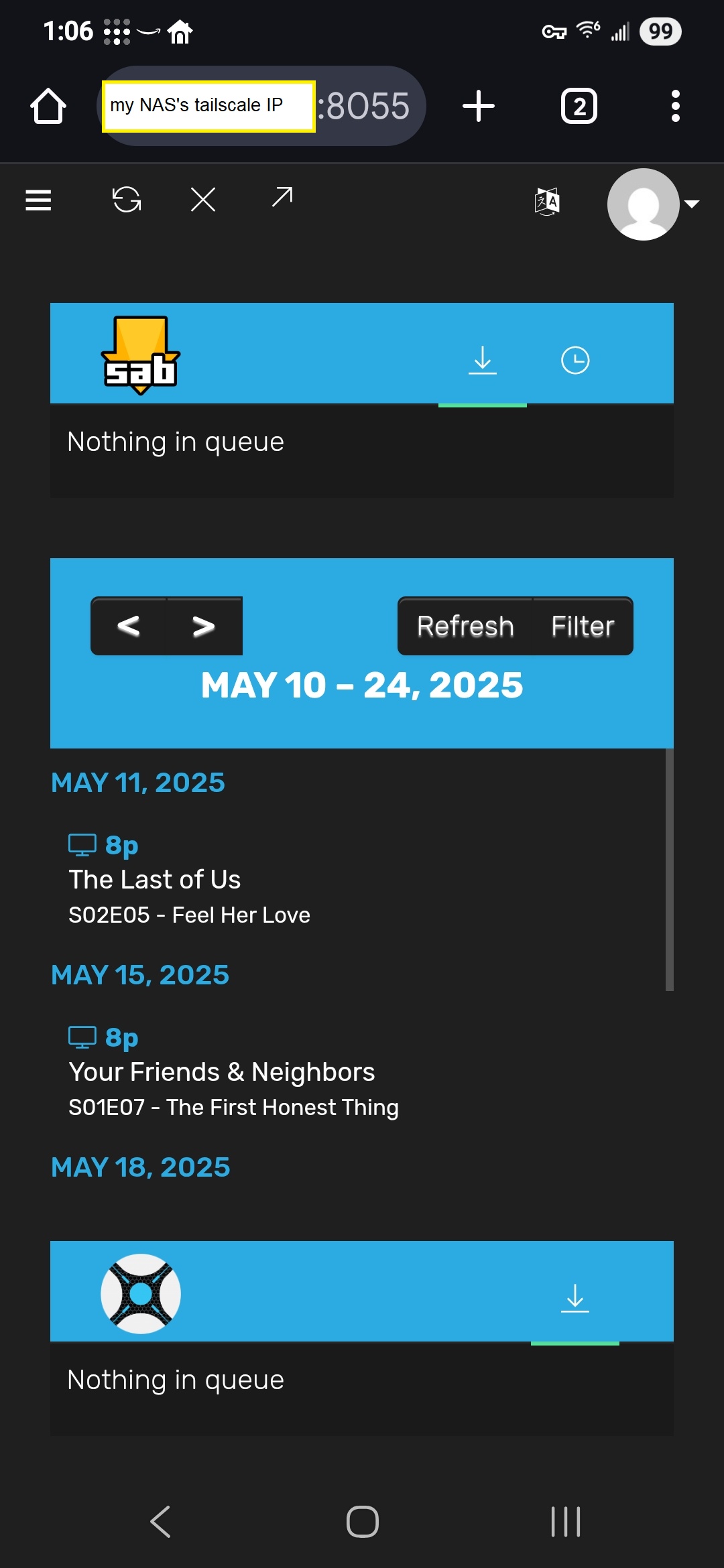
So, when I connect to the tailscale network remotely on my phone, I can access the homepage of organizr just fine by using my tailscale IP for my nas on port 8055. Like so:
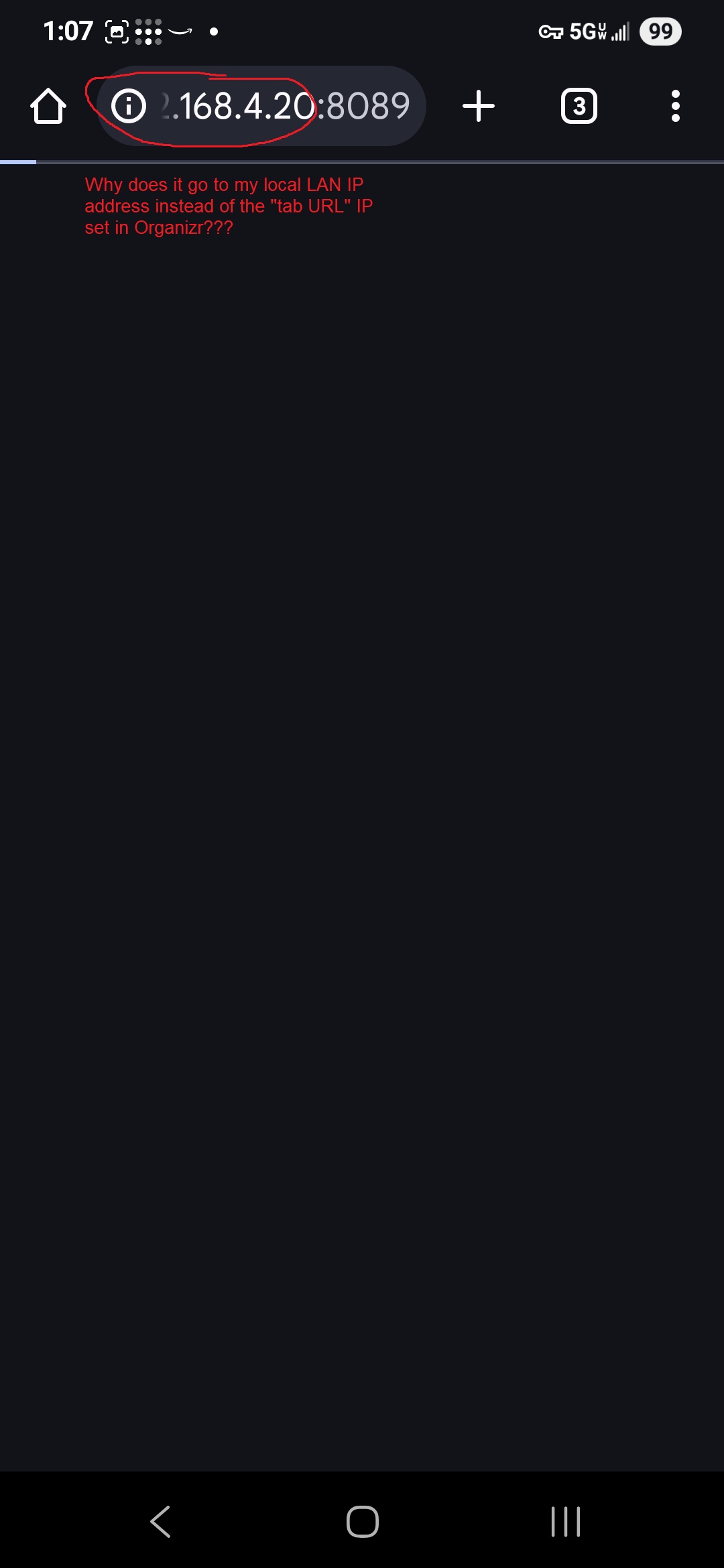
But when I hit any of the tabs, I just get a black screen. And when I hit the little "popout" button, it tries to connect to my local IP instead of the tailscale one. I should also note that I can still remotely connect to Channels DVR outside of Organizr at this same point by just going to "my_NAS_tailscale_IP:8089". I just can't seem to get that redirection to work properly inside of Organizr.
I'd try removing the Tab Local URL and Ping URL values -- leave both blank. Organizr probably thinks you're local even when you're not. As long as you're using iFrames, and your NAS is using Tailscale, those 100.x.x.x IPs should work even when you're accessing Organizr from non-Tailscale nodes on your LAN.
Organizr have that bizarre bug in there for some reason. I too had to remove local url from there. I use tailscale to access that anyways so it's not too bad...
Thanks for the help. It now seems to work correctly for connecting remotely. It still wouldn't work on my local network on devices without tailscale, but after installing tailscale on the pc I use most frequently it now works there too. So I guess I'll call that good enough, and once again I really appreciate the help.
Ya that’s not what happens. Only devices authorized to your Tailscale can reach your LAN but whatever you feel comfortable with.
Ya that’s not what happens. Only devices authorized to your Tailscale can reach your LAN
Thanks for this. I ended up going with your method of setting up the subnet routing, as I was still having some other issues. It took a few tries to find the right way to set it up in the NAS. But I was able to get there eventually mostly following this info from Tailscale on setting it up. Seems like everything works great now. And once again, I really appreciate those of you who took the time to help me out.
So, not sure what I am missing and I am sure there is something I am doing wrong on the setup step in the webui or something else I am supposed to add in the docker compose?
If I set it up and then restart docker fully or restart my computer that docker is running on, the data doesn't persist. I tried looking it up online but I don't really see any documentation for this after it's initially setup. So, basically, if I setup everything after I restart docker I have to do the whole setup in the webui again.
I have tried two methods of setting this up - using project one-click in Olivetin and directly installing in Portainer with the docker compose at the top of the page.
The most likely thing with what you're describing is that your HOST_DIR value isn't valid. This is a parent directory for sub-directory called organizr, and that parent must be a valid, writable location.
Ok. No idea where to find that.
What OS does your Docker host run?
EDIT: I see in the YouTub3r thread that you're running Windows.
@jasonmcroy In the Windows world, you can use either Linux paths (if you have a WSL Linux distro installed -- like Debian or Ubuntu) or Windows paths. Ideally you do, but some people don't, and others are using Windows 10 still where Docker Desktop WSL integration can become corrupted.
So, if HOST_DIR=/data isn't working, you can use a Windows path. Usually, you can set this value to same one you used for OliveTin, then under that parent you'll have one directory called olivetin and another called organizr.