TuneShine lo-fi display

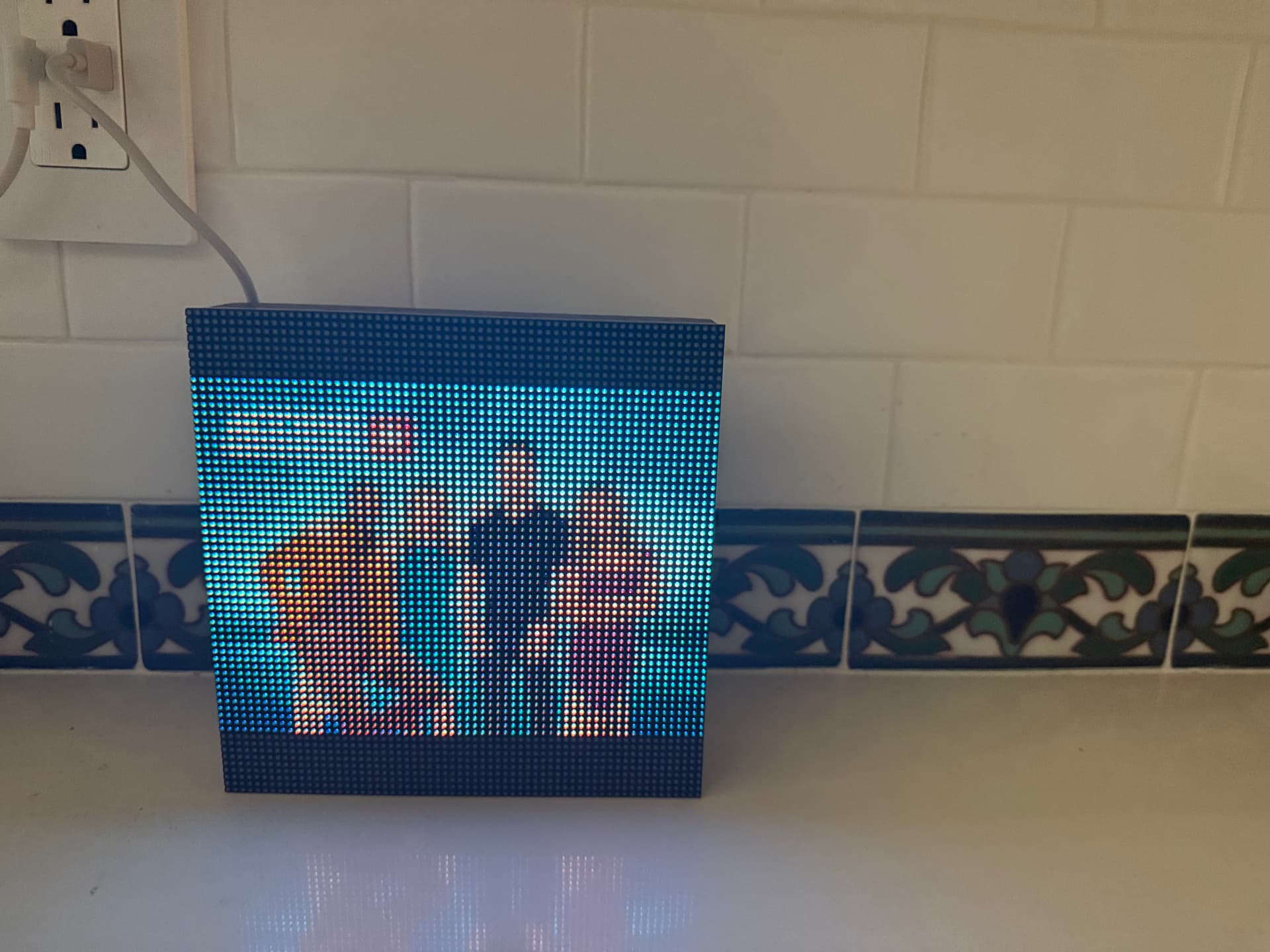
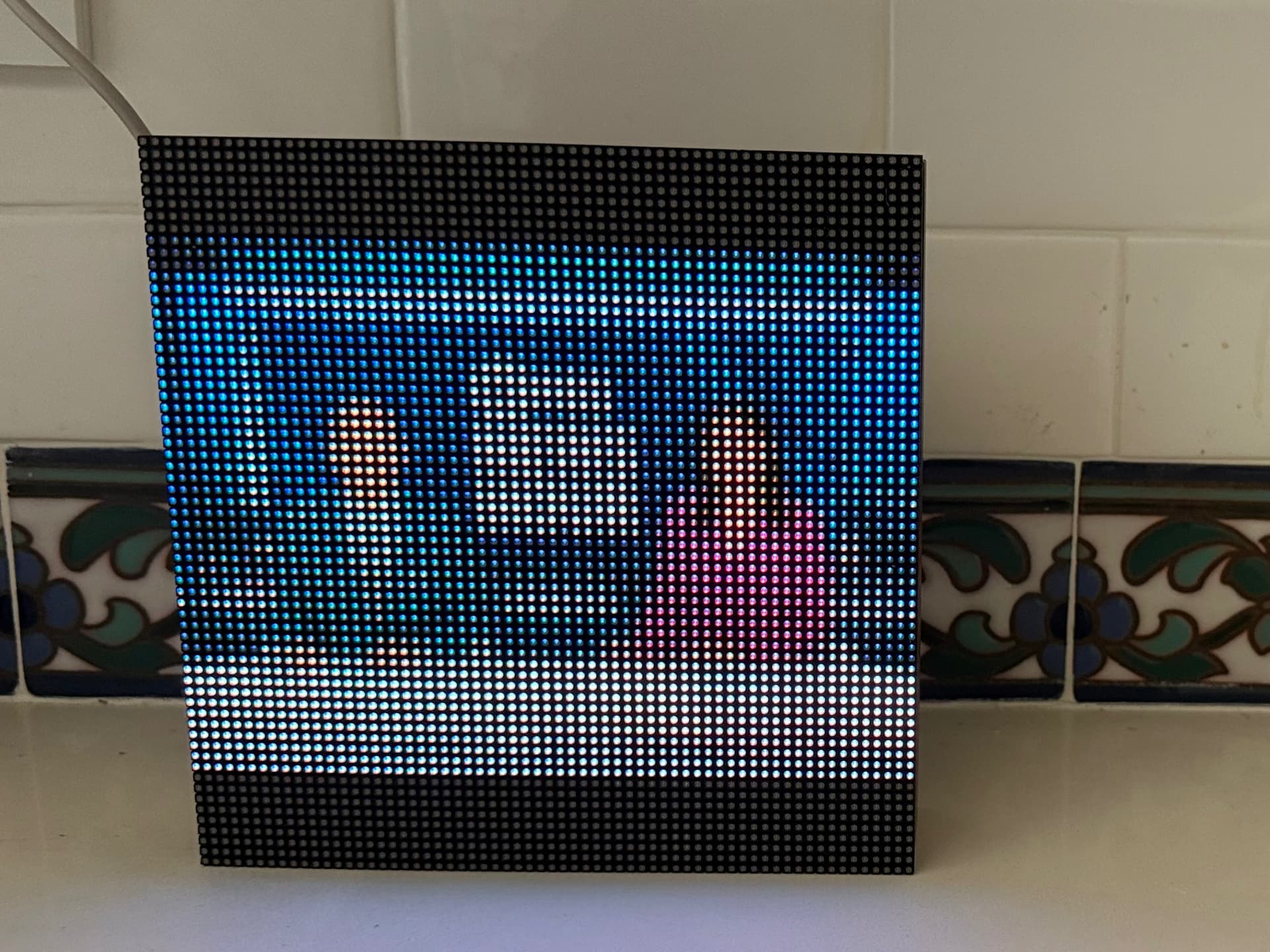
I’ve been enjoying this “lo-fi display” to bring album art back when we’re listening to music. It’s a fun gadget that looks nice and is built well, a unique conversation piece for the kitchen or living room.

I’m sharing here because Channels DVR sends metadata to my Sonos / AirPlay speakers that the TuneShine interacts with, so the artwork from the guide data for whatever we’re watching can display on the TuneShine too.


1 Like

That's very cool! I love my TuneShine, but I never thought to try it with Channels.

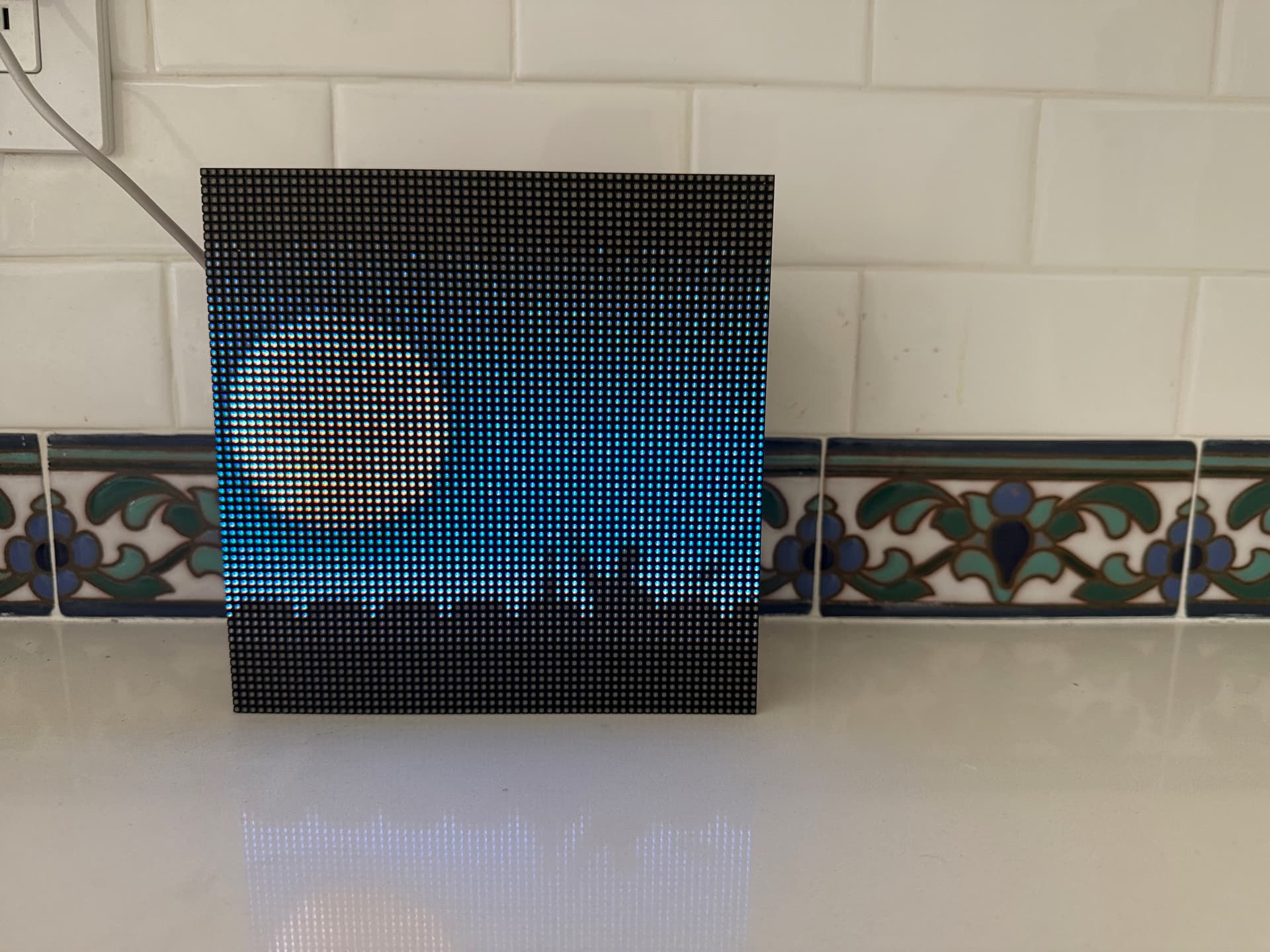
That’s great! Love to see it used in an unexpected way. Since it’s mostly just for album art, non square images are a bit unoptimized but as you can see they do still work and I tried to be thoughtful about how they work with the animations. Do you think having an option to crop instead of letterbox the images would be valuable?

2 Likes

Hi Tobias! :star_struck: Yes, I think the option to crop would be very welcome. I don’t mind the letterboxing myself but others may prefer a fuller screen.

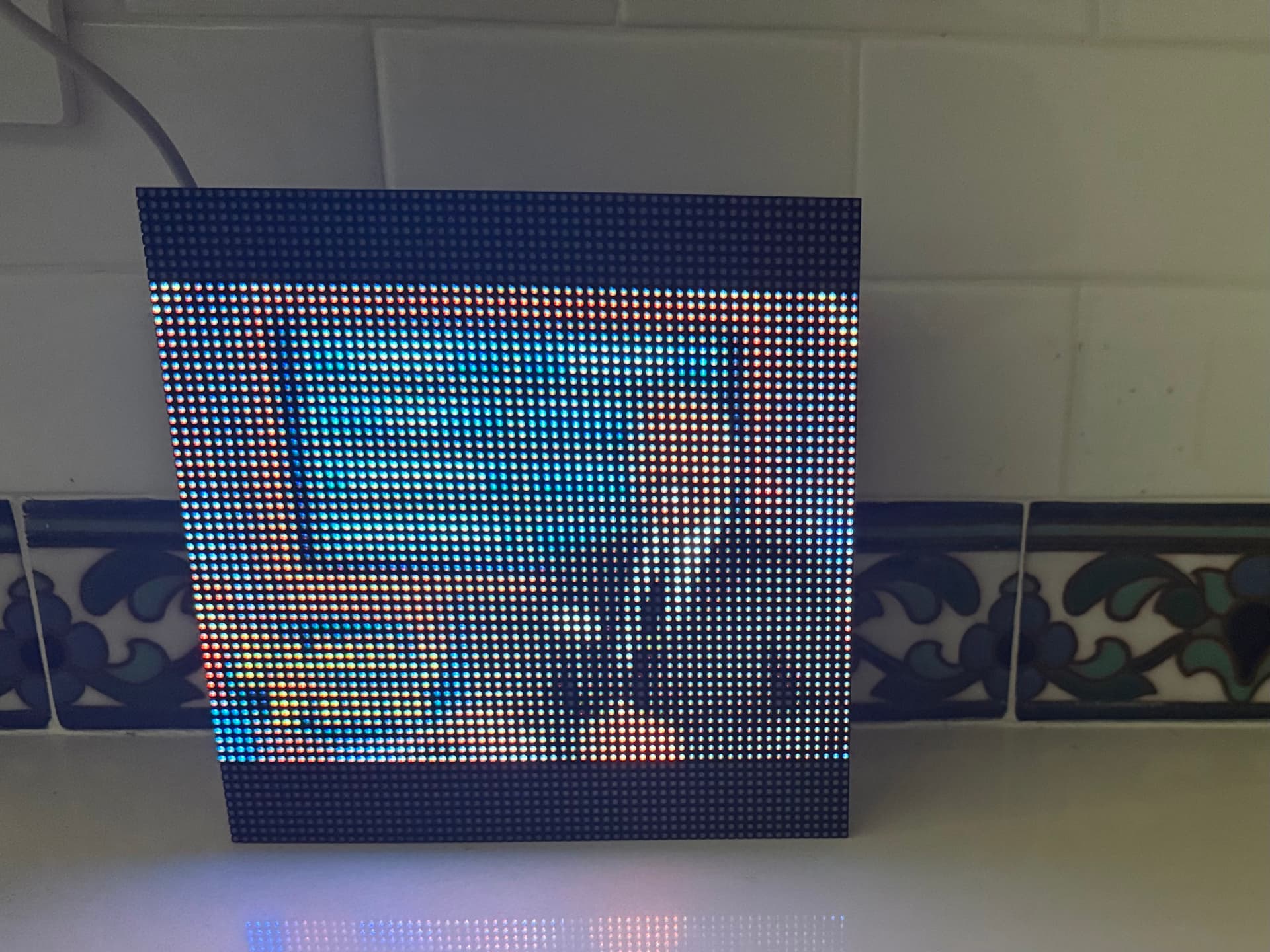
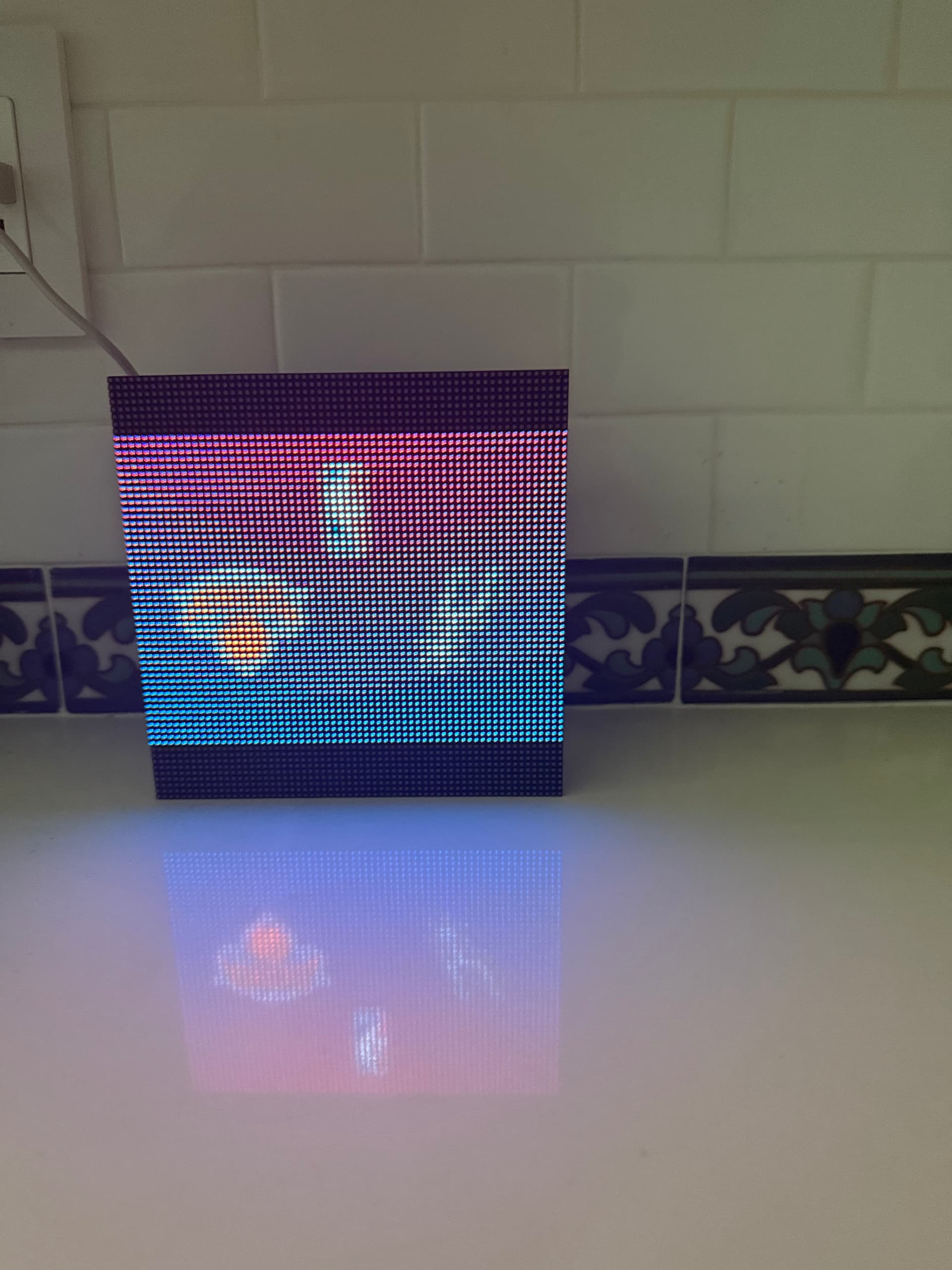
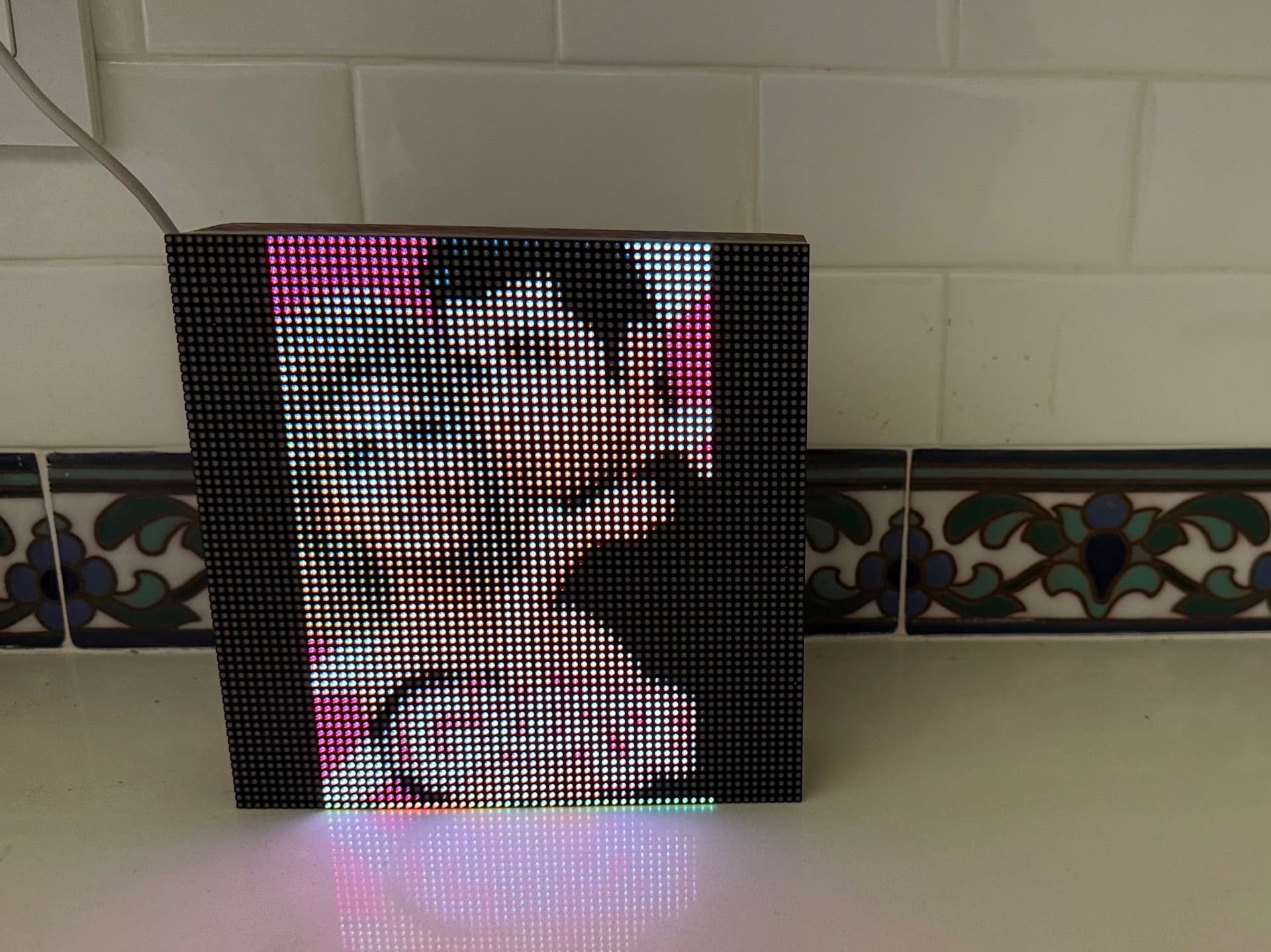
Movie posters from Gracenote ID’d channels look good too, with their vertical orientation:


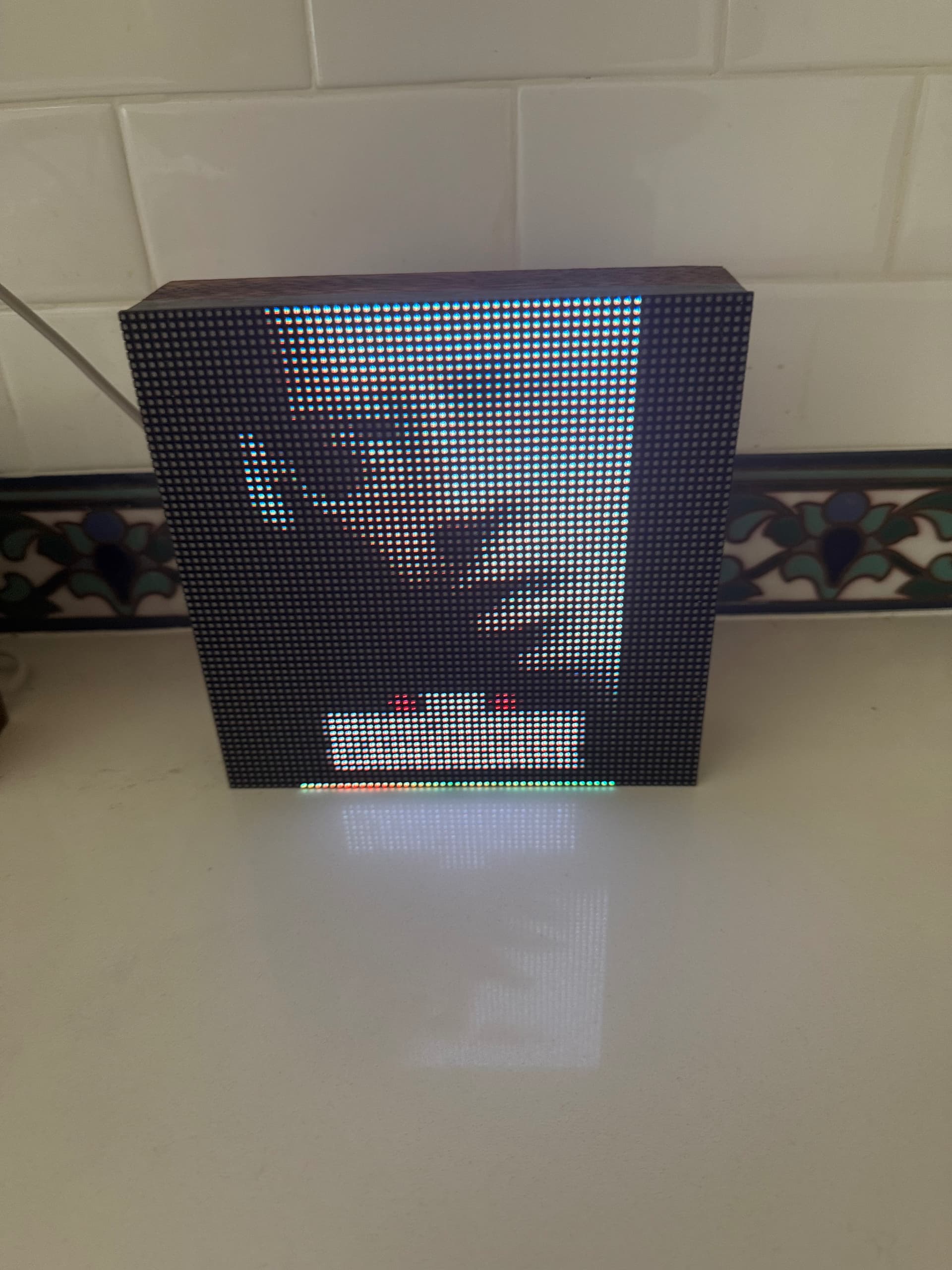
The one line all the way on the bottom seems glitched though, bright rainbow colors that don’t match up with the artwork. Can that be fixed?

I noticed something like this when testing AirPlay, and built in functionality to chop off the last row of pixels for non-square images to accommodate for it. Looks like in your case it’s affecting vertically-oriented images. I’m not sure if I’ll be able to create a Channels DVR setup to reproduce this, f you notice this happening, there’s a way you can send me the image so I can test it:

  • Go to your device settings and scroll down to “Device info”
  • Look for “hardware id” and note the last four alphanumeric digits (ignoring the colon in between)
  • In your browser’s address bar, type tuneshine-abcd.local/state , where abcd are the last four digits
  • In a few seconds, you’ll get back data about what the Tuneshine is showing, Look for where it says “imageUrl” and there should be a URL following it
  • Open that URL in your web browser, save the image, and send to me.

Awesome, thanks Tobias!

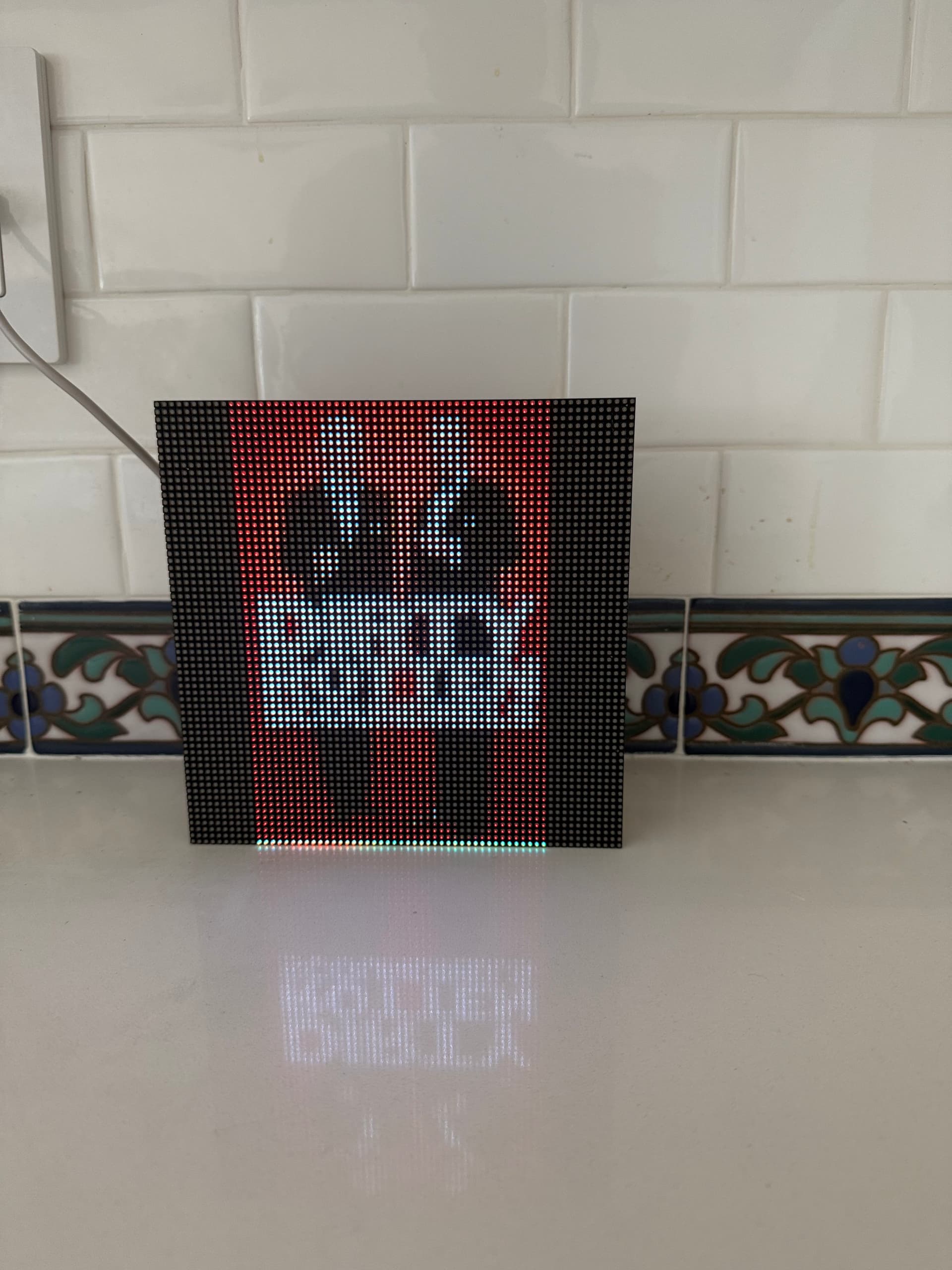
Here's an image from ImageUrl:

vs. what's displaying on the TuneShine:

Let me know if you need more samples.