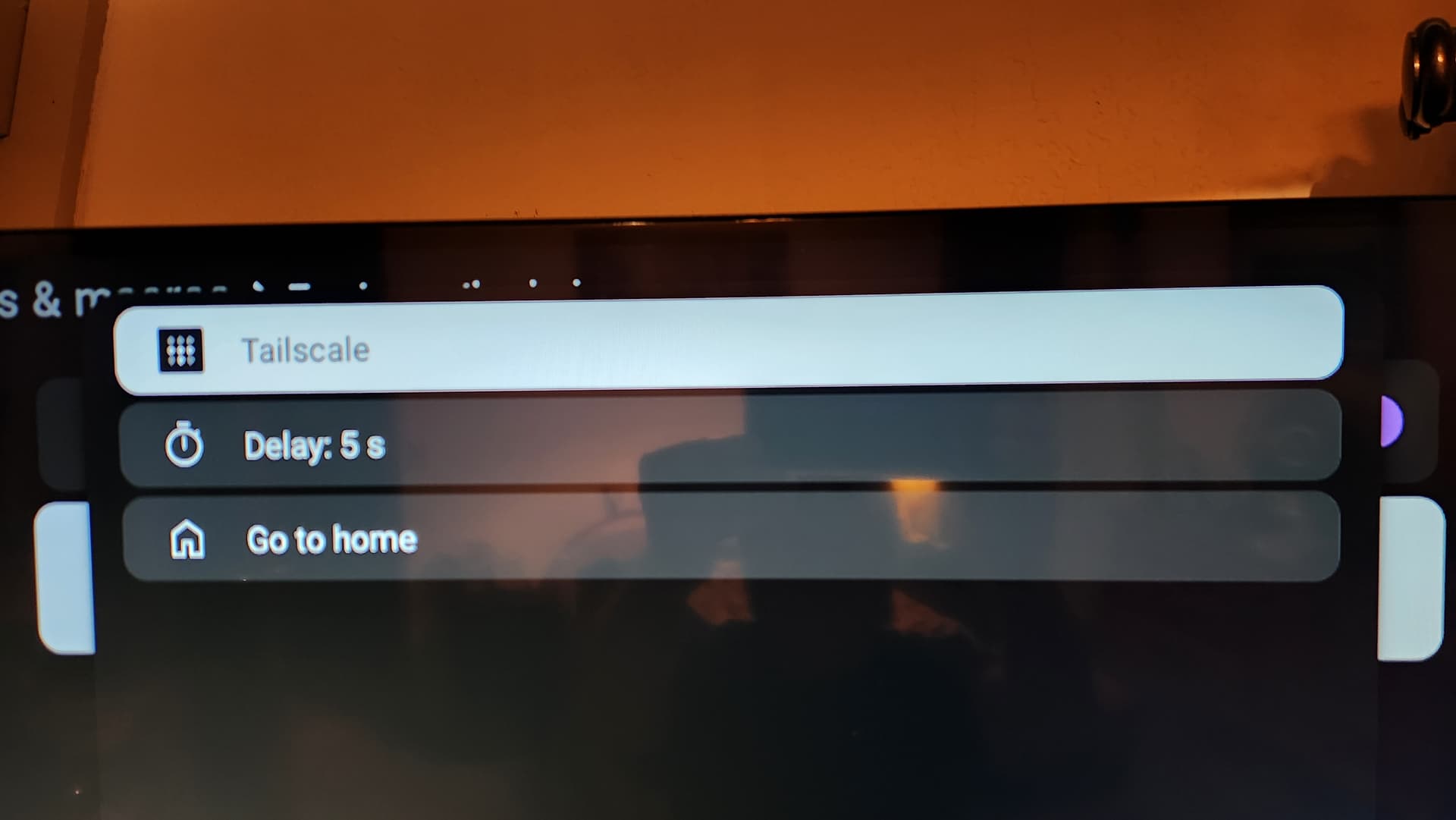
Alright, so I found a really durable solution for this. The ADB commands do work, but there's a better way of doing this. It involved purchasing TV QuickActions Pro on the Google Play Store. The following are instructions from Claude, but they work perfectly, so I'm just copying and pasting them as is!
Auto-Starting Tailscale on Google TV with tvQuickActions Pro
Background
Tailscale's Android app has no BOOT_COMPLETED receiver — verified against the current AndroidManifest.xml in tailscale/tailscale-android. There is no setting to enable and no hidden option. Tailscale's position has been to defer to Android's Always-on VPN, which many Android TV builds don't expose in the UI.
However, the manifest does declare an exported broadcast receiver:
<receiver android:name="IPNReceiver" android:exported="true">
    <intent-filter>
        <action android:name="com.tailscale.ipn.CONNECT_VPN" />
        <action android:name="com.tailscale.ipn.DISCONNECT_VPN" />
        <action android:name="com.tailscale.ipn.USE_EXIT_NODE" />
    </intent-filter>
</receiver>
IPNReceiver enqueues a StartVPNWorker via WorkManager on CONNECT_VPN. No permission gate, no signature check — any app can fire it. That's the hook this guide uses.
Prerequisites
Complete these on every device before the automation will work:
- [ ] tvQuickActions Pro installed (trigger actions are Pro-only)
- [ ] Accessibility service enabled —
Settings → System → Accessibility → tvQuickActions
- [ ] "Display over other apps" permission granted
- [ ] Usage access granted (needed for constraints)
- [ ] Tailscale opened manually once, signed in, and the system VPN consent dialog accepted
- [ ] Battery optimization disabled for both apps —
Settings → Apps → Special access → Energy optimization
The VPN consent dialog is system-signed. Nothing can automate past it. The broadcast only works once consent is on file.
1. Build the intent action
Path: Sidebar → Trigger actions & Macros → Add
This creates a new macro. The editor shows four rows: Title, Icon, Actions, Triggers.
- Open Actions → Add
- From the tab strip, choose Custom actions
- Press Add at the bottom → select Intent
- Fill in:
| Field |
Value |
| Title |
Tailscale Up |
| Type |
Broadcast receiver |
| Action |
com.tailscale.ipn.CONNECT_VPN |
| Package |
com.tailscale.ipn |
| Class |
com.tailscale.ipn.IPNReceiver |
- Leave Categories, Data, Type (MIME), Flags, and Extras empty
- Do not tick "Non-exported activity" — the receiver is exported
- Save
2. Add the delay and second send
Back in the macro's Actions list:
- Set a delay of ~25 seconds on the
Tailscale Up action — on cold boot the intent otherwise fires before Wi-Fi/DHCP settles and the worker fails silently
- Press Add again → Custom actions tab → select the same saved
Tailscale Up action
- Set a delay of ~5 seconds on this second copy
The double-send works around the StartVPNWorker stall under Android 15/16 background-start restrictions (tailscale#18847).
- Give the macro a recognizable title, then back out
Long-press any action in the macro list to reorder or delete it.
3. Attach to triggers
On the Trigger actions & Macros screen, the three predefined triggers sit above your macro list.
- Open Turning on the device → Actions → Add → Macros tab → select your macro → ensure Enable is on
- Repeat identically for Screen on (after sleep)
Both are required. The reboot trigger does not fire on a remote-button wake, and vice versa.
4. Editing a saved intent
Tapping a saved custom action selects it. To edit it, long-press.
Path: Trigger actions & Macros → your macro → Actions → Add → Custom actions tab
That tab is the library of every saved custom action. Long-press the entry → Edit. After saving, back out of the Add dialog with the Back button so you don't add another copy.
Because both entries in the macro reference the same saved action, editing once updates both sends.
Long-pressing inside the macro's action list instead only offers sort/delete for that one instance. That's also where you change the delay — delay is a property of the instance, not of the saved action.
5. Testing
Quick check
Long-press the macro in the Trigger actions & Macros list — if the menu offers Run, use it.
Map to a button
Sidebar → Mappings → Add button → press a spare remote button (Netflix, a color button, Mute) → Usual action → Single press → Macros tab → select your macro.
Test the intent before the macro
In that same flow, select from the Custom actions tab and pick Tailscale Up directly. This skips the 25-second delay. If the raw intent doesn't bring the tunnel up, no trigger wiring will fix it.
Test hygiene
- Force-stop Tailscale before each test (
Settings → Apps → Tailscale → Force stop) so you're testing a genuine cold start
- Enable toasts —
Sidebar → Settings → Toasts — to confirm the action actually fired. This separates "tvQuickActions didn't run it" from "it ran and Tailscale ignored it"
- Confirm success in the Tailscale admin console rather than trusting the VPN key icon
Validate the Tailscale half independently
adb shell am broadcast -a com.tailscale.ipn.CONNECT_VPN -n com.tailscale.ipn/.IPNReceiver
result=0 plus a tunnel coming up means the receiver works and anything still broken is on the tvQuickActions side.
Delete the temporary button mapping once testing is done.
6. Back up and transfer to another device
Create the backup (source device)
Path: Sidebar → Settings → Backup → Create backup
Choose macro scope rather than a full backup. A macro backup includes all custom actions it references, so the Tailscale Up intent rides along. A full backup drags over button mappings, dock config, and AFR settings that may not suit the other box — and restore is a merge, so you'd be layering one device's mappings onto the other.
On Android 11+ the location is not selectable. The file is written to Documents on internal storage (/sdcard/Documents/).
Verify and pull
Some file managers won't show the file due to scoped storage. Verify from a shell:
adb shell ls -la /sdcard/Documents/
adb pull /sdcard/Documents/<filename> .
Push to the target
adb push <filename> /sdcard/Documents/
Both adb commands are identical on macOS and Windows.
Restore (target device)
Prerequisite: a file manager app must be installed on the target — Android 11+ won't provide a picker otherwise.
Settings → Backup → Restore backup → Merge- Browse to Main storage → Documents
- Select the file
- Wait for the Success popup
To make the target match exactly instead of merging, clear tvQuickActions' app data in device settings first.
What does not transfer
The backup carries config only. On the new device you must still:
- Enable the accessibility service
- Grant display-over-other-apps and usage access
- Disable battery optimization
- Open Tailscale and accept the VPN consent dialog
Restoring the macro does not grant VPN permission. The trigger will fire into a void until that dialog is accepted manually.