Try http://192.168.1.243:8089 from a browser
Not 192.168.1.243:8089 and not https://192.168.1.243:8089
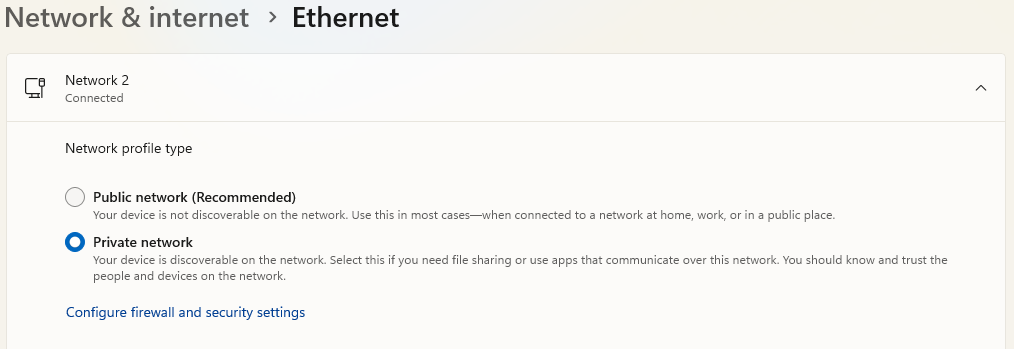
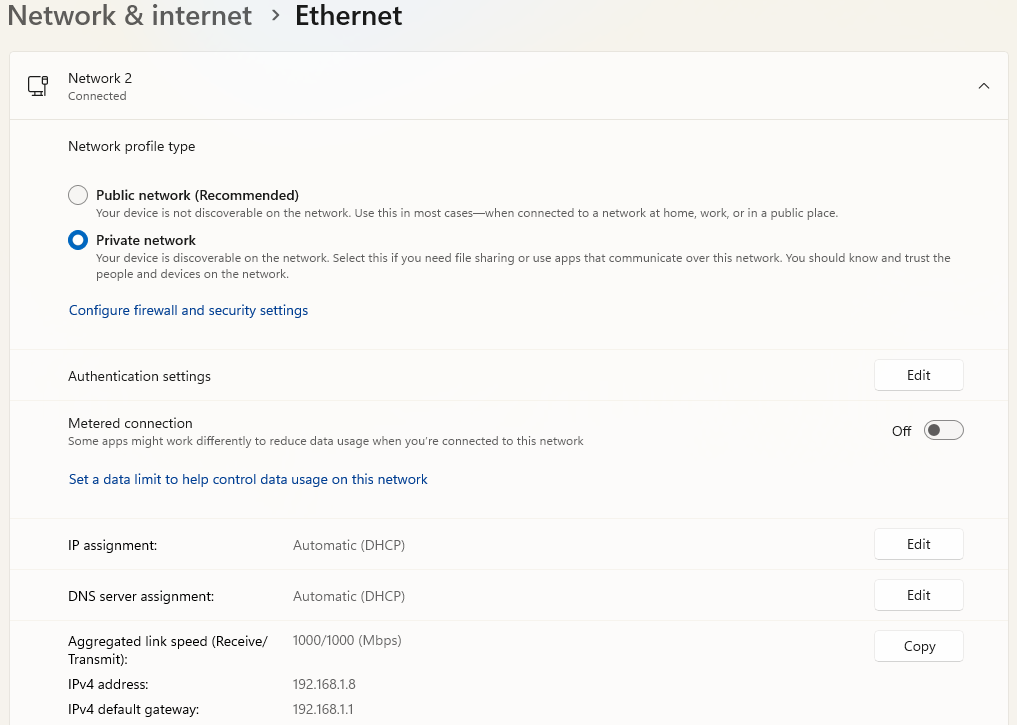
Make sure it's set as a PRIVATE network

Try http://192.168.1.243:8089 from a browser
Not 192.168.1.243:8089 and not https://192.168.1.243:8089
Make sure it's set as a PRIVATE network
If it still doesn't work after you try @chDVRuser's suggestions, it could be an issue with Windows.
I was in the same situation as you, running Channels DVR server on Windows 11. It was working fine for years but recently I had the same problem where I could not go to the server anymore on my LAN.
It worked fine if I went to it by using Tailscale, even on my LAN.
This issue pushed me to migrate my Channels DVR server to a different system. I am now running it in a Docker container that is installed on an Unraid system.
It's working flawlessly now.
"http://" did not do any thing special. On my system 192.168.1.243:8089 translates to http://192.168.1.243:8089. Actually, I was having two issues. The other, that I put is in a separate post, was that the tv guide when displayed from my Android TV app would not populate. A suggestion was that I reboot my Android TV box, which I did. Unfortunately, now the Channel DVR app is trying to connect to 192.168.1.243 and it can no longer find it. So this whole thing is spiraling downward. Last week it all worked. My guess is that at some point I will come upon a solution.
can you hit 127.0.0.1:8089 from that PC if so Windows Firewall is blocking the outbound port most likely
Also open a command prompt and run ipconfig. If you didn't set a DHCP reservation it's possible that machine lost it's lease.
Make sure the Network is set to PRIVATE.
Double check the IPv4 address.
Then temporarily disable the Firewall if it still doesn't work.
fairly sure this is all the same issue.
I think the firewall is blocking inbound.
this is what my firewall settings show
or this
No, 127.0.0.1, localhost, nor the actual ipadress of the server machine from the server machine will work. Just the computer name.
Have you tried turning off Windows Firewall?
If you can access it by hostname, the server is running. It's strange that you can reach it by DNS and not by IP. I would wager that the IP address of your machine changed. First, I would test by turning off Windows Firewall, and then also verify the IP and then reserve it so it doesn't change again.
Actually, I take back what I said. If you can access it by DNS, then it's not a firewall issue. It's strictly a DHCP reservation/expired lease.
dhcp lease shouldn't affect 127.0.0.1. the fact dns does work suggests tailscale is setup and working.
@predsfan
what does ipconfig report?
I didn't realize Tailscale was involved here.
I wonder if that's causing some sort of conflict. I've seen bad subnet routing cause issues exactly like this.
I thought he meant his machine host name and was taking localhost at maybe it wasn't typed in correctly, but who knows? I didn't realize this was a magic DNS hostname because it wasn't stated.
i took a small leap
It could also just be some weird networking thing on Windows, just horribly misconfigured, for all we know. Really getting the printout of ipconfig /all would be helpful.
if this works,
what happens when you ping ChannelDVR
my laptop on my local wifi does this
>ping nanoa1

Pinging nanoa1.red-fish.ts.net [100.100.34.100] with 32 bytes of data:
Reply from 100.100.34.100: bytes=32 time=36ms TTL=128
Reply from 100.100.34.100: bytes=32 time=3ms TTL=128
Reply from 100.100.34.100: bytes=32 time=4ms TTL=128
Reply from 100.100.34.100: bytes=32 time=5ms TTL=128

Ping statistics for 100.100.34.100:
    Packets: Sent = 4, Received = 4, Lost = 0 (0% loss),
Approximate round trip times in milli-seconds:
    Minimum = 3ms, Maximum = 36ms, Average = 12ms
from my server
ping nanoa1

Pinging NanoA1 [100.100.34.100] with 32 bytes of data:
Reply from 100.100.34.100: bytes=32 time<1ms TTL=128
Reply from 100.100.34.100: bytes=32 time<1ms TTL=128
Reply from 100.100.34.100: bytes=32 time<1ms TTL=128
Reply from 100.100.34.100: bytes=32 time<1ms TTL=128

Ping statistics for 100.100.34.100:
    Packets: Sent = 4, Received = 4, Lost = 0 (0% loss),
Approximate round trip times in milli-seconds:
    Minimum = 0ms, Maximum = 0ms, Average = 0ms
Pinging ChannelDVR.local [fe80::bd91:8880:bb1e:4794%9] with 32 bytes of data:
Reply from fe80::bd91:8880:bb1e:4794%9: time=1ms
Reply from fe80::bd91:8880:bb1e:4794%9: time=1ms
Reply from fe80::bd91:8880:bb1e:4794%9: time=2ms
Reply from fe80::bd91:8880:bb1e:4794%9: time=2ms
Ping statistics for fe80::bd91:8880:bb1e:4794%9:
I am somewhat concerned that it appears to return a version 6 address and not a version 4
Packets: Sent = 4, Received = 4, Lost = 0 (0% loss),
Approximate round trip times in milli-seconds:
Minimum = 1ms, Maximum = 2ms, Average = 1ms
Can you run ipconfig /all like asked. I wonder if your machine is even using IPv4. This would be the crux of your misconfiguraiton.
I also want to ask what your ISP is and what your home router is.
If it's an ISP managed router, it's possible they flipped on IPv6 and all of the devices on your LAN have possibly grabbed IPv6 addresses. That's what I'm thinking, but I won't know without seeing if your device even has an IPv4 address. But that would explain why you can access via host name and not via plain old localhost or IP address. Something got changed, and your network is running IPv6. That's what I'm thinking happened.
This might require some digging into the router to see if something just got toggled on or if the ISP did something, if it is managed.
I did a ping channeldvr -4 and got this:
Pinging ChannelDVR.local [192.168.1.243] with 32 bytes of data:
Reply from 192.168.1.243: bytes=32 time=2ms TTL=128
Reply from 192.168.1.243: bytes=32 time=2ms TTL=128
Reply from 192.168.1.243: bytes=32 time=2ms TTL=128
Reply from 192.168.1.243: bytes=32 time=2ms TTL=128
Ping statistics for 192.168.1.243:
Packets: Sent = 4, Received = 4, Lost = 0 (0% loss),
Approximate round trip times in milli-seconds:
Minimum = 2ms, Maximum = 2ms, Average = 2ms
/all just returned the v6 data
But if I do a ping from channeldvr to my normal machine, it returns the V4 data
I'm not on my PC right now. What I would suggest doing is just disabling IPv6 on the Windows PC since clearly your network still is returning IPv4 addresses.
This should help you. If I were actually at my PC, I would give you screenshots, but I'm on my Mac right now.
I will give it a try