Go ahead and update the OliveTin stack as described in post #15, and then run the healthcheck again and post the results here...
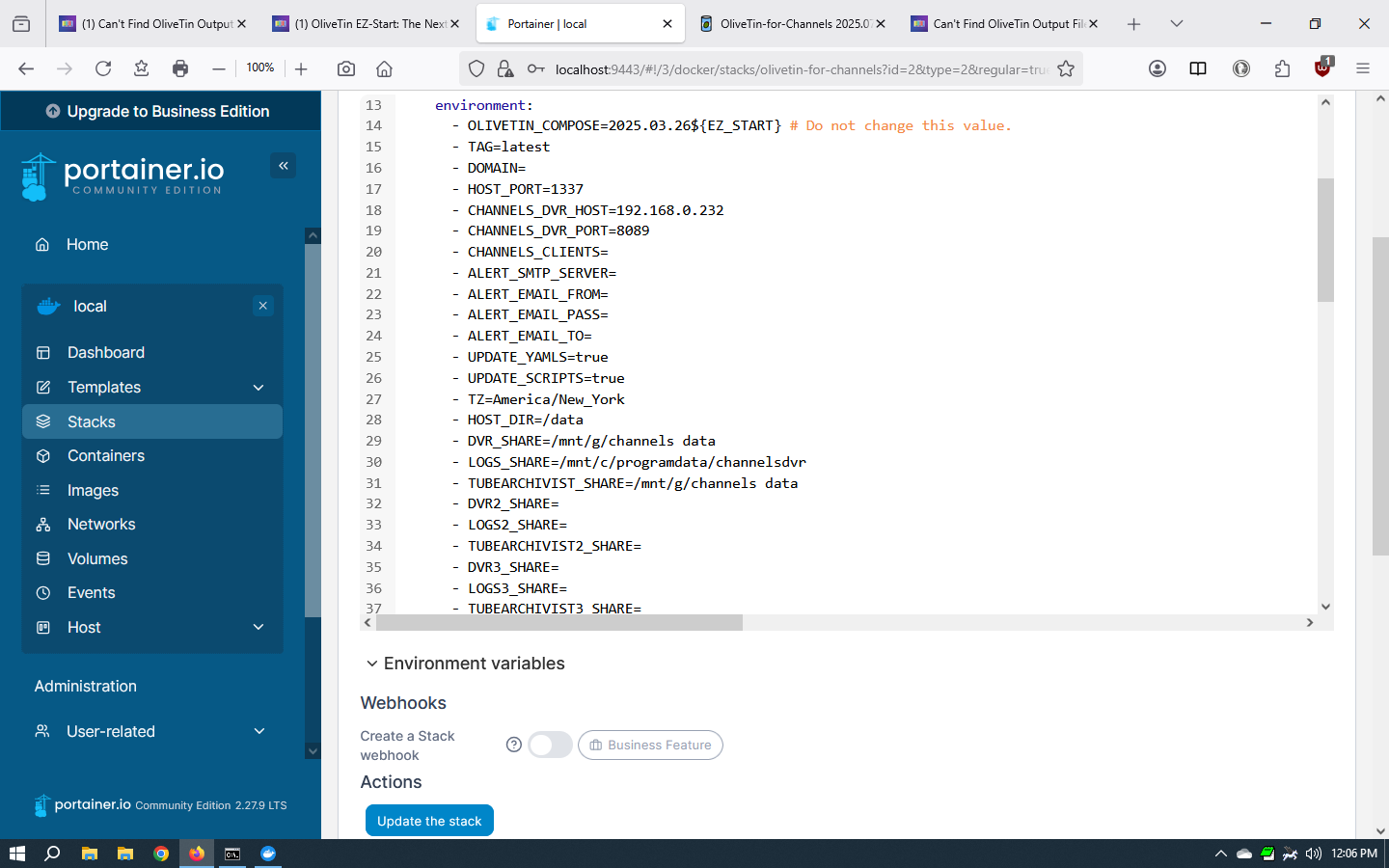
I did the edits in Portainer, and confirmed that they were properly there, but the address of the server is lost in Olive Tin.
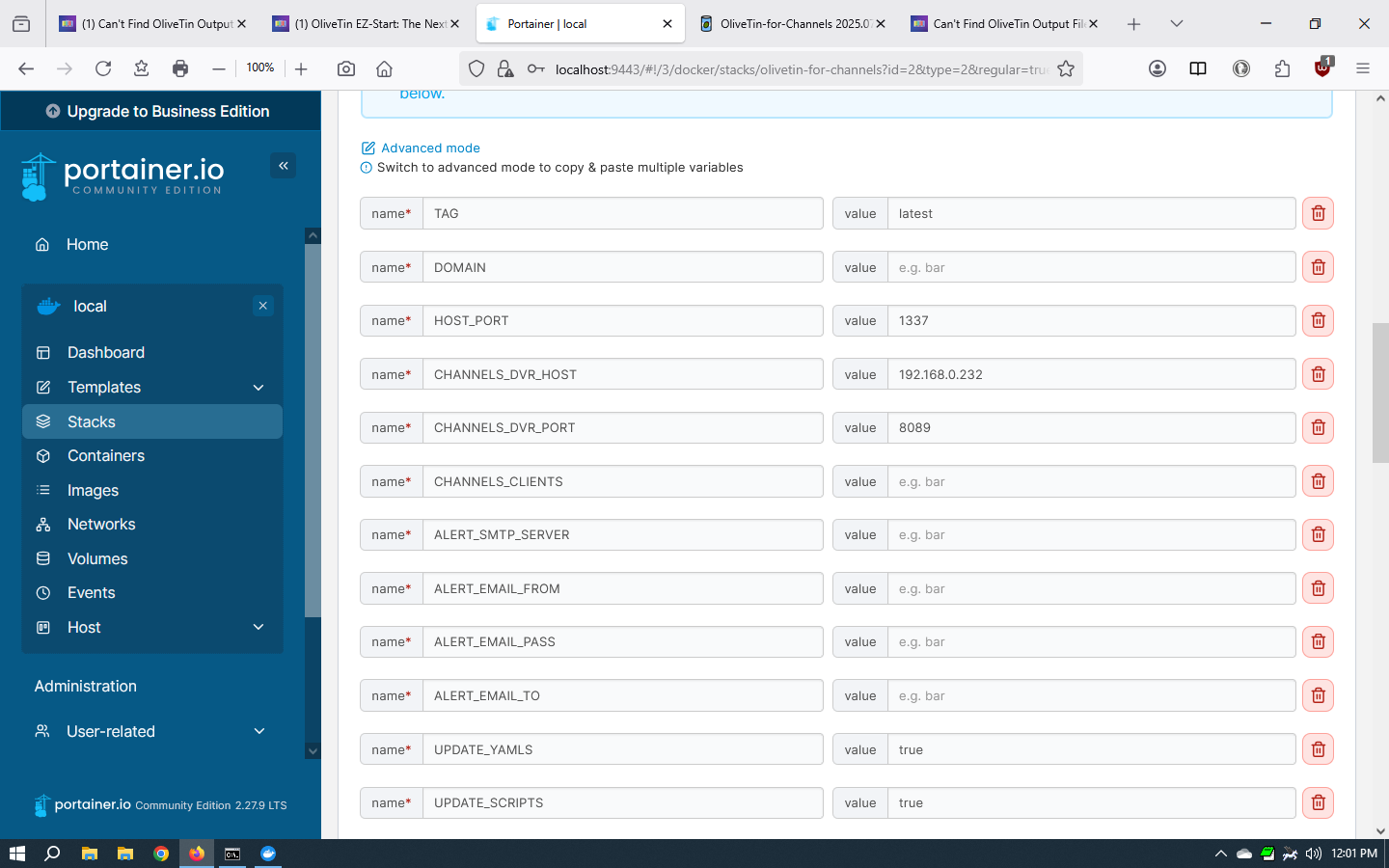
TAG=latest
DOMAIN=
HOST_PORT=1337
CHANNELS_DVR_HOST=
CHANNELS_DVR_PORT=
CHANNELS_CLIENTS=
ALERT_SMTP_SERVER=
ALERT_EMAIL_FROM=
ALERT_EMAIL_PASS=
ALERT_EMAIL_TO=
UPDATE_YAMLS=true
UPDATE_SCRIPTS=true
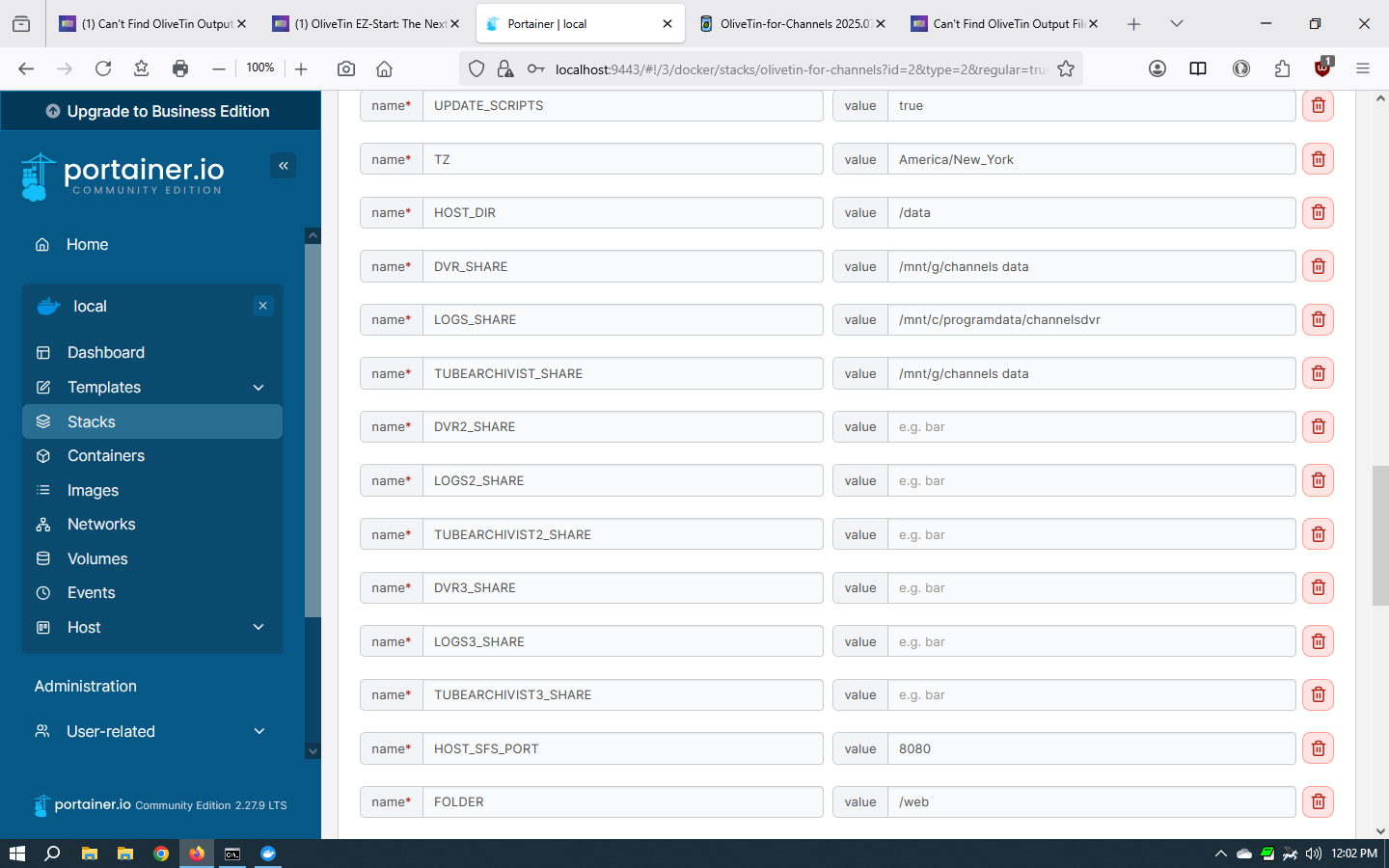
TZ=America/New_York
HOST_DIR=/data
DVR_SHARE=/mnt/g/channels data
LOGS_SHARE=/mnt/c/programdata/channelsdvr
TUBEARCHIVIST_SHARE=/mnt/g/channels data
DVR2_SHARE=
LOGS2_SHARE=
TUBEARCHIVIST2_SHARE=
DVR3_SHARE=
LOGS3_SHARE=
TUBEARCHIVIST3_SHARE=
HOST_SFS_PORT=8080
FOLDER=/web
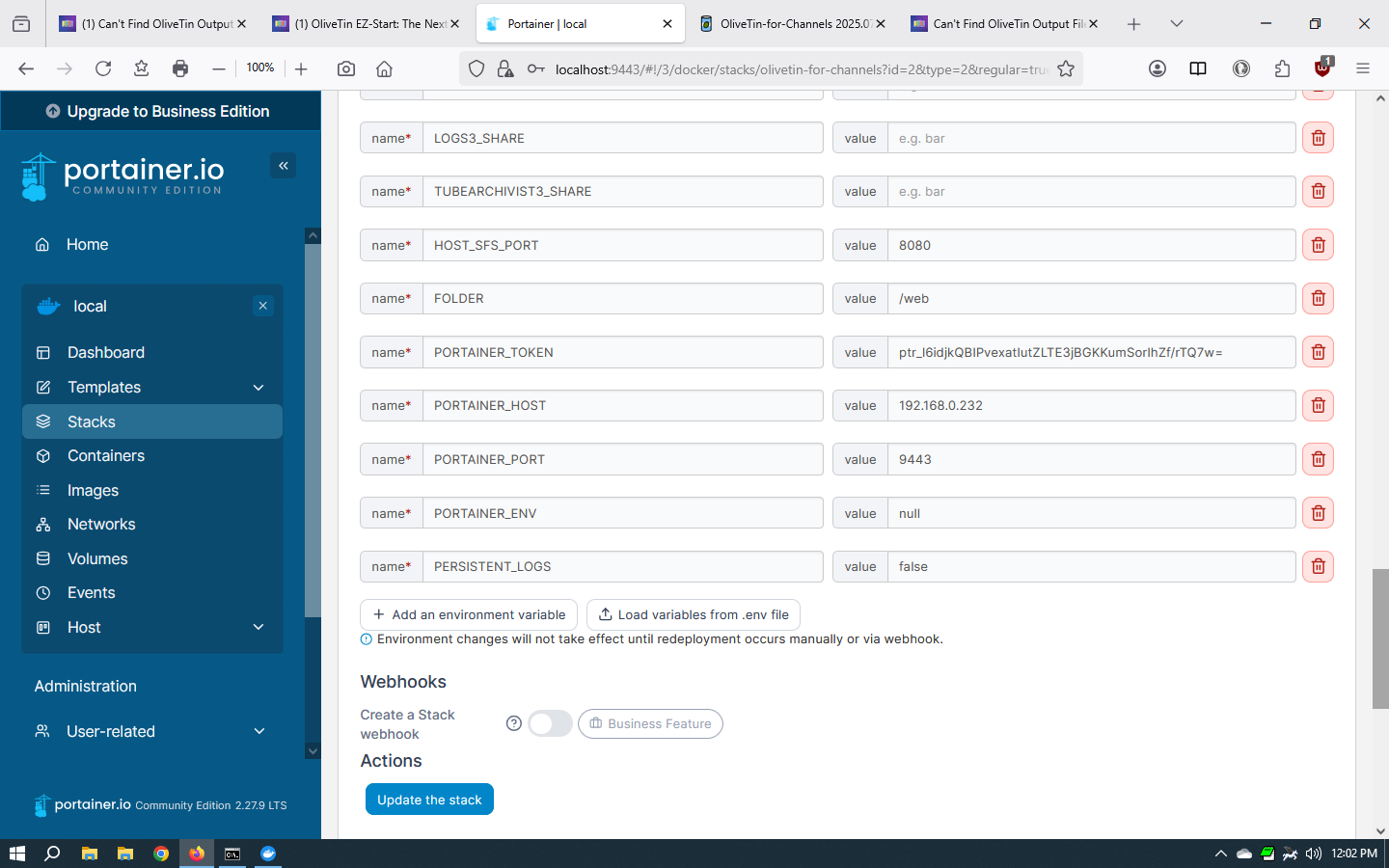
PORTAINER_TOKEN=ptr_cpj7unLejq5lki8TXl0WC05EcU0XFxtaWDm9NGPOdFo=
PORTAINER_HOST=192.168.0.232
PORTAINER_PORT=9443
PORTAINER_ENV=3
PERSISTENT_LOGS=false
Other odd things:
In Docker, I have 2 running containers:
olivetin-for-channels and olivetin-easystart
Also under Docker/Images, I have 2 Portainers. One from 2 months ago, and one from 2 years ago. I tried to delete the old one, but Docker says it is in use and can't be deleted.
To get this, I had to manually type in the server IP and Port because they are not in the environment.
OliveTin Post-Install Healthcheck
Standard Output
Checking your OliveTin-for-Channels installation...
(extended_check=false)

OliveTin Container Version 2025.07.30
OliveTin Docker Compose Version 2025.03.26

----------------------------------------

Checking that your selected Channels DVR server (192.168.0.232:8089) is reachable by URL:
HTTP Status: 200 indicates success...

  % Total    % Received % Xferd  Average Speed   Time    Time     Time  Current
                                 Dload  Upload   Total   Spent    Left  Speed

  0     0    0     0    0     0      0      0 --:--:-- --:--:-- --:--:--     0
100  1276  100  1276    0     0   311k      0 --:--:-- --:--:-- --:--:--  415k
HTTP Status: 200
Effective URL: http://192.168.0.232:8089/

----------------------------------------

Checking that your selected Channels DVR server's data files (/mnt/192.168.0.232-8089) are accessible:
Folders with the names Database, Images, Imports, Logs, Movies, Streaming and TV should be visible...

total 8
drwxr-xr-x 2 root root 4096 Aug 16 17:47 .
drwxr-xr-x 1 root root 4096 Aug 16 18:04 ..

Docker reports your current DVR_SHARE setting as...
/mnt/g/channels data

If the listed folders are NOT visible, AND you have your Channels DVR and Docker on the same system:

Channels reports this path as...
G:\Channels Data

When using WSL with a Linux distro and Docker Desktop, it's recommended to use...
/mnt/g/Channels Data

----------------------------------------

Checking that your selected Channels DVR server's log files (/mnt/192.168.0.232-8089_logs) are accessible:
Folders with the names data and latest should be visible...

total 8
drwxr-xr-x 2 root root 4096 Aug 16 17:47 .
drwxr-xr-x 1 root root 4096 Aug 16 18:04 ..

Docker reports your current LOGS_SHARE setting as...
/mnt/c/programdata/channelsdvr

If the listed folders are NOT visible, AND you have your Channels DVR and Docker on the same system:

Channels reports this path as...
C:\ProgramData\ChannelsDVR

When using WSL with a Linux distro and Docker Desktop, it's recommended to use...
/mnt/c/ProgramData/ChannelsDVR

----------------------------------------

Checking if your Portainer token is working on ports 9000 and/or 9443:

Portainer http response on port 9000 reports version 2.27.9
Portainer Environment ID for local is 3
Portainer https response on port 9443 reports version 2.27.9
Portainer Environment ID for local is 3

----------------------------------------

Here's a list of your current OliveTin-related settings:

HOSTNAME=olivetin
CHANNELS_DVR=
CHANNELS_DVR_ALTERNATES=
CHANNELS_CLIENTS=
ALERT_SMTP_SERVER=
ALERT_EMAIL_FROM=[Redacted]@
ALERT_EMAIL_PASS=[Redacted]
ALERT_EMAIL_TO=[Redacted]@
UPDATE_YAMLS=true
UPDATE_SCRIPTS=true
PORTAINER_TOKEN=[Redacted]
PORTAINER_HOST=192.168.0.232
PORTAINER_PORT=9443
PORTAINER_ENV=3

----------------------------------------

Here's the contents of /etc/resolv.conf from inside the container:

# Generated by Docker Engine.
# This file can be edited; Docker Engine will not make further changes once it
# has been modified.

nameserver 127.0.0.11
search
options ndots:0

# Based on host file: '/etc/resolv.conf' (internal resolver)
# ExtServers: [host(192.168.65.7)]
# Overrides: [search]
# Option ndots from: internal

----------------------------------------

Here's the contents of /etc/hosts from inside the container:

127.0.0.1	localhost
::1	localhost ip6-localhost ip6-loopback
fe00::	ip6-localnet
ff00::	ip6-mcastprefix
ff02::1	ip6-allnodes
ff02::2	ip6-allrouters
172.20.0.2	olivetin
1 Like
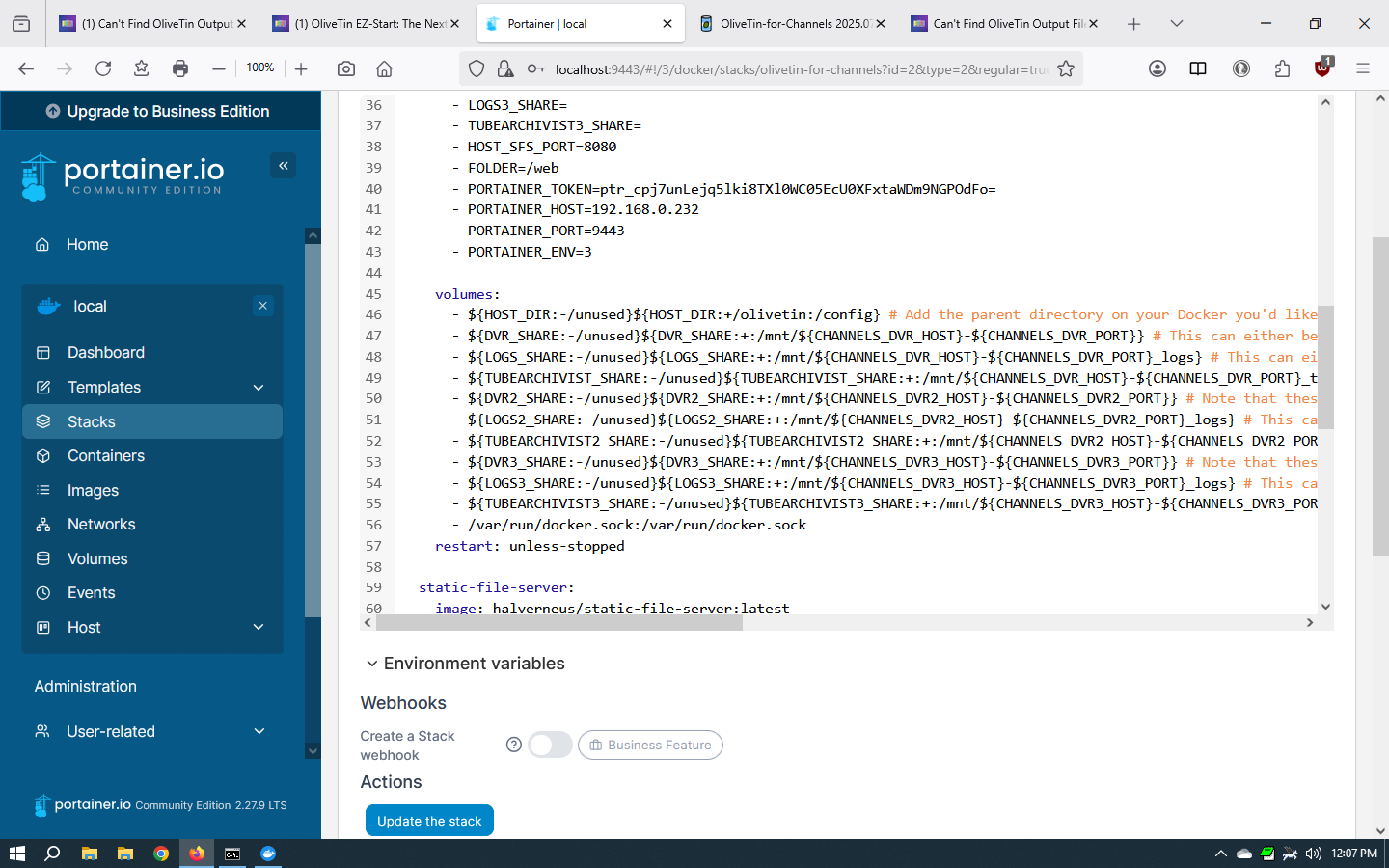
Can you post a screenshot from the OliveTin stack in the Portainer-Stack-Editor, showing the environment variables? It should look something like this:
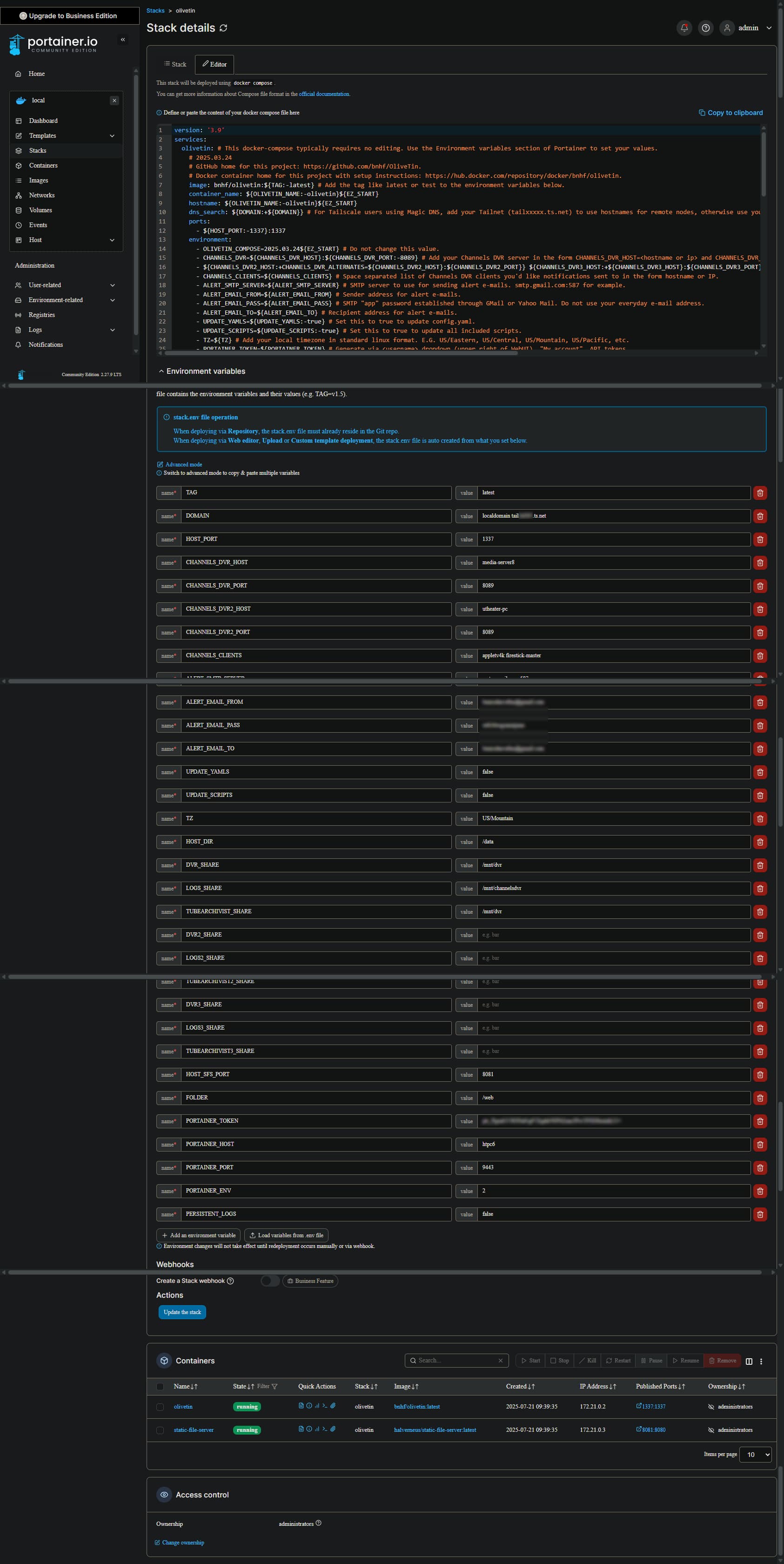
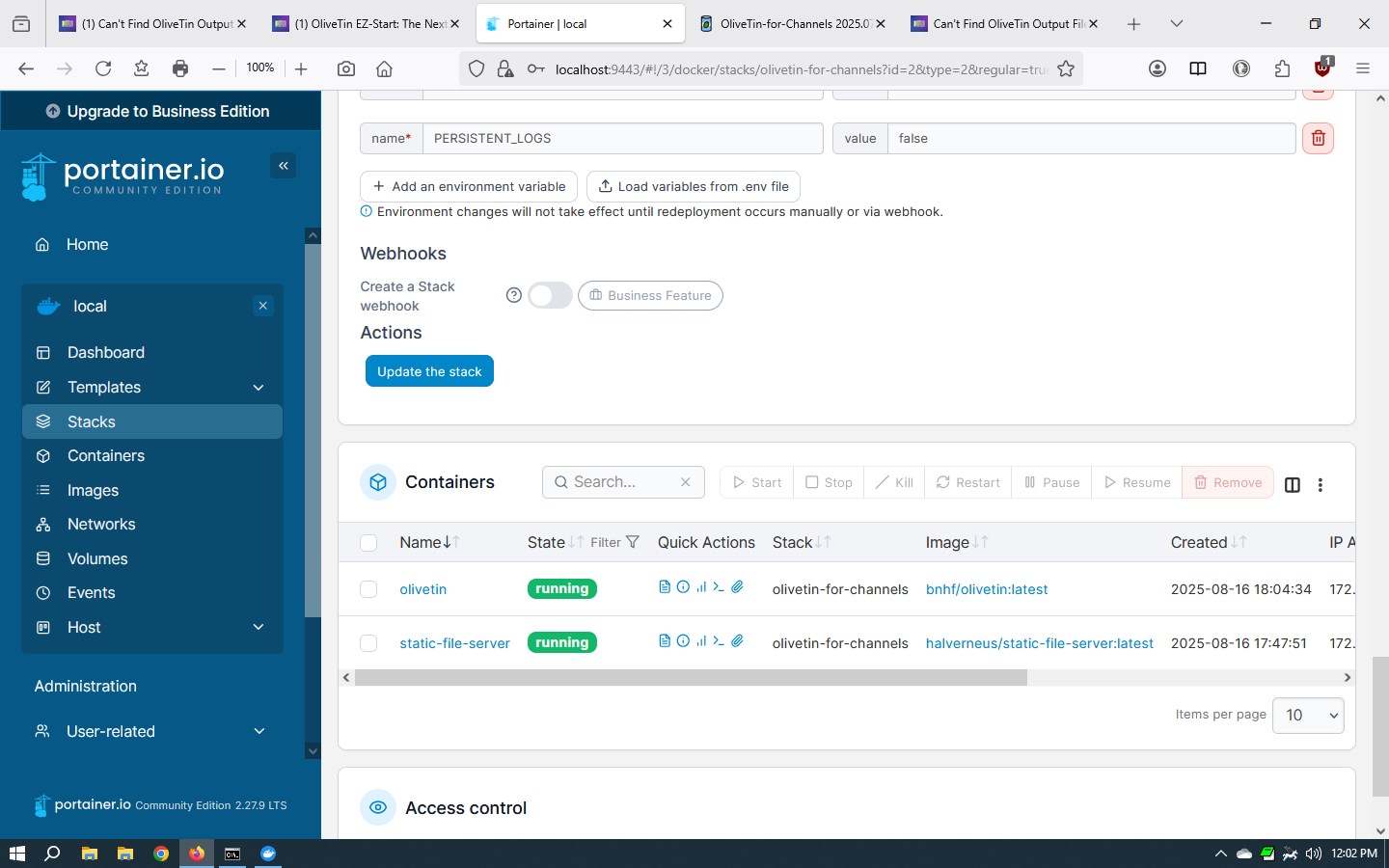
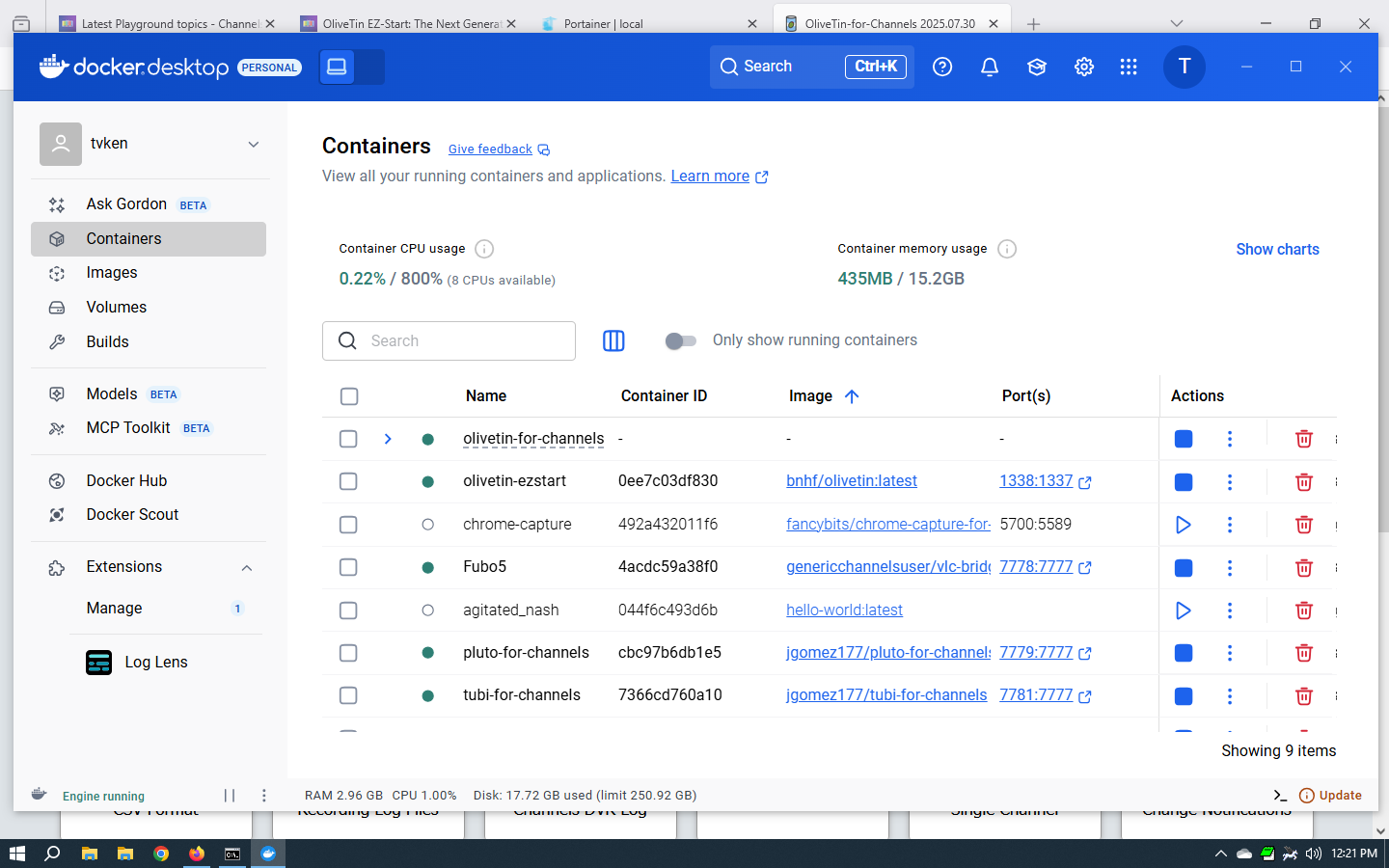
OK, so you've mistakenly edited the compose itself, however as it says in the comments at the top of the compose:
version: '3.9'
services:
  olivetin: # This docker-compose typically requires no editing. Use the Environment variables section of Portainer to set your values.
To fix this you need to stop the OliveTin stack, and paste in the current compose. This is designed not to be edited, as any values specific to your installation are reflected in the Environment variables section:
Here's the current compose from this post:
version: '3.9'
services:
  olivetin: # This docker-compose typically requires no editing. Use the Environment variables section of Portainer to set your values.
    # 2025.03.27
    # GitHub home for this project: https://github.com/bnhf/OliveTin.
    # Docker container home for this project with setup instructions: https://hub.docker.com/r/bnhf/olivetin.
    image: bnhf/olivetin:${TAG:-latest} # Add the tag like latest or test to the environment variables below.
    container_name: ${OLIVETIN_NAME:-olivetin}${EZ_START}
    hostname: ${OLIVETIN_NAME:-olivetin}${EZ_START}
    dns_search: ${DOMAIN:+${DOMAIN}} # For Tailscale users using Magic DNS, add your Tailnet (tailxxxxx.ts.net) to use hostnames for remote nodes, otherwise use your local domain name.
    ports:
      - ${HOST_PORT:-1337}:1337
    environment:
      - OLIVETIN_COMPOSE=2025.03.26${EZ_START} # Do not change this value.
      - CHANNELS_DVR=${CHANNELS_DVR_HOST}:${CHANNELS_DVR_PORT:-8089} # Add your Channels DVR server in the form CHANNELS_DVR_HOST=<hostname or ip> and CHANNELS_DVR_PORT=<port>.
      - ${CHANNELS_DVR2_HOST:+CHANNELS_DVR_ALTERNATES=${CHANNELS_DVR2_HOST}:${CHANNELS_DVR2_PORT}} ${CHANNELS_DVR3_HOST:+${CHANNELS_DVR3_HOST}:${CHANNELS_DVR3_PORT}} # Space separated list of alternate Channels DVR servers to choose from in the form hostname:port or ip:port.
      - CHANNELS_CLIENTS=${CHANNELS_CLIENTS} # Space separated list of Channels DVR clients you'd like notifications sent to in the form hostname or IP.
      - ALERT_SMTP_SERVER=${ALERT_SMTP_SERVER} # SMTP server to use for sending alert e-mails. smtp.gmail.com:587 for example.
      - ALERT_EMAIL_FROM=${ALERT_EMAIL_FROM} # Sender address for alert e-mails.
      - ALERT_EMAIL_PASS=${ALERT_EMAIL_PASS} # SMTP "app" password established through GMail or Yahoo Mail. Do not use your everyday e-mail address.
      - ALERT_EMAIL_TO=${ALERT_EMAIL_TO} # Recipient address for alert e-mails.
      - UPDATE_YAMLS=${UPDATE_YAMLS:-true} # Set this to true to update config.yaml.
      - UPDATE_SCRIPTS=${UPDATE_SCRIPTS:-true} # Set this to true to update all included scripts.
      - TZ=${TZ} # Add your local timezone in standard linux format. E.G. US/Eastern, US/Central, US/Mountain, US/Pacific, etc.
      - PORTAINER_TOKEN=${PORTAINER_TOKEN} # Generate via <username> dropdown (upper right of WebUI), "My account", API tokens.
      - PORTAINER_HOST=${PORTAINER_HOST:-$CHANNELS_DVR_HOST} # Hostname or IP of the Docker host you're running Portainer on.
      - PORTAINER_PORT=${PORTAINER_PORT:-9443} # https port you're running Portainer on. 9443 is the default.
      - PORTAINER_ENV=${PORTAINER_ENV:-2} # Set this is if you're using an alternate Portainer Environment for some reason. 2 is the default.
      - PERSISTENT_LOGS=${PERSISTENT_LOGS:-false} # For supported Actions, log files are retained on an ongoing basis. false is the default.
    volumes:
      - ${HOST_DIR:-/unused}${HOST_DIR:+/olivetin:/config} # Add the parent directory on your Docker you'd like to use.
      - ${DVR_SHARE:-/unused}${DVR_SHARE:+:/mnt/${CHANNELS_DVR_HOST}-${CHANNELS_DVR_PORT}} # This can either be a Docker volume or a host directory that's connected via Samba or NFS to your Channels DVR network share.
      - ${LOGS_SHARE:-/unused}${LOGS_SHARE:+:/mnt/${CHANNELS_DVR_HOST}-${CHANNELS_DVR_PORT}_logs} # This can either be a Docker volume or a host directory that's connected via Samba or NFS to your Channels DVR logs network share.
      - ${TUBEARCHIVIST_SHARE:-/unused}${TUBEARCHIVIST_SHARE:+:/mnt/${CHANNELS_DVR_HOST}-${CHANNELS_DVR_PORT}_ta} # This can either be a Docker volume or a host directory that's connected via Samba or NFS to your TubeArchivist videos network share.
      - ${DVR2_SHARE:-/unused}${DVR2_SHARE:+:/mnt/${CHANNELS_DVR2_HOST}-${CHANNELS_DVR2_PORT}} # Note that these volume mounts should always be to /mnt/hostname-port or /mnt/ip-port (dash rather than a colon between).
      - ${LOGS2_SHARE:-/unused}${LOGS2_SHARE:+:/mnt/${CHANNELS_DVR2_HOST}-${CHANNELS_DVR2_PORT}_logs} # This can either be a Docker volume or a host directory that's connected via Samba or NFS to your Channels DVR logs network share.
      - ${TUBEARCHIVIST2_SHARE:-/unused}${TUBEARCHIVIST2_SHARE:+:/mnt/${CHANNELS_DVR2_HOST}-${CHANNELS_DVR2_PORT}_ta} # This can either be a Docker volume or a host directory that's connected via Samba or NFS to your TubeArchivist videos network share.
      - ${DVR3_SHARE:-/unused}${DVR3_SHARE:+:/mnt/${CHANNELS_DVR3_HOST}-${CHANNELS_DVR3_PORT}} # Note that these volume mounts should always be to /mnt/hostname-port or /mnt/ip-port (dash rather than a colon between).
      - ${LOGS3_SHARE:-/unused}${LOGS3_SHARE:+:/mnt/${CHANNELS_DVR3_HOST}-${CHANNELS_DVR3_PORT}_logs} # This can either be a Docker volume or a host directory that's connected via Samba or NFS to your Channels DVR logs network share.
      - ${TUBEARCHIVIST3_SHARE:-/unused}${TUBEARCHIVIST3_SHARE:+:/mnt/${CHANNELS_DVR3_HOST}-${CHANNELS_DVR3_PORT}_ta} # This can either be a Docker volume or a host directory that's connected via Samba or NFS to your TubeArchivist videos network share.
      - /var/run/docker.sock:/var/run/docker.sock
    restart: unless-stopped

  static-file-server:
    image: halverneus/static-file-server:latest
    container_name: ${SFS_NAME:-static-file-server}${EZ_START}
    dns_search: ${DOMAIN}
    ports:
      - ${HOST_SFS_PORT:-0}:8080
    environment:
      - FOLDER=${FOLDER:-/web}
    volumes:
      - ${HOST_DIR:-/unused}${HOST_DIR:+/olivetin/data:${FOLDER:-/web}}
    restart: unless-stopped

#0#volumes: # Remove the #x# to enable. Use this section if you've setup a docker volume named channels-dvr, with CIFS or NFS, to bind to /mnt/dvr inside the container. Set ${DVR_SHARE} to channels-dvr (DVR_SHARE=channels_dvr) in that example.
  #1#channels-dvr:
    #1#external: true
  #2#channels-dvr-logs:
    #2#external: true
  #3#tubearchivist:
    #3#external: true
  #4#channels-dvr2:
    #4#external: true
  #5#channels-dvr2-logs:
    #5#external: true
  #6#tubearchivist2:
    #6#external: true
  #7#channels-dvr3:
    #7#external: true
  #8#channels-dvr3-logs:
    #8#external: true
  #9#tubearchivist3:
    #9#external: true
All of the Docker Composes in the above post are designed to work this same way. The compose is designed to be static, with only the env vars changing. This makes it extremely easy to identify what's specific to your installation, and to update a compose when needed.
Once we have the full version of OliveTin running correctly, I'll have you stop and remove the EZ-Start version. For now though, it's fine to have both -- we're only using the full version on port 1337 however.
Everything seems to be working, but I'm back to the original question. Where do I find the CSV output file?
Using Channels DVR server at: http://192.168.0.232:8089
Getting the details of all the sources from Channels DVR...
Got 7 sources.
Writing the channel information to the CSV file...
Channel information available in channels_dvr_channel_list_20250817_123915.csv
@TV_Ken The answer is the same as I gave you originally in post #2, however I'm guessing you're new to the filesystem interaction between Windows and your default WSL2 distro?
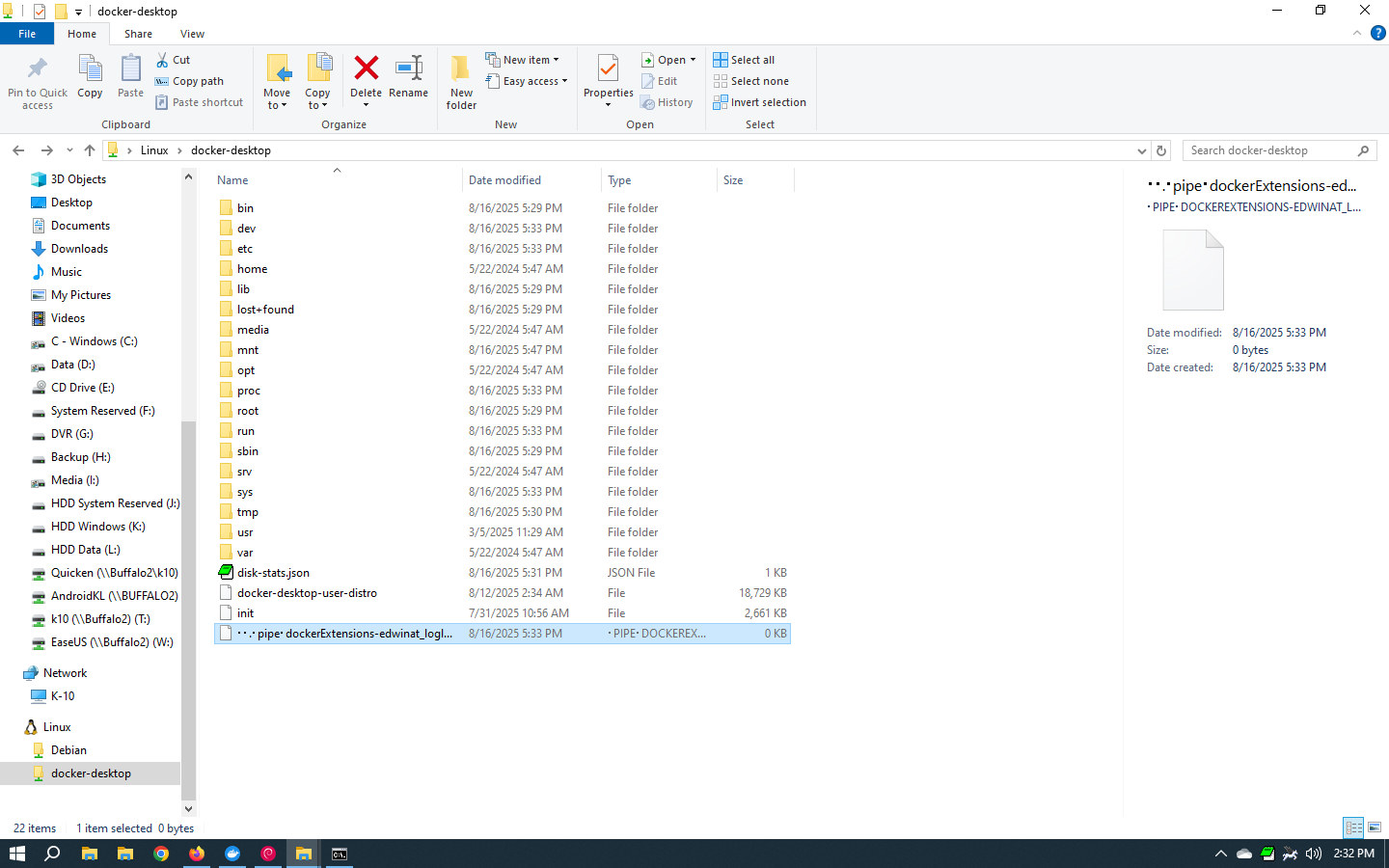
There are several ways to find /data/olivetin, the first is to use Windows File Explorer:
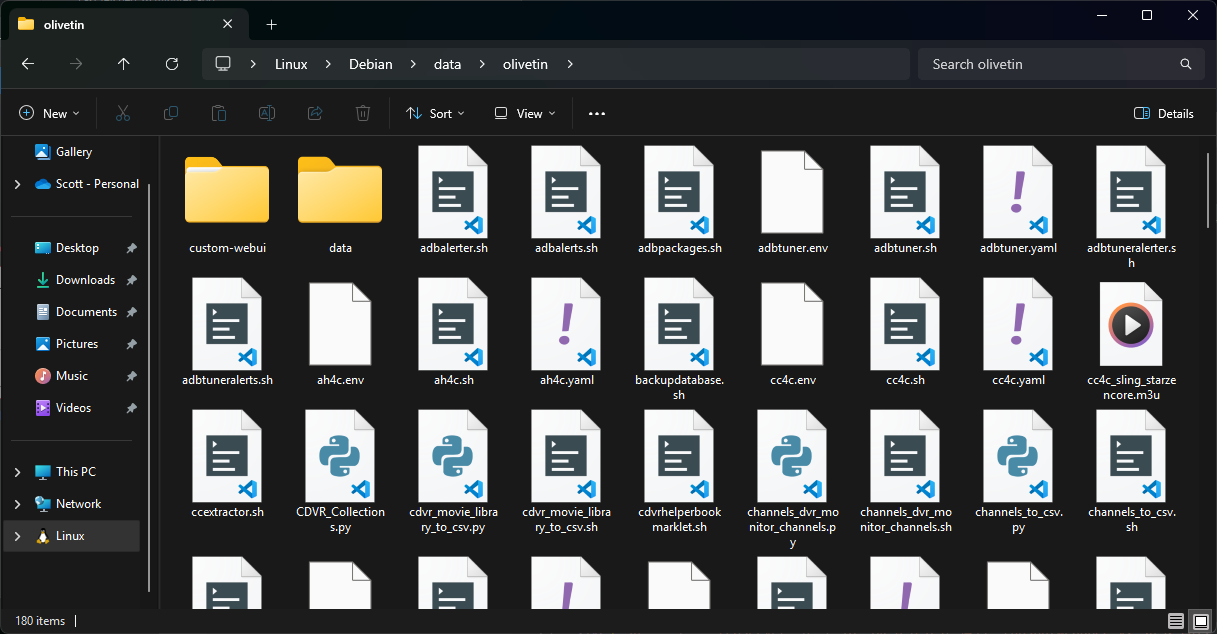
The second is to use Windows Terminal connected to your Debian distro and do it from the Linux command line:

And, I would imagine there are other options, but those are the two I use...
My environment variables are set to:
HOST_DIR=/data
DVR_SHARE=/mnt/g/channels data
LOGS_SHARE=/mnt/c/programdata/channelsdvr
I followed both of your examples, but the CSV file just isn't there.
See attached screen shots.
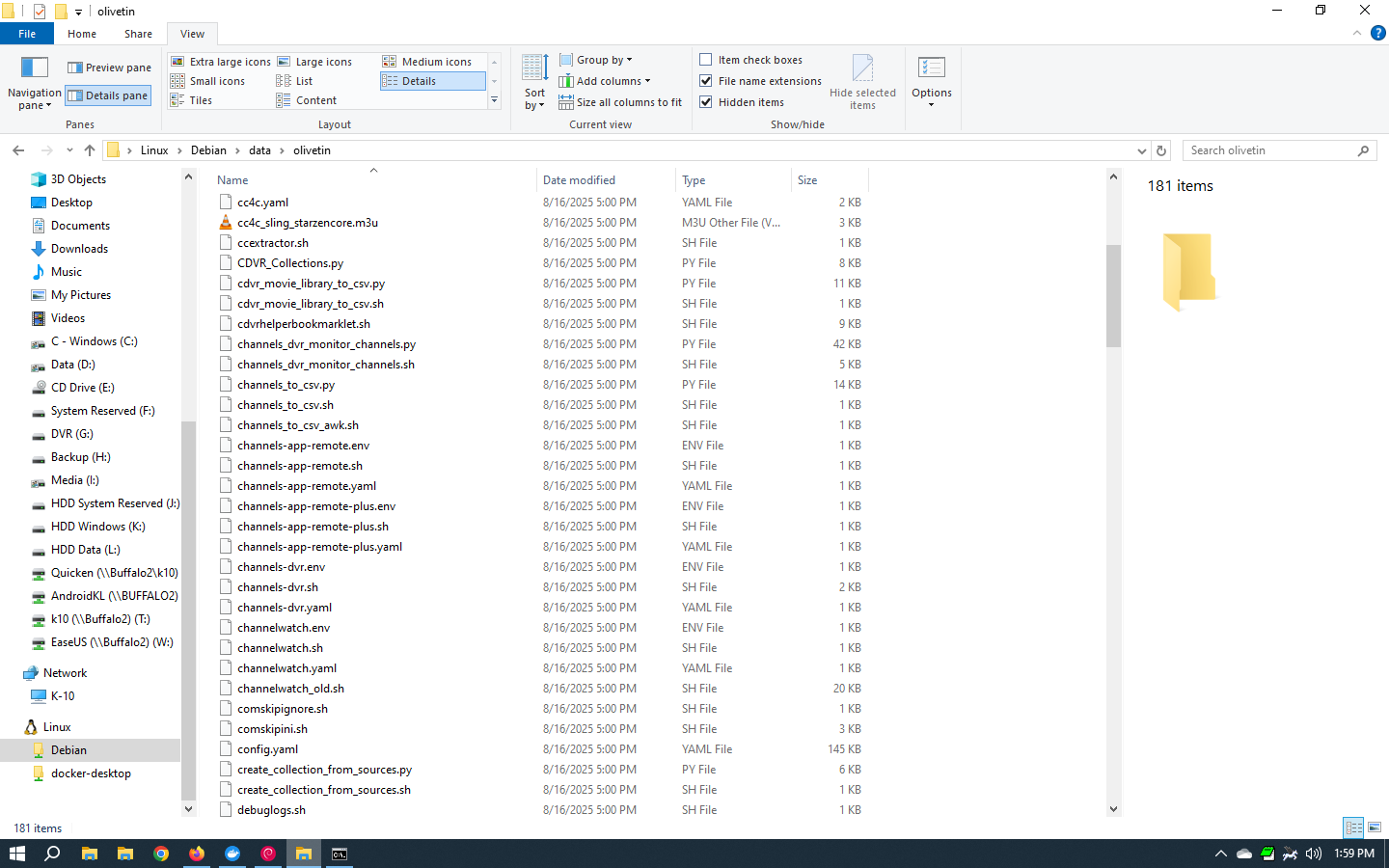
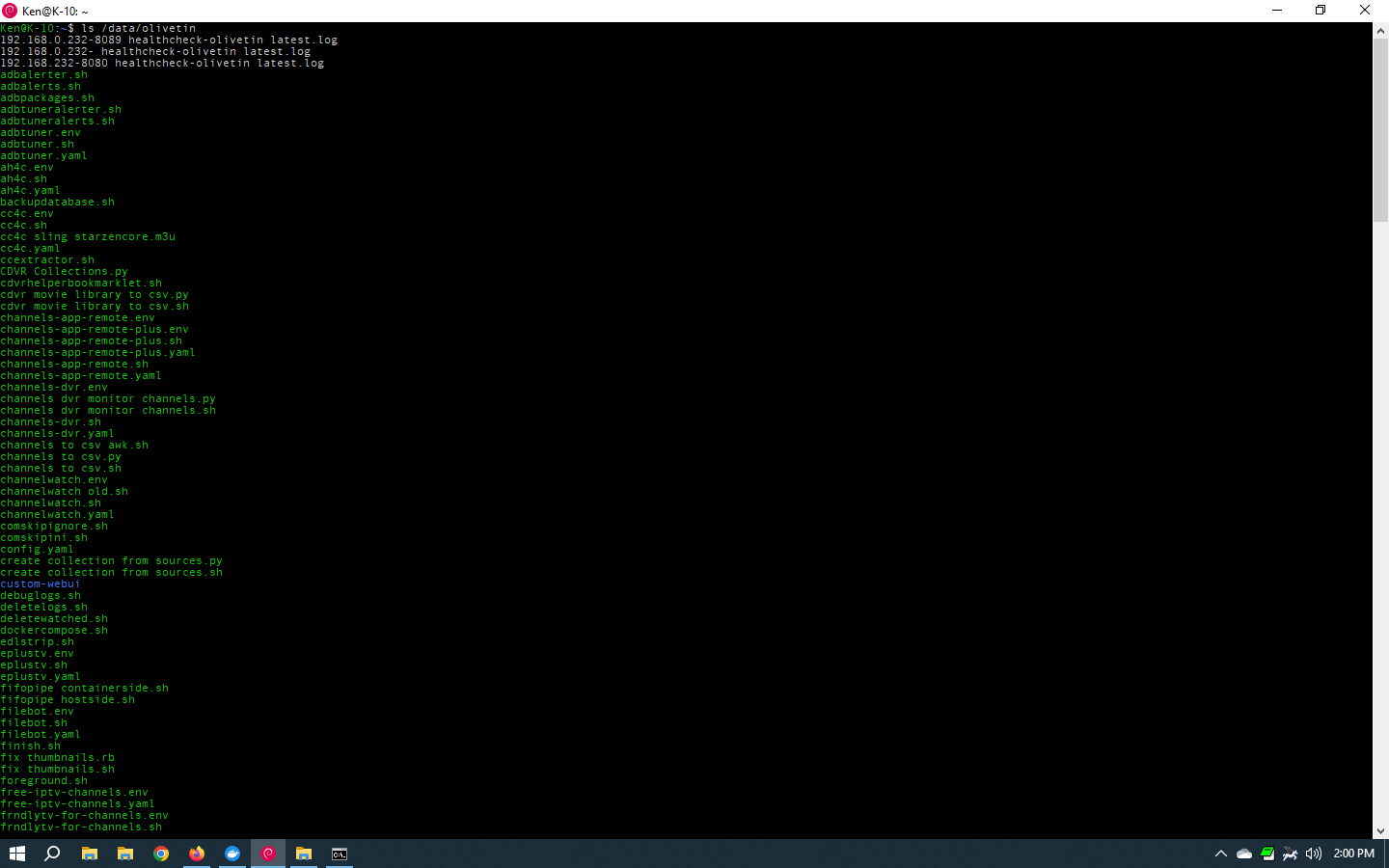
In Windows File Explorer, check under Linux/docker-desktop and see if there's data/olivetin directory there...
Can you try " Create Channels List in CSV Format" on your system and see where it ends up?
I did that earlier, and it's in the /data/olivetin directory as expected:

Have you tried to run the Action again since the latest fixes on your end? Please post anything from Standard Error, if it exists after running the Action.
Also, could you post another healthcheck please...
Yes, I ran it again, and just did it yet again, no file.
Standard Error
+ dvr=192.168.0.232:8089
++ echo 192.168.0.232:8089
++ awk -F: '{print $1}'
+ channelsHost=192.168.0.232
++ echo 192.168.0.232:8089
++ awk -F: '{print $2}'
+ channelsPort=8089
+ python3 /config/channels_to_csv.py -i 192.168.0.232 -p 8089
++ ls channels_dvr_channel_list_20250817_153327.csv
+ currentFilename=channels_dvr_channel_list_20250817_153327.csv
+ tr -d '\r'
+ mv channels_dvr_channel_list_20250817_153327.csv /config
OliveTin Post-Install Healthcheck
Standard Output
Checking your OliveTin-for-Channels installation...
(extended_check=true)

OliveTin Container Version 2025.07.30
OliveTin Docker Compose Version 2025.03.26

----------------------------------------

Checking that your selected Channels DVR server (192.168.0.232:8089) is reachable by URL:
HTTP Status: 200 indicates success...

  % Total    % Received % Xferd  Average Speed   Time    Time     Time  Current
                                 Dload  Upload   Total   Spent    Left  Speed

  0     0    0     0    0     0      0      0 --:--:-- --:--:-- --:--:--     0
100  1276  100  1276    0     0   311k      0 --:--:-- --:--:-- --:--:--  415k
HTTP Status: 200
Effective URL: http://192.168.0.232:8089/

----------------------------------------

Checking that your selected Channels DVR server's data files (/mnt/192.168.0.232-8089) are accessible:
Folders with the names Database, Images, Imports, Logs, Movies, Streaming and TV should be visible...

total 8
drwxr-xr-x 2 root root 4096 Aug 16 17:47 .
drwxr-xr-x 1 root root 4096 Aug 17 12:34 ..

Docker reports your current DVR_SHARE setting as...
/mnt/g/channels data

If the listed folders are NOT visible, AND you have your Channels DVR and Docker on the same system:

Channels reports this path as...
G:\Channels Data

When using WSL with a Linux distro and Docker Desktop, it's recommended to use...
/mnt/g/Channels Data

----------------------------------------

Checking that your selected Channels DVR server's log files (/mnt/192.168.0.232-8089_logs) are accessible:
Folders with the names data and latest should be visible...

total 8
drwxr-xr-x 2 root root 4096 Aug 16 17:47 .
drwxr-xr-x 1 root root 4096 Aug 17 12:34 ..

Docker reports your current LOGS_SHARE setting as...
/mnt/c/programdata/channelsdvr

If the listed folders are NOT visible, AND you have your Channels DVR and Docker on the same system:

Channels reports this path as...
C:\ProgramData\ChannelsDVR

When using WSL with a Linux distro and Docker Desktop, it's recommended to use...
/mnt/c/ProgramData/ChannelsDVR

----------------------------------------

Checking if your Portainer token is working on ports 9000 and/or 9443:

Portainer http response on port 9000 reports version 2.27.9
Portainer Environment ID for local is 3
Portainer https response on port 9443 reports version 2.27.9
Portainer Environment ID for local is 3

----------------------------------------

Here's a list of your current OliveTin-related settings:

HOSTNAME=olivetin
CHANNELS_DVR=192.168.0.232:8089
CHANNELS_DVR_ALTERNATES=
CHANNELS_CLIENTS=
ALERT_SMTP_SERVER=
ALERT_EMAIL_FROM=[Redacted]@
ALERT_EMAIL_PASS=[Redacted]
ALERT_EMAIL_TO=[Redacted]@
UPDATE_YAMLS=true
UPDATE_SCRIPTS=true
PORTAINER_TOKEN=[Redacted]
PORTAINER_HOST=192.168.0.232
PORTAINER_PORT=9443
PORTAINER_ENV=null

----------------------------------------

Here's the contents of /etc/resolv.conf from inside the container:

# Generated by Docker Engine.
# This file can be edited; Docker Engine will not make further changes once it
# has been modified.

nameserver 127.0.0.11
search
options ndots:0

# Based on host file: '/etc/resolv.conf' (internal resolver)
# ExtServers: [host(192.168.65.7)]
# Overrides: [search]
# Option ndots from: internal

----------------------------------------

Here's the contents of /etc/hosts from inside the container:

127.0.0.1	localhost
::1	localhost ip6-localhost ip6-loopback
fe00::	ip6-localnet
ff00::	ip6-mcastprefix
ff02::1	ip6-allnodes
ff02::2	ip6-allrouters
172.20.0.3	olivetin

----------------------------------------

Your WSL Docker-host is running:

 FIFO pipe not found. Is the host helper script running?
Run sudo -E ./fifopipe_hostside.sh "$PATH" from the directory you have bound to /config on your host computer

----------------------------------------

Your WSL Docker-host's /etc/resolv.conf file contains:

FIFO pipe not found. Is the host helper script running?
Run sudo -E ./fifopipe_hostside.sh "$PATH" from the directory you have bound to /config on your host computer

----------------------------------------

Your WSL Docker-host's /etc/hosts file contains:

FIFO pipe not found. Is the host helper script running?
Run sudo -E ./fifopipe_hostside.sh "$PATH" from the directory you have bound to /config on your host computer

----------------------------------------

Your WSL Docker-host's /etc/wsl.conf file contains:

FIFO pipe not found. Is the host helper script running?
Run sudo -E ./fifopipe_hostside.sh "$PATH" from the directory you have bound to /config on your host computer

----------------------------------------

Your Windows PC's %USERPROFILE%\.wslconfig file contains:

FIFO pipe not found. Is the host helper script running?
Run sudo -E ./fifopipe_hostside.sh "$PATH" from the directory you have bound to /config on your host computer


----------------------------------------

Your Windows PC's etc/hosts file contains:

FIFO pipe not found. Is the host helper script running?
Run sudo -E ./fifopipe_hostside.sh "$PATH" from the directory you have bound to /config on your host computer

----------------------------------------

Your Windows PC's DNS server resolution:

FIFO pipe not found. Is the host helper script running?
Run sudo -E ./fifopipe_hostside.sh "$PATH" from the directory you have bound to /config on your host computer

----------------------------------------

Your Windows PC's network interfaces:

FIFO pipe not found. Is the host helper script running?
Run sudo -E ./fifopipe_hostside.sh "$PATH" from the directory you have bound to /config on your host computer

----------------------------------------

Your Tailscale version is:

FIFO pipe not found. Is the host helper script running?
Run sudo -E ./fifopipe_hostside.sh "$PATH" from the directory you have bound to /config on your host computer

----------------------------------------

Standard Error

+ hostCommand=WSL_DISTRO_NAME
+ hostCommandArguments=
+ fifoPipe=/config/fifopipe
+ '[' '!' -p /config/fifopipe ']'
+ echo 'FIFO pipe not found. Is the host helper script running?'
+ echo -e 'Run sudo -E ./fifopipe_hostside.sh "$PATH" from the directory you have bound to /config on your host computer'
+ exit 1
+ hostCommand=LINUX_DISTRO_NAME
+ hostCommandArguments=
+ fifoPipe=/config/fifopipe
+ '[' '!' -p /config/fifopipe ']'
+ echo 'FIFO pipe not found. Is the host helper script running?'
+ echo -e 'Run sudo -E ./fifopipe_hostside.sh "$PATH" from the directory you have bound to /config on your host computer'
+ exit 1
+ hostCommand=resolv.conf
+ hostCommandArguments=
+ fifoPipe=/config/fifopipe
+ '[' '!' -p /config/fifopipe ']'
+ echo 'FIFO pipe not found. Is the host helper script running?'
+ echo -e 'Run sudo -E ./fifopipe_hostside.sh "$PATH" from the directory you have bound to /config on your host computer'
+ exit 1
+ hostCommand=hosts
+ hostCommandArguments=
+ fifoPipe=/config/fifopipe
+ '[' '!' -p /config/fifopipe ']'
+ echo 'FIFO pipe not found. Is the host helper script running?'
+ echo -e 'Run sudo -E ./fifopipe_hostside.sh "$PATH" from the directory you have bound to /config on your host computer'
+ exit 1
+ hostCommand=wsl.conf
+ hostCommandArguments=
+ fifoPipe=/config/fifopipe
+ '[' '!' -p /config/fifopipe ']'
+ echo 'FIFO pipe not found. Is the host helper script running?'
+ echo -e 'Run sudo -E ./fifopipe_hostside.sh "$PATH" from the directory you have bound to /config on your host computer'
+ exit 1
+ hostCommand=.wslconfig
+ hostCommandArguments=
+ fifoPipe=/config/fifopipe
+ '[' '!' -p /config/fifopipe ']'
+ echo 'FIFO pipe not found. Is the host helper script running?'
+ echo -e 'Run sudo -E ./fifopipe_hostside.sh "$PATH" from the directory you have bound to /config on your host computer'
+ exit 1
+ hostCommand=windows_hosts
+ hostCommandArguments=
+ fifoPipe=/config/fifopipe
+ '[' '!' -p /config/fifopipe ']'
+ echo 'FIFO pipe not found. Is the host helper script running?'
+ echo -e 'Run sudo -E ./fifopipe_hostside.sh "$PATH" from the directory you have bound to /config on your host computer'
+ exit 1
+ hostCommand=nslookup
+ hostCommandArguments='192.168.0.232.
Overrides:'
+ fifoPipe=/config/fifopipe
+ '[' '!' -p /config/fifopipe ']'
+ echo 'FIFO pipe not found. Is the host helper script running?'
+ echo -e 'Run sudo -E ./fifopipe_hostside.sh "$PATH" from the directory you have bound to /config on your host computer'
+ exit 1
+ hostCommand=windows_ipconfig
+ hostCommandArguments=
+ fifoPipe=/config/fifopipe
+ '[' '!' -p /config/fifopipe ']'
+ echo 'FIFO pipe not found. Is the host helper script running?'
+ echo -e 'Run sudo -E ./fifopipe_hostside.sh "$PATH" from the directory you have bound to /config on your host computer'
+ exit 1
+ hostCommand=windows_tailscale_version
+ hostCommandArguments=
+ fifoPipe=/config/fifopipe
+ '[' '!' -p /config/fifopipe ']'
+ echo 'FIFO pipe not found. Is the host helper script running?'
+ echo -e 'Run sudo -E ./fifopipe_hostside.sh "$PATH" from the directory you have bound to /config on your host computer'
+ exit 1
+ hostCommand=END_OF_RUN
+ hostCommandArguments=
+ fifoPipe=/config/fifopipe
+ '[' '!' -p /config/fifopipe ']'
+ echo 'FIFO pipe not found. Is the host helper script running?'
+ echo -e 'Run sudo -E ./fifopipe_hostside.sh "$PATH" from the directory you have bound to /config on your host computer'
+ exit 1
You can see from this section that your Windows filesystem is not accessible from Debian, as none of the folders called out in the comments are visible. This is probably causing us problems the other way around too.
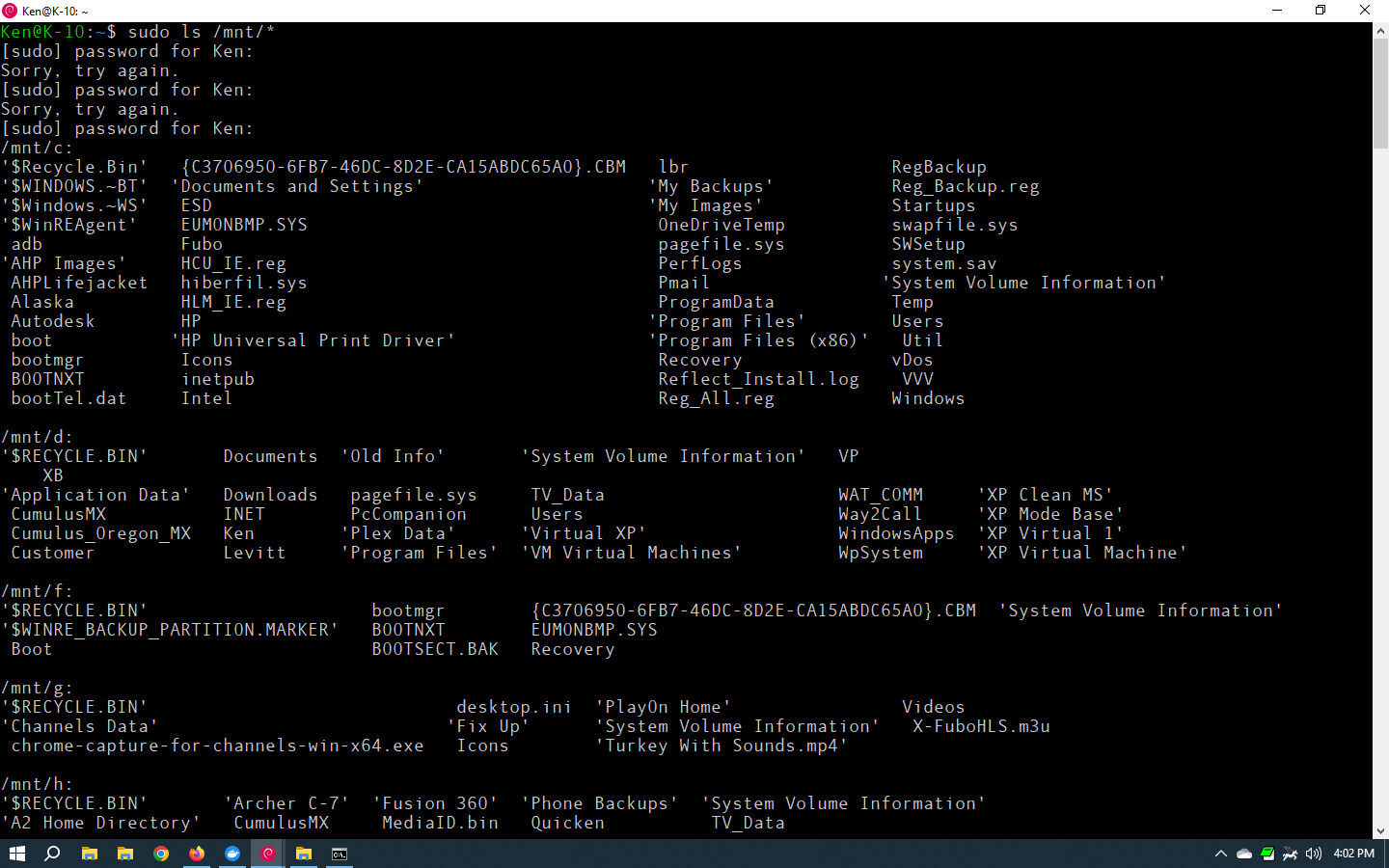
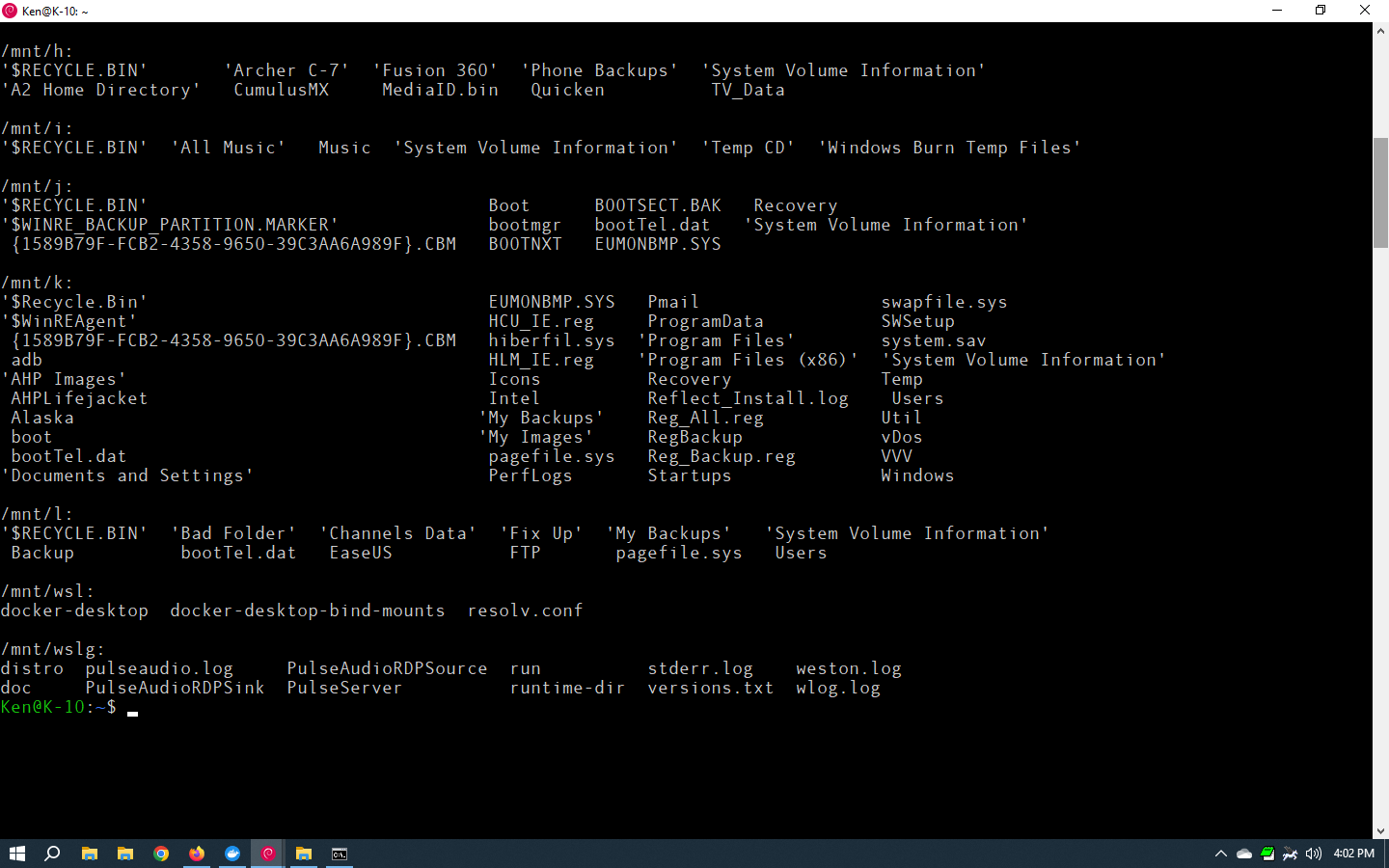
Let's try this -- from the Debian command prompt in Windows Terminal, run the command shown and post the output here. It should look something like this:
slayer@NUC12-PC:~$ sudo ls /mnt/*
[sudo] password for slayer:
/mnt/c:
'$GetCurrent'   'Documents and Settings'   OneDriveTemp           Recovery                     VMS_DOWNLOAD
'$Recycle.Bin'   DumpStack.log             pagefile.sys           swapfile.sys                 VMS_RECORD
 AMTAG.BIN       DumpStack.log.tmp         PerfLogs              'System Volume Information'   Windows
 apcupsd         hiberfil.sys              ProgramData            tmp
 BlueIris        inetpub                  'Program Files'         Users
 Config.Msi      install.txt              'Program Files (x86)'   VMS_CAPTURE

/mnt/d:

/mnt/dvr:

/mnt/wsl:
docker-desktop  docker-desktop-bind-mounts  resolv.conf

/mnt/wslg:
distro  pulseaudio.log     PulseAudioRDPSource  run          stderr.log    weston.log
doc     PulseAudioRDPSink  PulseServer          runtime-dir  versions.txt  wlog.log