In PowerShell:
PS C:\Users\slayer> wsl --status
Default Distribution: Debian
Default Version: 2

In PowerShell:
PS C:\Users\slayer> wsl --status
Default Distribution: Debian
Default Version: 2
That is what I got:
PS D:\TV_Data> wsl --status
Default Distribution: Debian
Default Version: 2
PS D:\TV_Data>
Believe it or not, I've seen this kind of subtle corruption in the Docker Desktop for Windows integration with WSL before (particularly in Windows 10). I know how to fix it but it requires resetting Docker Desktop to "factory", which I don't think either of us really wants to do.
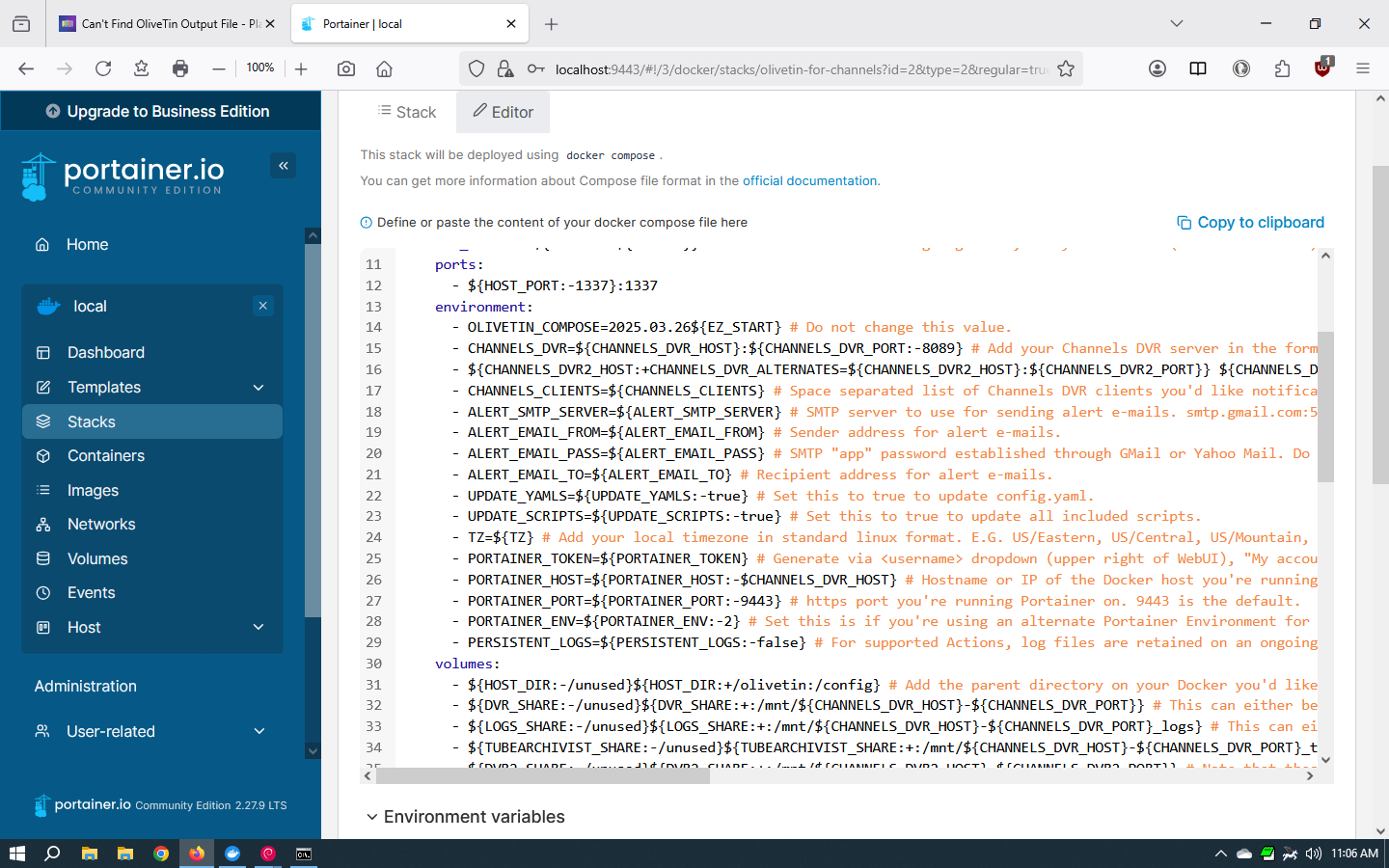
So, let's try using Windows paths for OliveTin instead of Linux paths. You'll need to stop the OliveTin stack, and then in the Environment variables section of the Stack Editor change the following values to those shown here:
HOST_DIR=G:/data
DVR_SHARE=G:/Channels Data
LOGS_SHARE=C:/ProgramData/ChannelsDVR
Yes, the forward slashes are correct. 
Click Update the stack, then try running the Action again, and see if the output can be found under G:\data\olivetin along with all the other OliveTin scripts and files.
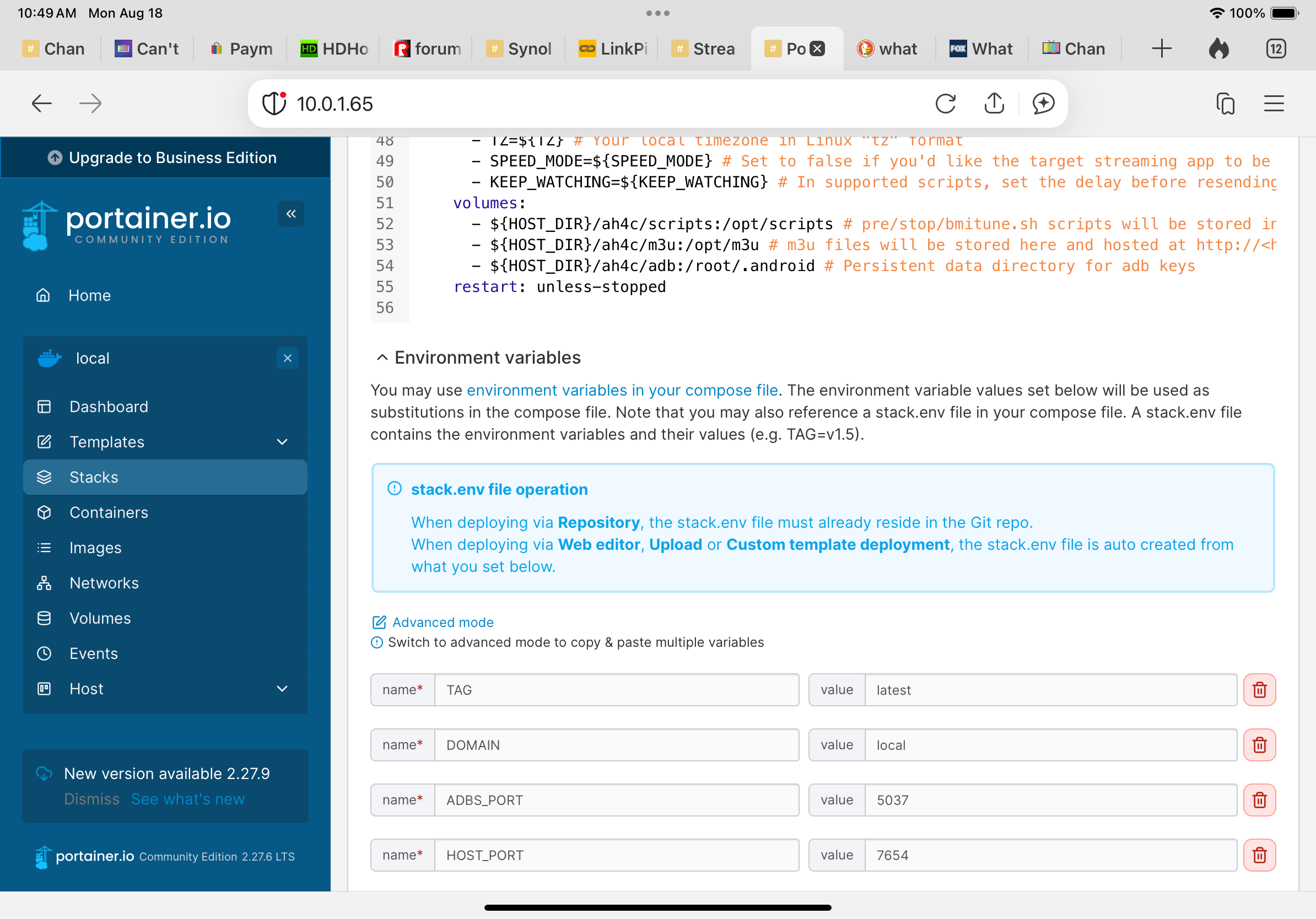
I stopped the OliveTin stack and went to the environment section of the editor (as instructed), but the variables you said to replace are not there. See attached.
What am I doing wrong?
It works!!!
Thank You! Thank You! Thank You!
My only worry is if I do an update to OliveTin or Portainer, will settings get lost?
What is the recommended update procedure?
I don’t think so but I’m no expert. Just remember to change the variables in the Environment Variable section and not in the compose file!
@bnhf can guide you better than me!!!
I’m just a novice that noticed your screenshot was the compose and not the environment variables.
This topic was automatically closed 30 days after the last reply. New replies are no longer allowed.