Charon Tuner Project
Charon is a C# browser-based tuner bridge designed to manage, tune, and stream live television from web-based media providers directly into any client supporting M3U playlists and MPEG-TS streams.
for YouTube TV, Spectrum TV, or Xfinity
Step 1: Download & Install Charon
-
Download the latest installer from the official GitHub Releases page: https://github.com/nuken/Charon/releases.
-
Run the installer.
Note: Windows SmartScreen will likely show a blue "Windows protected your PC" prompt because the application is newly published. Click More info, then click Run anyway.
- Ensure Google Chrome is installed on the same machine, as Charon uses it to run the browser tuners.
Step 2: Select Provider, Log In & Sync Lineup
-
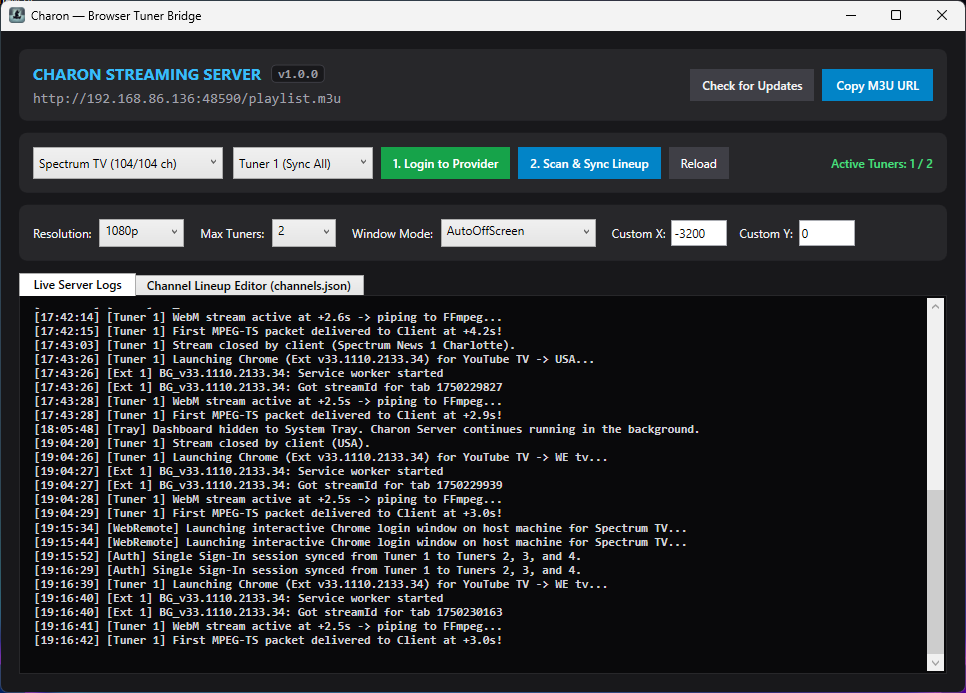
Launch Charon.
-
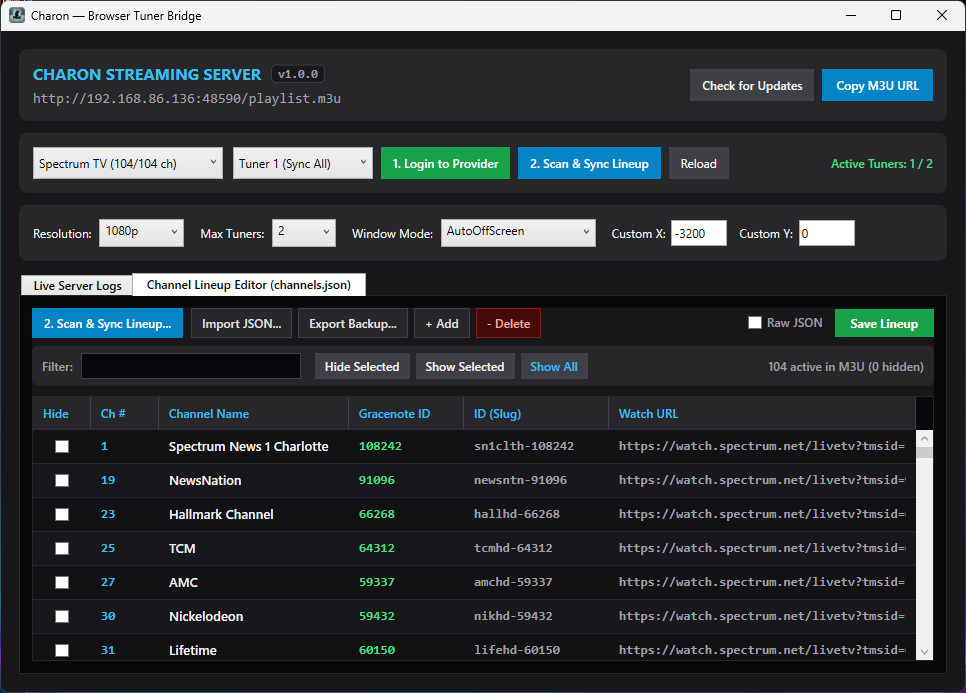
Select Provider: Choose your provider (YouTube TV, Spectrum TV, or Xfinity) from the top-left dropdown menu.
-
Log In: Click 1. Login to Provider.
-
A Chrome window will open to the provider's sign-in page.
-
Sign in to your account, confirm live video plays, and then close that Chrome window completely.
- Scan & Sync: Click 2. Scan & Sync Lineup.
-
Spectrum TV: Scans automatically and matches station IDs natively.
-
YouTube TV & Xfinity: You will be prompted to enter your Channels DVR Server IP and Port (default port is
8089). Charon queries your Channels DVR server to automatically match Gracenote Station IDs.
Step 3: Match Missing or Incorrect Channels in Channels DVR
While Spectrum provides native Station IDs, YouTube TV and Xfinity channel names often differ from broadcast databases (e.g., local station names vs. official FCC callsigns):
-
Add your Charon playlist URL (
http://<CHARON-IP>:48590/playlist.m3u) as a Custom Channels source in Channels DVR. -
In the Channels DVR web admin, locate your Charon source and click Manage Lineup.
-
For any channel missing guide data or mapped incorrectly, click the + / pencil icon next to the channel name, search for your local call sign or network, and select the correct station. Channels DVR will permanently remember your mapping.
Recommended Settings
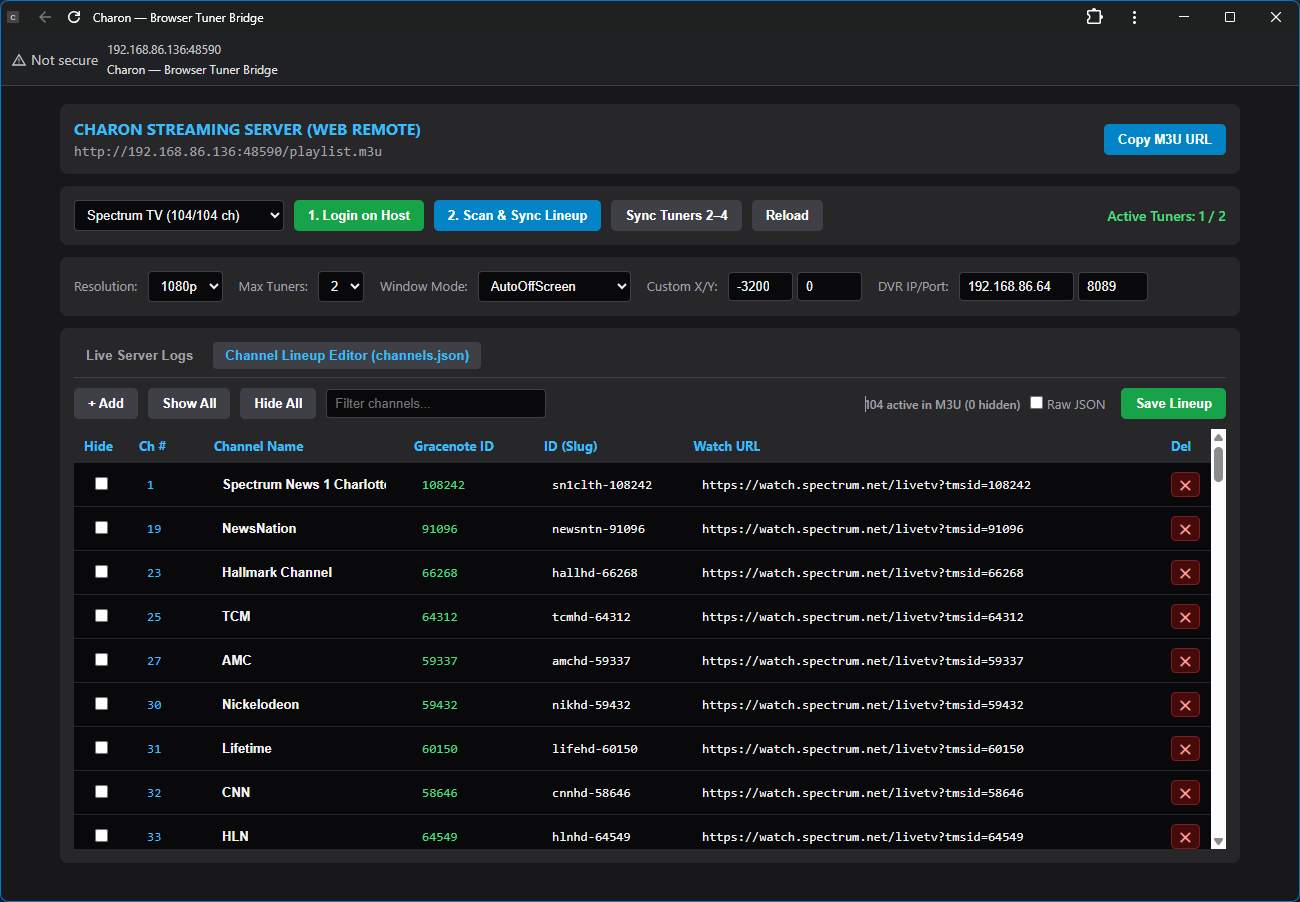
Configure these in the Charon dashboard (or via the web UI at http://IP:48590):
-
Resolution:
720p(Provides the smoothest multi-tuner streaming and lowest CPU/GPU load). -
Max Tuners:
2(Increase up to4only if your CPU, GPU, and RAM can comfortably handle concurrent browser instances). -
Window Mode:
AutoOffScreen(Keeps active Chrome stream windows tucked off-screen so they don't interrupt desktop use). -
Display / Dummy Plug: Set your display or HDMI dummy plug to 1280x720 (or 1920x1080) at 59.94Hz or 60Hz Progressive, with Windows Display Scaling set to 100%.