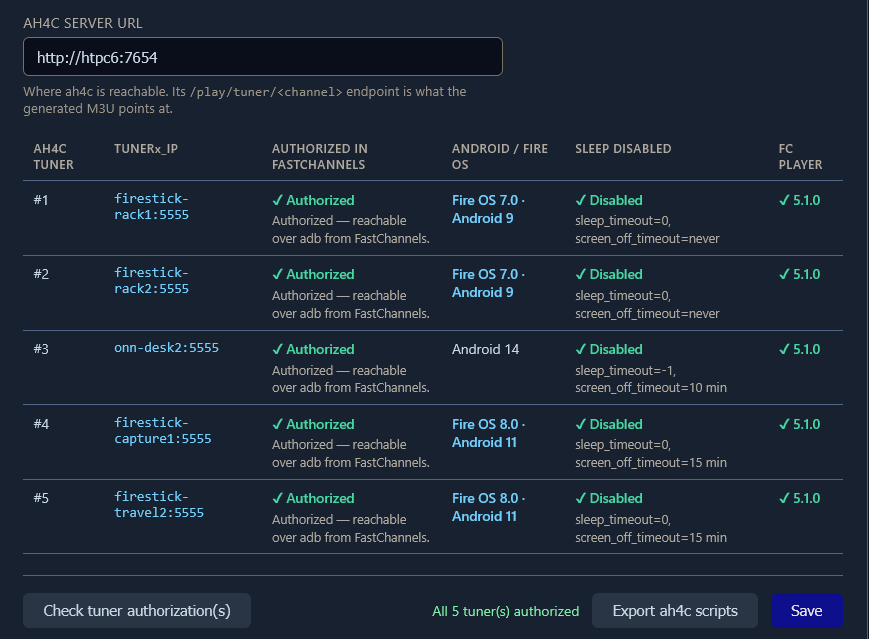
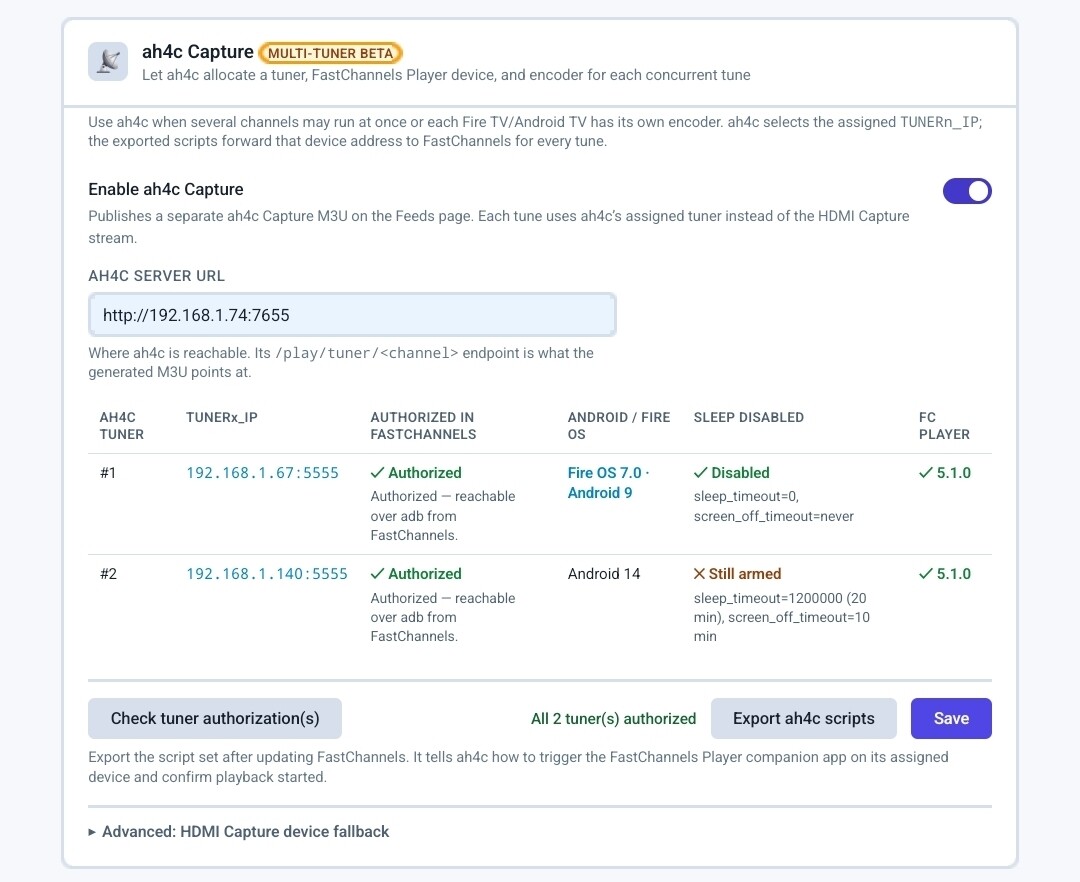
Ah4c
FC

Ah4c
FC
Make sure you're using this Docker Compose, and that you have the new FASTCHANNELS_URL env var defined in your overrides. Also, be sure you have the latest ah4c, and that your firetv/fastchannels scripts have a 2026.09.06 date a couple of lines below the shebang.
services:
  # 2026.09.03
  # GitHub home for this project with setup instructions: https://github.com/sullrich/ah4c
  # Docker Hub home for this project: https://hub.docker.com/repository/docker/bnhf/ah4c
  ah4c: # This docker-compose typically requires no editing. Use the Environment variables section of Portainer to set your values.
    image: bnhf/ah4c:${TAG:-latest}
    container_name: ${CONTAINER_NAME:-ah4c}
    hostname: ${HOSTNAME:-ah4c}
    dns_search: ${DOMAIN:-localdomain} # Specify the name of your LAN's domain, usually local or localdomain
    runtime: ${DOCKER_RUNTIME:-runc} # Closed captions only. Set DOCKER_RUNTIME=nvidia for an NVIDIA GPU with the CUDA engine build. Requires the NVIDIA container toolkit.
    devices:
      - ${GPU_DEVICE:-/dev/null} # Closed captions only. Set GPU_DEVICE=/dev/dri to let the Vulkan engine build use an Intel or AMD GPU. Left at the default it passes /dev/null, which always exists and does nothing.
    ports:
      - ${HOST_PORT:-7654}:7654 # Port used by this ah4c proxy
    environment:
      - AH4C_COMPOSE=2026.09.03 # Compose file date stamp - do not change. The startup log flags it when out of date.
      # ── Proxy identity ──────────────────────────────────────────────────────
      - IPADDRESS=${IPADDRESS} # Hostname or IP address of this ah4c extension to be used in M3U file (also add port number if not in M3U)
      # ── Tuners ──────────────────────────────────────────────────────────────
      # One trio per tuner: TUNERn_IP is the box to tune; video comes from CMDn if set, otherwise ENCODERn_URL.
      - NUMBER_TUNERS=${NUMBER_TUNERS} # Number of tuners you'd like defined - add a matching TUNERn_IP, ENCODERn_URL and CMDn trio below for each beyond 9
      - TUNER1_IP=${TUNER1_IP} # Streaming device #1 with adb port in the form hostname:port or ip:port
      - ENCODER1_URL=${ENCODER1_URL} # Tuner #1 source URL (http://hostname/stream). Streamed directly when CMD1 is blank; otherwise referenced by CMD1 as ${ENCODER1_URL}.
      - CMD1=${CMD1} # Optional tuner #1 command; ah4c streams its stdout (end it with "-f mpegts -") instead of fetching ENCODER1_URL. No shell.
      - TUNER2_IP=${TUNER2_IP} # Streaming device #2 with adb port in the form hostname:port or ip:port
      - ENCODER2_URL=${ENCODER2_URL} # Tuner #2 source URL. Streamed directly when CMD2 is blank; otherwise referenced by CMD2 as ${ENCODER2_URL}.
      - CMD2=${CMD2} # Optional tuner #2 command; ah4c streams its stdout instead of fetching ENCODER2_URL. See CMD1.
      - TUNER3_IP=${TUNER3_IP} # Streaming device #3 with adb port in the form hostname:port or ip:port
      - ENCODER3_URL=${ENCODER3_URL} # Tuner #3 source URL. Streamed directly when CMD3 is blank; otherwise referenced by CMD3 as ${ENCODER3_URL}.
      - CMD3=${CMD3} # Optional tuner #3 command; ah4c streams its stdout instead of fetching ENCODER3_URL. See CMD1.
      - TUNER4_IP=${TUNER4_IP} # Streaming device #4 with adb port in the form hostname:port or ip:port
      - ENCODER4_URL=${ENCODER4_URL} # Tuner #4 source URL. Streamed directly when CMD4 is blank; otherwise referenced by CMD4 as ${ENCODER4_URL}.
      - CMD4=${CMD4} # Optional tuner #4 command; ah4c streams its stdout instead of fetching ENCODER4_URL. See CMD1.
      - TUNER5_IP=${TUNER5_IP} # Streaming device #5 with adb port in the form hostname:port or ip:port
      - ENCODER5_URL=${ENCODER5_URL} # Tuner #5 source URL. Streamed directly when CMD5 is blank; otherwise referenced by CMD5 as ${ENCODER5_URL}.
      - CMD5=${CMD5} # Optional tuner #5 command; ah4c streams its stdout instead of fetching ENCODER5_URL. See CMD1.
      - TUNER6_IP=${TUNER6_IP} # Streaming device #6 with adb port in the form hostname:port or ip:port
      - ENCODER6_URL=${ENCODER6_URL} # Tuner #6 source URL. Streamed directly when CMD6 is blank; otherwise referenced by CMD6 as ${ENCODER6_URL}.
      - CMD6=${CMD6} # Optional tuner #6 command; ah4c streams its stdout instead of fetching ENCODER6_URL. See CMD1.
      - TUNER7_IP=${TUNER7_IP} # Streaming device #7 with adb port in the form hostname:port or ip:port
      - ENCODER7_URL=${ENCODER7_URL} # Tuner #7 source URL. Streamed directly when CMD7 is blank; otherwise referenced by CMD7 as ${ENCODER7_URL}.
      - CMD7=${CMD7} # Optional tuner #7 command; ah4c streams its stdout instead of fetching ENCODER7_URL. See CMD1.
      - TUNER8_IP=${TUNER8_IP} # Streaming device #8 with adb port in the form hostname:port or ip:port
      - ENCODER8_URL=${ENCODER8_URL} # Tuner #8 source URL. Streamed directly when CMD8 is blank; otherwise referenced by CMD8 as ${ENCODER8_URL}.
      - CMD8=${CMD8} # Optional tuner #8 command; ah4c streams its stdout instead of fetching ENCODER8_URL. See CMD1.
      - TUNER9_IP=${TUNER9_IP} # Streaming device #9 with adb port in the form hostname:port or ip:port
      - ENCODER9_URL=${ENCODER9_URL} # Tuner #9 source URL. Streamed directly when CMD9 is blank; otherwise referenced by CMD9 as ${ENCODER9_URL}.
      - CMD9=${CMD9} # Optional tuner #9 command; ah4c streams its stdout instead of fetching ENCODER9_URL. See CMD1.
      # ── Streaming app and DVR ───────────────────────────────────────────────
      - STREAMER_APP=${STREAMER_APP} # Streaming device name and streaming app you're using in the form scripts/streamer/app (use lowercase with slashes between as shown)
      - PYATV=${PYATV:-false} # Set to TRUE to run docker-start-pyatv.sh at container start for Apple TV tuners via pyatv, instead of the default docker-start.sh used for adb-based tuners. Case-insensitive; anything else runs the default.
      - CHANNELSIP=${CHANNELSIP} # Hostname or IP address of the Channels DVR server itself
      - FASTCHANNELS_URL=${FASTCHANNELS_URL} # Base URL of your FastChannels container, so the firetv/fastchannels scripts can use its built-in ah4c integration to tune. A URL pre-filled into an exported script overrides this.
      # ── Failure alerts ──────────────────────────────────────────────────────
      # Email via SMTP and/or a webhook GET, sent when a tune fails. Leave blank to disable.
      - ALERT_SMTP_SERVER=${ALERT_SMTP_SERVER} # The domainname:port of the SMTP server you'll be using like smtp.gmail.com:587. This is for sending ah4c alerts if tuning fails.
      - ALERT_AUTH_SERVER=${ALERT_AUTH_SERVER} # The auth server for the e-mail you'll be using like smtp.gmail.com
      - ALERT_EMAIL_FROM=${ALERT_EMAIL_FROM} # The e-mail address you'd like your ah4c failure alert e-mails to show as being from.
      - ALERT_EMAIL_PASS=${ALERT_EMAIL_PASS} # Gmail and Yahoo both support the creation of app-specific e-mail passwords, and this is the way to go! It's NOT recommended to use your everyday e-mail password.
      - ALERT_EMAIL_TO=${ALERT_EMAIL_TO} # The e-mail address you'd like your alert e-mails sent to.
      - ALERT_WEBHOOK_URL=${ALERT_WEBHOOK_URL} # URL to GET when an alert fires (same failures that trigger the e-mail); put $reason in the URL and it's replaced with the URL-encoded message. Blank disables it.
      # ── Guide tuning and content updates ────────────────────────────────────
      - LIVETV_ATTEMPTS=${LIVETV_ATTEMPTS} # For FireTV Live Guide tuning only, set maximum number of attempts at finding the desired channel
      - CREATE_M3US=${CREATE_M3US:-false} # Set to true to create device-specific M3Us for use with Amazon Prime Premium channels -- requires a FireTV device
      - UPDATE_SCRIPTS=${UPDATE_SCRIPTS:-true} # Set to true if you'd like the sample scripts and STREAMER_APP scripts updated whether they exist or not
      - UPDATE_M3US=${UPDATE_M3US:-true} # Set to true if you'd like the sample m3us updated whether they exist or not
      # ── Timezone and session handling ───────────────────────────────────────
      - TZ=${TZ} # Your local timezone in Linux "tz" format
      - SPEED_MODE=${SPEED_MODE:-false} # Set to false if you'd like the target streaming app to be closed after each tuning cycle (limited script support).
      - KEEP_WATCHING=${KEEP_WATCHING} # In supported scripts, set the delay before resending a tuning deeplink to prevent "Are you still watching?" type messages. Examples: Use 4h for 4 hours or 240m for 240 minutes.
      # ── Autocrop (LinkPi encoders only) ─────────────────────────────────────
      - AUTOCROP_CHANNELS=${AUTOCROP_CHANNELS} # Space separated list of channels (by number) with black borders on 4 sides to autocrop while maintaining aspect ratio. Requires LinkPi Encoder!
      - LINKPI_HOSTNAME=${LINKPI_HOSTNAME} # Hostname or IP of the LinkPi Encoder's web API. Required for AUTOCROP_CHANNELS.
      - LINKPI_USERNAME=${LINKPI_USERNAME} # Username for the LinkPi Encoder's web API. Required for AUTOCROP_CHANNELS.
      - LINKPI_PASSWORD=${LINKPI_PASSWORD} # Password for the LinkPi Encoder's web API. Required for AUTOCROP_CHANNELS; not currently read by the bundled scripts, which log in with the LinkPi default password instead.
      # ── Custom startup script ───────────────────────────────────────────────
      - USER_SCRIPT=${USER_SCRIPT} # Path to a custom script to run alongside ah4c at container startup. Blank runs nothing extra.
      # ── Recording continuity and playback timing ────────────────────────────
      # Keep recordings starting on the program and free of gaps within the DVR's 30s tune window.
      - NULL_FRAME_INSERTION=${NULL_FRAME_INSERTION:-false} # Set to TRUE to fill encoder stalls with MPEG-TS NULL packets (PID 0x1FFF) so the DVR never sees a zero-byte gap mid-recording. Case-insensitive (true/True/TRUE all work); anything else, including 1/yes, leaves the feature off.
      - PLAYBACK_DETECTION=${PLAYBACK_DETECTION:-false} # Set to TRUE to hold the stream until the device reports audio playing and the picture moving, then start on a keyframe, so recording begins on the program, not the loading screen. Requires adb; network tuners only. Case-insensitive; anything but true leaves it off.
      - PLAYBACK_STATIC_TIMEOUT=${PLAYBACK_STATIC_TIMEOUT} # Only used with PLAYBACK_DETECTION=TRUE. Seconds the box may keep its prior player/session before the check falls back to gating on motion alone. Default 2 suits Ospreys; apps like DirecTV that hold one player across channel changes need more. 0 or unset uses the default.
      - PLAYBACK_DELAY=${PLAYBACK_DELAY} # Hold every tune this long before handing the DVR the program, so a slow-starting app still records within the DVR's 30s window. Black or a mounted pre-roll fills the wait; the box's own video is never passed through. Accepts a bare number (seconds) or a duration like 30s/1m, capped at 10m. Network tuners only. Empty or 0 disables it.
      - ENCODER_CODEC=${ENCODER_CODEC:-h264} # The video codec your encoder outputs: h264 (default) or h265. Filler black/pre-roll must match it, or playback won't cross to the program at hand-off. Pre-roll video is converted to match; an existing H.265 stream is copied. Leave at h264 unless your encoder is H.265. Case-insensitive; h265/hevc both work.
      - HEARTBEAT_INTERVAL=${HEARTBEAT_INTERVAL:-180} # In supported scripts (currently osprey), seconds between keepalive keyevents sent during playback to stop the app's UI inactivity timer from resetting the stream. Default 180; set to 0 to disable.
      # ── NVIDIA GPU ──────────────────────────────────────────────────────────
      # Used by the CUDA caption engine and any CMDn calling h264_nvenc/hevc_nvenc. Needs the NVIDIA container toolkit.
      - NVIDIA_VISIBLE_DEVICES=${NVIDIA_VISIBLE_DEVICES} # For the CUDA caption engine and/or an NVENC CMDn. Set to all alongside DOCKER_RUNTIME=nvidia to expose an NVIDIA GPU. Empty means no GPU and is the default.
      - NVIDIA_DRIVER_CAPABILITIES=${NVIDIA_DRIVER_CAPABILITIES} # Set to compute,utility for the CUDA caption engine. A CMDn using h264_nvenc/hevc_nvenc also needs video - use compute,utility,video (or all).
    volumes:
      - ${HOST_DIR}/ah4c/scripts:/opt/scripts # pre/stop/bmitune.sh scripts will be stored in this bound host directory under streamer/app
      - ${HOST_DIR}/ah4c/m3u:/opt/m3u # m3u files will be stored here and hosted at http://<hostname or ip>:7654/m3u for use in Channels DVR - Custom Channels settings
      - ${HOST_DIR}/ah4c/adb:/root/.android # Persistent data directory for adb keys
      - ${HOST_DIR}/ah4c/captions:/opt/captions # Closed caption settings, and the speech model, engine and any GPU driver downloaded from the Closed Captions page. Stays empty unless you turn captions on
      - ${PREROLL_FILE:-${HOST_DIR}/ah4c/preroll}:/opt/preroll # A video or still image shown to the DVR instead of NULL packets, during a PLAYBACK_DELAY/PLAYBACK_DETECTION hold or a NULL_FRAME_INSERTION stall. Set PREROLL_FILE to a host path, or drop the file into this directory. Anything ffmpeg reads; prepared once at startup, loops until the real stream is ready
    restart: unless-stopped
Ok, that worked. Must've missed that along the way lol
Things are moving quickly atm! 
I can't find anything with capture://dshow - where would I find that? I posted what I'd set up as the source, which I modeled after your example. (I forgot to include in my previous reply that I didn't know where the capture://dshow was supposed to come from). Maybe I don't know what is meant by "virtual encoder"?
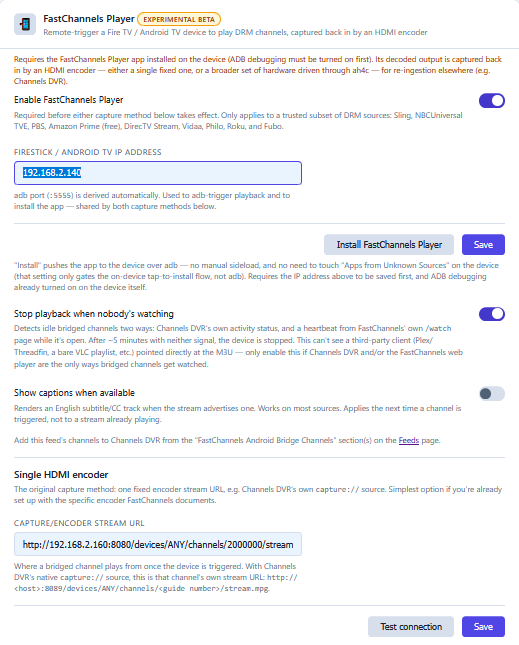
Hopefully this is what you mean?
I clicked the install and it re-installed. I clicked test and got this:
Device reachable — FastChannels Player is installed. Encoder/capture stream URL is not reachable — bridged channels will fail until that stream is up.
Then I tried changing the IP included in the url under "single HDMI encoder' from 160 to 140 in case that was the issue (server is on 160 while stick is on 140), saved, and ran "test connection" again. Same results.
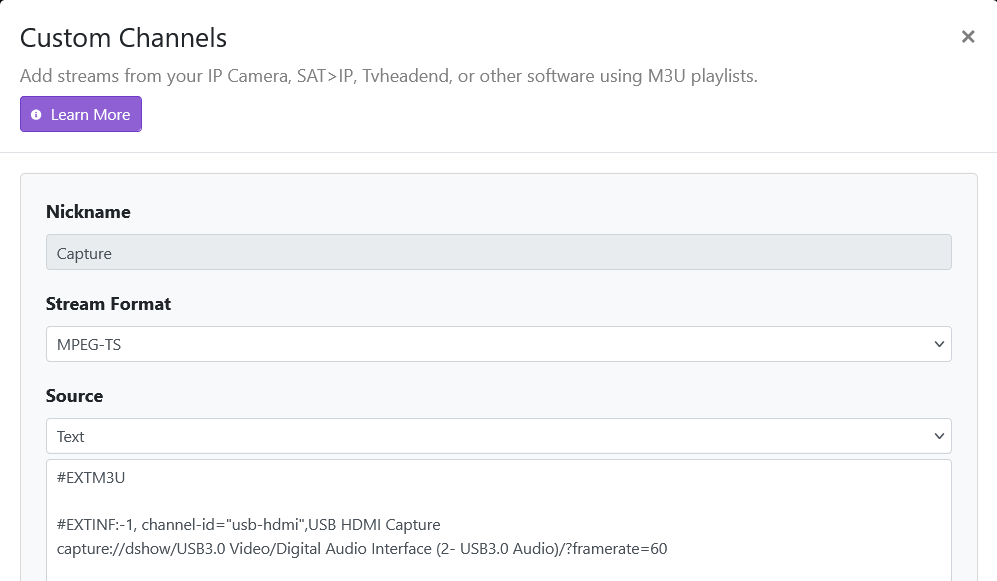
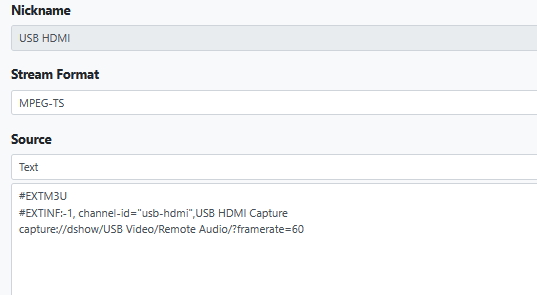
You should have a Custom Channel Source setup that looks very much like this one:
This custom source takes the input from your Capture Card and transcodes it into something useful. A Capture Card plus this Custom Source creates a "virtual encoder". These two together do basically the same job as a LinkPi or URayCoder.
This is the first building block we need to nail down.
EDIT: Have you reviewed this document about how all this works?
@SageLois Did you go through the process of identifying the video and audio elements of your Capture Card using ffmpeg from a Command Prompt?
Those are what makeup the capture://dshow URL that needs to go in this special source that's only job is to transcode the feed from your Capture Card.
EDIT: If you haven't done that (it's pretty much step one after plugging in your Capture Card), open a Command Prompt window and enter:
c:\programdata\channelsdvr\latest\ffmpeg.exe -list_devices true -f dshow -i dummy
Then post the output here.
I think that may be the source of the issue. I finally found some reference to that in another thread, but it's not getting me anywhere.
Here's the output of the ffmpeg command:
[dshow @ 00000232046c95c0] "USB Video" (video)
[dshow @ 00000232046c95c0]   Alternative name "@device_pnp_\\?\usb#vid_534d&pid_2109&mi_00#7&2c929db0&0&0000#{65e8773d-8f56-11d0-a3b9-00a0c9223196}\global"
[dshow @ 00000232046c95c0] "Remote Audio" (audio)
[dshow @ 00000232046c95c0]   Alternative name "@device_cm_{33D9A762-90C8-11D0-BD43-00A0C911CE86}\wave_{A3ED9185-1E02-411C-B11B-05D92F25CEF4}"
I then tried setting up a source:
I also found some instructions (probably the ones you're thinking of) in the github docs folder (would have preferred them in the FC screens themselves, but I finally found them). Here's the part that I can't follow (starting with step 2):
Once the capture source appears as a device in Channels DVR:
What does it mean "in the HDMI Capture card, select...." The capture card provides no obvious way to talk to it that I can find.
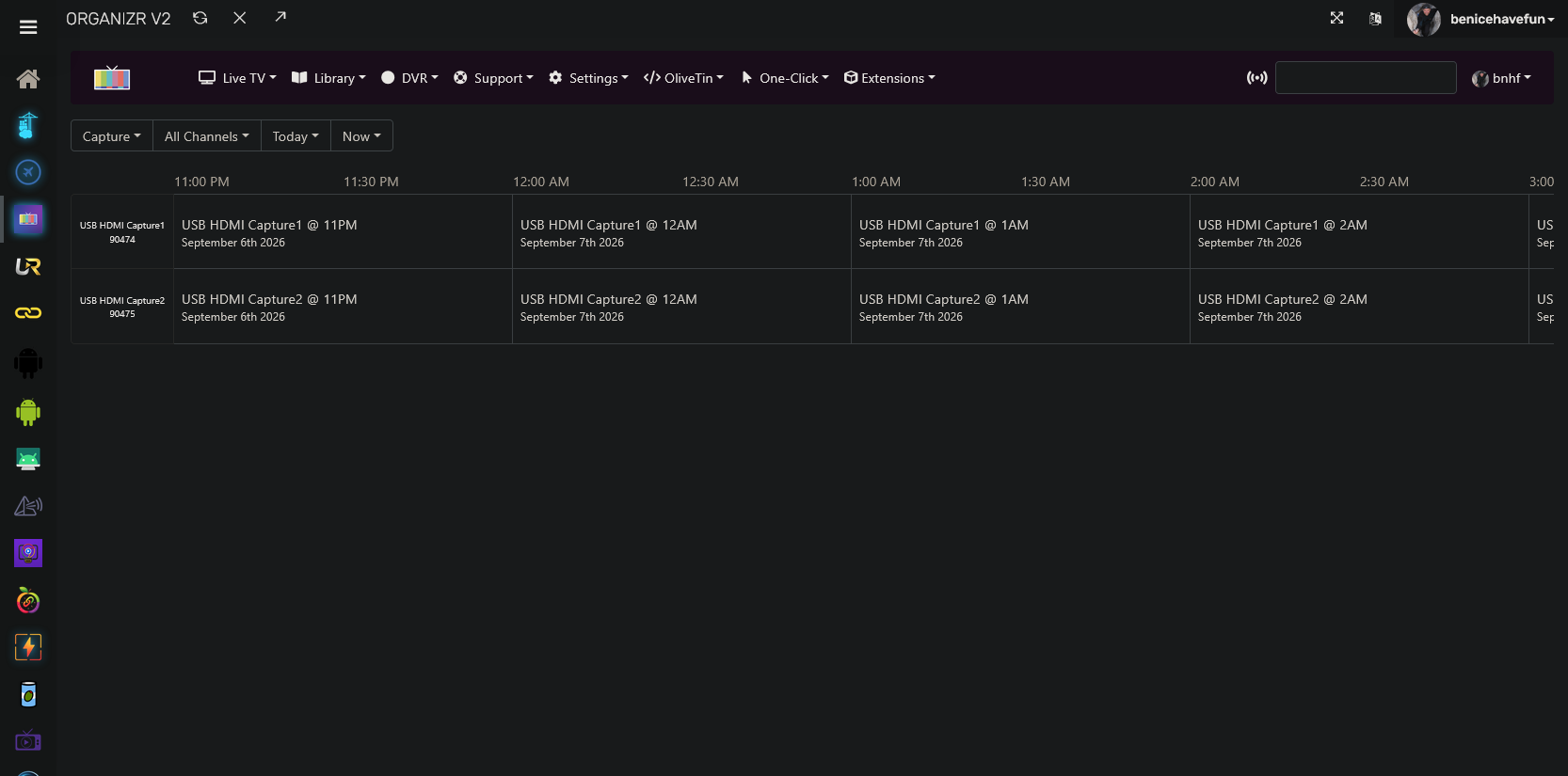
OK, good. Now, if you look in your WebUI guide, you should find a source that matched the nickname you chose. Here's mine:
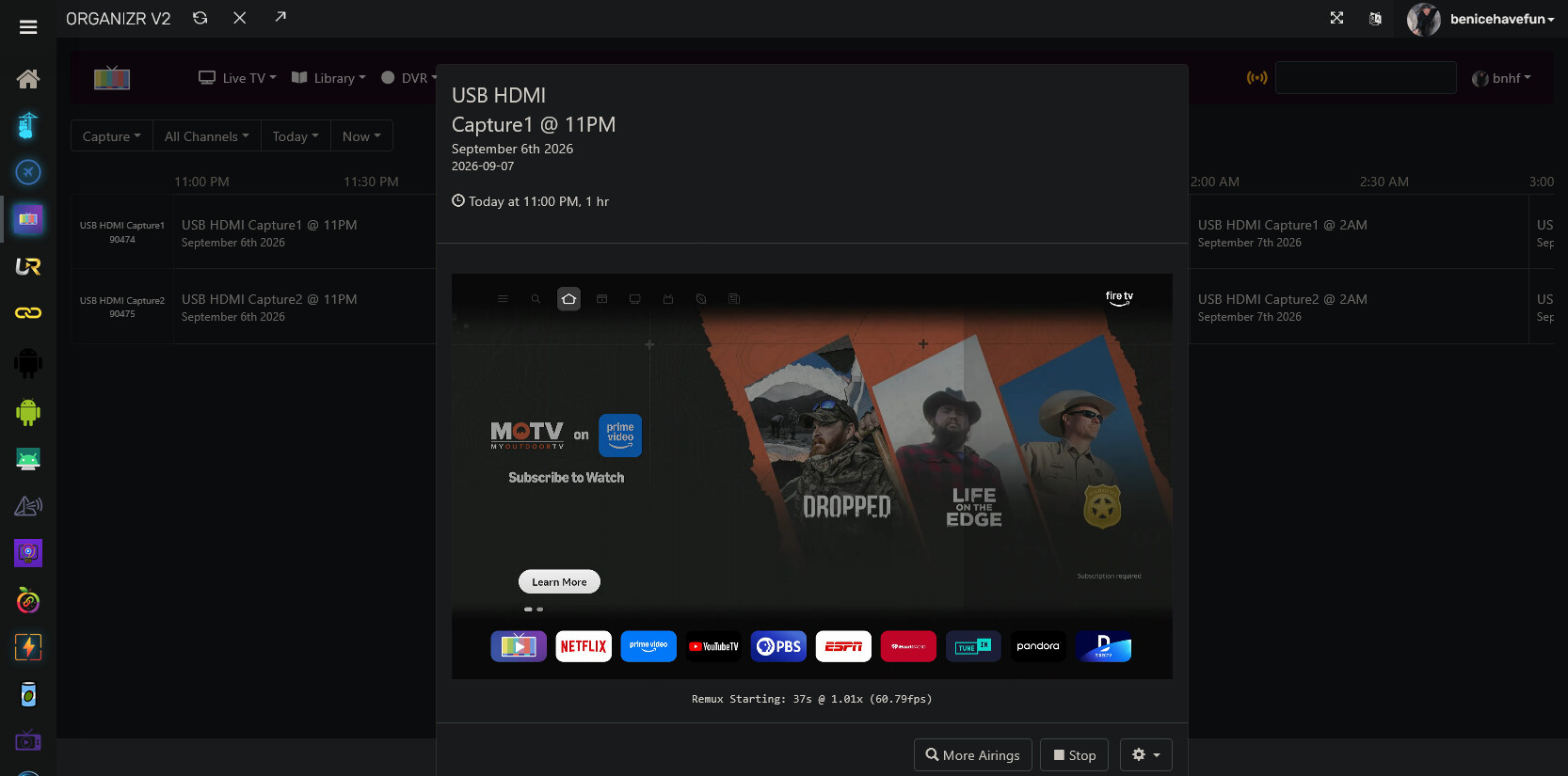
I have two Capture Cards, but you'll only have one. Click on what's in the current time slot, and view it just like you would a normal channel. You should see the homescreen of your FireStick:
Make note of the assigned channel number (90474 in my case), and build your virtual encoder URL, using my description here:
That virtual encoder URL goes here, in place of the incorrect one you entered:
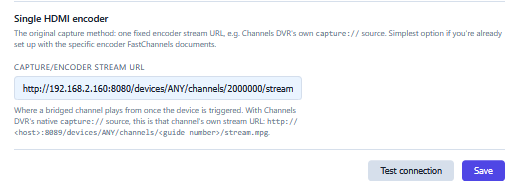
Save it, and you should be able to Test connection.
If successful, you now have a virtual encoder.
Next you'll create another Custom Channel Source for Amazon, as I described here. Your M3U will not match mine, but you'll find the correct one for you in FastChannels Feeds for Amazon Prime. I'd suggest just doing the Gracenote one to start (assuming you have some channels enabled with Gracenote Station IDs).
EDIT: I'm signing off for the night, but hopefully the above will get you there!
Ok, I think I finally got it (partially) working, with a few remaining significant issues:
I did finally (thanks to your instructions and one change that I had to make (see below) get to the point where I could watch video from the Android Bridge channels. However, there are two significant problems for making recordings (possibly also for just watching, but I'm in the process of testing that).
To view anything but the screen saver (if the stick has been quiet for long enough to go into sleep mode), I have to press a button the remote.
After just a few minutes (3 or so?) of recording an actual airing, the stick reverts back to the Fire Stick home screen and that's what gets recorded for whatever duration the airing was supposed to have. I am "watching" something on another tab right now and simultaneously recording it to see what happens, but while that might be somewhat diagnostic, it's not how I want to use the feature. (Update): In this case it lasted about 10-11 minutes before reverting to the home screen or screen saver.
I found the fire stick setting to disable the screen saver, and set up yet another recording for later to see what happens.
Here's what I ended up doing to get to the current point (in addition to your instructions, which were essential:
My server runs headless and I talk to it via Windows Remote Desktop from my daily driver PC which sits right next to the server. I had the RDP set so that it's supposed to send the server's audio to the remote PC (which is why the ffmpeg command referenced "remote audio." I made an alternate RDP profile that left the audio on the server machine and reran the ffmpeg command, which gave me a different result for the audio portion. I updated the USB-HDMI setup with the new string and all of a sudden I can see the fire stick when viewing the HDMI tuner in Channels, instead of an endlessly spinning circle of doom. (Odd that both audio and video were failing prior to the change when the only thing that I changed to fix was the audio setting).
I then proceeded with your instructions to complete the setup.
So I've made progress but still have the problems noted.
In the Github docs, I find the following, which doesn't match anything I see on my FC admin screen. It looks like it might be helpful in diagnosing the sleep and early reversion to home screen issues, but it doesn't seem to be available (could it be something planned but not yet implemented?) These are the ones I mean:
Before attempting a real bridge-only channel, use Bridge → Post-install Healthcheck → Run healthcheck. It checks the configured hardware paths without tuning a channel, samples the configured HDMI Capture stream from inside the FastChannels container, and Copy forum report creates a concise, credential-free report to attach to a support post. PrismCast has its own specialized capture test in the PrismCast Capture card.
When the non-disruptive check passes, Live bridge test is the optional end-to-end confirmation: choose one bridge-ready channel, confirm the warning, and FastChannels tunes the Player device then samples the HDMI Capture stream. It intentionally interrupts anything playing on that device. The result shows the tested stream path, payload size, timing, and whether the Player reports active playback. It also reports the MPEG-TS program's detected video/audio types when they appear in the short sample. Select Stop test playback when you are done to close the Player immediately.
The automatic stop option detects viewers using Channels DVR's activity status or the FastChannels
/watchpage. It cannot detect a third-party player connected directly to the M3U. Leave this option off if you watch that way.Fire TV Device Controls next to the Install button is the quickest way to diagnose a headless device: it shows ADB reachability, whether the screen is awake, the installed player version, and current display timeouts. Apply headless preset keeps a powered device awake and prevents its screen/sleep timeouts from interrupting the HDMI encoder; FastChannels saves the prior values so Restore previous settings can put them back later.
I turned off the automatic stop feature in the FC admin page to see if that would fix reverting back to the home screen; it didn't, so I turned it back on.
Ok, I'm done for the night. Tomorrow I'll check the latest recording attempt, but if you have any ideas in the mean time, would appreciate.
I added a new feature to ADBTuner called "Passthrough Channels" this past weekend to allow other projects to use tuning resources provided by ADBTuner. It could be used for many things, but I was testing it with FastChannels.
Edit: Updated instructions here:
It's in ADBTuner (development tag) version 20260909-2 or newer.
If anyone has the time to take a look and help test this it would be much appreciated.
I don't know FastChannels very well, but these are the steps I took to get this working.
FastChannels 5.1.0 (current docker version as of 2026-09-07)
Presuming FastChannels is configured (time zone, server url, etc.)
Enable Channels DVR Support
http://x.x.x.x:5523/admin/settings
Enter your Channels DVR URL
(this had to be enabled, otherwise FastChannels would throw an exception trying to convert "US:10511" into an integer)
http://x.x.x.x:5523/admin/settings
Enable FastChannels Player
Enter one of your ADBTuner android device IP addresses here, click save, click Install FastChannels Player. Repeat for all ADBTuner connected Android devices. Leave one IP in this box, doesn't matter which.
I had to share my adb keys with FastChannels to make this work. Added an extra volume to docker-compose.yml and put my adbkey and adbkey.pub in the adb_keys directory next to the compose file. Not sure if there is a better way to import keys into FastChannels.
volumes:
  - db_data:/data
  - ./adb_keys:/root/.android
http://x.x.x.x:5523/admin/settings
Enable ah4c support, enter fake URL in box:
http://127.0.0.1
It seems this has to be enabled before FastChannels will provide a playlist of "bridge channels"?
Add Vidaa source:
http://x.x.x.x:5523/admin/sources
Turn Vidaa TV on, click "Scrape Now." Wait until complete.
Approve New Channels
http://x.x.x.x:5523/admin/channels?review=pending
Wait a bit until complete
ADBTuner
http://x.x.x.x:5592/ui/configurations
{
  "name": "FastChannels Player",
  "description": "",
  "author": "",
  "version": "",
  "uuid": "103f3173-d7a5-46a0-91d0-6eb42709caf9",
  "global_options": {
    "wait_for_video_playback_detection": true,
    "use_fixed_delay": false
  },
  "pre_tune_commands": [],
  "tune_commands": [
    {
      "HTTP": {
        "method": "GET",
        "action": "||TARGET_URL_OR_IDENTIFIER||?adb=||TARGET_DEVICE_IP_ADDRESS||:5555",
        "timeout": 30
      }
    },
    {
      "WAIT_FOR_FOCUS": {
        "package_name": "||TARGET_PACKAGE_NAME||"
      }
    }
  ],
  "tune_match_text_commands": [],
  "post_playback_start_commands": [],
  "post_tune_commands": [
    "am start -n com.fastchannels.player/.PlaybackActivity --es command warm_stop"
  ],
  "timed_keep_active_commands": []
}
http://x.x.x.x:5523/m3u/fc-playerPackage Name: com.fastchannels.playerThese channels will now be available in ADBTuner.
ADBTuner exposes a playlist of these channels that could possibly be used to close the loop and get the channels back into FastChannels (looping through ADBTuner). I didn't see anything in the current version of FastChannels that would support this. I can create a PR if that would be helpful.
I'm good now. Typo, of course lol
Working great now!
Trying to read up on how to use this HDMI capture method for DRM before diving in. In the documentation, it says to follow this walkthrough to set up your capture device:
But if I click that link, it goes to this reply:
I looked at posts before and after and don't see anything that looks like a walkthrough on correctly setting up the capture device in Channels. Can anyone point me in the right direction?
I also saw someone making a comment that maybe some newer Firesticks don't work for this because you can't sideload. Is this correct? Is there a particular Firestick model I should be looking for?
Yes. The newest ones with the VegaOS won't work.
FireStick 4K Max (Gen 2)
Have you reviewed this document?
Yes, I was reviewing that document. That's where my first screenshot came from, telling me to go to a link in the forum for a walkthrough on setting up the capture device, but the link doesn't seem to go to any sort of walkthrough, it goes to someone talking about missing logos.
I'm hoping it's just that he's taking some well deserved relaxation time, but I'm a bit worried about @KineticMan. He's usually a prolific poster and we haven't heard a word from him in days. Are you doing okay man?
Latest recording attempt also reverted to home screen after about 10 minutes. To try to rule out Fire Stick issues vs. bridge issues, I set the Fire Stick (running on its own, not through FC, viewed using Potplayer) to play something from Netflix. It played through about 27 minutes before I manually stopped it.
Then I found Amazon Prime's live channels & played it for just under 20 minutes before manually stopping. Again, no problem. So the problem isn't with the fire stick or the HDMI to USB interface; it is happening somewhere in the FC-Channels chain.