
Just don't remove the cable card when it's powered on, or it will change one of the numbers needed for pairing. If you want to reseat the cable card, first disconnect power to the HDHR tuner.
2 Likes
I believe I'm on the way!! I did the pull the plug thing counted to 10 and went back to the menu and then to channels and 'detect channels' appeared and it's searching now! That 'detect channels' had never appeared!
Thanks for the help and follow up. It will maybe be the AM before I hear from SiliconDust!
I have you on one browser, the HDHR3(s) and R/Comcast_Xfinity in a different browser. At 80% it says 380 channels. How many is a Comcast total thought to be?
Your thoughts on the mwmory?
1 Like
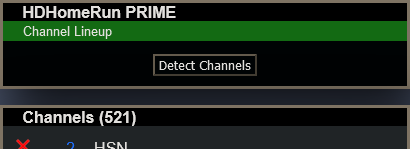
Everyone's will be different. Mine is 521
As far as the memory, it all depends on what you're using the NAS for.
Since memory is fairly cheap these days, I would go for it.
Just make sure what you get is the right spec for the NAS.
This should work fine Crucial 4GB DDR4-2666 SODIMM | CT4G4SFS8266 | Crucial.com
You will find duplicate Channels XFINITY has them in regular order then in the 1000's they have them sorted by type NEWS Sports etc ...
2 Likes
Should I just go ahead and install on a W11 T570 ThinkPad I7-7600U, see how it does and I learn or wait for the DS220+ and do the install there the first time. If it's on the W11 T570 for 10 days or less it should be a very straight forward 'start over' on the NAS?
You can run more than 1 server ... I have a test server.
2 Likes
I would set it up on the ThinkPad to get familiar with it.
If you look at the instructions for moving a server from one device to another, you can move everything over to the NAS later if you want. Read carefully.
Also, like Edwin_Perez mentions, you can run multiple Channels DVR Servers, but you can only use one of them for Channels Remote access, or all of them if you use Tailscale for remote access.
I currently have 6 Channels DVR Servers running.
I have it running I believe on the ThinkPad but I struggled a bit. I could not get the Amazon app thing to work but I just used the Windows 64bit download, I configured I believe correctly my storage to D and it shows 2.7TB available. Using my ATV I downloaded the client app, I have the guide, can watch LIVE TV but for the life of me I can't figure out 'RECORD' - I've watched several videos and none of the options those videos display don't work for me. My ATV is the newer remote.
I can not figure out 'RECORD' !!!!
I have live TV and I have a correct guide displayed. I can choose channel, current show and watch but I can't figure out how to record either what I'm watching or anything into the future using the guide.
Scrolling down while watching I have Quick Guide/Options 'toggle'. Options I understand. I just don't see a way to to 'RECORD'! I've seen a video where someone scrolled down on the earlier remote chose record and the guide turned red I believe.
My server looks to be 127.0.0.1:8089
Do I just use that addy on the PC and redo everything?
No record option will appear until the server has been configured with guide data. In the settings area under sources, find the hdhomerun and enter your zipcode to add guide data.
I've a CabbleCARD and scanned both of my HDHR3-CC and I have a correct guide already.
1 Like

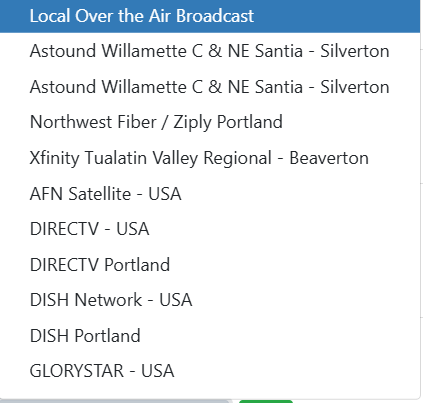
I had NOT done that. I had only scanned the CableCARD for channels and got 425 channels. I just went to the PC and did that guide search using zip & provider. Once that's done will I be fixed?
*** There's a manage tab there now, do I need to reload one and then sync the other?
Setup both the same way.
I deleted the app on the ATV, reinstalled, and now I have a record function. I had to delete the app and do the reinstall for things to change. I might have just did this! I believe I have the ThinkPad set to 'always on' and I believe I successfully blocked Win11 updates. Did I do it correctly? No idea!
reinstall is not necessary.
to restart the app, click the TV/Home button twice, then swipe up on the app to kill it. then when you launch it again it will start fresh.
2 Likes
I've had Channels DVR running for 6 days on my W11 T570 i7-7600U and I'm doing pretty well I believe. I saw notes mentioning to use the Amazon Store for W11 but I had serious issues trying to get there so I just used the Windows 'installer'. If I wanted to add 'PlayOn Cloud' do I need to add it to the W11 PC used as the server or just a PC that's on the same network. I've seen mentioned recently in another forum that there's maybe issues with 'PlayOn Cloud' video quality. Yes/NO or maybe?
W11 PC used as DVR server
Other posts about PlayOn Cloud
https://community.getchannels.com/search?q=PlayOn%20Cloud%20order:latest
To expand on the above answer: that Amazon App Store option was a Channels DVR client, not the server. If you do want to try that client, a workaround is now required. But your question is about the server and you've installed that correctly.
And to summarize what you'll find in the PlayOn thread:
There are two offerings from PlayOn: Cloud and Home.
Channels DVR supports PlayOn Cloud as a source. With PlayOn Cloud, you manage your recording schedule using a PlayOn app for iOS or Android, and when the recordings are done Channels DVR will automatically download them.
PlayOn Home is a different offering from PlayOn, in which you set up a local PlayOn Home server. You can point Channels DVR to the PlayOn directory as a media source.
In the end both are convenient. I use PlayOn Cloud and am very happy with it.