
Finally cleaned out the Win 11 issues. I can see my shares but question if Olivetin/Portainer is seeing them. I now have the Win 11 PC with a keyboard and monitor...which makes things easier. I am fairly confident the Token is correct. Any suggestions?
From the QNAP command line, let's try:
docker volume inspect channels-dvr
Look for the Mountpoint value, then ls -la that path. It could be:
/var/lib/docker/volumes/channels-dvr/_data
If they look like the folders/files on your Windows PC we're in business, and you can try the above with channels-dvr-logs too.
Don't think I am there, yet. Think I need to mount the shares in Qnap.
[jchurch@JimCNAS ~]$ docker volume inspect channels-dvr
[
    {
        "CreatedAt": "2025-09-21T15:36:24-04:00",
        "Driver": "local",
        "Labels": null,
        "Mountpoint": "/share/CACHEDEV1_DATA/Container/container-station-data/lib/docker/volumes/channels-dvr/_data",
        "Name": "channels-dvr",
        "Options": {},
        "Scope": "local"
    }
]
[jchurch@JimCNAS ~]$ docker volume inspect channels-dvr-logs
[
    {
        "CreatedAt": "2025-09-21T15:37:00-04:00",
        "Driver": "local",
        "Labels": null,
        "Mountpoint": "/share/CACHEDEV1_DATA/Container/container-station-data/lib/docker/volumes/channels-dvr-logs/_data",
        "Name": "channels-dvr-logs",
        "Options": {},
        "Scope": "local"
    }
Portainer-Volumes takes care of that.
What did you get when you did an ls -la of the Mountpoints shown?
[]
[jchurch@JimCNAS ~]$ ls -la /share/CACHEDEV1_DATA/Container/container-station-data/lib/docker/volumes/channels-dvr-logs/_data
/bin/ls: cannot access /share/CACHEDEV1_DATA/Container/container-station-data/lib/docker/volumes/channels-dvr-logs/_data: Permission denied

[jchurch@JimCNAS ~]$ ls -la /share/CACHEDEV1_DATA/Container/container-station-data/lib/docker/volumes/channels-dvr/_data
/bin/ls: cannot access /share/CACHEDEV1_DATA/Container/container-station-data/lib/docker/volumes/channels-dvr/_data: Permission denied
[jchurch@JimCNAS ~]$
Try with sudo...
Will finish in AM. Seems mounting them in the NAS caused the issues. Will delete all and install clean.
Connecting a Windows network share to a Portainer container on a QNAP NAS involves two main steps: first,
mount the Windows shared folder to the QNAP NAS itself, and second, configure the Docker container in Portainer to use that mounted path as a volume.
Part 1: Mount the Windows share on your QNAP NAS
- Open HybridMount. On your QNAP NAS desktop, go to App Center or the Main Menu and launch HybridMount.
- Create a remote mount.
- Click Create Remote Mount or the + icon.
- Select Network Drive Mount and click Create.
- Specify the Windows shared folder details.
- Server IP / Hostname: Enter the IP address or hostname of your Windows PC (e.g.,
192.168.1.100). - Protocol: Select CIFS/SMB.
- Authentication: Enter the username and password for a Windows user with access to the shared folder.
- Destination Folder: Select a folder on your QNAP NAS to use as the mount point. Click Browse to find the Windows share and select a destination folder on your NAS.
- Create the mount. Click Create. HybridMount will attempt to mount the Windows shared folder. If successful, you will see it as a remote mount in File Station.
Part 2: Connect the mounted path to a Portainer container
You can add the mounted path as a volume when creating a new container or by editing an existing one.
Method 1: Using the Portainer interface
- Open Portainer and navigate to your local environment.
- Create or edit a container.
- For a new container, click Add container.
- For an existing one, go to Containers, select the container, and click Duplicate/Edit.
- Configure volumes.
- Scroll down to the Volumes section and click map additional volume.
- Container: Enter the path where the shared files will be visible inside the container (e.g.,
/data). - Host: Enter the full path of the mount point on your QNAP NAS that you created in HybridMount (e.g.,
/share/CACHEDEV1_DATA/my-windows-share).
- Review and deploy. Check your other container settings, then click Deploy the container to apply the changes.
Looks reasonable. Creating a mount point on the OS, and then doing a binding of that directory is just another way to approach this.
I take it doing a sudo ls -la still didn't show any files from the Windows PC?
If you create the mounted directories using the above technique, all you'll need to do in the Environment variables section of the OliveTin stack is replace channels-dvr and channels-dvr-logs with the full paths for the mounts. You can ignore all those other Portainer instructions...
Getting closer. Let me know next steps. Just got back to this.... I appreciate your feedback.
Checking your OliveTin-for-Channels installation...
(extended_check=false)

OliveTin Container Version 2025.09.21
OliveTin Docker Compose Version 2025.08.25

----------------------------------------

Checking that your selected Channels DVR server (192.168.1.62:8089) is reachable by URL:
HTTP Status: 200 indicates success...

  % Total    % Received % Xferd  Average Speed   Time    Time     Time  Current
                                 Dload  Upload   Total   Spent    Left  Speed

  0     0    0     0    0     0      0      0 --:--:-- --:--:-- --:--:--     0
100  1276  100  1276    0     0   623k      0 --:--:-- --:--:-- --:--:--  623k
HTTP Status: 200
Effective URL: http://192.168.1.62:8089/

----------------------------------------

Checking that your selected Channels DVR server's data files (/mnt/192.168.1.62-8089) are accessible:
Folders with the names Database, Images, Imports, Logs, Movies, Streaming and TV should be visible...

total 8
drwxrwxrwx 2 root root 4096 Sep 20 02:00 .
drwxr-xr-x 1 root root 4096 Sep 23 18:48 ..
drwxrwxrwx 2 root root    0 Sep 23 07:42 Database
drwxrwxrwx 2 root root    0 Sep 23 17:01 Images
drwxrwxrwx 2 root root    0 Oct 14  2023 Imports
drwxrwxrwx 2 root root    0 Mar  2  2025 Logs
drwxrwxrwx 2 root root    0 Sep 23 07:00 Metadata
drwxrwxrwx 2 root root    0 Sep  1 08:16 Movies
drwxrwxrwx 2 root root    0 Sep  1 08:16 Streaming
drwxrwxrwx 2 root root    0 Sep  6 15:00 TV

Docker reports your current DVR_SHARE setting as...
/share/channels-dvr

If the listed folders are NOT visible, AND you have your Channels DVR and Docker on the same system:

Channels reports this path as...
D:\DVR

When using WSL with a Linux distro and Docker Desktop, it's recommended to use...
/mnt/d/DVR

----------------------------------------

Checking that your selected Channels DVR server's log files (/mnt/192.168.1.62-8089_logs) are accessible:
Folders with the names data and latest should be visible...

total 12
drwxrwxrwx 2 root root 4096 Sep 23 18:22 .
drwxr-xr-x 1 root root 4096 Sep 23 18:48 ..
drwxrwxrwx 2 root root    0 Sep  7 02:00 2025.09.07.0359
drwxrwxrwx 2 root root    0 Sep  8 02:00 2025.09.08.0201
drwxrwxrwx 2 root root    0 Sep 11 02:00 2025.09.10.2024
drwxrwxrwx 2 root root    0 Sep 13 02:00 2025.09.12.1628
drwxrwxrwx 2 root root    0 Sep 17 02:00 2025.09.17.0514
drwxrwxrwx 2 root root    0 Sep 18 02:00 2025.09.18.0418
-rwxrwxrwx 1 root root  829 Sep 20 02:00 Channels DVR Server.lnk
drwxrwxrwx 2 root root    0 Sep 23 18:17 data
drwxrwxrwx 2 root root    0 Sep 20 02:00 latest

Docker reports your current LOGS_SHARE setting as...
/share/channels-dvr-logs

If the listed folders are NOT visible, AND you have your Channels DVR and Docker on the same system:

Channels reports this path as...
C:\ProgramData\ChannelsDVR

When using WSL with a Linux distro and Docker Desktop, it's recommended to use...
/mnt/c/ProgramData/ChannelsDVR

----------------------------------------

Checking if your Portainer token is working on ports 9000 and/or 9443:

Portainer http response on port 9000 reports version
Portainer Environment ID for local is
Portainer https response on port 9443 reports version
Portainer Environment ID for local is

----------------------------------------

Here's a list of your current OliveTin-related settings:

HOSTNAME=olivetin
CHANNELS_DVR=192.168.1.62:8089
CHANNELS_DVR_ALTERNATES=
CHANNELS_CLIENTS=
ALERT_SMTP_SERVER=
ALERT_EMAIL_FROM=[Redacted]@
ALERT_EMAIL_PASS=[Redacted]
ALERT_EMAIL_TO=[Redacted]@
UPDATE_YAMLS=true
UPDATE_SCRIPTS=true
PORTAINER_TOKEN=[Redacted]
PORTAINER_HOST=192.168.1.42
PORTAINER_PORT=9443
PORTAINER_ENV=2

----------------------------------------

Here's the contents of /etc/resolv.conf from inside the container:

# Generated by Docker Engine.
# This file can be edited; Docker Engine will not make further changes once it
# has been modified.

nameserver 127.0.0.11
search JIM_OFFICE
options ndots:0

# Based on host file: '/etc/resolv.conf' (internal resolver)
# ExtServers: [10.0.3.1]
# Overrides: [nameservers search]
# Option ndots from: internal

----------------------------------------

Here's the contents of /etc/hosts from inside the container:

127.0.0.1	localhost
::1	localhost ip6-localhost ip6-loopback
fe00::0	ip6-localnet
ff00::0	ip6-mcastprefix
ff02::1	ip6-allnodes
ff02::2	ip6-allrouters
172.29.4.2	olivetin
Good morning,
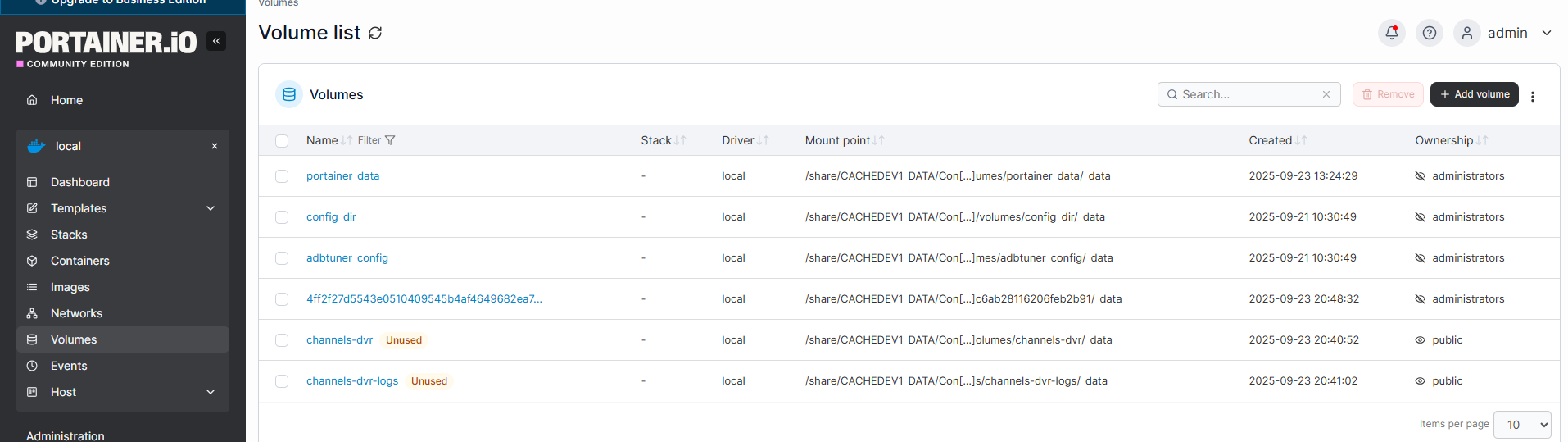
Healthcheck above looks good. However, I have noticed the volumes are unused. Here's a screenshot.
Still an important issue with your healthcheck. OliveTin-for-Channels is unable to reach Portainer. If you're confident your token is correct, then let's check a couple of things:
Exec into the olivetin container (using the Quick Actions for that purpose on the Portainer-Containers page) and run:
ping -c 3 192.168.1.42
Also run:
curl -I 192.168.1.42:9000
Please post the results of each here.
You can delete those unused volumes.
So you ended up using a hybrid mount in the QNAP OS, and then used those paths as the values for DVR_SHARE and LOGS_SHARE -- is that right?
root@olivetin:/# ping -c 3 192.168.1.42
PING 192.168.1.42 (192.168.1.42) 56(84) bytes of data.
64 bytes from 192.168.1.42: icmp_seq=1 ttl=64 time=0.114 ms
64 bytes from 192.168.1.42: icmp_seq=2 ttl=64 time=0.140 ms
64 bytes from 192.168.1.42: icmp_seq=3 ttl=64 time=0.138 ms
--- 192.168.1.42 ping statistics ---
3 packets transmitted, 3 received, 0% packet loss, time 2008ms
rtt min/avg/max/mdev = 0.114/0.130/0.140/0.011 ms
root@olivetin:/# curl -I 192.168.1.42:9000
curl: (7) Failed to connect to 192.168.1.42 port 9000: Connection refused
root@olivetin:/#
Yes.
DVR_SHARE=//share/channels-dvr
LOGS_SHARE=//share/channels-dvr-logs
Thanks
So, those two results suggest there's no problem with hairpinning, but Portainer isn't answering on 9000. The most likely reason for this would be a firewall. Does your QNAP have one up? If so, you need to open ports 9000 and 9443.
Ports were not blocked. Turned off firewall and still refused connection.
Checked ports on NAS, neither are used. Still reading on my side.
It would seem the QNAP NAS is preventing us from going around on the outside (perhaps not unlike its refusal to work with Portainer-Volumes), so we're going to take the inside route.
First, check this value in Portainer-Networks:

Assuming it's the standard 172.17.0.1, I want you to stop you OliveTin stack, and add the following just above restart: unless-stopped:
    extra_hosts:
      - host.docker.internal:${DOCKER_GATEWAY:-172.17.0.1} # host.docker.internal is generally not predefined on Linux hosts.
Then, in your env vars, change the value of PORTAINER_HOST to:
PORTAINER_HOST=host.docker.internal
Click Update the stack, and the run the healthcheck again.
Bridge isn't 172.17.0.1--
IPV4 Subnet - 10.0.3.0/24 IPV4 Gateway - 10.0.3.1
QNAP dances to its own beat, eh? So, still do the above just as shown, but add the following to the bottom of your list of env vars:
DOCKER_GATEWAY=10.0.3.1
And, don't forget to change the value of PORTAINER_HOST to host.docker.internal