I feel I know the answer, but here goes. Can project 1Click be installed on a storage NAS while Channels resides on a PC? Have a very fast PC running Channels but all of my docker containers live on my NAS as do my movie files.
Thanks in advance.

I feel I know the answer, but here goes. Can project 1Click be installed on a storage NAS while Channels resides on a PC? Have a very fast PC running Channels but all of my docker containers live on my NAS as do my movie files.
Thanks in advance.
That should work fine. If it can run Docker (amd64 or arm64), you can install OliveTin-for-Channels (w/Project One-Click) on it.
Since I am running a QNAP NAS and a Win 11 CDVR, are there any special file creation/shares I should be aware? Reading the posts, it seems the IP adds to the docker configuration is all I need. Or, as usual, I am missing something. Already running several docker containers for channels without problems.
Thanks.
Can you give me an idea what you're running where?
Where is your CDVR server installed? Where is Docker installed? Where do you store your CDVR recordings? Personal media?
QNAP NAS with Docker at 192.168.1.42:8080
CDVR @ http://192.168.1.62:8089/
CDVR Storage Path D:\DVR
Personal Media
Movies Mapped Drive Z:\Movies (on NAS)
TV Show Folder \192.168.1.42\TV Import
Tailscale is running on the WIN 11 PC for remote access
Thanks in advance!
Pondering this a bit overnight, given your slightly more "advanced" setup (as opposed to having everything on the same system), I think the most direct path to success is as follows:
Install Portainer on your QNAP NAS (you should be able to find some guidance for this online or via AI.
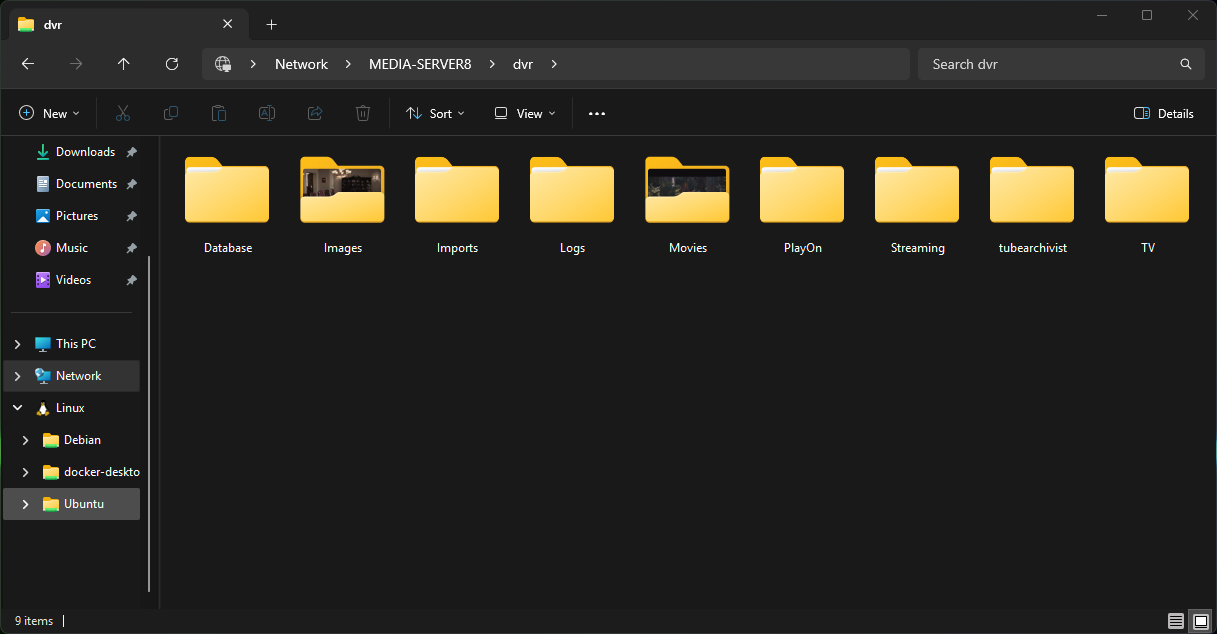
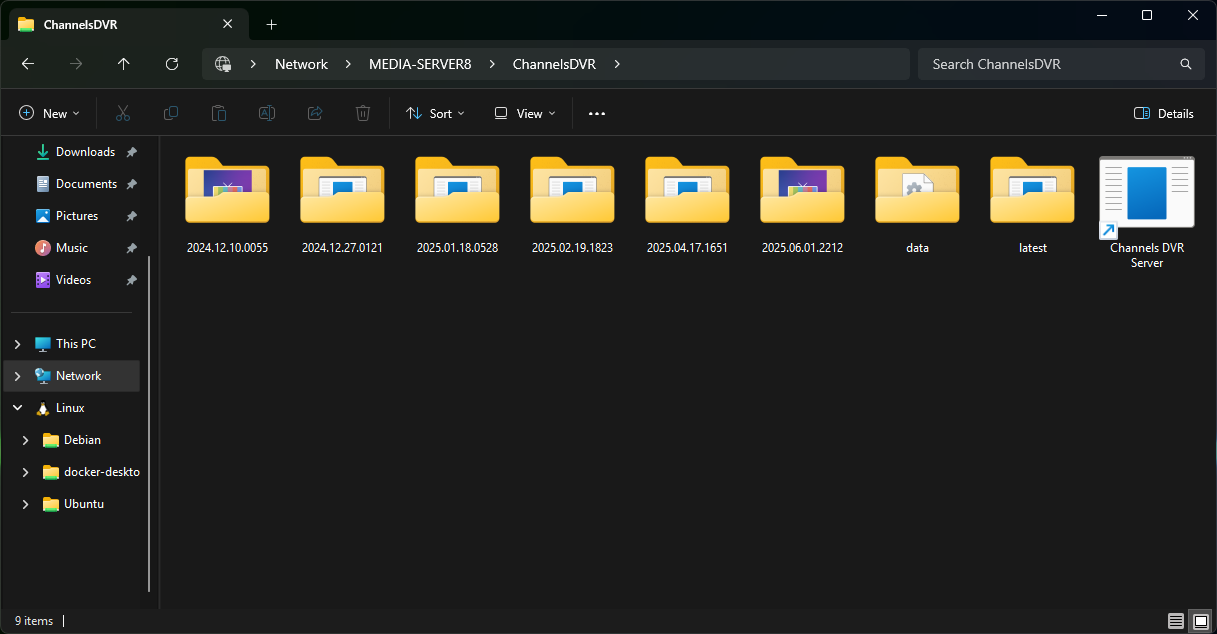
Share your CDVR recordings folder (if it's not already) via Samba. It should look something like this when you're done:
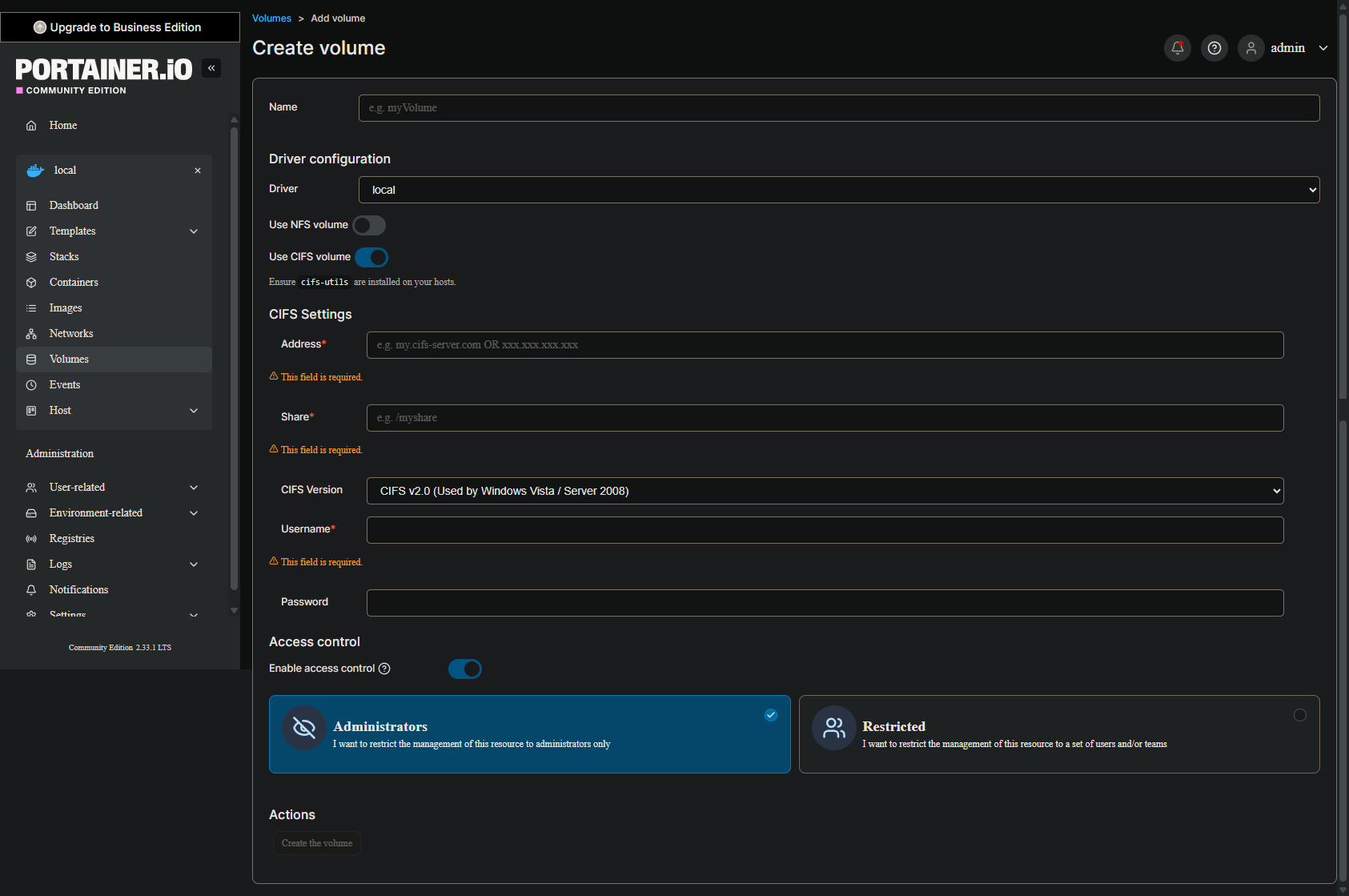
Using these two Docker Volumes, and the information you supplied earlier, I can then help you with the env vars you'll need to spin-up an OliveTin stack. Let me know when you get to that point, and then I'll finish in another post.
Was gone most of today but have jumped back in. Had to use port 8001 since the CDVR remote is using 8000. Will be watching Gator Football tonight......so, I have plenty of time to do anything. They aren't having a good year. Thanks again for the pointers.
That was great when USF beat them!
OK, so if you have Portainer installed, and have the Samba shares created and added in Portainer-Volumes -- you should be ready to roll.
First create an Access Token named olivetin in the settings area of Portainer, found using a dropdown near the user icon (upper right of the WebUI). Copy that token and store it in a secure place. You'll need it shortly.
Here's the current standard Docker Compose, with a couple of things uncommented for your situation:
services:
  olivetin: # This docker-compose typically requires no editing. Use the Environment variables section of Portainer to set your values.
    # 2025.08.25
    # GitHub home for this project: https://github.com/bnhf/OliveTin.
    # Docker container home for this project with setup instructions: https://hub.docker.com/r/bnhf/olivetin.
    image: bnhf/olivetin:${TAG:-latest} # Add the tag like latest or test to the environment variables below.
    container_name: ${OLIVETIN_NAME:-olivetin}${EZ_START}
    hostname: ${OLIVETIN_NAME:-olivetin}${EZ_START}
    dns_search: ${DOMAIN:+${DOMAIN}} # For Tailscale users using Magic DNS, add your Tailnet (tailxxxxx.ts.net) to use hostnames for remote nodes, otherwise use your local domain name.
    ports:
      - ${HOST_PORT:-1337}:1337
    environment:
      - OLIVETIN_COMPOSE=2025.08.25${EZ_START} # Do not change this value.
      - CHANNELS_DVR=${CHANNELS_DVR_HOST}:${CHANNELS_DVR_PORT:-8089} # Add your Channels DVR server in the form CHANNELS_DVR_HOST=<hostname or ip> and CHANNELS_DVR_PORT=<port>.
      - CHANNELS_DVR_ALTERNATES=${CHANNELS_DVR2_HOST:+${CHANNELS_DVR2_HOST}:${CHANNELS_DVR2_PORT}}${CHANNELS_DVR3_HOST:+ ${CHANNELS_DVR3_HOST}:${CHANNELS_DVR3_PORT}} # Space separated list of alternate Channels DVR servers to choose from in the form hostname:port or ip:port.
      - CHANNELS_CLIENTS=${CHANNELS_CLIENTS} # Space separated list of Channels DVR clients you'd like notifications sent to in the form hostname or IP.
      - ALERT_SMTP_SERVER=${ALERT_SMTP_SERVER} # SMTP server to use for sending alert e-mails. smtp.gmail.com:587 for example.
      - ALERT_EMAIL_FROM=${ALERT_EMAIL_FROM} # Sender address for alert e-mails.
      - ALERT_EMAIL_PASS=${ALERT_EMAIL_PASS} # SMTP "app" password established through GMail or Yahoo Mail. Do not use your everyday e-mail address.
      - ALERT_EMAIL_TO=${ALERT_EMAIL_TO} # Recipient address for alert e-mails.
      - UPDATE_YAMLS=${UPDATE_YAMLS:-true} # Set this to true to update config.yaml.
      - UPDATE_SCRIPTS=${UPDATE_SCRIPTS:-true} # Set this to true to update all included scripts.
      - TZ=${TZ} # Add your local timezone in standard linux format. E.G. US/Eastern, US/Central, US/Mountain, US/Pacific, etc.
      - PORTAINER_TOKEN=${PORTAINER_TOKEN} # Generate via <username> dropdown (upper right of WebUI), "My account", API tokens.
      - PORTAINER_HOST=${PORTAINER_HOST:-$CHANNELS_DVR_HOST} # Hostname or IP of the Docker host you're running Portainer on.
      - PORTAINER_PORT=${PORTAINER_PORT:-9443} # https port you're running Portainer on. 9443 is the default.
      - PORTAINER_ENV=${PORTAINER_ENV:-2} # Set this is if you're using an alternate Portainer Environment for some reason. 2 is the default.
      - PERSISTENT_LOGS=${PERSISTENT_LOGS:-false} # For supported Actions, log files are retained on an ongoing basis. false is the default.
    volumes:
      - ${HOST_DIR:-/unused}${HOST_DIR:+/olivetin:/config} # Add the parent directory on your Docker host you'd like to use.
      - ${DVR_SHARE:-/unused}${DVR_SHARE:+:/mnt/${CHANNELS_DVR_HOST}-${CHANNELS_DVR_PORT}} # This can either be a Docker volume or a host directory that's connected via Samba or NFS to your Channels DVR network share.
      - ${LOGS_SHARE:-/unused}${LOGS_SHARE:+:/mnt/${CHANNELS_DVR_HOST}-${CHANNELS_DVR_PORT}_logs} # This can either be a Docker volume or a host directory that's connected via Samba or NFS to your Channels DVR logs network share.
      - ${TUBEARCHIVIST_SHARE:-/unused}${TUBEARCHIVIST_SHARE:+:/mnt/${CHANNELS_DVR_HOST}-${CHANNELS_DVR_PORT}_ta} # This can either be a Docker volume or a host directory that's connected via Samba or NFS to your TubeArchivist videos network share.
      - ${DVR2_SHARE:-/unused}${DVR2_SHARE:+:/mnt/${CHANNELS_DVR2_HOST}-${CHANNELS_DVR2_PORT}} # Note that these volume mounts should always be to /mnt/hostname-port or /mnt/ip-port (dash rather than a colon between).
      - ${LOGS2_SHARE:-/unused}${LOGS2_SHARE:+:/mnt/${CHANNELS_DVR2_HOST}-${CHANNELS_DVR2_PORT}_logs} # This can either be a Docker volume or a host directory that's connected via Samba or NFS to your Channels DVR logs network share.
      - ${TUBEARCHIVIST2_SHARE:-/unused}${TUBEARCHIVIST2_SHARE:+:/mnt/${CHANNELS_DVR2_HOST}-${CHANNELS_DVR2_PORT}_ta} # This can either be a Docker volume or a host directory that's connected via Samba or NFS to your TubeArchivist videos network share.
      - ${DVR3_SHARE:-/unused}${DVR3_SHARE:+:/mnt/${CHANNELS_DVR3_HOST}-${CHANNELS_DVR3_PORT}} # Note that these volume mounts should always be to /mnt/hostname-port or /mnt/ip-port (dash rather than a colon between).
      - ${LOGS3_SHARE:-/unused}${LOGS3_SHARE:+:/mnt/${CHANNELS_DVR3_HOST}-${CHANNELS_DVR3_PORT}_logs} # This can either be a Docker volume or a host directory that's connected via Samba or NFS to your Channels DVR logs network share.
      - ${TUBEARCHIVIST3_SHARE:-/unused}${TUBEARCHIVIST3_SHARE:+:/mnt/${CHANNELS_DVR3_HOST}-${CHANNELS_DVR3_PORT}_ta} # This can either be a Docker volume or a host directory that's connected via Samba or NFS to your TubeArchivist videos network share.
      - /var/run/docker.sock:/var/run/docker.sock
    restart: unless-stopped

  static-file-server:
    image: halverneus/static-file-server:latest
    container_name: ${SFS_NAME:-static-file-server}${EZ_START}
    dns_search: ${DOMAIN}
    ports:
      - ${HOST_SFS_PORT:-0}:8080
    environment:
      - FOLDER=${FOLDER:-/web}
    volumes:
      - ${HOST_DIR:-/unused}${HOST_DIR:+/olivetin/data:${FOLDER:-/web}}
    restart: unless-stopped

volumes: # Remove the #x# to enable. Use this section if you've setup a docker volume named channels-dvr, with CIFS or NFS, to bind to /mnt/dvr inside the container. Set ${DVR_SHARE} to channels-dvr (DVR_SHARE=channels_dvr) in that example.
  channels-dvr:
    external: true
  channels-dvr-logs:
    external: true
  #3#tubearchivist:
    #3#external: true
  #4#channels-dvr2:
    #4#external: true
  #5#channels-dvr2-logs:
    #5#external: true
  #6#tubearchivist2:
    #6#external: true
  #7#channels-dvr3:
    #7#external: true
  #8#channels-dvr3-logs:
    #8#external: true
  #9#tubearchivist3:
    #9#external: true
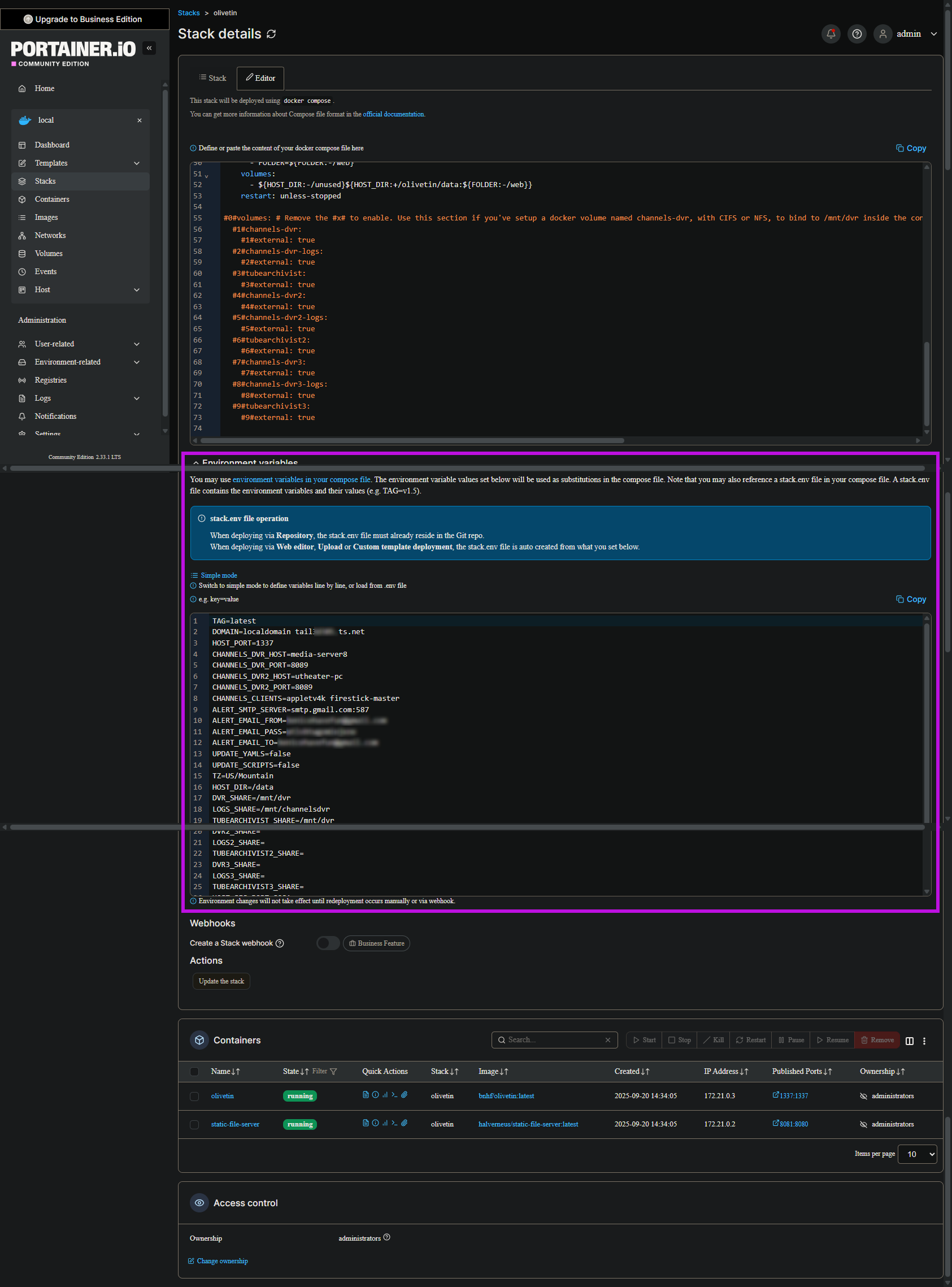
Then in the special Environment variables section of the Portainer-Stack Editor (Advanced mode), paste in this set of env vars. Adjust/add values if you have them, read -- then remove the comments I added:
TAG=latest
DOMAIN=localdomain tailxxxxx.ts.net # Use your LAN's local domain name if you know it, as well as actual Tailnet.
HOST_PORT=1337
CHANNELS_DVR_HOST=192.168.1.62
CHANNELS_DVR_PORT=8089
CHANNELS_DVR2_HOST=
CHANNELS_DVR2_PORT=
CHANNELS_DVR3_HOST=
CHANNELS_DVR3_PORT=
CHANNELS_CLIENTS=
ALERT_SMTP_SERVER=
ALERT_EMAIL_FROM=
ALERT_EMAIL_PASS=
ALERT_EMAIL_TO=
UPDATE_YAMLS=true
UPDATE_SCRIPTS=true
TZ=US/Mountain
HOST_DIR=/data # Not sure how QNAP handles this. Use /data if allowed by the QNAP OS, otherwise use another parent directory you know you can write to.
DVR_SHARE=channels-dvr
LOGS_SHARE=channels-dvr-logs
TUBEARCHIVIST_SHARE=
DVR2_SHARE=
LOGS2_SHARE=
TUBEARCHIVIST2_SHARE=
DVR3_SHARE=
LOGS3_SHARE=
TUBEARCHIVIST3_SHARE=
HOST_SFS_PORT=8080 # Make sure 8080 is available on your NAS.
FOLDER=/web
PORTAINER_TOKEN=xxxxxxxxxxxxxxxxxxxxxxxxxxxxxxxxxxxxxxxx # Replace with the token you created.
PORTAINER_HOST=192.168.1.42
PORTAINER_PORT=9443
PORTAINER_ENV=2
PERSISTENT_LOGS=false
Later, if you want e-mail alerts where available, you can add something Google calls an "app password".
OK. Olivetin is up. I am sure I missed something. Haven’t needed token yet. I am guessing I need to run a health check. Game is closer than I expected.
Token goes here in with your env vars, as described in the comment I added. You'll need to stop your stack, make this change and then click the Update the stack button. No Project One-Click deployments will work without the token in place.
After adding the token, run the healthcheck and confirm each test reads as successful.
OliveTin Post-Install Healthcheck
Standard Output
Checking your OliveTin-for-Channels installation...
(extended_check=false)

OliveTin Container Version 2025.09.20
OliveTin Docker Compose Version 2025.08.25

----------------------------------------

Checking that your selected Channels DVR server (:8089) is reachable by URL:
HTTP Status: 200 indicates success...

curl: (3) URL using bad/illegal format or missing URL
HTTP Status: 000
Effective URL: http://:8089

----------------------------------------

Checking that your selected Channels DVR server's data files (/mnt/-8089) are accessible:
Folders with the names Database, Images, Imports, Logs, Movies, Streaming and TV should be visible...


Docker reports your current DVR_SHARE setting as...


If the listed folders are NOT visible, AND you have your Channels DVR and Docker on the same system:

Channels reports this path as...

----------------------------------------

Checking that your selected Channels DVR server's log files (/mnt/-8089_logs) are accessible:
Folders with the names data and latest should be visible...


Docker reports your current LOGS_SHARE setting as...


If the listed folders are NOT visible, AND you have your Channels DVR and Docker on the same system:

Channels reports this path as...

----------------------------------------

Checking if your Portainer token is working on ports 9000 and/or 9443:

Portainer http response on port 9000 reports version
Portainer Environment ID for local is
Portainer https response on port 9443 reports version
Portainer Environment ID for local is

----------------------------------------

Here's a list of your current OliveTin-related settings:

HOSTNAME=olivetin
CHANNELS_DVR=:8089
CHANNELS_DVR_ALTERNATES=
CHANNELS_CLIENTS=
ALERT_SMTP_SERVER=
ALERT_EMAIL_FROM=[Redacted]@
ALERT_EMAIL_PASS=[Redacted]
ALERT_EMAIL_TO=[Redacted]@
UPDATE_YAMLS=true
UPDATE_SCRIPTS=true
PORTAINER_HOST=
PORTAINER_PORT=9443
PORTAINER_ENV=2

----------------------------------------

Here's the contents of /etc/resolv.conf from inside the container:

# Generated by Docker Engine.
# This file can be edited; Docker Engine will not make further changes once it
# has been modified.

nameserver 127.0.0.11
search
options ndots:0

# Based on host file: '/etc/resolv.conf' (internal resolver)
# ExtServers: [10.0.3.1]
# Overrides: [nameservers search]
# Option ndots from: internal

----------------------------------------

Here's the contents of /etc/hosts from inside the container:

127.0.0.1	localhost
::1	localhost ip6-localhost ip6-loopback
fe00::0	ip6-localnet
ff00::0	ip6-mcastprefix
ff02::1	ip6-allnodes
ff02::2	ip6-allrouters
172.29.0.2	olivetin
Standard Error
ls: cannot access '/mnt/-8089': No such file or directory
ls: cannot access '/mnt/-8089_logs': No such file or directory
Nothing positive to report from that healthcheck -- failures across the board. I'd venture that the problem lies in the way you entered the compose and env vars into Portainer-Stacks. So, let's review that process:
First, the Docker Compose I posted for you above was ready to go, and required NO editing. Did you make changes to the compose?
Second, the environment variables are designed to be pasted in to the Environment variables section of the Portainer-Stacks editor in Advanced mode. Did you do it this way? The area outlined in purple is where to copy-and-paste in the env vars.
In the list of env vars I provided you there were a few that you needed to complete, including your Tailnet domain and the Portainer token. Also, pay careful attention to the value for HOST_DIR, as I'm not sure how the QNAP OS handles directories being created at container spin-ups. This value must be valid.
It's best to remove the temporary comments I added to these env vars, those were added just to bring you attention to values that needed to be completed:
TAG=latest
DOMAIN=localdomain tailxxxxx.ts.net # Use your LAN's local domain name if you know it, as well as actual Tailnet.
HOST_PORT=1337
CHANNELS_DVR_HOST=192.168.1.62
CHANNELS_DVR_PORT=8089
CHANNELS_DVR2_HOST=
CHANNELS_DVR2_PORT=
CHANNELS_DVR3_HOST=
CHANNELS_DVR3_PORT=
CHANNELS_CLIENTS=
ALERT_SMTP_SERVER=
ALERT_EMAIL_FROM=
ALERT_EMAIL_PASS=
ALERT_EMAIL_TO=
UPDATE_YAMLS=true
UPDATE_SCRIPTS=true
TZ=US/Mountain
HOST_DIR=/data # Not sure how QNAP handles this. Use /data if allowed by the QNAP OS, otherwise use another parent directory you know you can write to.
DVR_SHARE=channels-dvr
LOGS_SHARE=channels-dvr-logs
TUBEARCHIVIST_SHARE=
DVR2_SHARE=
LOGS2_SHARE=
TUBEARCHIVIST2_SHARE=
DVR3_SHARE=
LOGS3_SHARE=
TUBEARCHIVIST3_SHARE=
HOST_SFS_PORT=8080 # Make sure 8080 is available on your NAS.
FOLDER=/web
PORTAINER_TOKEN=xxxxxxxxxxxxxxxxxxxxxxxxxxxxxxxxxxxxxxxx # Replace with the token you created.
PORTAINER_HOST=192.168.1.42
PORTAINER_PORT=9443
PORTAINER_ENV=2
PERSISTENT_LOGS=false
You might want to stop and then delete your current olivetin stack, then paste in the Docker Compose I posted above into its part of the Editor, and then paste in the env vars into their part of the Editor, followed by the adjustments described above to only what's in the Environment variables area.
I copied the wrong notepad last night. I am running out but will delete and redeploy this afternoon. Thanks for putting up with my foolishness. Was watching football and doing this at the same time.
I think I have this cleaned up. Let me know if you see anything
Checking your OliveTin-for-Channels installation...
(extended_check=false)

OliveTin Container Version 2025.09.21
OliveTin Docker Compose Version 2025.08.25

----------------------------------------

Checking that your selected Channels DVR server (192.168.1.62:8089) is reachable by URL:
HTTP Status: 200 indicates success...

  % Total    % Received % Xferd  Average Speed   Time    Time     Time  Current
                                 Dload  Upload   Total   Spent    Left  Speed

  0     0    0     0    0     0      0      0 --:--:-- --:--:-- --:--:--     0
100  1276  100  1276    0     0   623k      0 --:--:-- --:--:-- --:--:--  623k
HTTP Status: 200
Effective URL: http://192.168.1.62:8089/

----------------------------------------

Checking that your selected Channels DVR server's data files (/mnt/192.168.1.62-8089) are accessible:
Folders with the names Database, Images, Imports, Logs, Movies, Streaming and TV should be visible...

total 8
drwxr-xr-x 2 root root 4096 Sep 21 15:36 .
drwxr-xr-x 1 root root 4096 Sep 21 16:59 ..

Docker reports your current DVR_SHARE setting as...
/share/CACHEDEV1_DATA/Container/container-station-data/lib/docker/volumes/channels-dvr/_data

If the listed folders are NOT visible, AND you have your Channels DVR and Docker on the same system:

Channels reports this path as...
D:\DVR

When using WSL with a Linux distro and Docker Desktop, it's recommended to use...
/mnt/d/DVR

----------------------------------------

Checking that your selected Channels DVR server's log files (/mnt/192.168.1.62-8089_logs) are accessible:
Folders with the names data and latest should be visible...

total 8
drwxr-xr-x 2 root root 4096 Sep 21 15:37 .
drwxr-xr-x 1 root root 4096 Sep 21 16:59 ..

Docker reports your current LOGS_SHARE setting as...
/share/CACHEDEV1_DATA/Container/container-station-data/lib/docker/volumes/channels-dvr-logs/_data

If the listed folders are NOT visible, AND you have your Channels DVR and Docker on the same system:

Channels reports this path as...
C:\ProgramData\ChannelsDVR

When using WSL with a Linux distro and Docker Desktop, it's recommended to use...
/mnt/c/ProgramData/ChannelsDVR

----------------------------------------

Checking if your Portainer token is working on ports 9000 and/or 9443:

Portainer http response on port 9000 reports version
Portainer Environment ID for local is
Portainer https response on port 9443 reports version
Portainer Environment ID for local is

----------------------------------------

Here's a list of your current OliveTin-related settings:

HOSTNAME=olivetin
CHANNELS_DVR=192.168.1.62:8089
CHANNELS_DVR_ALTERNATES=
CHANNELS_CLIENTS=
ALERT_SMTP_SERVER=
ALERT_EMAIL_FROM=[Redacted]@
ALERT_EMAIL_PASS=[Redacted]
ALERT_EMAIL_TO=[Redacted]@
UPDATE_YAMLS=true
UPDATE_SCRIPTS=true
PORTAINER_TOKEN=[Redacted]
PORTAINER_HOST=192.168.1.42
PORTAINER_PORT=9443
PORTAINER_ENV=2

----------------------------------------

Here's the contents of /etc/resolv.conf from inside the container:

# Generated by Docker Engine.
# This file can be edited; Docker Engine will not make further changes once it
# has been modified.

nameserver 127.0.0.11
search jim_office
options ndots:0

# Based on host file: '/etc/resolv.conf' (internal resolver)
# ExtServers: [10.0.3.1]
# Overrides: [nameservers search]
# Option ndots from: internal

----------------------------------------

Here's the contents of /etc/hosts from inside the container:

127.0.0.1	localhost
::1	localhost ip6-localhost ip6-loopback
fe00::0	ip6-localnet
ff00::0	ip6-mcastprefix
ff02::1	ip6-allnodes
ff02::2	ip6-allrouters
172.29.0.2	olivetin
Better, but multiple issues still exist:
Since the indicted folders are not present among the listed folders, we know the shares you set up through Portainer-Volumes are not quite right. Did you follow the steps I outlined of creating the shares on your Windows Computer, and then connecting to those shares using Portainer-Volumes?
We can see from this section that Portainer is not responding either on port 9000 or on port 9443. Normally the version shows even if your PORTAINER_TOKEN value is wrong, but the ID does not. Here we're not seeing either.
Can you post a couple of screenshots, similar to the ones I posted in the link above, showing the two shares you created in Windows File Explorer. One for your DVR recordings, and the other for your CDVR logs/executables?
Also, assuming you can get to the command line on the QNAP, can you enter the following command:
docker ps
and post the output here?
CONTAINER ID   IMAGE                                         COMMAND                CREATED         STATUS        PORTS                                                                    NAMES
f6044e296191   bnhf/olivetin:latest                          "/start.sh"            2 hours ago     Up 2 hours    0.0.0.0:1337->1337/tcp                                                   olivetin
dc827fd3cba7   halverneus/static-file-server:latest          "/serve"               2 hours ago     Up 2 hours    0.0.0.0:8081->8080/tcp                                                   static-file-server
5e543597b3a1   portainer/portainer-ce:latest                 "/portainer"           2 hours ago     Up 2 hours    0.0.0.0:9000->9000/tcp, 0.0.0.0:9443->9443/tcp, 0.0.0.0:8001->8000/tcp   portainer
a544eb1c471e   rcvaughn2/channels-remote-plus                "python app.py"        2 weeks ago     Up 25 hours   0.0.0.0:5020->5000/tcp                                                   channels-remote
4a282a410095   tonywagner/eplustv                            "./entrypoint.sh"      2 weeks ago     Up 25 hours   0.0.0.0:8000->8000/tcp                                                   elated_solomon
0e39796c6b1d   turtletank99/adbtuner:experimental            "./entrypoint.sh"      6 months ago    Up 25 hours   0.0.0.0:5592->5592/tcp                                                   adbtuner
eeadcf6f73da   ghcr.io/jgomez177/tubi-for-channels:3.01      "python3 pywsgi.py"    6 months ago    Up 25 hours   0.0.0.0:3232->7777/tcp                                                   tubi-for-channels
8712e1695914   ghcr.io/jgomez177/pluto-for-channels:latest   "python3 pywsgi.py"    17 months ago   Up 25 hours                                                                            pluto-for-channels
14d83ac7e2ec   matthuisman/frndlytv-for-channels             "python -u ./app.py"   2 years ago     Up 25 hours   0.0.0.0:8183->80/tcp                                                     frndlytv-for-channels
Found an issue with shares. It looks like a known issue where Win 11 wants SMB 1. Reading now.
This all looks good, so it may just be an issue with your PORTAINER_TOKEN. If you think it might not be correct for any reason, you can always delete it, and create a new one. Then you'd need to stop your olivetin stack, and replace the old token with the new.
A patch MS pushed 9/10 broke SMB and network shares. I am working to roll them back. Right now all I can see on any of my WIN 11 PC’s is my NAS. Hope to resolve this today. Of course I made some changes on my CDVR PC trying to resolve this…which means more exploration.