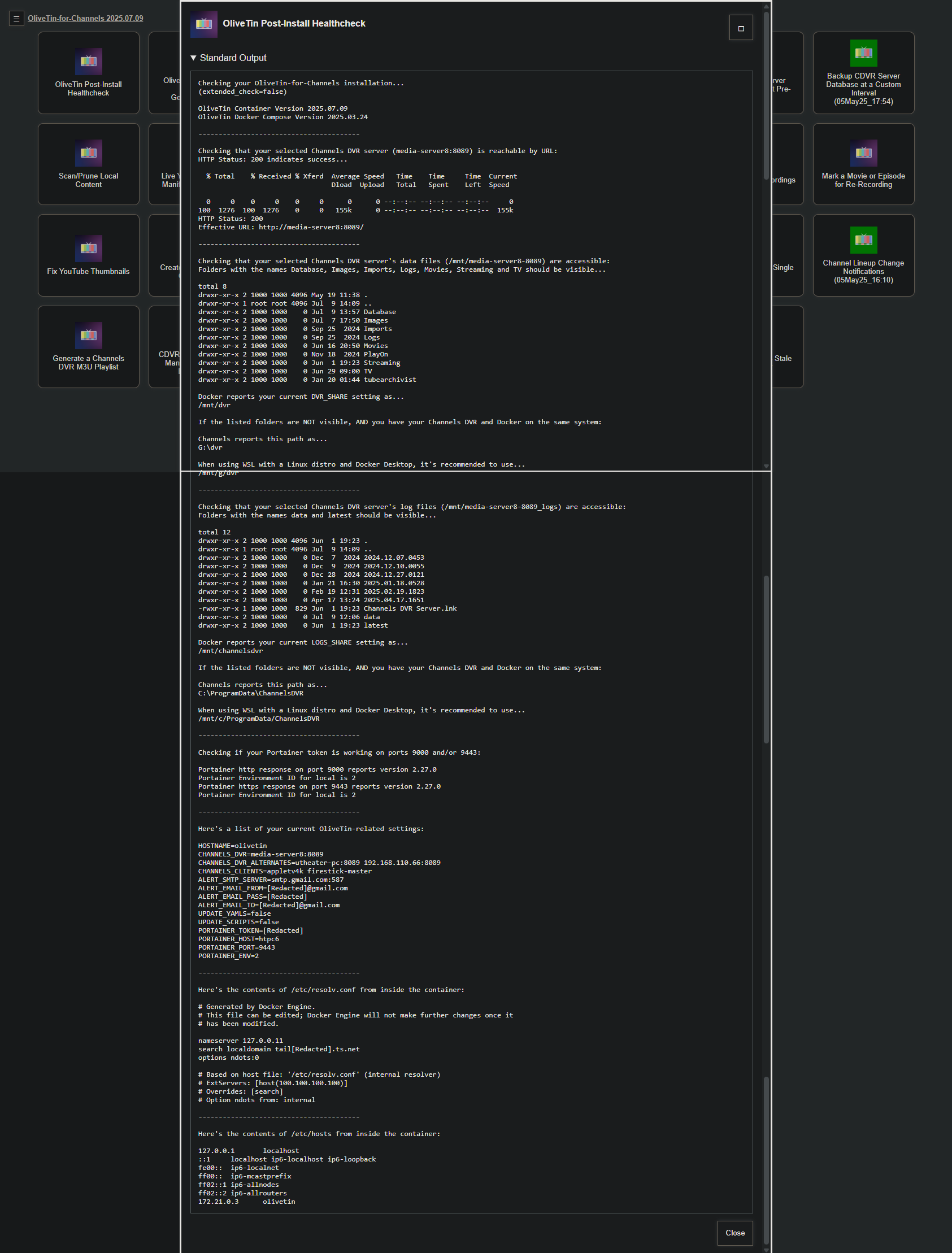
If we take a look at just the part I wanted you to post (you included Standard Error). You'll see that the Healthcheck is reporting you have very few values correct, other than the ip:port of your CDVR server. Note that I've posted your results with 3 backticks before and after to improve readability. I've added comments to your results (anything starting with a # sign):
Checking your OliveTin-for-Channels installation...
(extended_check=false)

OliveTin Container Version 2025.07.03
OliveTin Docker Compose Version 2025.03.26-ezstart # This should not show `-ezstart` at completion when the instructions are followed.

Checking that your selected Channels DVR server (10.0.0.23:8089) is reachable by URL:
HTTP Status: 200 indicates success...

% Total % Received % Xferd Average Speed Time Time Time Current
Dload Upload Total Spent Left Speed

0 0 0 0 0 0 0 0 --:--:-- --:--:-- --:--:-- 0
100 1276 100 1276 0 0 623k 0 --:--:-- --:--:-- --:--:-- 1246k
HTTP Status: 200 # this is good, and what you should see.
Effective URL: http://10.0.0.23:8089/

Checking that your selected Channels DVR server's data files (/mnt/10.0.0.23-8089) are accessible:
Folders with the names Database, Images, Imports, Logs, Movies, Streaming and TV should be visible... # None of your CDVR recordings folder are visible.

If the listed folders are NOT visible, AND you have your Channels DVR and Docker on the same system:

Channels reports this path as...
C:\Users\JJW\Videos\ChannelsDVR

When using a Windows path in Portainer, change the backslashes to slashes like this...
C:/Users/JJW/Videos/ChannelsDVR

When using WSL with a Linux distro and Docker Desktop, it's also possible to use...
/mnt/c/Users/JJW/Videos/ChannelsDVR

Checking that your selected Channels DVR server's log files (/mnt/10.0.0.23-8089_logs) are accessible:
Folders with the names data and latest should be visible... # None of your CDVR program folders are visible.

If the listed folders are NOT visible, AND you have your Channels DVR and Docker on the same system:

Channels reports this path as...
C:\ProgramData\ChannelsDVR

When using a Windows path in Portainer, change the backslashes to slashes like this...
C:/ProgramData/ChannelsDVR

When using WSL with a Linux distro and Docker Desktop, it's also possible to use...
/mnt/c/ProgramData/ChannelsDVR

Checking if your Portainer token is working on ports 9000 and/or 9443: # Nothing related to Portainer is showing results. No response from the WebUI and no env ID.

Portainer http response on port 9000 reports version
Portainer Environment ID for local is
Portainer https response on port 9443 reports version
Portainer Environment ID for local is

Here's a list of your current OliveTin-related settings: # Even though the value of POTAINER_TOKEN would be automatically redacted, it doesn't even show on this list -- which is weird.

HOSTNAME=olivetin-ezstart
CHANNELS_DVR=10.0.0.23:8089
CHANNELS_DVR_ALTERNATES=
CHANNELS_CLIENTS=
ALERT_SMTP_SERVER=
ALERT_EMAIL_FROM=[Redacted]@
ALERT_EMAIL_PASS=[Redacted]
ALERT_EMAIL_TO=[Redacted]@
UPDATE_YAMLS=true
UPDATE_SCRIPTS=true
PORTAINER_HOST=10.0.0.23
PORTAINER_PORT=9443
PORTAINER_ENV=2

Here's the contents of /etc/resolv.conf from inside the container:

Generated by Docker Engine.
This file can be edited; Docker Engine will not make further changes once it
has been modified.
nameserver 127.0.0.11
search
options edns0 trust-ad ndots:0

Based on host file: '/etc/resolv.conf' (internal resolver)
ExtServers: [host(127.0.0.53)]
Overrides: [search]
Option ndots from: internal
Here's the contents of /etc/hosts from inside the container:

127.0.0.1 localhost
::1 localhost ip6-localhost ip6-loopback
fe00:: ip6-localnet
ff00:: ip6-mcastprefix
ff02::1 ip6-allnodes
ff02::2 ip6-allrouters
172.18.0.3 olivetin-ezstart
Here's what a successful Healthcheck should look like:
Checking your OliveTin-for-Channels installation...
(extended_check=false)

OliveTin Container Version 2025.07.03
OliveTin Docker Compose Version 2025.03.24

----------------------------------------

Checking that your selected Channels DVR server (media-server8:8089) is reachable by URL:
HTTP Status: 200 indicates success...

  % Total    % Received % Xferd  Average Speed   Time    Time     Time  Current
                                 Dload  Upload   Total   Spent    Left  Speed

  0     0    0     0    0     0      0      0 --:--:-- --:--:-- --:--:--     0
100  1276  100  1276    0     0   207k      0 --:--:-- --:--:-- --:--:--  207k
HTTP Status: 200
Effective URL: http://media-server8:8089/

----------------------------------------

Checking that your selected Channels DVR server's data files (/mnt/media-server8-8089) are accessible:
Folders with the names Database, Images, Imports, Logs, Movies, Streaming and TV should be visible...

total 8
drwxr-xr-x 2 1000 1000 4096 May 19 11:38 .
drwxr-xr-x 1 root root 4096 Jul  3 09:13 ..
drwxr-xr-x 2 1000 1000    0 Jul  6 15:13 Database
drwxr-xr-x 2 1000 1000    0 Jul  6 15:13 Images
drwxr-xr-x 2 1000 1000    0 Sep 25  2024 Imports
drwxr-xr-x 2 1000 1000    0 Sep 25  2024 Logs
drwxr-xr-x 2 1000 1000    0 Jun 16 20:50 Movies
drwxr-xr-x 2 1000 1000    0 Nov 18  2024 PlayOn
drwxr-xr-x 2 1000 1000    0 Jun  1 19:23 Streaming
drwxr-xr-x 2 1000 1000    0 Jun 29 09:00 TV
drwxr-xr-x 2 1000 1000    0 Jan 20 01:44 tubearchivist

Docker reports your current DVR_SHARE setting as...
/mnt/dvr

If the listed folders are NOT visible, AND you have your Channels DVR and Docker on the same system:

Channels reports this path as...
G:\dvr

When using WSL with a Linux distro and Docker Desktop, it's recommended to use...
/mnt/g/dvr

----------------------------------------

Checking that your selected Channels DVR server's log files (/mnt/media-server8-8089_logs) are accessible:
Folders with the names data and latest should be visible...

total 12
drwxr-xr-x 2 1000 1000 4096 Jun  1 19:23 .
drwxr-xr-x 1 root root 4096 Jul  3 09:13 ..
drwxr-xr-x 2 1000 1000    0 Dec  7  2024 2024.12.07.0453
drwxr-xr-x 2 1000 1000    0 Dec  9  2024 2024.12.10.0055
drwxr-xr-x 2 1000 1000    0 Dec 28  2024 2024.12.27.0121
drwxr-xr-x 2 1000 1000    0 Jan 21 16:30 2025.01.18.0528
drwxr-xr-x 2 1000 1000    0 Feb 19 12:31 2025.02.19.1823
drwxr-xr-x 2 1000 1000    0 Apr 17 13:24 2025.04.17.1651
-rwxr-xr-x 1 1000 1000  829 Jun  1 19:23 Channels DVR Server.lnk
drwxr-xr-x 2 1000 1000    0 Jul  6 09:42 data
drwxr-xr-x 2 1000 1000    0 Jun  1 19:23 latest

Docker reports your current LOGS_SHARE setting as...
/mnt/channelsdvr

If the listed folders are NOT visible, AND you have your Channels DVR and Docker on the same system:

Channels reports this path as...
C:\ProgramData\ChannelsDVR

When using WSL with a Linux distro and Docker Desktop, it's recommended to use...
/mnt/c/ProgramData/ChannelsDVR

----------------------------------------

Checking if your Portainer token is working on ports 9000 and/or 9443:

Portainer http response on port 9000 reports version 2.27.0
Portainer Environment ID for local is 2
Portainer https response on port 9443 reports version 2.27.0
Portainer Environment ID for local is 2

----------------------------------------

Here's a list of your current OliveTin-related settings:

HOSTNAME=olivetin
CHANNELS_DVR=media-server8:8089
CHANNELS_DVR_ALTERNATES=utheater-pc:8089 192.168.110.66:8089
CHANNELS_CLIENTS=appletv4k firestick-master
ALERT_SMTP_SERVER=smtp.gmail.com:587
ALERT_EMAIL_FROM=[Redacted]@gmail.com
ALERT_EMAIL_PASS=[Redacted]
ALERT_EMAIL_TO=[Redacted]@gmail.com
UPDATE_YAMLS=false
UPDATE_SCRIPTS=false
PORTAINER_TOKEN=[Redacted]
PORTAINER_HOST=htpc6
PORTAINER_PORT=9443
PORTAINER_ENV=2

----------------------------------------

Here's the contents of /etc/resolv.conf from inside the container:

# Generated by Docker Engine.
# This file can be edited; Docker Engine will not make further changes once it
# has been modified.

nameserver 127.0.0.11
search localdomain tail[Redacted].ts.net
options ndots:0

# Based on host file: '/etc/resolv.conf' (internal resolver)
# ExtServers: [host(100.100.100.100)]
# Overrides: [search]
# Option ndots from: internal

----------------------------------------

Here's the contents of /etc/hosts from inside the container:

127.0.0.1	localhost
::1	localhost ip6-localhost ip6-loopback
fe00::	ip6-localnet
ff00::	ip6-mcastprefix
ff02::1	ip6-allnodes
ff02::2	ip6-allrouters
172.21.0.3	olivetin
It appears to me you never generated the new list of env vars, from within EZ-Start, and then used them to spin-up the full version of OliveTin.
I'm guessing you skipped this part:
Back on the main Actions page, Run the OliveTin Environment Variables Generator/Tester OliveTin Action. For the typical user, running everything on a single system, you shouldn't need to touch any of the default values. Advanced users, or those with sophisticated setups, should be able to customize to their requirements:


You should be able to recover by deleting the current stack for the full version of OliveTin, then return to EZ-Start on port 1338 and follow instructions from the point indicated just above.