
Ok so i have figured out the issue is the external drive is not mapped correctly. However, i am going to trash this setup and go back to Ubuntu Server
2 Likes
@bnhf I am trying to get this set up with the EZ-Start method and I've gotten as far as "Install Portainer on your Docker Host" but when I run that I get the following:
c6eda21903057f73ef25d505a2b74545e368d04e074aeee82d18f679818a2482
Portainer container created successfully

Portainer token creation and environment initialization failed...
When I go to port 9000 it looks as if Portainer is running and a local environment was created but there are no stacks. I'm on a Synology NAS and previously I had set up Portainer first. That was on a different machine so I thought I'd try the EZ-Start method this time. Should I just start from scratch and go back to that method or is there something I could do to continue with the EZ-Start method? Thanks!
EDIT: Since Portainer seemed to have installed correctly I went ahead and followed the steps to install OliveTin I used before. The only issue I encountered was that I got an error about ezstart already being associated with another container but once I stopped/deleted the olivetin-ezstart container I was able to proceed as normal and run the variable generator.
Thank you SO much for the EZ-Start. I successfully installed Portainer and Olivetin. I think its running correctly as when I run health check I get the following:
OliveTin Container Version 2025.07.03
OliveTin Docker Compose Version 2025.03.26-ezstart
HTTP Status: 200
Effective URL: http://10.0.0.23:8089/
I tried to Create a Plex-for-Channels Stack in Portainer + CDVR Custom Channels - when activated received error ------>curl: (7) Failed to connect to 10.0.0.23 port 9443: Connection refused
My CDVR server and Portainer, are on different machines. Portainer is running on local Linux VM.
How do I set the script to use local Portainer to create the stack and specify the CDVR IP and port to create the channel source ??.
Thank you,
It looks like you missed a step in the EZ-Start process, as when you're all done, you won't see the -ezstartat the end of your Docker Compose Version. Tale a look at the instructions again and make sure you performed all the steps as described.
For example, did you start accessing OliveTin using port 1337 instead of 1338?
Yes....at the end of the EZ start install I accessed OliveTin on port 1337 and continue to do so. If I was to transition to 1338 I sure did miss something.
1337 is correct when you're done. Could you post your full Healthcheck here please? Standard Output only needed...
Does Olivetin work with the Portainer docker desktop extension or only its standalone?
I've been trying to get a PORTAINER_TOKEN from the extension, however I can not locate its generator. THX
1 Like
Thanks, I wanted some clarification before uninstalling.
::Update:: Works great, @chDVRuser thanks for the help
1 Like
Standard Output:
Checking your OliveTin-for-Channels installation...
(extended_check=false)

OliveTin Container Version 2025.07.03
OliveTin Docker Compose Version 2025.03.26-ezstart

----------------------------------------

Checking that your selected Channels DVR server (10.0.0.23:8089) is reachable by URL:
HTTP Status: 200 indicates success...

  % Total    % Received % Xferd  Average Speed   Time    Time     Time  Current
                                 Dload  Upload   Total   Spent    Left  Speed

  0     0    0     0    0     0      0      0 --:--:-- --:--:-- --:--:--     0
100  1276  100  1276    0     0   623k      0 --:--:-- --:--:-- --:--:-- 1246k
HTTP Status: 200
Effective URL: http://10.0.0.23:8089/

----------------------------------------

Checking that your selected Channels DVR server's data files (/mnt/10.0.0.23-8089) are accessible:
Folders with the names Database, Images, Imports, Logs, Movies, Streaming and TV should be visible...


If the listed folders are NOT visible, AND you have your Channels DVR and Docker on the same system:

Channels reports this path as...
C:\Users\JJW\Videos\ChannelsDVR

When using a Windows path in Portainer, change the backslashes to slashes like this...
C:/Users/JJW/Videos/ChannelsDVR

When using WSL with a Linux distro and Docker Desktop, it's also possible to use...
/mnt/c/Users/JJW/Videos/ChannelsDVR

----------------------------------------

Checking that your selected Channels DVR server's log files (/mnt/10.0.0.23-8089_logs) are accessible:
Folders with the names data and latest should be visible...


If the listed folders are NOT visible, AND you have your Channels DVR and Docker on the same system:

Channels reports this path as...
C:\ProgramData\ChannelsDVR

When using a Windows path in Portainer, change the backslashes to slashes like this...
C:/ProgramData/ChannelsDVR

When using WSL with a Linux distro and Docker Desktop, it's also possible to use...
/mnt/c/ProgramData/ChannelsDVR

----------------------------------------

Checking if your Portainer token is working on ports 9000 and/or 9443:

Portainer http response on port 9000 reports version
Portainer Environment ID for local is
Portainer https response on port 9443 reports version
Portainer Environment ID for local is

----------------------------------------

Here's a list of your current OliveTin-related settings:

HOSTNAME=olivetin-ezstart
CHANNELS_DVR=10.0.0.23:8089
CHANNELS_DVR_ALTERNATES=
CHANNELS_CLIENTS=
ALERT_SMTP_SERVER=
ALERT_EMAIL_FROM=[Redacted]@
ALERT_EMAIL_PASS=[Redacted]
ALERT_EMAIL_TO=[Redacted]@
UPDATE_YAMLS=true
UPDATE_SCRIPTS=true
PORTAINER_HOST=10.0.0.23
PORTAINER_PORT=9443
PORTAINER_ENV=2

----------------------------------------

Here's the contents of /etc/resolv.conf from inside the container:

# Generated by Docker Engine.
# This file can be edited; Docker Engine will not make further changes once it
# has been modified.

nameserver 127.0.0.11
search
options edns0 trust-ad ndots:0

# Based on host file: '/etc/resolv.conf' (internal resolver)
# ExtServers: [host(127.0.0.53)]
# Overrides: [search]
# Option ndots from: internal

----------------------------------------

Here's the contents of /etc/hosts from inside the container:

127.0.0.1	localhost
::1	localhost ip6-localhost ip6-loopback
fe00::	ip6-localnet
ff00::	ip6-mcastprefix
ff02::1	ip6-allnodes
ff02::2	ip6-allrouters
172.18.0.3	olivetin-ezstart
Standard Error:
+ dvr=10.0.0.23:8089
+ hostHealthcheck=0
+ [[ 0 == 0 ]]
+ hostHealthcheck=
++ awk -F: '{print $1}'
++ echo 10.0.0.23:8089
+ channelsHost=10.0.0.23
++ echo 10.0.0.23:8089
++ awk -F: '{print $2}'
+ channelsPort=8089
+ logFile=/config/10.0.0.23-8089_healthcheck-olivetin_latest.log
+ healthcheck=/config/fifopipe_containerside.sh
+ main
+ containerHealthcheck
+ echo -e 'Checking your OliveTin-for-Channels installation...'
+ [[ -n '' ]]
+ echo -e '(extended_check=false)\n'
++ grep pageTitle: /config/config.yaml
++ awk '{print $3}'
+ olivetinVersion=2025.07.03
+ echo -e 'OliveTin Container Version 2025.07.03'
+ echo -e 'OliveTin Docker Compose Version 2025.03.26-ezstart\n'
+ echo -e '----------------------------------------\n'
+ echo -e 'Checking that your selected Channels DVR server (10.0.0.23:8089) is reachable by URL:'
+ echo -e 'HTTP Status: 200 indicates success...\n'
++ curl --fail --output /dev/null --max-time 5 -w 'HTTP Status: %{http_code}\nEffective URL: %{url_effective}\n' http://10.0.0.23:8089
+ curlDVR='  % Total    % Received % Xferd  Average Speed   Time    Time     Time  Current
                                 Dload  Upload   Total   Spent    Left  Speed

  0     0    0     0    0     0      0      0 --:--:-- --:--:-- --:--:--     0
100  1276  100  1276    0     0   623k      0 --:--:-- --:--:-- --:--:-- 1246k
HTTP Status: 200
Effective URL: http://10.0.0.23:8089/'
+ echo -e '  % Total    % Received % Xferd  Average Speed   Time    Time     Time  Current
                                 Dload  Upload   Total   Spent    Left  Speed

  0     0    0     0    0     0      0      0 --:--:-- --:--:-- --:--:--     0
100  1276  100  1276    0     0   623k      0 --:--:-- --:--:-- --:--:-- 1246k
HTTP Status: 200
Effective URL: http://10.0.0.23:8089/\n'
+ echo -e '----------------------------------------\n'
+ echo -e 'Checking that your selected Channels DVR server'\''s data files (/mnt/10.0.0.23-8089) are accessible:'
+ echo -e 'Folders with the names Database, Images, Imports, Logs, Movies, Streaming and TV should be visible...\n'
+ ls -la /mnt/10.0.0.23-8089
ls: cannot access '/mnt/10.0.0.23-8089': No such file or directory
+ echo -e '\nIf the listed folders are NOT visible, AND you have your Channels DVR and Docker on the same system:\n'
+ echo -e 'Channels reports this path as...'
++ curl -s http://10.0.0.23:8089/dvr
++ jq -r .path
++ tee -a /config/10.0.0.23-8089_healthcheck-olivetin_latest.log
+ dvrShare='C:\Users\JJW\Videos\ChannelsDVR'
+ [[ C:\Users\JJW\Videos\ChannelsDVR == *\\* ]]
+ windowsOS=true
+ [[ -n true ]]
++ sed 's|\\|/|g'
++ echo 'C:\Users\JJW\Videos\ChannelsDVR'
+ dvrShare=C:/Users/JJW/Videos/ChannelsDVR
+ echo -e '\nWhen using a Windows path in Portainer, change the backslashes to slashes like this...\nC:/Users/JJW/Videos/ChannelsDVR\n'
+ [[ -n true ]]
++ echo C:/Users/JJW/Videos/ChannelsDVR
++ sed -E 's|^([A-Za-z]):|/mnt/\L\1|'
+ dvrShare=/mnt/c/Users/JJW/Videos/ChannelsDVR
+ echo -e 'When using WSL with a Linux distro and Docker Desktop, it'\''s also possible to use...\n/mnt/c/Users/JJW/Videos/ChannelsDVR'
+ echo -e '\n----------------------------------------\n'
+ echo -e 'Checking that your selected Channels DVR server'\''s log files (/mnt/10.0.0.23-8089_logs) are accessible:'
+ echo -e 'Folders with the names data and latest should be visible...\n'
+ ls -la /mnt/10.0.0.23-8089_logs
ls: cannot access '/mnt/10.0.0.23-8089_logs': No such file or directory
+ echo -e '\nIf the listed folders are NOT visible, AND you have your Channels DVR and Docker on the same system:\n'
+ echo -e 'Channels reports this path as...'
++ curl -s 'http://10.0.0.23:8089/log?n=100000'
++ grep -m 1 'Starting Channels DVR'
++ awk '{print $NF}'
++ tee -a /config/10.0.0.23-8089_healthcheck-olivetin_latest.log
++ awk '{sub(/[\\/]?data$/, ""); print}'
+ logsShare='C:\ProgramData\ChannelsDVR'
+ [[ C:\ProgramData\ChannelsDVR == *\\* ]]
+ windowsOS=true
+ [[ -n true ]]
++ echo 'C:\ProgramData\ChannelsDVR'
++ sed 's|\\|/|g'
+ logsShare=C:/ProgramData/ChannelsDVR
+ echo -e '\nWhen using a Windows path in Portainer, change the backslashes to slashes like this...\nC:/ProgramData/ChannelsDVR\n'
+ [[ -n true ]]
++ echo C:/ProgramData/ChannelsDVR
++ sed -E 's|^([A-Za-z]):|/mnt/\L\1|'
+ logsShare=/mnt/c/ProgramData/ChannelsDVR
+ echo -e 'When using WSL with a Linux distro and Docker Desktop, it'\''s also possible to use...\n/mnt/c/ProgramData/ChannelsDVR'
+ echo -e '\n----------------------------------------\n'
+ echo -e 'Checking if your Portainer token is working on ports 9000 and/or 9443:\n'
+ [[ -z 9443 ]]
+ portainerPort=9443
++ curl -s -k --max-time 3 -H 'Authorization: Bearer ' http://10.0.0.23:9000/api/status
++ jq -r .Version
+ echo 'Portainer http response on port 9000 reports version '
++ curl -s -k -X GET --max-time 3 -H 'X-API-Key: ' http://10.0.0.23:9000/api/endpoints
++ jq '.[] | select(.Name=="local") | .Id'
+ echo 'Portainer Environment ID for local is '
++ curl -s -k --max-time 3 -H 'Authorization: Bearer ' https://10.0.0.23:9443/api/status
++ jq -r .Version
+ echo 'Portainer https response on port 9443 reports version '
++ curl -s -k -X GET --max-time 3 -H 'X-API-Key: ' https://10.0.0.23:9443/api/endpoints
++ jq '.[] | select(.Name=="local") | .Id'
+ echo 'Portainer Environment ID for local is '
+ echo -e '\n----------------------------------------\n'
+ echo -e 'Here'\''s a list of your current OliveTin-related settings:\n'
+ echo HOSTNAME=olivetin-ezstart
+ echo CHANNELS_DVR=10.0.0.23:8089
+ echo CHANNELS_DVR_ALTERNATES=
+ echo CHANNELS_CLIENTS=
+ echo ALERT_SMTP_SERVER=
+ awk -F@ '{print "ALERT_EMAIL_FROM=[Redacted]@" $2}'
+ echo ''
+ [[ -n ALERT_EMAIL_PASS ]]
+ echo 'ALERT_EMAIL_PASS=[Redacted]'
+ echo ''
+ awk -F@ '{print "ALERT_EMAIL_TO=[Redacted]@" $2}'
+ echo UPDATE_YAMLS=true
+ echo UPDATE_SCRIPTS=true
+ [[ -n '' ]]
+ echo PORTAINER_HOST=10.0.0.23
+ echo PORTAINER_PORT=9443
+ echo PORTAINER_ENV=2
+ echo -e '\n----------------------------------------\n'
+ echo -e 'Here'\''s the contents of /etc/resolv.conf from inside the container:\n'
+ sed 's/tail.*\.ts\.net/tail[Redacted].ts.net/' /etc/resolv.conf
+ echo -e '\n----------------------------------------\n'
+ echo -e 'Here'\''s the contents of /etc/hosts from inside the container:\n'
+ cat /etc/hosts
+ [[ -n '' ]]
+ [[ -n '' ]]
+ [[ -n '' ]]
+ cat /config/10.0.0.23-8089_healthcheck-olivetin_latest.log
If we take a look at just the part I wanted you to post (you included Standard Error). You'll see that the Healthcheck is reporting you have very few values correct, other than the ip:port of your CDVR server. Note that I've posted your results with 3 backticks before and after to improve readability. I've added comments to your results (anything starting with a # sign):
Checking your OliveTin-for-Channels installation...
(extended_check=false)

OliveTin Container Version 2025.07.03
OliveTin Docker Compose Version 2025.03.26-ezstart # This should not show `-ezstart` at completion when the instructions are followed.

Checking that your selected Channels DVR server (10.0.0.23:8089) is reachable by URL:
HTTP Status: 200 indicates success...

% Total % Received % Xferd Average Speed Time Time Time Current
Dload Upload Total Spent Left Speed

0 0 0 0 0 0 0 0 --:--:-- --:--:-- --:--:-- 0
100 1276 100 1276 0 0 623k 0 --:--:-- --:--:-- --:--:-- 1246k
HTTP Status: 200 # this is good, and what you should see.
Effective URL: http://10.0.0.23:8089/

Checking that your selected Channels DVR server's data files (/mnt/10.0.0.23-8089) are accessible:
Folders with the names Database, Images, Imports, Logs, Movies, Streaming and TV should be visible... # None of your CDVR recordings folder are visible.

If the listed folders are NOT visible, AND you have your Channels DVR and Docker on the same system:

Channels reports this path as...
C:\Users\JJW\Videos\ChannelsDVR

When using a Windows path in Portainer, change the backslashes to slashes like this...
C:/Users/JJW/Videos/ChannelsDVR

When using WSL with a Linux distro and Docker Desktop, it's also possible to use...
/mnt/c/Users/JJW/Videos/ChannelsDVR

Checking that your selected Channels DVR server's log files (/mnt/10.0.0.23-8089_logs) are accessible:
Folders with the names data and latest should be visible... # None of your CDVR program folders are visible.

If the listed folders are NOT visible, AND you have your Channels DVR and Docker on the same system:

Channels reports this path as...
C:\ProgramData\ChannelsDVR

When using a Windows path in Portainer, change the backslashes to slashes like this...
C:/ProgramData/ChannelsDVR

When using WSL with a Linux distro and Docker Desktop, it's also possible to use...
/mnt/c/ProgramData/ChannelsDVR

Checking if your Portainer token is working on ports 9000 and/or 9443: # Nothing related to Portainer is showing results. No response from the WebUI and no env ID.

Portainer http response on port 9000 reports version
Portainer Environment ID for local is
Portainer https response on port 9443 reports version
Portainer Environment ID for local is

Here's a list of your current OliveTin-related settings: # Even though the value of POTAINER_TOKEN would be automatically redacted, it doesn't even show on this list -- which is weird.

HOSTNAME=olivetin-ezstart
CHANNELS_DVR=10.0.0.23:8089
CHANNELS_DVR_ALTERNATES=
CHANNELS_CLIENTS=
ALERT_SMTP_SERVER=
ALERT_EMAIL_FROM=[Redacted]@
ALERT_EMAIL_PASS=[Redacted]
ALERT_EMAIL_TO=[Redacted]@
UPDATE_YAMLS=true
UPDATE_SCRIPTS=true
PORTAINER_HOST=10.0.0.23
PORTAINER_PORT=9443
PORTAINER_ENV=2

Here's the contents of /etc/resolv.conf from inside the container:

Generated by Docker Engine.
This file can be edited; Docker Engine will not make further changes once it
has been modified.
nameserver 127.0.0.11
search
options edns0 trust-ad ndots:0

Based on host file: '/etc/resolv.conf' (internal resolver)
ExtServers: [host(127.0.0.53)]
Overrides: [search]
Option ndots from: internal
Here's the contents of /etc/hosts from inside the container:

127.0.0.1 localhost
::1 localhost ip6-localhost ip6-loopback
fe00:: ip6-localnet
ff00:: ip6-mcastprefix
ff02::1 ip6-allnodes
ff02::2 ip6-allrouters
172.18.0.3 olivetin-ezstart
Here's what a successful Healthcheck should look like:
Checking your OliveTin-for-Channels installation...
(extended_check=false)

OliveTin Container Version 2025.07.03
OliveTin Docker Compose Version 2025.03.24

----------------------------------------

Checking that your selected Channels DVR server (media-server8:8089) is reachable by URL:
HTTP Status: 200 indicates success...

  % Total    % Received % Xferd  Average Speed   Time    Time     Time  Current
                                 Dload  Upload   Total   Spent    Left  Speed

  0     0    0     0    0     0      0      0 --:--:-- --:--:-- --:--:--     0
100  1276  100  1276    0     0   207k      0 --:--:-- --:--:-- --:--:--  207k
HTTP Status: 200
Effective URL: http://media-server8:8089/

----------------------------------------

Checking that your selected Channels DVR server's data files (/mnt/media-server8-8089) are accessible:
Folders with the names Database, Images, Imports, Logs, Movies, Streaming and TV should be visible...

total 8
drwxr-xr-x 2 1000 1000 4096 May 19 11:38 .
drwxr-xr-x 1 root root 4096 Jul  3 09:13 ..
drwxr-xr-x 2 1000 1000    0 Jul  6 15:13 Database
drwxr-xr-x 2 1000 1000    0 Jul  6 15:13 Images
drwxr-xr-x 2 1000 1000    0 Sep 25  2024 Imports
drwxr-xr-x 2 1000 1000    0 Sep 25  2024 Logs
drwxr-xr-x 2 1000 1000    0 Jun 16 20:50 Movies
drwxr-xr-x 2 1000 1000    0 Nov 18  2024 PlayOn
drwxr-xr-x 2 1000 1000    0 Jun  1 19:23 Streaming
drwxr-xr-x 2 1000 1000    0 Jun 29 09:00 TV
drwxr-xr-x 2 1000 1000    0 Jan 20 01:44 tubearchivist

Docker reports your current DVR_SHARE setting as...
/mnt/dvr

If the listed folders are NOT visible, AND you have your Channels DVR and Docker on the same system:

Channels reports this path as...
G:\dvr

When using WSL with a Linux distro and Docker Desktop, it's recommended to use...
/mnt/g/dvr

----------------------------------------

Checking that your selected Channels DVR server's log files (/mnt/media-server8-8089_logs) are accessible:
Folders with the names data and latest should be visible...

total 12
drwxr-xr-x 2 1000 1000 4096 Jun  1 19:23 .
drwxr-xr-x 1 root root 4096 Jul  3 09:13 ..
drwxr-xr-x 2 1000 1000    0 Dec  7  2024 2024.12.07.0453
drwxr-xr-x 2 1000 1000    0 Dec  9  2024 2024.12.10.0055
drwxr-xr-x 2 1000 1000    0 Dec 28  2024 2024.12.27.0121
drwxr-xr-x 2 1000 1000    0 Jan 21 16:30 2025.01.18.0528
drwxr-xr-x 2 1000 1000    0 Feb 19 12:31 2025.02.19.1823
drwxr-xr-x 2 1000 1000    0 Apr 17 13:24 2025.04.17.1651
-rwxr-xr-x 1 1000 1000  829 Jun  1 19:23 Channels DVR Server.lnk
drwxr-xr-x 2 1000 1000    0 Jul  6 09:42 data
drwxr-xr-x 2 1000 1000    0 Jun  1 19:23 latest

Docker reports your current LOGS_SHARE setting as...
/mnt/channelsdvr

If the listed folders are NOT visible, AND you have your Channels DVR and Docker on the same system:

Channels reports this path as...
C:\ProgramData\ChannelsDVR

When using WSL with a Linux distro and Docker Desktop, it's recommended to use...
/mnt/c/ProgramData/ChannelsDVR

----------------------------------------

Checking if your Portainer token is working on ports 9000 and/or 9443:

Portainer http response on port 9000 reports version 2.27.0
Portainer Environment ID for local is 2
Portainer https response on port 9443 reports version 2.27.0
Portainer Environment ID for local is 2

----------------------------------------

Here's a list of your current OliveTin-related settings:

HOSTNAME=olivetin
CHANNELS_DVR=media-server8:8089
CHANNELS_DVR_ALTERNATES=utheater-pc:8089 192.168.110.66:8089
CHANNELS_CLIENTS=appletv4k firestick-master
ALERT_SMTP_SERVER=smtp.gmail.com:587
ALERT_EMAIL_FROM=[Redacted]@gmail.com
ALERT_EMAIL_PASS=[Redacted]
ALERT_EMAIL_TO=[Redacted]@gmail.com
UPDATE_YAMLS=false
UPDATE_SCRIPTS=false
PORTAINER_TOKEN=[Redacted]
PORTAINER_HOST=htpc6
PORTAINER_PORT=9443
PORTAINER_ENV=2

----------------------------------------

Here's the contents of /etc/resolv.conf from inside the container:

# Generated by Docker Engine.
# This file can be edited; Docker Engine will not make further changes once it
# has been modified.

nameserver 127.0.0.11
search localdomain tail[Redacted].ts.net
options ndots:0

# Based on host file: '/etc/resolv.conf' (internal resolver)
# ExtServers: [host(100.100.100.100)]
# Overrides: [search]
# Option ndots from: internal

----------------------------------------

Here's the contents of /etc/hosts from inside the container:

127.0.0.1	localhost
::1	localhost ip6-localhost ip6-loopback
fe00::	ip6-localnet
ff00::	ip6-mcastprefix
ff02::1	ip6-allnodes
ff02::2	ip6-allrouters
172.21.0.3	olivetin
It appears to me you never generated the new list of env vars, from within EZ-Start, and then used them to spin-up the full version of OliveTin.
I'm guessing you skipped this part:
Back on the main Actions page, Run the OliveTin Environment Variables Generator/Tester OliveTin Action. For the typical user, running everything on a single system, you shouldn't need to touch any of the default values. Advanced users, or those with sophisticated setups, should be able to customize to their requirements:


You should be able to recover by deleting the current stack for the full version of OliveTin, then return to EZ-Start on port 1338 and follow instructions from the point indicated just above.
1 Like
I'm a dumb user, and really don't know what I'm doing here. I just installed Portainer and Olive Tin on Windows 10 Pro, and it seems to be doing something.
I generated a channel list and it said
"Writing the channel information to the CSV file...
Channel information available in channels_dvr_channel_list_20250707_191717.csv"
Where do I find this file on my Windows system?
My Olive Tin time zone is wrong on my Windows 10 install. I installed with:
docker run -d --name olivetin-ezstart --pull always -p 1338:1337 -e "TZ=$(readlink etc/localtime)" -e EZ_START=-ezstart -e CHANNELS_DVR=192.168.0.232:8089 -v /var/run/docker.sock:/var/run/docker.sock bnhf/olivetin:latest
How do I get the time zone correct?
In the directory you have bound to /config in your Docker Compose.
For example, on my system:
HOST_DIR=/data
And, to that parent directory /olivetin is added, so on my Docker host system the file is found under /data/olivetin.
Check your Olivetin stack to be sure the timezone is set correctly there. For example, mine is:
TZ=US/Mountain
If you want to be absolutely sure the correct timezone is used inside the container, exec into it and:
root@olivetin:/# date
Mon Jul  7 19:08:34 MDT 2025
New bnhf/olivetin:latest (aka bnhf/olivetin:2025.07.09) pushed today with a change to the way the Standard Error output and debug information are treated.
The original idea was for users to view output from a particular Action in Standard Output, and to leave Standard Error closed unless there was an issue that required deeper inspection. However, a fair number of users that have posted in this thread appear to have both types of output open at all times.
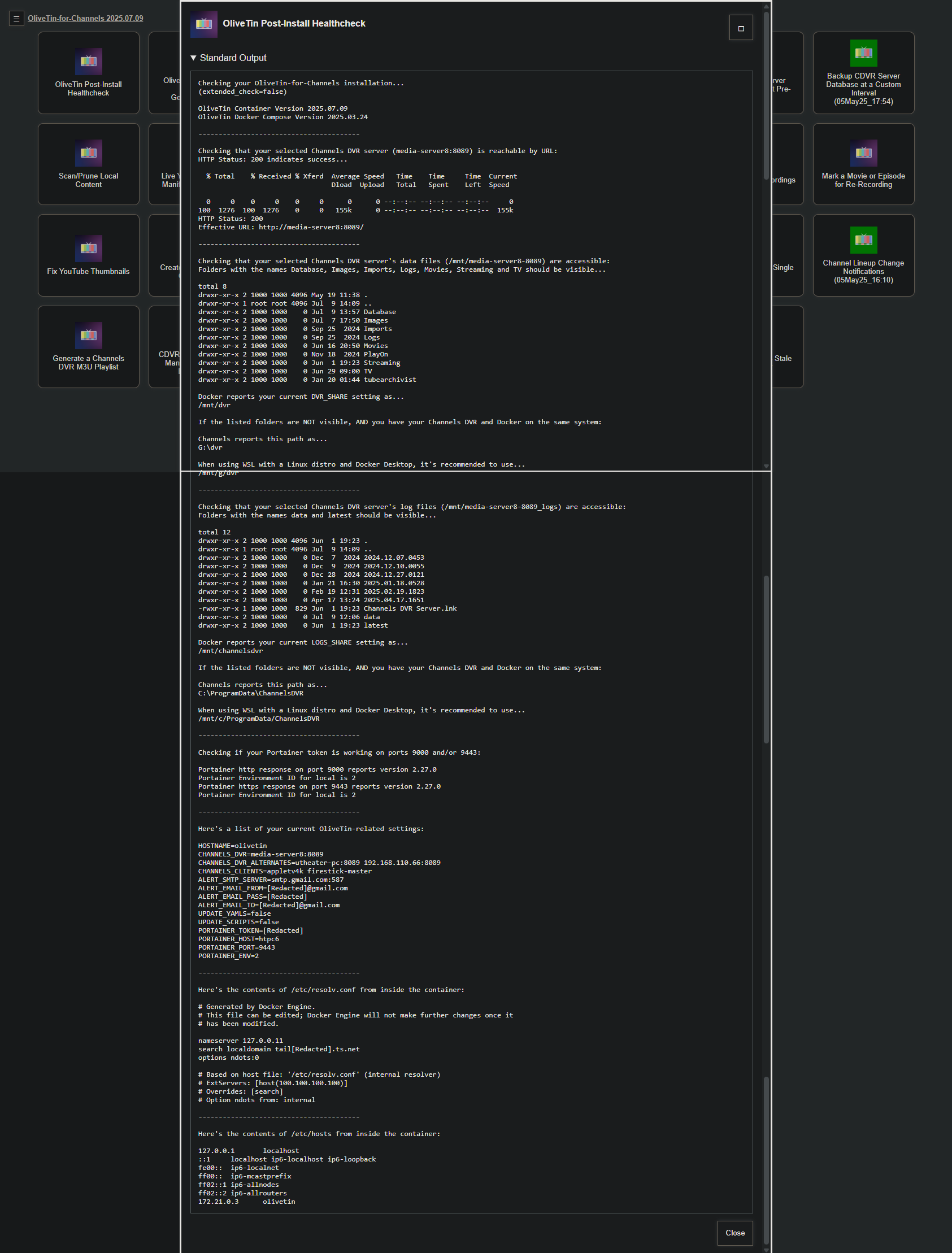
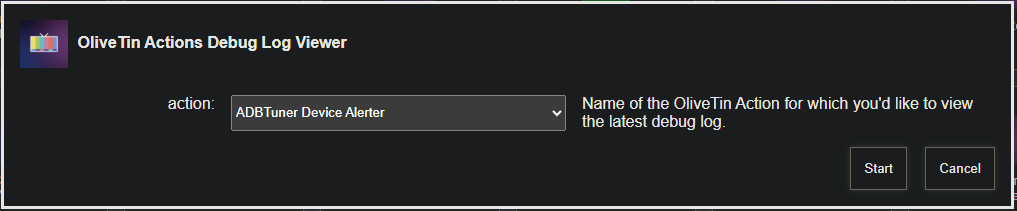
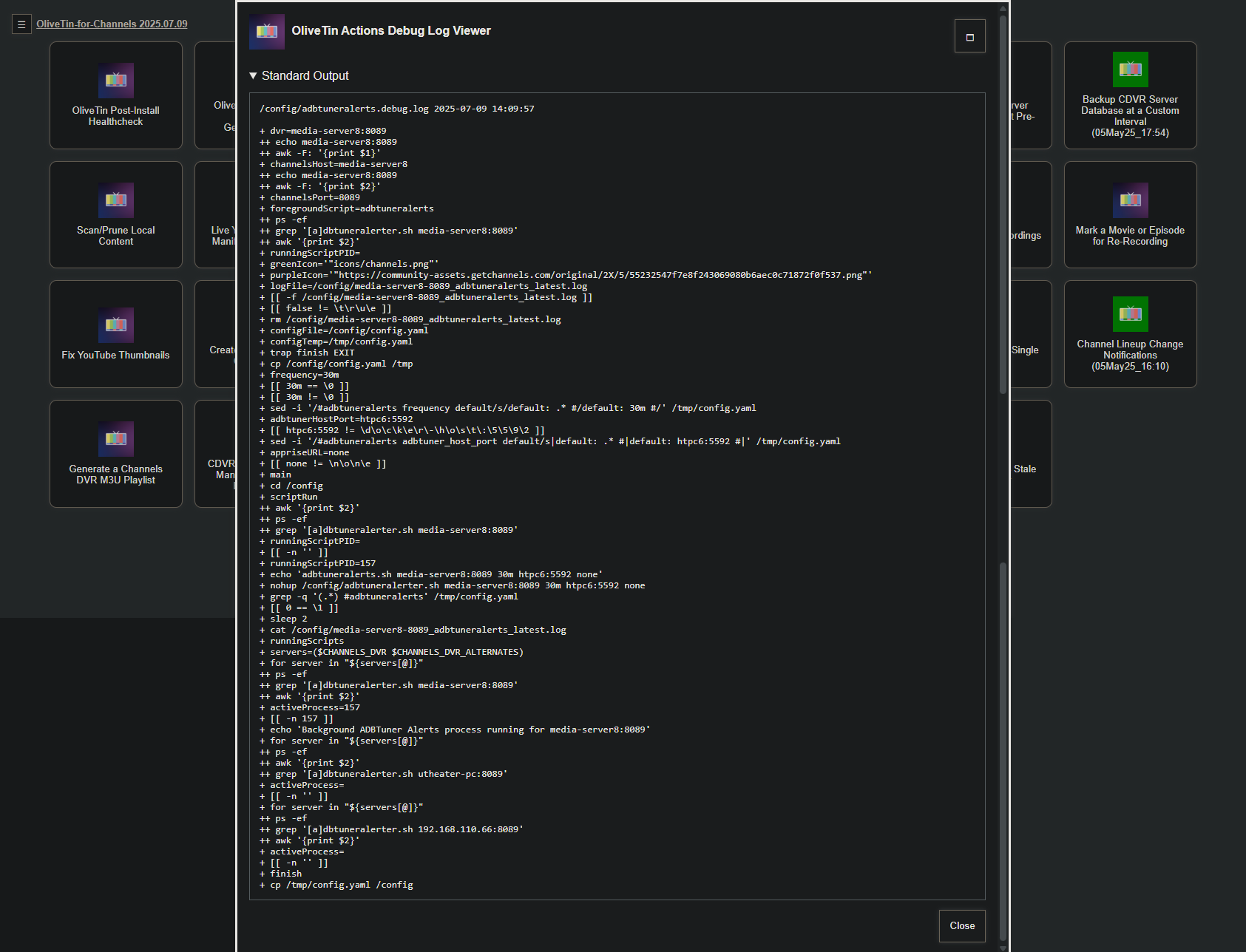
So, what I've decided to do is to redirect debug output to a specific file for each Action. That file can now be viewed, when needed, using its own Action. This way, if there are no actual errors, Standard Error won't even show as an option.
For example, with the OliveTin Post-Install Healthcheck, note that there is no Standard Error section to expand:
If you'd like to look at the debug output for a particular Action, or if you want to post it (being aware of possible sensitive data in some debug output), you can go to this new Action:
EDIT: Forgot to mention this change also has a positive impact on what displays in the OliveTin Portainer log. It's no longer a mixture of Standard Output and Standard Error (which was almost always debug info). Now it's Standard Output only, resulting in a much cleaner looking startup log.
HELP! I accidentally stopped and removed my perfectly functioning Olivetin container. Is there an easy way to recover it without starting from scratch?
Just the container? Is the olivetin stack still there? If so, you might try stopping the stack and then starting it again.

Go ahead and delete that image, and use this EZ-Start process:
Two variables will get you OliveTin EZ-Start running, then the parent path to where your OliveTin data is stored is about the only mandatory variable. In your case you should probably have the data for the ALERT_xxx variables too, as I know you use e-mail alerts.
Either delete your current OliveTin Portainer token before you start, or re-use your current one if you have it saved somewhere.