
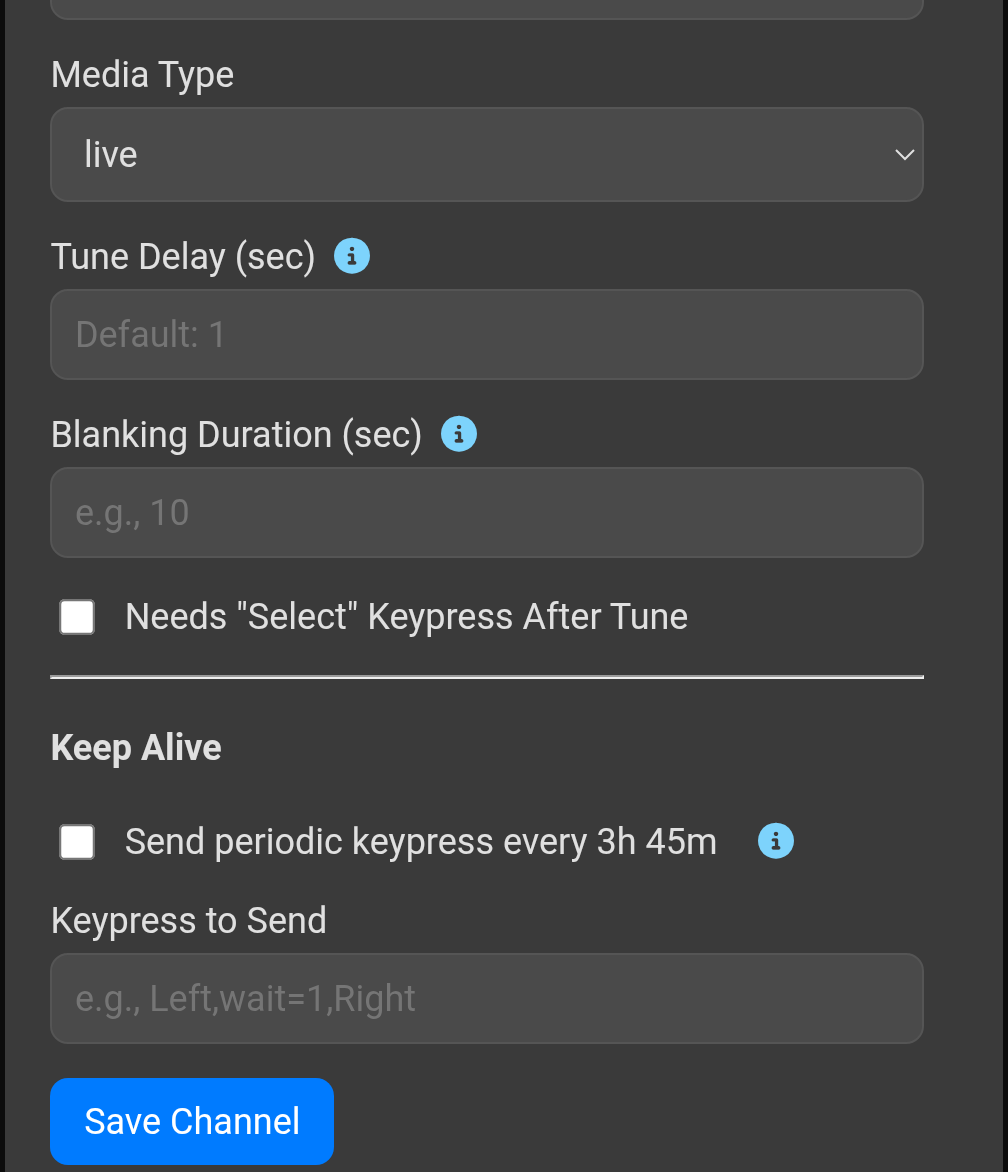
What I opted for was a comma separated list of commands you can put in. You can add any of the direction commands as well as select and wait commands if needed. The changes are published to the test release.
Awesome! You have given me something to play with this afternoon. Thanks!
If that doesn't work, I could add a 4 hour and 5 minute select command to dismiss the pop up. Better yet, I can make the time selectable as well.
I like this idea. I'd still have to wait 4 hours to see if the key presses reset the clock on the still watching prompt. But, at least I could set a shorter time to watch the actions on the screen to see how the app reacts to the input.
Question. Does anyone have a list of possible key code commands to try? I really don't know what I'm doing. But, I'm willing to try anything. Especially if it might benefit others having the same issue.
Somewhere on the internet you may find someone that has tried this with a Roku, but I think we will just have to use trial and error to determine the best way to handle it. I'm going to try the select after 4 hours to see what keystrokes are needed to dismiss the pop up.
I just pushed the latest update to the test branch.
Just pulled the update. For what it's worth, I came across this info
External control service commands
The external control services provided by ECP are included in a simple RESTful API accessed using HTTP on port 8060. Once you have the Roku device IP address, you can issue the following external control service commands to the Roku device.
General ECP commands
| Command | Description | Required Device Settings |
|---|---|---|
| query/media-player | Returns a child element named 'player' that identifies the media player state. The information returned includes the current stream segment and position of the content being played, the running time of the content, audio format, and buffering. This command is accessed using an HTTP GET. | |
| keydown/ | Equivalent to pressing the remote control key identified after the slash. This command is sent using an HTTP POST with no body. | Control by mobile apps setting “Enabled” |
| keyup/ | Equivalent to releasing the remote control key identified after the slash. This command is sent using an HTTP POST with no body. | Control by mobile apps setting “Enabled” |
| keypress/ | Equivalent to pressing down and releasing the remote control key identified after the slash. You can also use this command, and the keydown and keyup commands, to send keyboard alphanumeric characters when a keyboard screen is active, as described in Keypress Key Values. This command is sent using an HTTP POST with no body. |
Keypress key values
When the current screen on the Roku box includes an on-screen keyboard, any keyboard character can be sent via the keyup, keydown, and keypress commands. The key parameter can either be a key name, such as the name of a button on a remote control, or a printable character value specified with the prefix "Lit_".
Printable ASCII character code values can be transmitted "as-is" with the "Lit_" prefix. For example, you can send a 'r' with "Lit_r". In addition, any UTF-8 encoded character can be sent by URL-encoding it. For example, the euro symbol can be sent with "Lit_%E2%82%AC".
There are even some keys you can send that are not available on any physical remote. Enter is for completing keyboard entry fields, such as search fields (it is not the same as Select). Search is used for pressing and holding down the microphone/magnifying glass button, which causes the Roku Voice heads-up display to listen for a voice command.
The following are the key names that are recognized by ECP:
  Home
  Rev
  Fwd
  Play
  Select
  Left
  Right
  Down
  Up
  Back
  InstantReplay
  Info
  Backspace
  Search
  Enter
The ECP API is what I used to build the tuner with. The commands being sent use their ECP commands.
I guess that is the Roku equivalent to ADB. I figured that you already knew this stuff inside and out. It's all brand new to me, and perhaps to anyone else who may be following along. I'm an old dog trying to see if I can still learn new tricks.
Exactly. In many ways, it is easier than ADB to use, but ADB has more advanced features and deeper control of debugging. ECP and Roku, in general, have a more structured approach to their apps.
So, I ran through some of these keypresses manually on the remote, or through the Roku Bridge program, while playing a channel. We can eliminate most of the choices for the following reasons:
Home - NO, goes to app Home Page
Rev - NO, rewinds the playback
Fwd - NO, Fast Forwards the playback, not possible if recording live.
Play - YES?, 1 press=Pause, brings up bottom Nav menu, 2nd press=Play
Select - YES? 1 press brings up bottom Nav menu without pausing.
Left - NO, channel change to lower number
Right - NO, channel change to higher number
Down - NO, goes to app Home Page
Up - NO, opens recent channel bar at bottom
Back - NO, goes to app Home Page
InstantReplay - YES? skips back 30 seconds and automatically resumes play
Info - NO, opens options menu on left
Backspace - YES? No visible on-screen effect??!!
Search - NO, opens search bar on bottom
Enter - YES? No visible on-screen effect??!!
This afternoon/evening, I am attempting to test three options: Backspace, Enter and InstantReplay, all at 235 minutes. (5 minutes before the 4 hour deadline)
Here is a list of available commands.
Available Commands
-
Up,Down,Left,Right: Navigational arrow keys. -
Select: The "OK" button. -
Play: Toggles play/pause. -
Rev: Rewinds the stream. -
Fwd: Fast-forwards the stream. -
Replay: Jumps back about 7-10 seconds for an instant replay. -
Home: Returns to the Roku home screen. -
Back: Goes back to the previous screen. -
Backspace: Deletes the last character in a text field. -
wait=<seconds>: Pauses the sequence for a specific duration (e.g.,wait=2for two seconds).
Just a question, why set for 235 minutes? Try 60 min or shorter and check to be sure it has received the commands. You would have to use the Instant Replay to see the affect. If you’re not seeing the effect, that’s not good. Confirmations are your friend. After it’s confirmed to be doing what you desire, then increase your time.
In my testing on ah4c with Firestick, I could extend that screen forever with the remote but I'm not sure if it ever received the command thru Adb.
If you add the environment variable ENABLE_DEBUG_LOGGING=true to the docker run, it will show you what key presses and when they were issued in the container logs.
I will do that now. Thanks for the suggestion! I was kinda flying blind without this...
1 Like
Here's an example of what the logs will give you.
[2025-09-09 18:58:16 +0000] [1] [INFO] Starting gunicorn 23.0.0
[2025-09-09 18:58:16 +0000] [1] [INFO] Listening at: http://0.0.0.0:5000 (1)
[2025-09-09 18:58:16 +0000] [1] [INFO] Using worker: gevent
[2025-09-09 18:58:16 +0000] [8] [INFO] Booting worker with pid: 8
2025-09-09 18:58:16,715 - INFO - Loaded 3 tuners, 13 Gracenote channels, 2 EPG channels.
2025-09-09 18:58:16,715 - INFO - Detecting hardware acceleration...
2025-09-09 18:58:16,841 - INFO - Intel QSV detected.
2025-09-09 18:58:42,492 - INFO - Locked tuner: Roku1
2025-09-09 18:58:42,493 - INFO - Tuning to actual channel USA...
2025-09-09 18:58:42,496 - INFO - [Keep-Alive] Task started for 192.168.86.35. Sending sequence ['Left'] every 225 minutes.
2025-09-09 18:58:42,497 - INFO - Starting silent stream for 8 seconds...
2025-09-09 18:58:44,436 - INFO - Sending deep link command: http://192.168.86.35:8060/launch/195316?contentId=HdNG0LamFtk&mediaType=live
2025-09-09 18:58:50,568 - INFO - Finished silent stream.
2025-09-09 18:58:50,568 - INFO - Switching to live stream from encoder (proxy mode)...
2025-09-09 18:58:50,744 - INFO - HTTP Request: GET http://192.168.86.37:8090/stream0 "HTTP/1.0 200 OK"
2025-09-09 22:44:45,085 - INFO - [Keep-Alive] Sending sequence ['Left'] to 192.168.86.35 to prevent timeout.
2025-09-09 22:44:45,146 - INFO - Sent key 'Left' to 192.168.86.35
That is what we call an excellent question! I have already done two quick rounds of testing.
The first round was simply monitoring a channel playing, and using key-presses on the physical remote buttons. That was enough to rule out a few of the choices.
The second round I did as you suggest, set the action for a short delay. I used one minute. It was enough to rule out a couple more options. (ones which did not correlate to a physical remote button)
Having narrowed the field to a manageable size, I chose 235 minutes so that I could review just the last few minutes in the final recording(s) to see if the still watching? pops up, (or not  )
)
Now that I know about the ENABLE_DEBUG_LOGGING=true variable, I can check the two options which did not have an obvious effect on the recording/playback. That is the Backspace and Enter. At least I can verify if they appear as accepted in the container log. I'll also pick a short duration test (1 min) again.
Lastly, I will resume the 235 minute test of the best candidates. Hopefully, one will stand out as the obvious winner. If we find one which serves the purpose of resetting the timer on the still watching prompt, I want it to be as close to the 4 hour mark as is reasonable. Especially if it turns out to be one which is visible on-screen.
That's awesome! (and so helpful!) Evidently, I still can learn something new every day. 
One-minute Backspace test (I ran it twice...)
2025-09-09 23:37:30,116 - INFO - HTTP Request: GET http://192.168.1.161:8090/stream0 "HTTP/1.0 200 OK"
2025-09-09 23:38:30,097 - INFO - [Keep-Alive] Sending sequence ['Backspace'] to 192.168.1.165 to prevent timeout.
2025-09-09 23:40:23,340 - INFO - HTTP Request: GET http://192.168.1.161:8090/stream0 "HTTP/1.0 200 OK"
2025-09-09 23:41:23,321 - INFO - [Keep-Alive] Sending sequence ['Backspace'] to 192.168.1.165 to prevent timeout.
One-minute "Enter" test:
2025-09-09 23:44:46,038 - INFO - HTTP Request: GET http://192.168.1.161:8090/stream0 "HTTP/1.0 200 OK"
2025-09-09 23:45:41,179 - INFO - [Keep-Alive] Sending sequence ['Enter'] to 192.168.1.250 to prevent timeout.
I can't see any noticeable playback effects from either of these two commands. They will be my prime candidates for the longer test(s). I will also test the "InstantReplay", as it was not a dramatic interruption, and can be edited out of the final recording.
For your 2nd round, did you visually see the stream do what you were asking it to do or just from the log? When I was trying to beat the demon, my log showed sending the command but the stream never reacted as it did when the remote was used. It was probably due to my poor coding and typing skills.
I was watching to visually verify. The idea of checking the log never crossed my mind until @Bobby_Vaughn suggested it. Sometimes I wonder if my brain is working right... 
This is why I used the remote and visual verification first. I am pretty flaky when it comes to keyboard voodoo.