@bnhf
Finally got around to installing Olive Tin on my test server NAS (Synology). My ultimate goal is to install Project One-Click on the Test Server then add to the Production Server.
I believe everything installed correctly but thought I'd put my Post Health Check for inspection as well as the compose and environments before I move on to the next step.
Post Health Check:
Checking your OliveTin-for-Channels installation...
(extended_check=false)

OliveTin Container Version 2025.09.26
OliveTin Docker Compose Version 2025.08.25

----------------------------------------

Checking that your selected Channels DVR server (10.0.1.194:8089) is reachable by URL:
HTTP Status: 200 indicates success...

  % Total    % Received % Xferd  Average Speed   Time    Time     Time  Current
                                 Dload  Upload   Total   Spent    Left  Speed

  0     0    0     0    0     0      0      0 --:--:-- --:--:-- --:--:--     0
100  1276  100  1276    0     0  1246k      0 --:--:-- --:--:-- --:--:-- 1246k
HTTP Status: 200
Effective URL: http://10.0.1.194:8089/

----------------------------------------

Checking that your selected Channels DVR server's data files (/mnt/10.0.1.194-8089) are accessible:
Folders with the names Database, Images, Imports, Logs, Movies, Streaming and TV should be visible...

total 0
d--------- 1 root   root     22 Sep 27  2023 #recycle
d--------- 1 root   root    116 Nov 13 06:00 .
drwxr-xr-x 1 root   root    106 Nov 13 11:12 ..
drwxrwxrwx 1 root   root      8 Sep 23 16:32 @eaDir
drwx------ 1 242120 242120 1320 Nov 13 05:32 Database
drwx------ 1 242120 242120  104 Nov  8 10:14 Images
drwx------ 1 242120 242120   28 Sep 26  2023 Imports
drwx------ 1 242120 242120   32 Sep 26  2023 Logs
drwx------ 1 242120 242120    4 Nov  7 20:42 Metadata
drwx------ 1 242120 242120   40 Nov 13 06:00 Streaming
drwx------ 1 242120 242120   96 Nov 13 06:00 TV

Docker reports your current DVR_SHARE setting as...
/volume1/ChannelsDVR

If the listed folders are NOT visible, AND you have your Channels DVR and Docker on the same system:

Channels reports this path as...
/volume1/ChannelsDVR

----------------------------------------

Checking that your selected Channels DVR server's log files (/mnt/10.0.1.194-8089_logs) are accessible:
Folders with the names data and latest should be visible...

total 4
drwxr-xr-x 1 242120 242120  200 Nov 13 05:32 .
drwxr-xr-x 1 root   root    106 Nov 13 11:12 ..
drwxr-xr-x 1 242120 242120  154 Sep 25 17:27 2025.09.25.2220
drwxr-xr-x 1 242120 242120  154 Sep 25 20:28 2025.09.26.0118
drwxr-xr-x 1 242120 242120  154 Oct  9 15:18 2025.10.04.0225
drwxr-xr-x 1 242120 242120  134 Oct 29 13:19 2025.10.28.0018
drwxr-xr-x 1 242120 242120  134 Oct 29 21:19 2025.10.30.0047
drwxr-xr-x 1 242120 242120  154 Nov 13 05:32 2025.11.07.0832
drwxr-xr-x 1 242120 242120 1048 Nov 13 11:05 data
lrwxrwxrwx 1 242120 242120   15 Nov 13 05:32 latest -> 2025.11.07.0832

Docker reports your current LOGS_SHARE setting as...
/var/packages/ChannelsDVR/target/channels-dvr

If the listed folders are NOT visible, AND you have your Channels DVR and Docker on the same system:

Channels reports this path as...
/var/packages/ChannelsDVR/target/channels-dvr

----------------------------------------

Checking if your Portainer token is working on ports 9000 and/or 9443:

Portainer http response on port 9000 reports version 2.33.3
Portainer Environment ID for local is 2
Portainer https response on port 9443 reports version
Portainer Environment ID for local is

----------------------------------------

Here's a list of your current OliveTin-related settings:

HOSTNAME=olivetin
CHANNELS_DVR=10.0.1.194:8089
CHANNELS_DVR_ALTERNATES=
CHANNELS_CLIENTS=
ALERT_SMTP_SERVER=
ALERT_EMAIL_FROM=[Redacted]@
ALERT_EMAIL_PASS=[Redacted]
ALERT_EMAIL_TO=[Redacted]@
UPDATE_YAMLS=true
UPDATE_SCRIPTS=true
PORTAINER_TOKEN=[Redacted]
PORTAINER_HOST=10.0.1.194
PORTAINER_PORT=9443
PORTAINER_ENV=2

----------------------------------------

Here's the contents of /etc/resolv.conf from inside the container:

search local
nameserver 127.0.0.11
options ndots:0

----------------------------------------

Here's the contents of /etc/hosts from inside the container:

127.0.0.1	localhost
::1	localhost ip6-localhost ip6-loopback
fe00::0	ip6-localnet
ff00::0	ip6-mcastprefix
ff02::1	ip6-allnodes
ff02::2	ip6-allrouters
172.23.0.2	olivetin
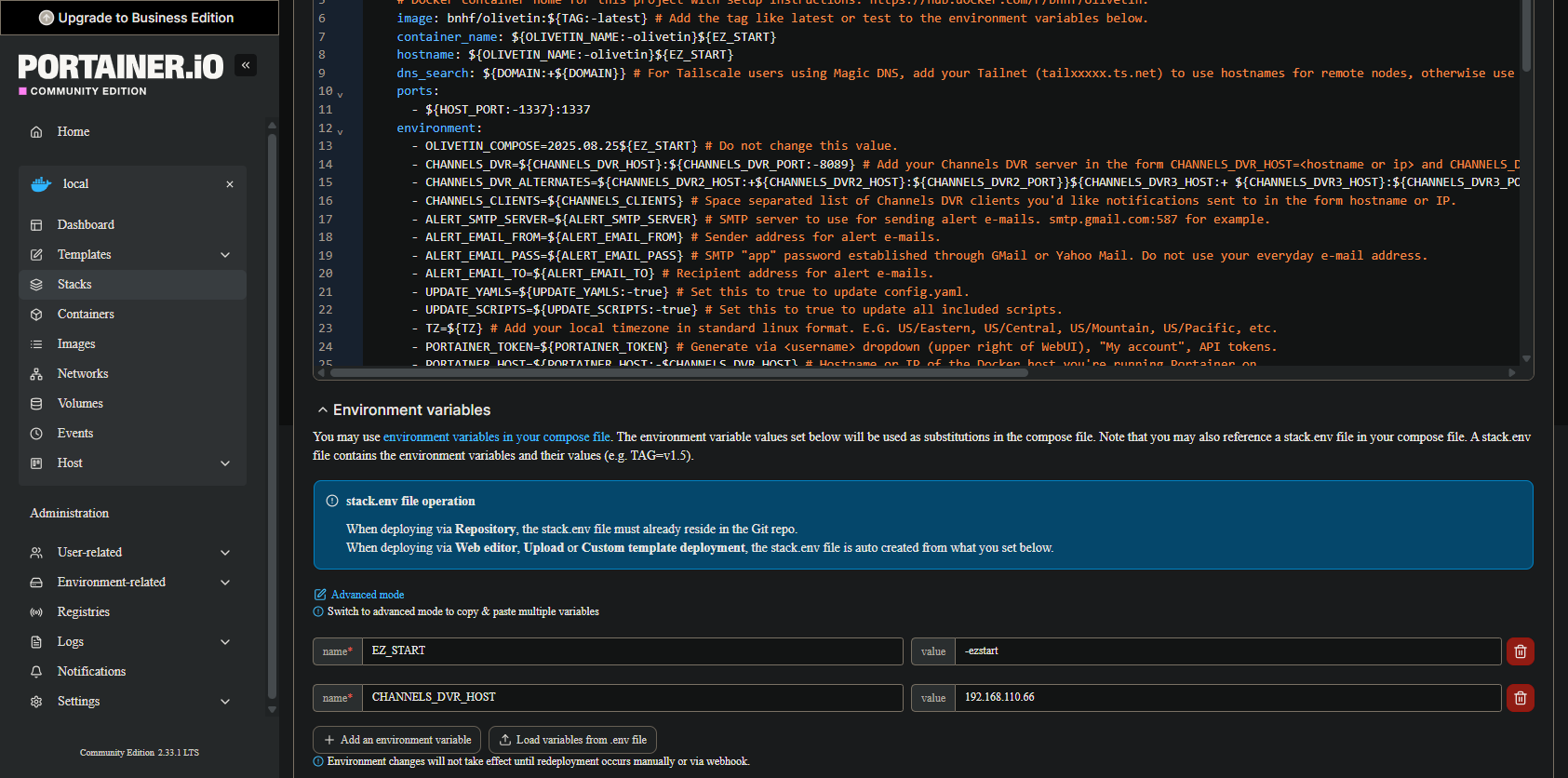
Compose:
services:
  olivetin: # This docker-compose typically requires no editing. Use the Environment variables section of Portainer to set your values.
    # 2025.08.25
    # GitHub home for this project: https://github.com/bnhf/OliveTin.
    # Docker container home for this project with setup instructions: https://hub.docker.com/r/bnhf/olivetin.
    image: bnhf/olivetin:${TAG:-latest} # Add the tag like latest or test to the environment variables below.
    container_name: ${OLIVETIN_NAME:-olivetin}${EZ_START}
    hostname: ${OLIVETIN_NAME:-olivetin}${EZ_START}
    dns_search: ${DOMAIN:+${DOMAIN}} # For Tailscale users using Magic DNS, add your Tailnet (tailxxxxx.ts.net) to use hostnames for remote nodes, otherwise use your local domain name.
    ports:
      - ${HOST_PORT:-1337}:1337
    environment:
      - OLIVETIN_COMPOSE=2025.08.25${EZ_START} # Do not change this value.
      - CHANNELS_DVR=${CHANNELS_DVR_HOST}:${CHANNELS_DVR_PORT:-8089} # Add your Channels DVR server in the form CHANNELS_DVR_HOST=<hostname or ip> and CHANNELS_DVR_PORT=<port>.
      - CHANNELS_DVR_ALTERNATES=${CHANNELS_DVR2_HOST:+${CHANNELS_DVR2_HOST}:${CHANNELS_DVR2_PORT}}${CHANNELS_DVR3_HOST:+ ${CHANNELS_DVR3_HOST}:${CHANNELS_DVR3_PORT}} # Space separated list of alternate Channels DVR servers to choose from in the form hostname:port or ip:port.
      - CHANNELS_CLIENTS=${CHANNELS_CLIENTS} # Space separated list of Channels DVR clients you'd like notifications sent to in the form hostname or IP.
      - ALERT_SMTP_SERVER=${ALERT_SMTP_SERVER} # SMTP server to use for sending alert e-mails. smtp.gmail.com:587 for example.
      - ALERT_EMAIL_FROM=${ALERT_EMAIL_FROM} # Sender address for alert e-mails.
      - ALERT_EMAIL_PASS=${ALERT_EMAIL_PASS} # SMTP "app" password established through GMail or Yahoo Mail. Do not use your everyday e-mail address.
      - ALERT_EMAIL_TO=${ALERT_EMAIL_TO} # Recipient address for alert e-mails.
      - UPDATE_YAMLS=${UPDATE_YAMLS:-true} # Set this to true to update config.yaml.
      - UPDATE_SCRIPTS=${UPDATE_SCRIPTS:-true} # Set this to true to update all included scripts.
      - TZ=${TZ} # Add your local timezone in standard linux format. E.G. US/Eastern, US/Central, US/Mountain, US/Pacific, etc.
      - PORTAINER_TOKEN=${PORTAINER_TOKEN} # Generate via <username> dropdown (upper right of WebUI), "My account", API tokens.
      - PORTAINER_HOST=${PORTAINER_HOST:-$CHANNELS_DVR_HOST} # Hostname or IP of the Docker host you're running Portainer on.
      - PORTAINER_PORT=${PORTAINER_PORT:-9443} # https port you're running Portainer on. 9443 is the default.
      - PORTAINER_ENV=${PORTAINER_ENV:-2} # Set this is if you're using an alternate Portainer Environment for some reason. 2 is the default.
      - PERSISTENT_LOGS=${PERSISTENT_LOGS:-false} # For supported Actions, log files are retained on an ongoing basis. false is the default.
    volumes:
      - ${HOST_DIR:-/unused}${HOST_DIR:+/olivetin:/config} # Add the parent directory on your Docker host you'd like to use.
      - ${DVR_SHARE:-/unused}${DVR_SHARE:+:/mnt/${CHANNELS_DVR_HOST}-${CHANNELS_DVR_PORT}} # This can either be a Docker volume or a host directory that's connected via Samba or NFS to your Channels DVR network share.
      - ${LOGS_SHARE:-/unused}${LOGS_SHARE:+:/mnt/${CHANNELS_DVR_HOST}-${CHANNELS_DVR_PORT}_logs} # This can either be a Docker volume or a host directory that's connected via Samba or NFS to your Channels DVR logs network share.
      - ${TUBEARCHIVIST_SHARE:-/unused}${TUBEARCHIVIST_SHARE:+:/mnt/${CHANNELS_DVR_HOST}-${CHANNELS_DVR_PORT}_ta} # This can either be a Docker volume or a host directory that's connected via Samba or NFS to your TubeArchivist videos network share.
      - ${DVR2_SHARE:-/unused}${DVR2_SHARE:+:/mnt/${CHANNELS_DVR2_HOST}-${CHANNELS_DVR2_PORT}} # Note that these volume mounts should always be to /mnt/hostname-port or /mnt/ip-port (dash rather than a colon between).
      - ${LOGS2_SHARE:-/unused}${LOGS2_SHARE:+:/mnt/${CHANNELS_DVR2_HOST}-${CHANNELS_DVR2_PORT}_logs} # This can either be a Docker volume or a host directory that's connected via Samba or NFS to your Channels DVR logs network share.
      - ${TUBEARCHIVIST2_SHARE:-/unused}${TUBEARCHIVIST2_SHARE:+:/mnt/${CHANNELS_DVR2_HOST}-${CHANNELS_DVR2_PORT}_ta} # This can either be a Docker volume or a host directory that's connected via Samba or NFS to your TubeArchivist videos network share.
      - ${DVR3_SHARE:-/unused}${DVR3_SHARE:+:/mnt/${CHANNELS_DVR3_HOST}-${CHANNELS_DVR3_PORT}} # Note that these volume mounts should always be to /mnt/hostname-port or /mnt/ip-port (dash rather than a colon between).
      - ${LOGS3_SHARE:-/unused}${LOGS3_SHARE:+:/mnt/${CHANNELS_DVR3_HOST}-${CHANNELS_DVR3_PORT}_logs} # This can either be a Docker volume or a host directory that's connected via Samba or NFS to your Channels DVR logs network share.
      - ${TUBEARCHIVIST3_SHARE:-/unused}${TUBEARCHIVIST3_SHARE:+:/mnt/${CHANNELS_DVR3_HOST}-${CHANNELS_DVR3_PORT}_ta} # This can either be a Docker volume or a host directory that's connected via Samba or NFS to your TubeArchivist videos network share.
      - /var/run/docker.sock:/var/run/docker.sock
    restart: unless-stopped

  static-file-server:
    image: halverneus/static-file-server:latest
    container_name: ${SFS_NAME:-static-file-server}${EZ_START}
    dns_search: ${DOMAIN}
    ports:
      - ${HOST_SFS_PORT:-0}:8080
    environment:
      - FOLDER=${FOLDER:-/web}
    volumes:
      - ${HOST_DIR:-/unused}${HOST_DIR:+/olivetin/data:${FOLDER:-/web}}
    restart: unless-stopped

#0#volumes: # Remove the #x# to enable. Use this section if you've setup a docker volume named channels-dvr, with CIFS or NFS, to bind to /mnt/dvr inside the container. Set ${DVR_SHARE} to channels-dvr (DVR_SHARE=channels_dvr) in that example.
  #1#channels-dvr:
    #1#external: true
  #2#channels-dvr-logs:
    #2#external: true
  #3#tubearchivist:
    #3#external: true
  #4#channels-dvr2:
    #4#external: true
  #5#channels-dvr2-logs:
    #5#external: true
  #6#tubearchivist2:
    #6#external: true
  #7#channels-dvr3:
    #7#external: true
  #8#channels-dvr3-logs:
    #8#external: true
  #9#tubearchivist3:
    #9#external: true
Environment Variables:
TAG=latest
DOMAIN=local
HOST_PORT=1337
CHANNELS_DVR_HOST=10.0.1.194
CHANNELS_DVR_PORT=8089
CHANNELS_CLIENTS=
ALERT_SMTP_SERVER=
ALERT_EMAIL_FROM=
ALERT_EMAIL_PASS=
ALERT_EMAIL_TO=
UPDATE_YAMLS=true
UPDATE_SCRIPTS=true
TZ=US/Central
HOST_DIR=/volume1/data
DVR_SHARE=/volume1/ChannelsDVR
LOGS_SHARE=/var/packages/ChannelsDVR/target/channels-dvr
TUBEARCHIVIST_SHARE=/volume1/ChannelsDVR
DVR2_SHARE=
LOGS2_SHARE=
TUBEARCHIVIST2_SHARE=
DVR3_SHARE=
LOGS3_SHARE=
TUBEARCHIVIST3_SHARE=
HOST_SFS_PORT=8080
FOLDER=/web
PORTAINER_TOKEN=redacted
PORTAINER_HOST=10.0.1.194
PORTAINER_PORT=9443
PORTAINER_ENV=2
PERSISTENT_LOGS=false