I know there are at least a couple of people that have OliveTin-for-Channels running on Unraid, but nobody's written the process up.
Here are a couple of things to keep in mind:
OliveTin-for-Channels requires Portainer -- so be sure you're comfortable with getting Portainer installed and running.
A fully functioning OliveTin installation requires access to CVDR executables and recordings directories. If both are on the Unraid server, and you know their paths -- you should be good.
Other than that, if you understand at least basic concepts about Docker and Docker Compose it's not overly difficult.
Thanks, yeah, I was able to get it running with Portainer on Unraid!
I didn't realize that Portainer was required now that I know that it was pretty easy to get up and running!!
I followed the above method for updating Olivetin and got this message:
Failed to pull images of the stack: compose pull operation failed: failed to create compose project: failed to load the compose file : decoding failed due to the following error(s): 'services[olivetin].environment' environment variable is declared with a trailing space
I am using Portainer (CE) 2.33.5 LTS. I stopped it only in Portainer. Should I have done something within Docker?
The post you referenced was regarding updating the olivetin container. The error you're seeing indicates the Docker Compose you're using is out of date.
Stop the stack in Portainer, and replace your current compose with the updated one I linked in my last post. You should also confirm the env vars you're using are up-to-date.
This error message will go away automatically if the problem is solved.
Despite not being able to restart OliveTin with Portainer, it is still showing that it is running in Docker and everything is working as it did prior. You have been beyond helpful, but I'm afraid that I don't have the knowledge to go much further. Between this time and the previous time, you've spent a lot of time on this with me and I am sincerely grateful. Should I just stop while I'm kinda ahead (and it's still working??
So I have Portainer CE installed under Unraid.
I frequently have to manually go into Portainer and update OliveTin because it does not do it automatically like Unraid's dockerman. Does anyone who is possibly running a similar setup know of a way to only update OliveTin, possibly through Watchtower, going through Portainer, and leave all of my other containers alone and let Unraid manage them?
Let me start by saying I'm not a fan of auto-updating anything. I use Watchtower, but run it in WATCHTOWER_RUN_ONCE=true mode. However, I understand that some prefer things the other way around.
So, for your desired use case, Watchtower will also work -- but will update all running containers, which is probably not what you want. To get Watchtower to work in this-container-but-not-that-one mode, I believe you'll need to use labels.
When a label is set to true, and Watchtower is configured to only update whitelisted containers, a container with the above label will be updated. You can also switch things around and use a blacklisting approach. It all depends on which fits your setup best.
You'll need to read-up to get the results you're after, but it's not difficult. I believe this documentation still applies, despite the project migrating to another repo:
If you decide to go with whitelisting, which I would guess is best for your scenario, you'd want OliveTin, Portainer and Watchtower itself, to all carry the true label, as shown above.
I got it working. Thanks so much.
Portainer itself actually updates through Unraid. I just need OliveTin and staticfileserver, I believe with the label on it.
Oh and Watchtower also.
Would you consider modifying your deletelogs.sh script.
As is, it's deleting the Logs/recordings directory.
Background script initiated, with 1d between runs for 192.168.1.4:8089
Deleting recording log files for 192.168.1.4:8089 that are more than 1 days old
Background deletelogs process running for 192.168.1.4:8089
foreground.sh is exiting for deletelogs with exit code 0

Deleting recording log files for 192.168.1.4:8089 that are more than 1 days old
Deleting recording log files for 192.168.1.4:8089 that are more than 1 days old
find: '/mnt/192.168.1.4-8089/Logs/recording': Deleted
Your Channels DVR Server's /dvr directory needs to be bound to this container
Adding a -mindepth 1 option to the find command will work.
Alrighty then! Very big update to OliveTin-for-Channels this morning. pushed as bnhf/olivetin:latest (aka bnhf/olivetin:2026.01.27). Before I describe some of the details, let me start by saying this update will typically require deleting "Cached images and files" (all time) and a <Ctrl>F5 in your browser. If you see a big red warning box, do those two things and you should be good.
Front end changes:
We've moved to using the most recent version of the base OliveTin "2K" package, though this was customized somewhat for best compatibility with OliveTin-for-Channels.
The biggest change you'll notice, is that output is now in a single "xterm" window. This means "standard output" and "standard error" are both displayed in this window, much like a typical terminal. Most Actions also produce debug output, which is now directed to a file with a separate Action to view the debug.
Actions where the icon changes color now have that happen automatically, without the need for browser refresh. Project One-Click Actions are now in on the green icon fun, and will display green for any CDVR extension with a running container. Running projects are identified at OliveTin startup, and then the icons are updated when you install or remove projects using One-Click.
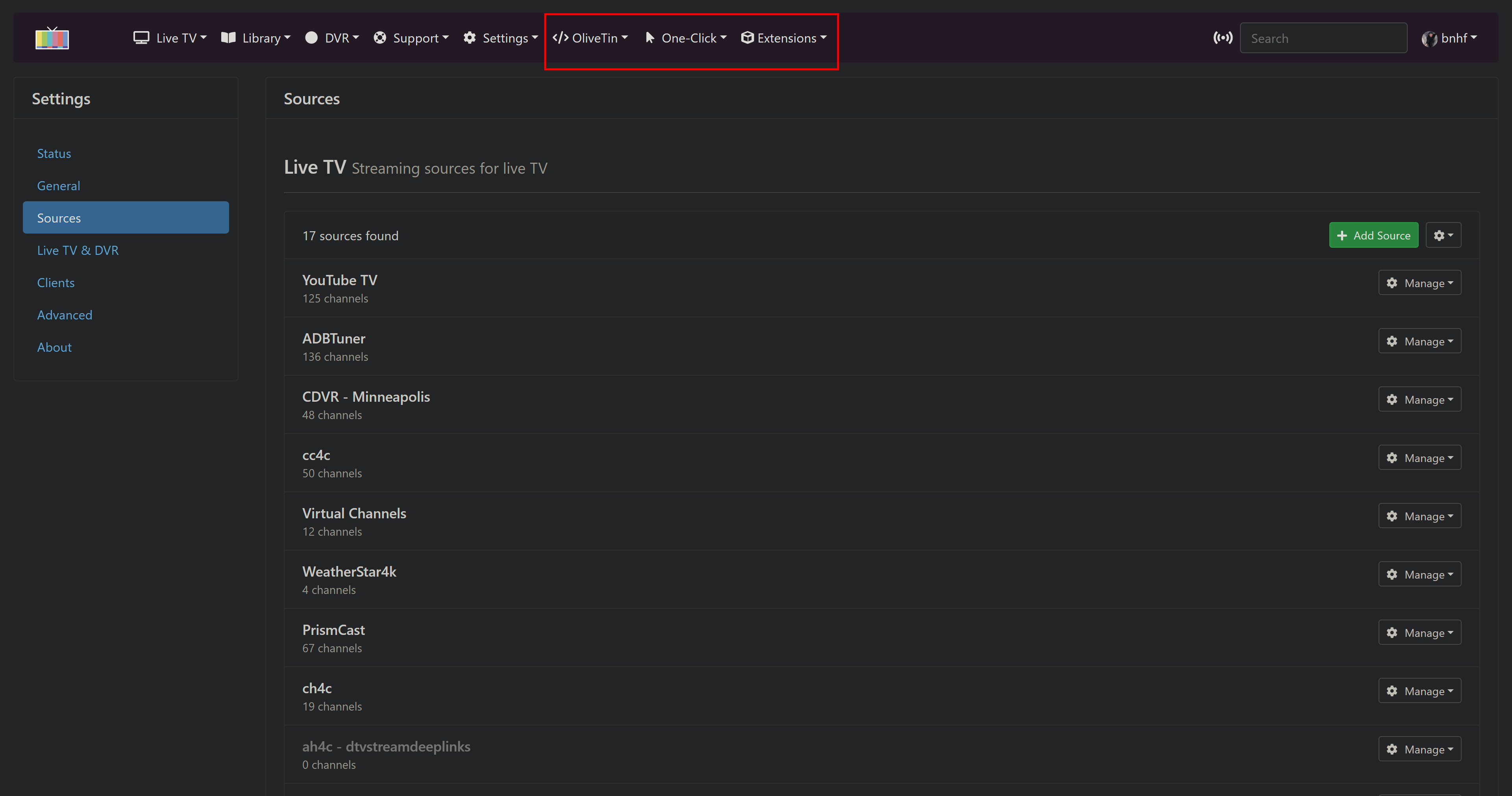
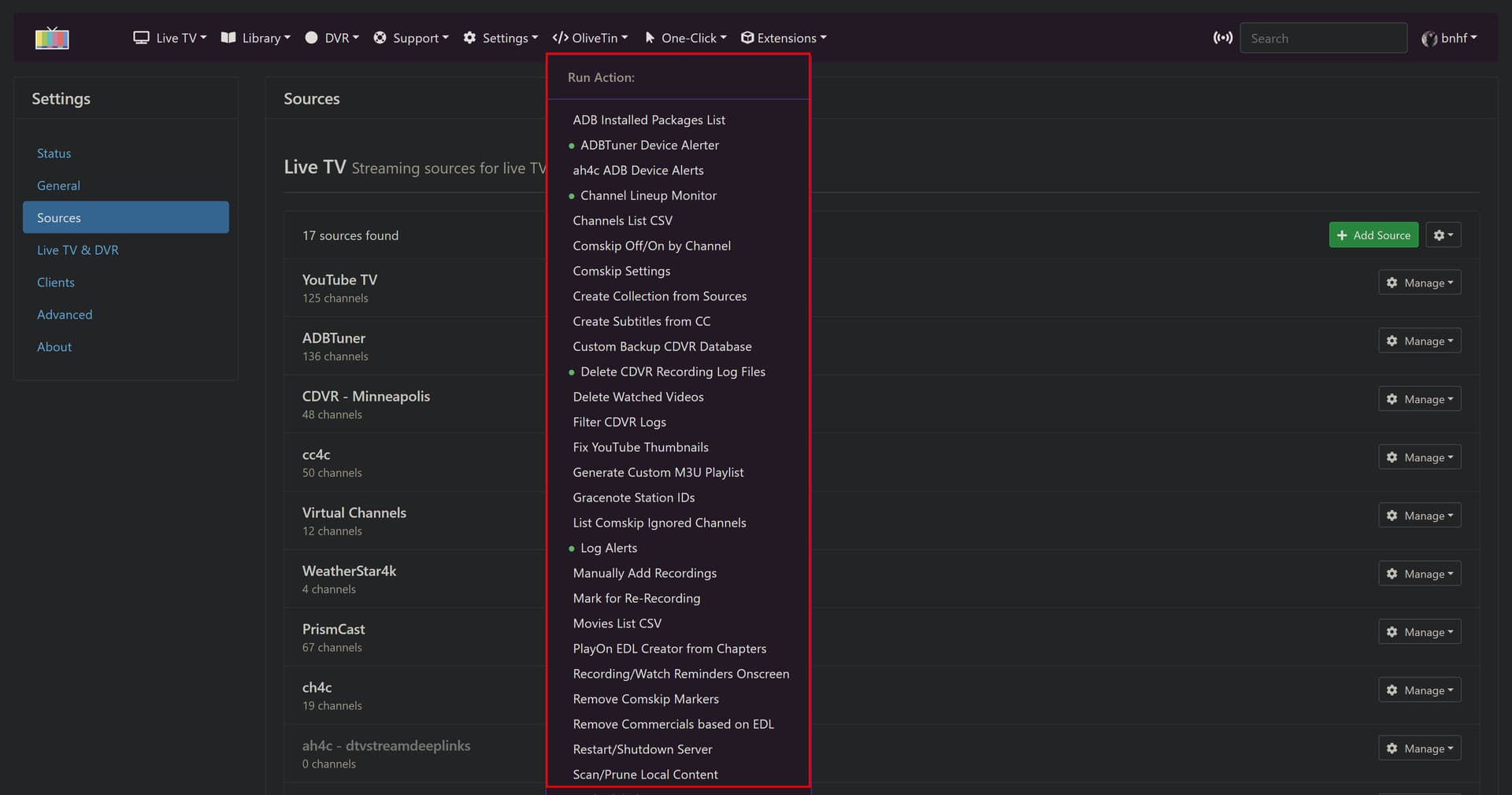
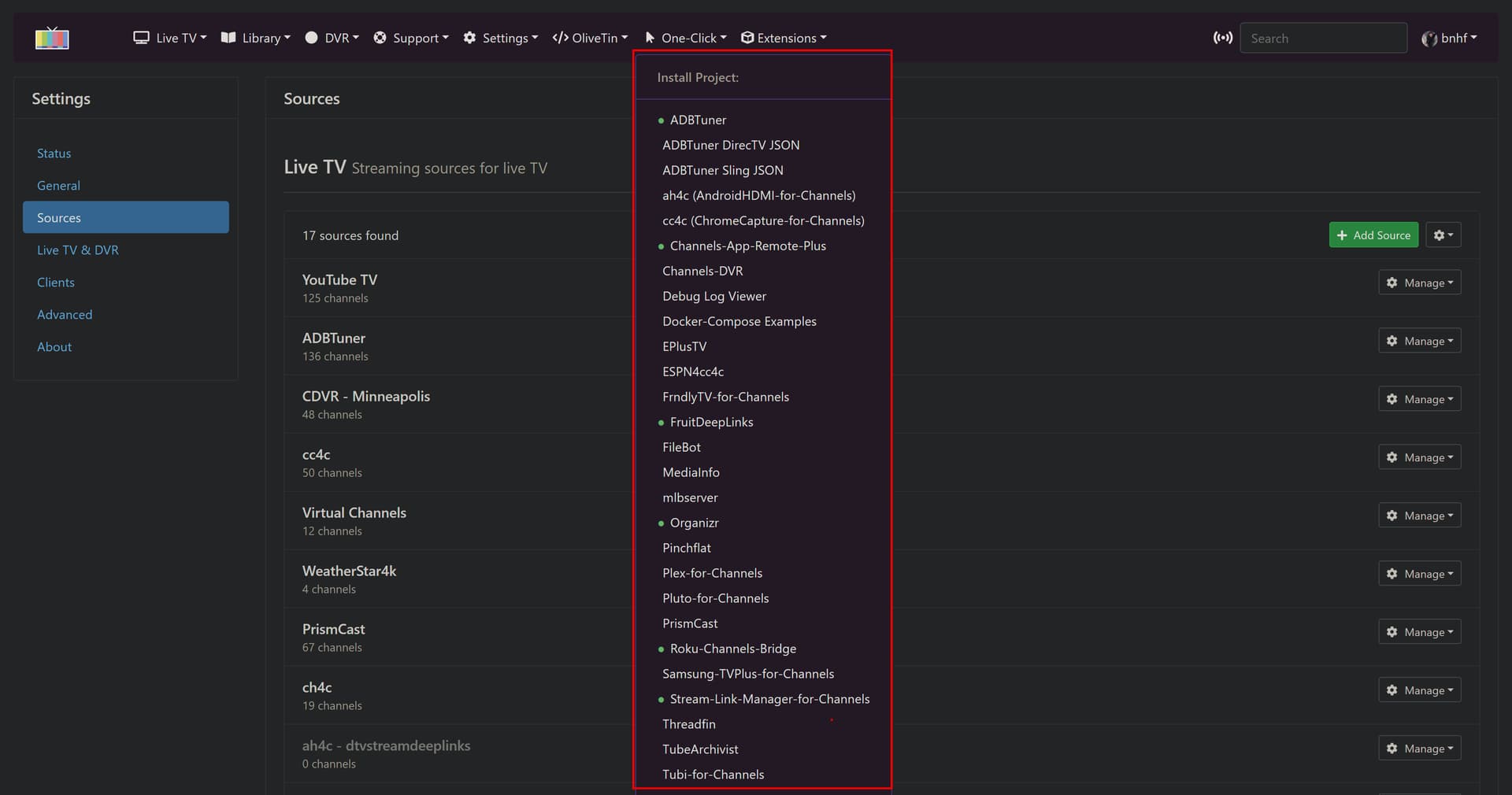
The other big change is that, for the most part, it's no longer mandatory to use the OliveTin Dashboard -- as you can add very full OliveTin functionality to the CDVR WebUI, via a couple of userscripts. Almost all Actions are available this way, and they look like this in the WebUI (minus the red boxes I used in these screenshots of course):
Note that any Actions that have green icons in the Dashboard, will have a green dot next to them in the dropdown. These green dots are "live", so they will immediately reflect changes:
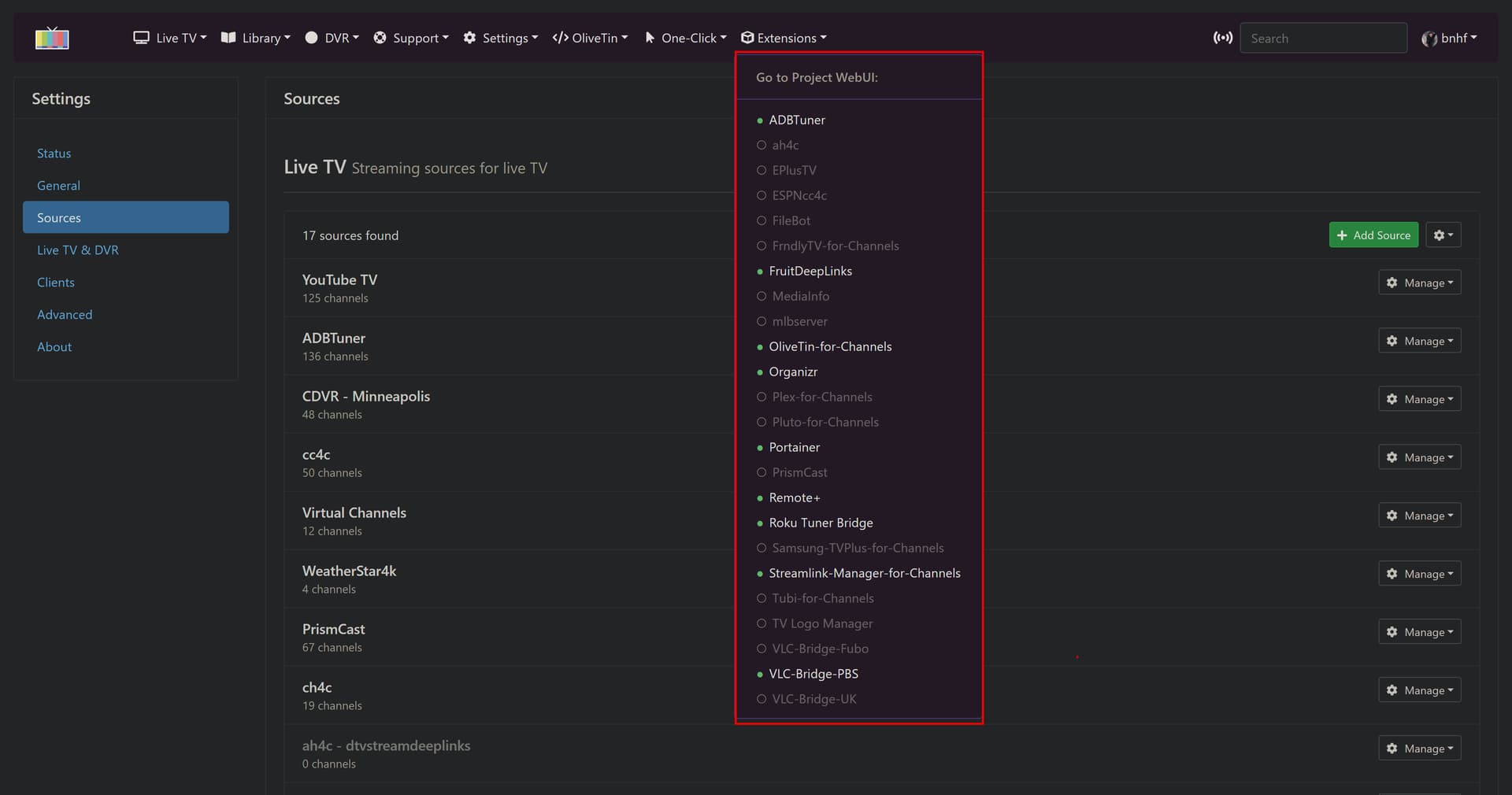
The intention of this dropdown is to give immediate access to the WebUI for a supported project WITHOUT opening a new tab. The idea is to give a more integrated feel to community projects, and to allow the back arrow to return you to the CDVR WebUI. Those projects with green dots and highlighted text, are running, and should be accessible.
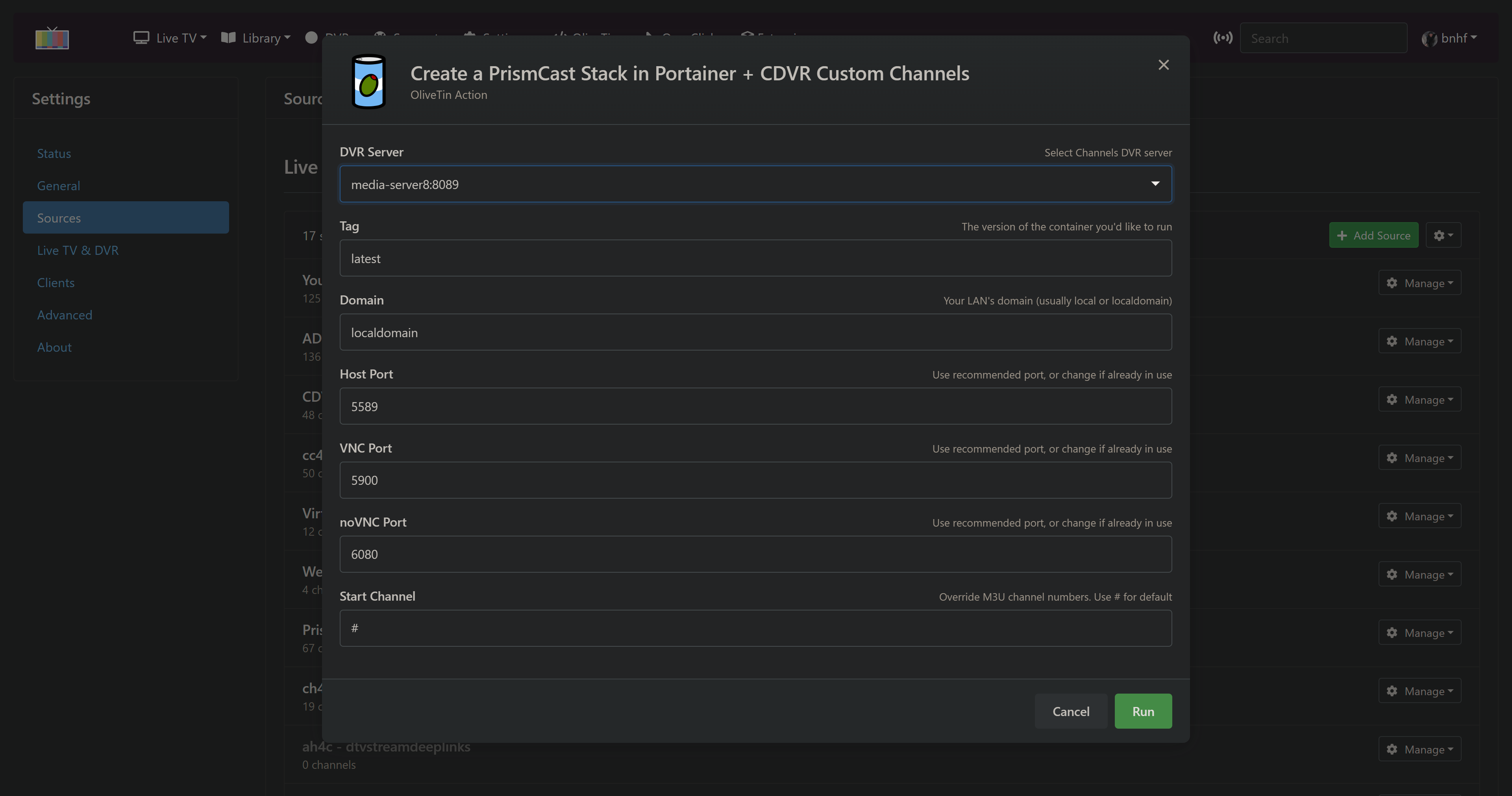
And finally, here's an example One-Click Action window. All Actions and One-Clicks in the WebUI look similar to this, with the output opening just below after clicking Run:
Thanks. It's been working. No longer deletes the Logs/recordings directory
Maybe nit picking, but I'm puzzled over results of using command line find -mtime +[days]
-mtime +0 shows results of modified "more than 24 hours ago" (should be more than 0 hours ago) -mtime +1 shows results of modified "more than 48 hours ago" (should be more than 24 hours ago)
That doesn't jive with the documentation for find -mtime +(int([days]) * 24hrs). -mtime -[days] results agree with the documentation.
This is with running it on my NAS at the command line and exec'd into the OliveTin container.
Is it just me, or is this a known issue with find -mtime +[days]?
I was notified by DIUN a couple days ago that there's a new OliveTin for Channels docker container pushed on 2026-01-29 04:19 at Docker Hub.
I've been waiting to update until I saw what the changes in that release were.
I'm looking everywhere I can think of, but I can't find release notes showing what the changes were.
The github page hasn't been updated since 2025-12-19 and the releases page since 2026-01-06.
Is there somewhere else I can look for the latest release notes?
No, but I'll do my best to describe what the latest OliveTin-for-Channels offers, along with a bit of back story:
The base olivetin made some pretty significant changes in the early part of 2024 that represented breaking changes to OliveTin-for-Channels. As a result, I've continued to use the last compatible olivetin deb file as a base for the CDVR version.
I've been chipping away at the issues for some time (behind the scenes), and have been able to deal with those breaking changes through a combination of methods:
Modified version of base olivetin. I made a modest number of changes here -- only those that were absolutely necessary for OliveTin-for-Channels to continue working in a familiar fashion.
Custom "theme" for the CDVR version of olivetin -- which are appearance changes, to optimize the way the WebUI looks.
Custom .js to address several issues in the newer version, that were keeping me from updating to the newer codebase. Most notably the way the dialog boxes responded whenever the config.yaml file was updated behind the scenes (required to change the icon color and change defaults for active Actions).
The base olivetin moved from separate Standard Output and Standard Error in the results window, to a single xterm-based output, with those mixed together. For OliveTin-for-Channels, that meant sending the debug output to Standard Error was no longer desirable. I changed a number of scripts early last year, when I started this update process, but needed to modify them all for this new release.
So that's the heart of what was changed as far as scripts, and the base olivetin are concerned. Lots of changes, but most are relatively minor.
The big change with this new version, is the option to implement several userscripts, which add OliveTin, One-Click and Extensions dropdowns to the CDVR WebUI. This is totally optional, but the idea is to provide an alternate frontend to OliveTin-for-Channels, that can be accessed through the CDVR WebUI. I love this option personally, and am using it all the time, as it gives a very unified feel to CDVR + Extensions.
More here:
EDIT: Also, I pushed updates to the repo this AM -- thanks for the reminder.
Did the gracenote function in Olivetin stop working? I was trying to use it today and all I get is a blank screen. I checked the logs and this is what was in it.