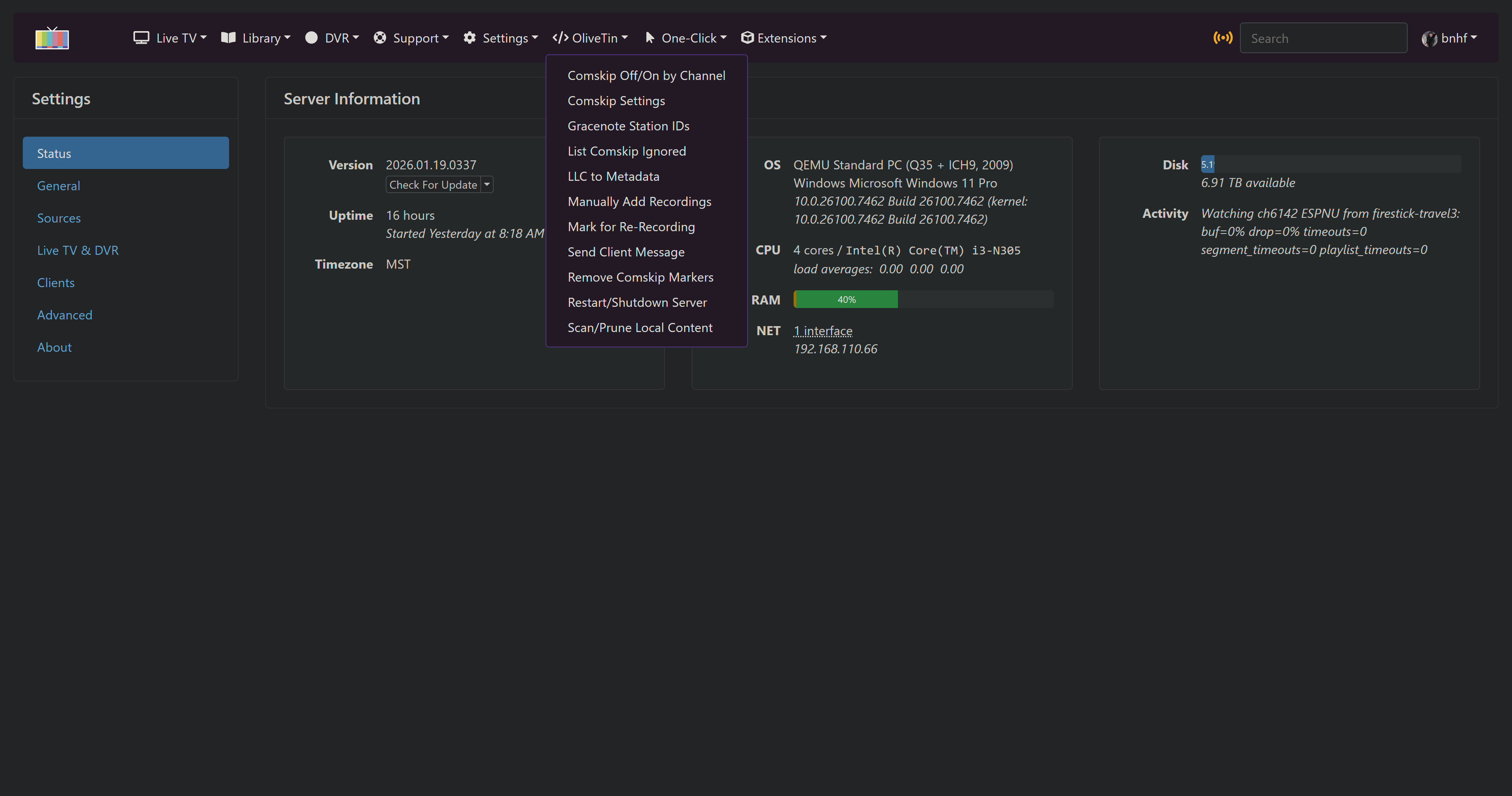
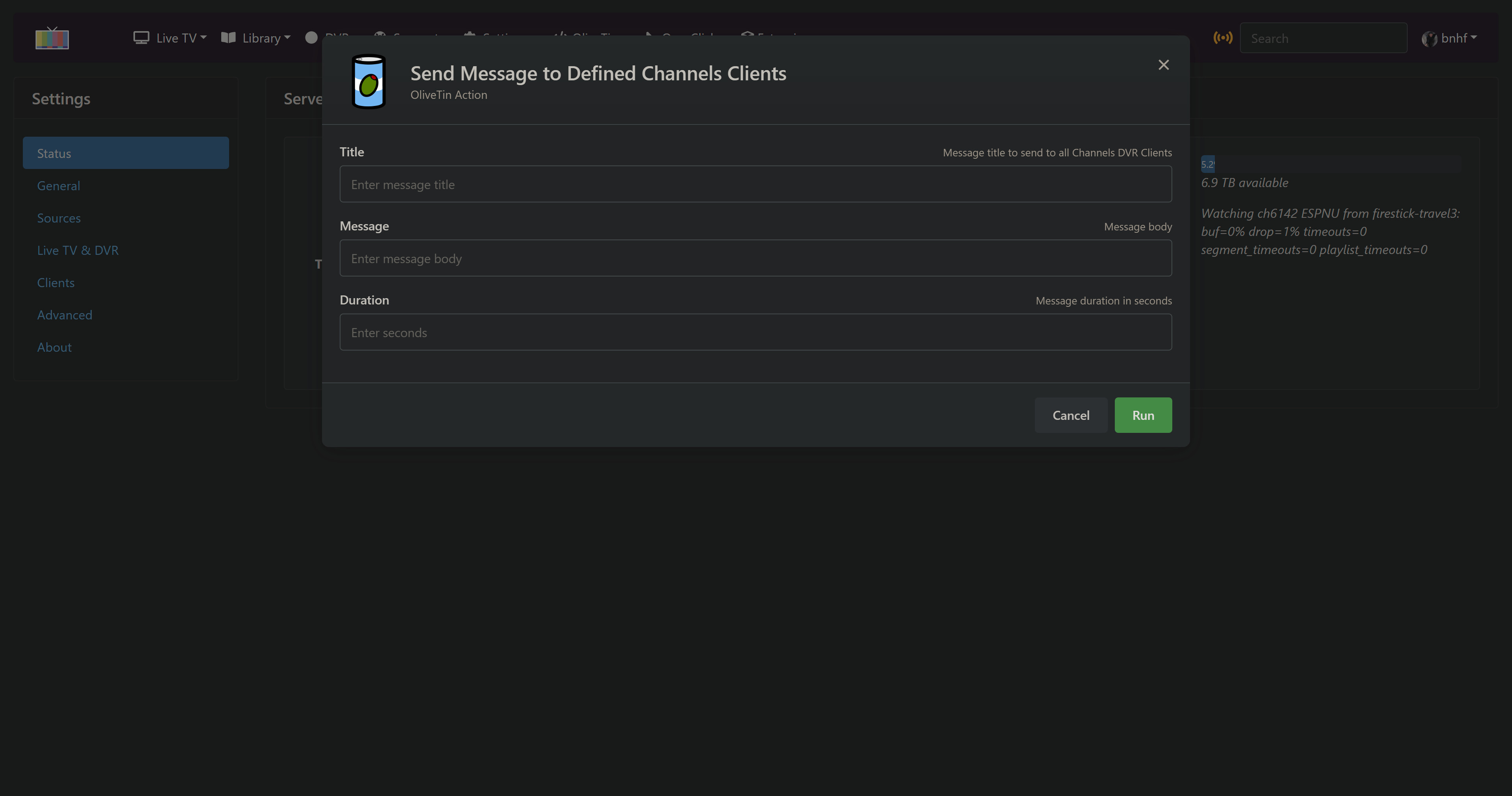
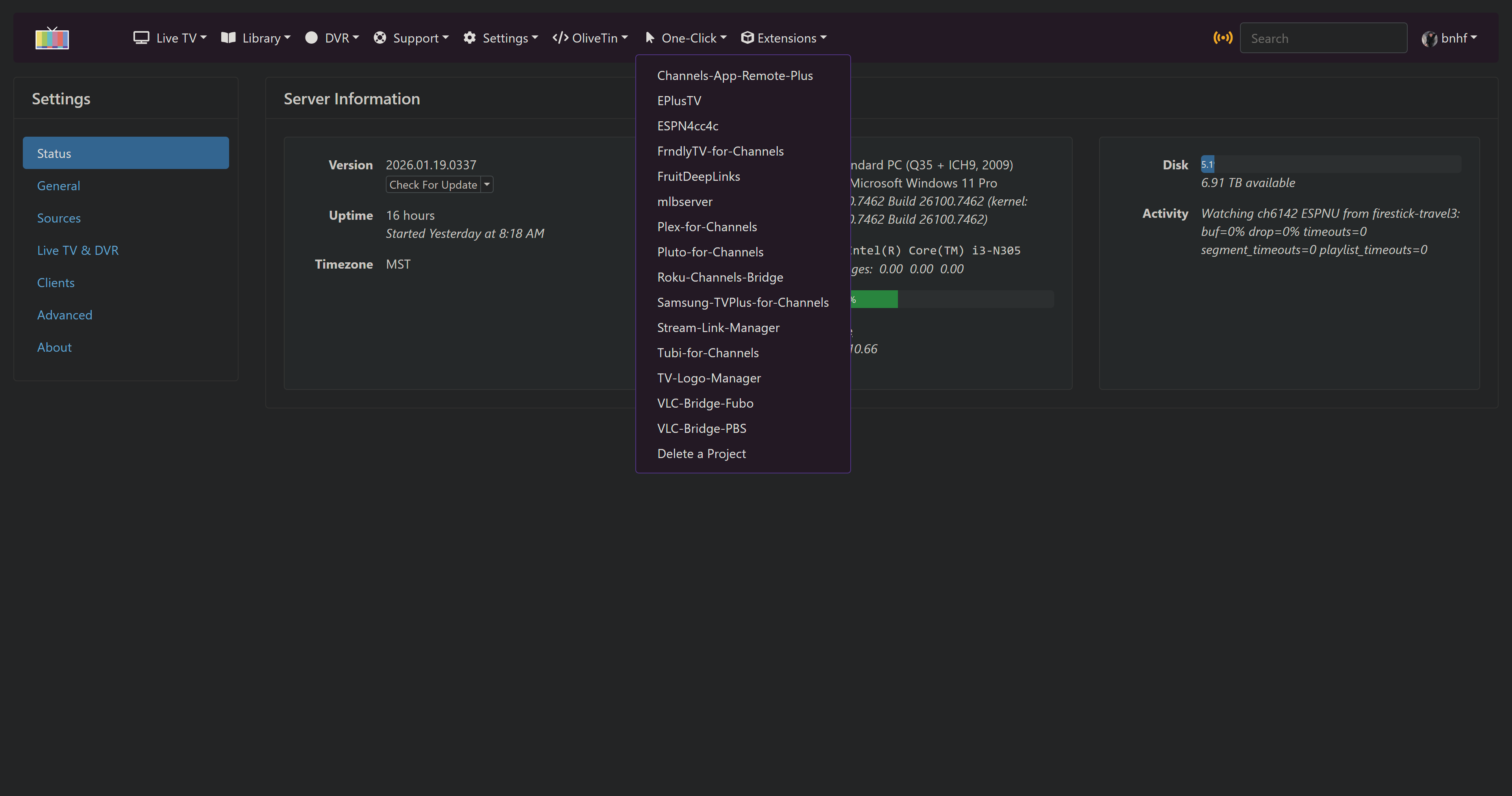
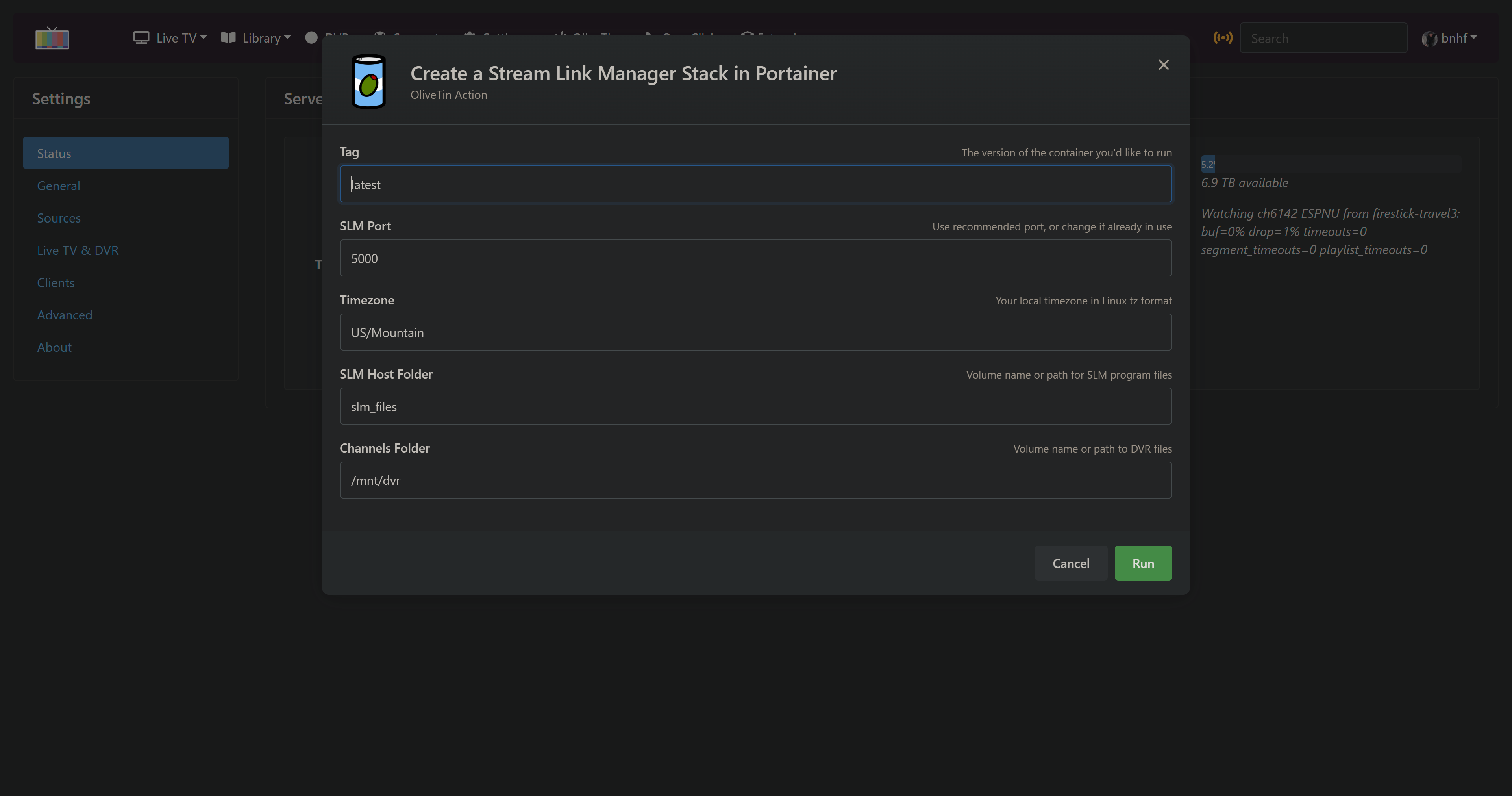
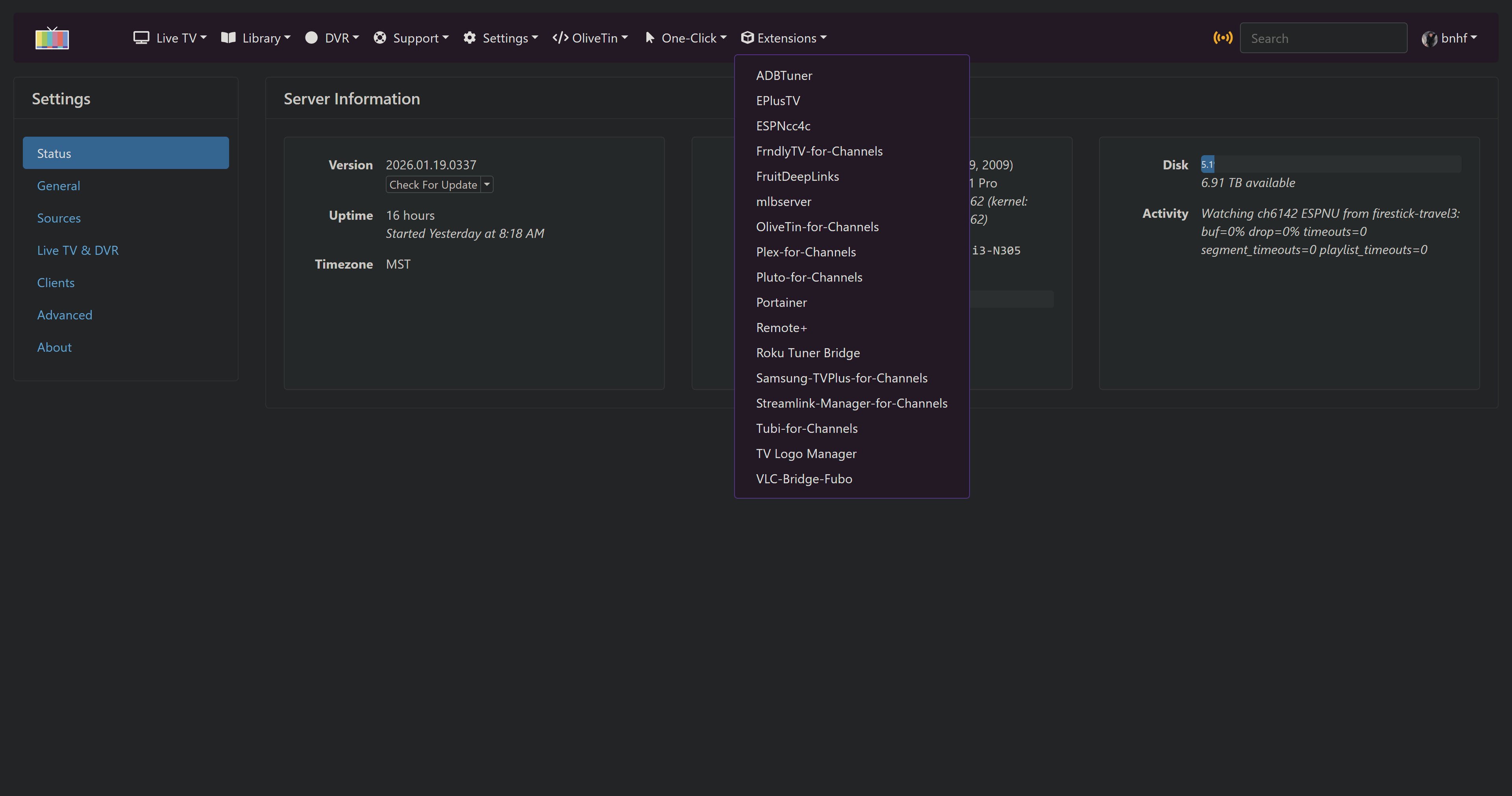
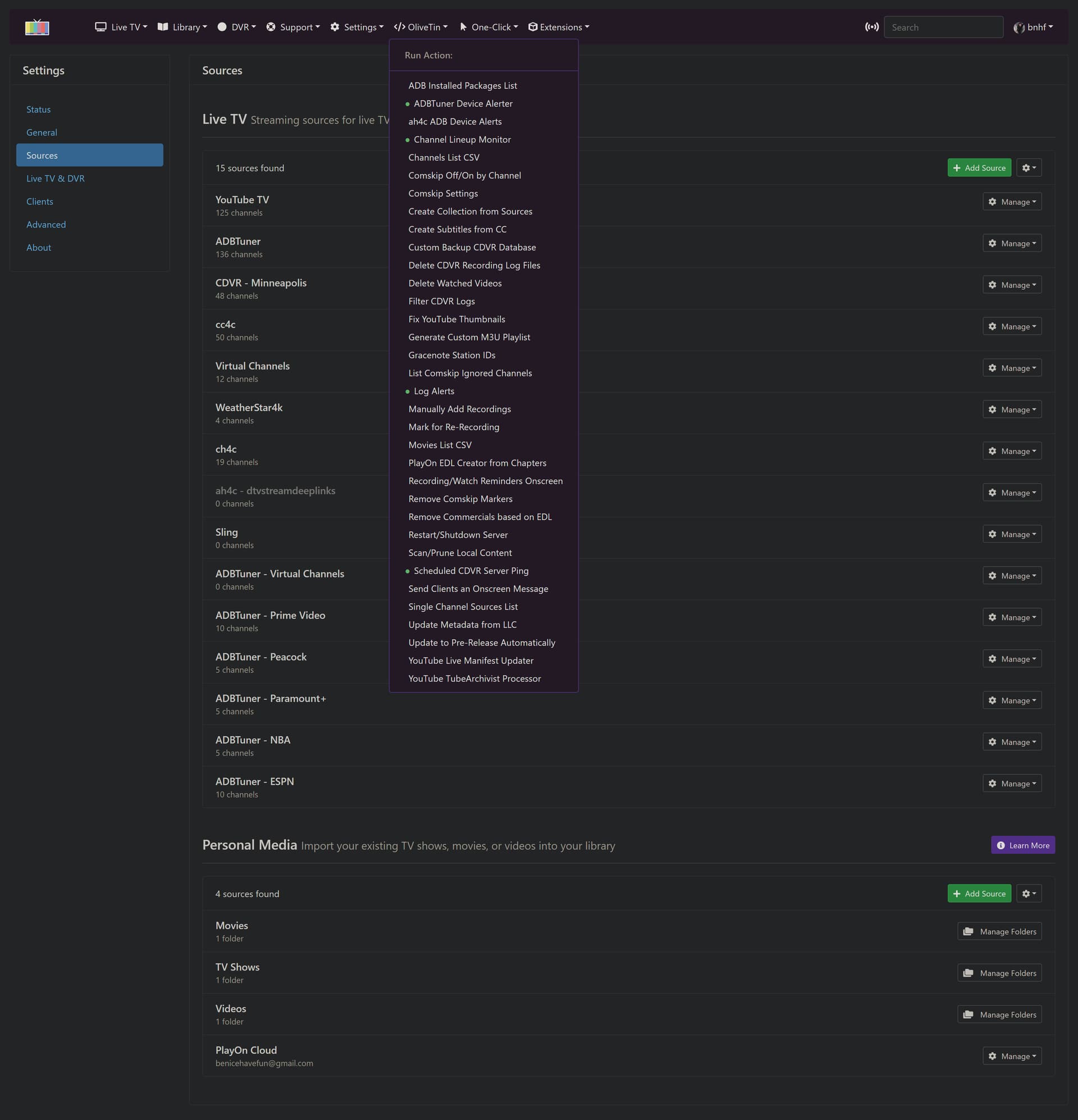
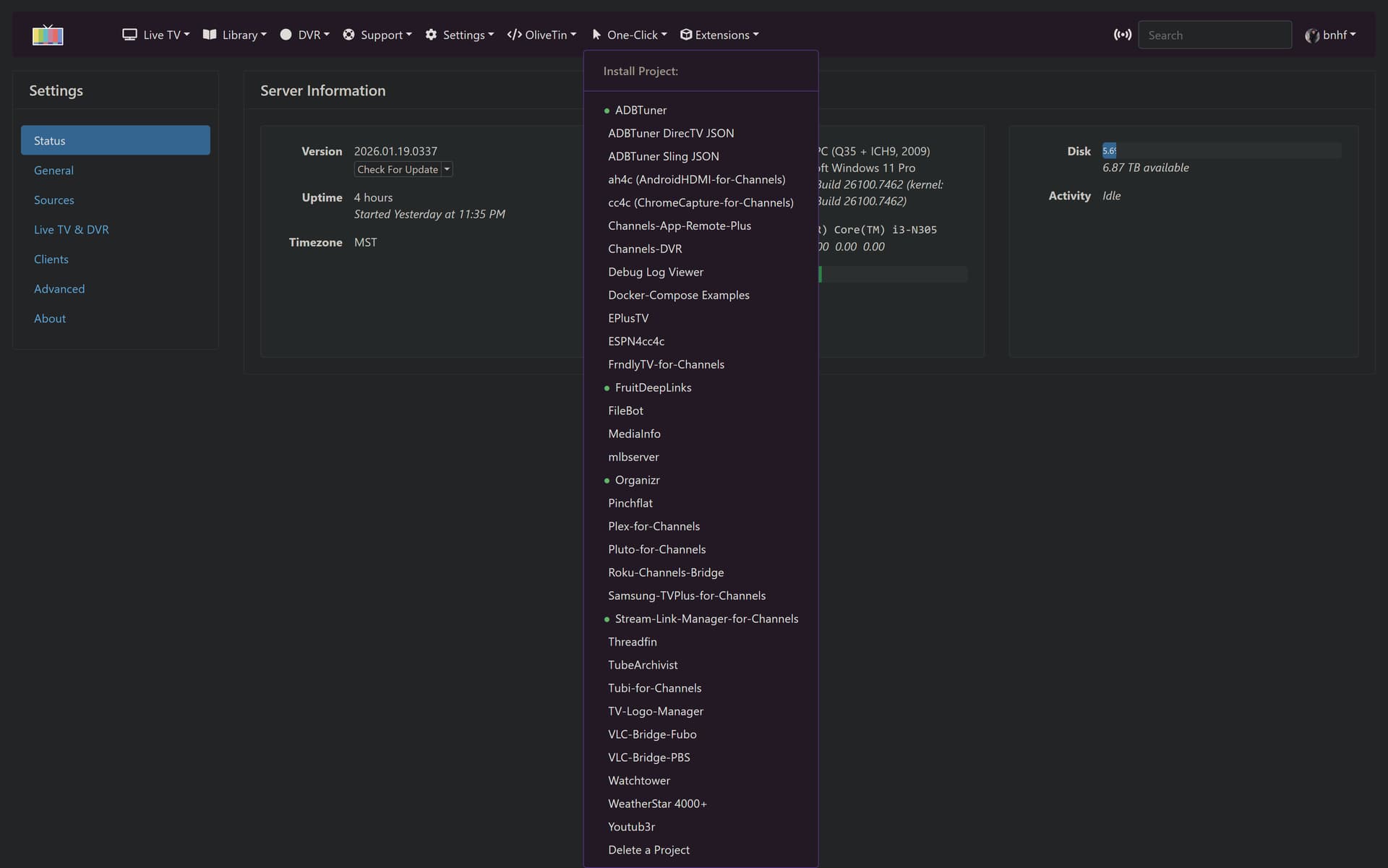
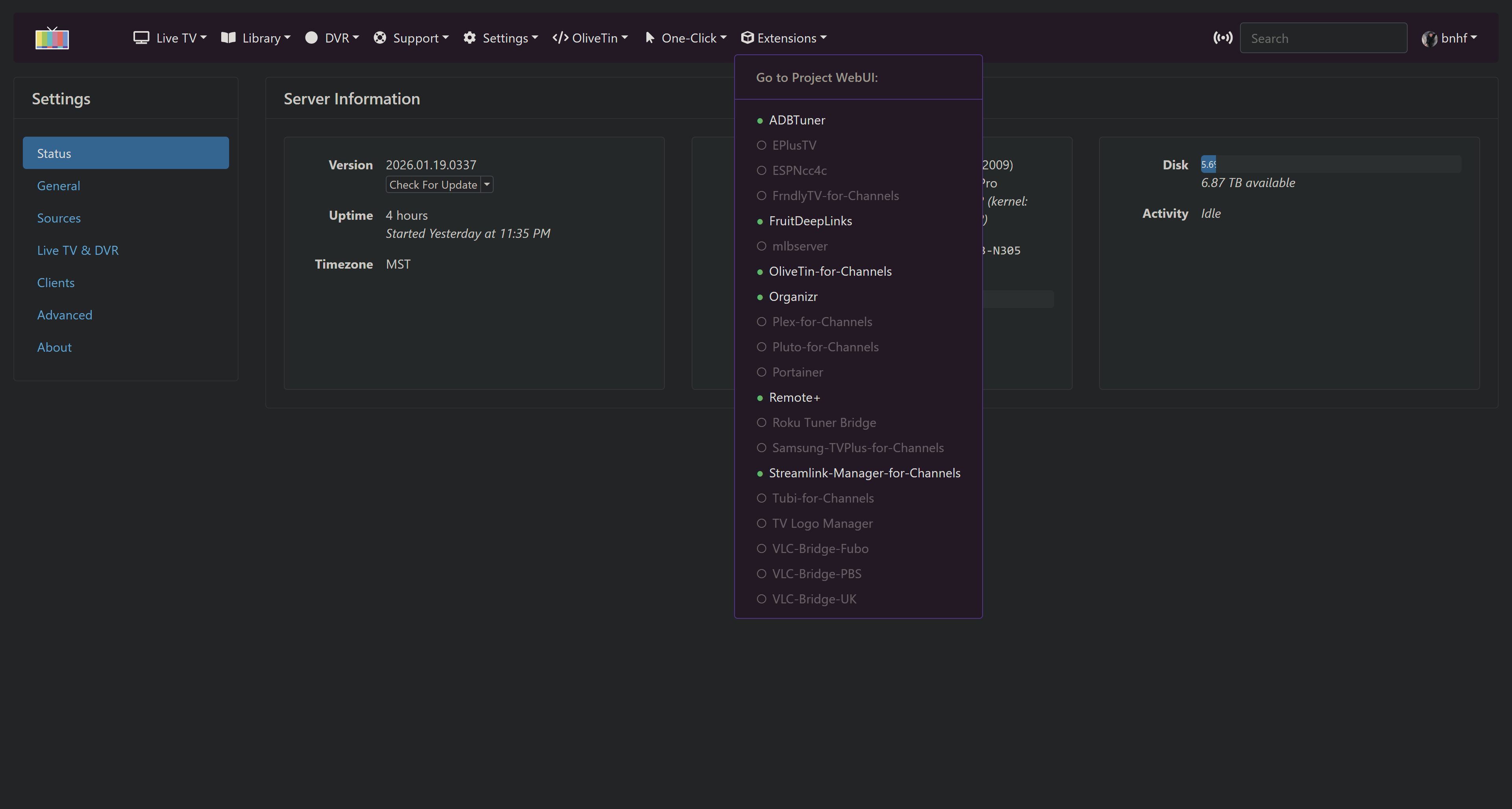
If you've ever wished the scripts and tricks of OliveTin-for-Channels and/or Project One-Click were available directly in the Channels DVR WebUI, that time is now! Through the power of userscripts and the OliveTin API, if it can be done in OliveTin, it can now be done directly via the CDVR WebUI.
It's done, I'm using it -- but I could use a couple of "testers" to confirm things are working elsewhere as they are for me. Here are a few screenshots to give you an idea of what this is all about:
If you're interested and willing to give this a spin on a "pre-release" basis, respond here or DM me and we'll get a dialog going. One of the things I'd like to get some feedback on are the Actions I've made available (so far) via these dropdowns. Every Action could be added, but some make more sense than others.
EDIT: This is now an open Beta. More details here, including updated screenshots:
I noticed that some menu entries look the same in the One-Click menu and the Extensions menu.
What are the differences?
I'm assuming that you still need to go through the process of installing OliveTin-for-Channels in Docker for this to work. Maybe provide a link to the installation thread for new forum members who would happen to see this thread first.
Fantastic work as usual.
I still need to get OliveTin working before I can play with this new web UI.
Anything under One-Click will install (or remove) the project via a Portainer-Stack, and add a matching CDVR Custom Channels Source where appropriate.
Anything under Extensions, is a link to whatever WebUI a given project has. Selecting any one of these open that UI in the same browser tab, much like navigating within the CDVR UI -- giving an integrated feel.
When Olivetin spins-up, it checks for CDVR-related projects, and determines which port each is running on. The Extensions portion of the script is updated accordingly.
OK, I think we'll move this into an "Beta" status, so that anyone can get in on the fun -- but still revert to the latest tag if you run into an issue.
The concept behind Project WebUI+, as mentioned in the first post, is to take pretty much everything that's been done in OliveTin + Project One-Click and add it to the CDVR WebUI in the form of three dropdowns on the navbar.
These are now "live" dropdowns, in that active/recurring Actions, installed Docker Projects and available Extensions WebUIs will all show in the dropdown with a green dot:
A userscript manger installed in your browser of choice (Tampermonkey recommended)
Here are the installation steps:
Stop your current OliveTin Stack Update OliveTin, if you're not already running the most recent version.
Change the TAG=latest value in the Environment variables of the Portainer-Stacks Editor to TAG=test and Update the stack. Re-pull and redeploy is good idea too, in case you have a previous test tagged container hanging about.
Make sure OliveTin-for-Channels has deployed correctly. You may need to dump "Cached images and files" in your browser history (select all time for the period), along with a <Ctrl>F5. This is a much newer version of the underlying olivetin, which is why the above may be needed.
The next step is to install a userscript manager in the browser you'd like to use this with. I personally use Tampermonkey, and this is the one I'd recommend, unless you're already "invested" in another:
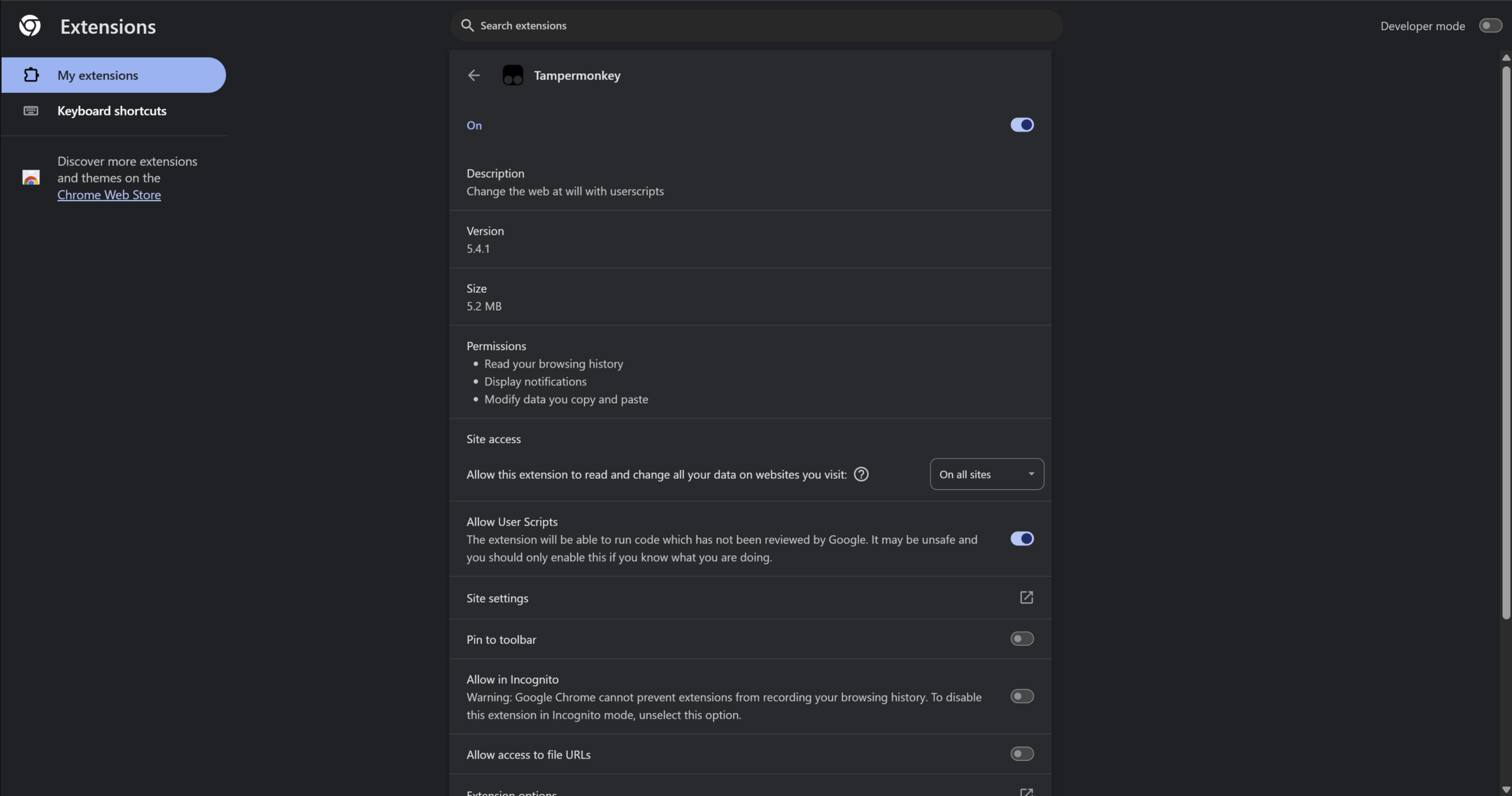
With Tampermonkey installed, you need to enable userscripts. In Chrome this is done here:
You'll need two of them (plus there's a bonus third), which you can find at:
http://<$PORTAINER_HOST>:<$SFS_PORT>
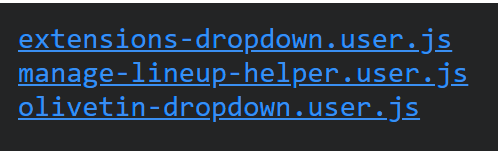
Replace those env vars with their actual values you have in your OliveTin stack. You should see these three files there:
Click on them one-by-one, which should open a Tampermonkey window to install each. After that, navigate to the CDVR WebUI and refresh your browser. The new dropdowns should be there.
BTW, manage-lineup-helper.user.js is a userscript-friendly version of the bookmarklet of the same name. I've made a couple of visual improvements to that script, plus it'll run without needing to click anything in the future.
More details on this bonus userscript here:
These userscripts have been tested, and confirmed functional, on the following browsers:
Chrome
Firefox
Safari
Vivaldi
Thanks to @TerryD, @mackid1993 and @jsfullam for participating in the initial testing -- which uncovered several important issues.
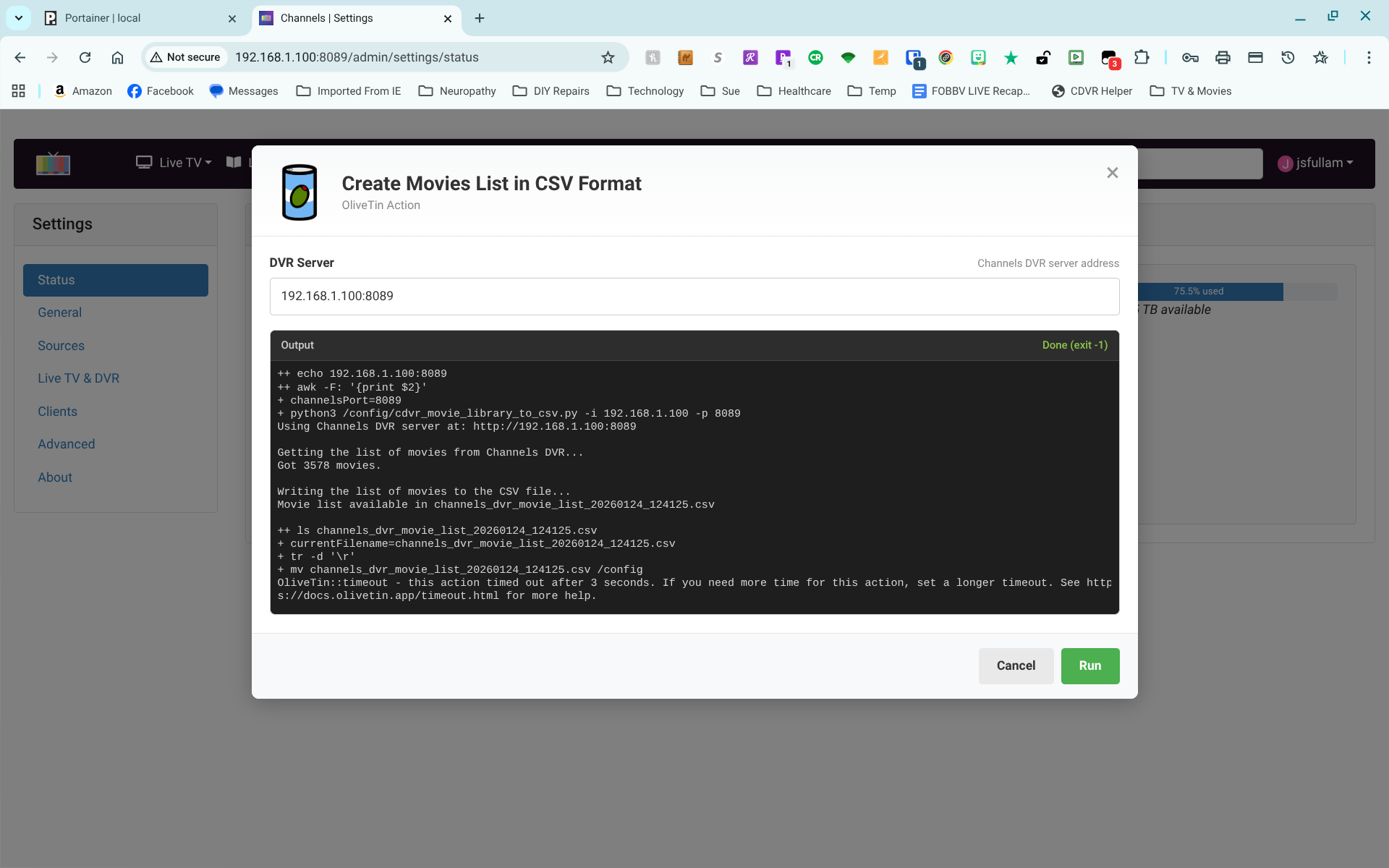
After allowing the updates through Tampermonkey earlier today, I tested the action "Movies List CSV".
The first thing I noticed since the update is the menus don't persist after closing the Chrome browser. When I first launch the Channels GUI, I get the usual menu bar.
EDIT: A simple refresh of the Chrome browser tab without clearing the cache brings the menus up. This is different from when I initially installed the new scripts. Previously, the menus were there directly upon opening the GUI. Now, they don't appear unless I refresh the tab.
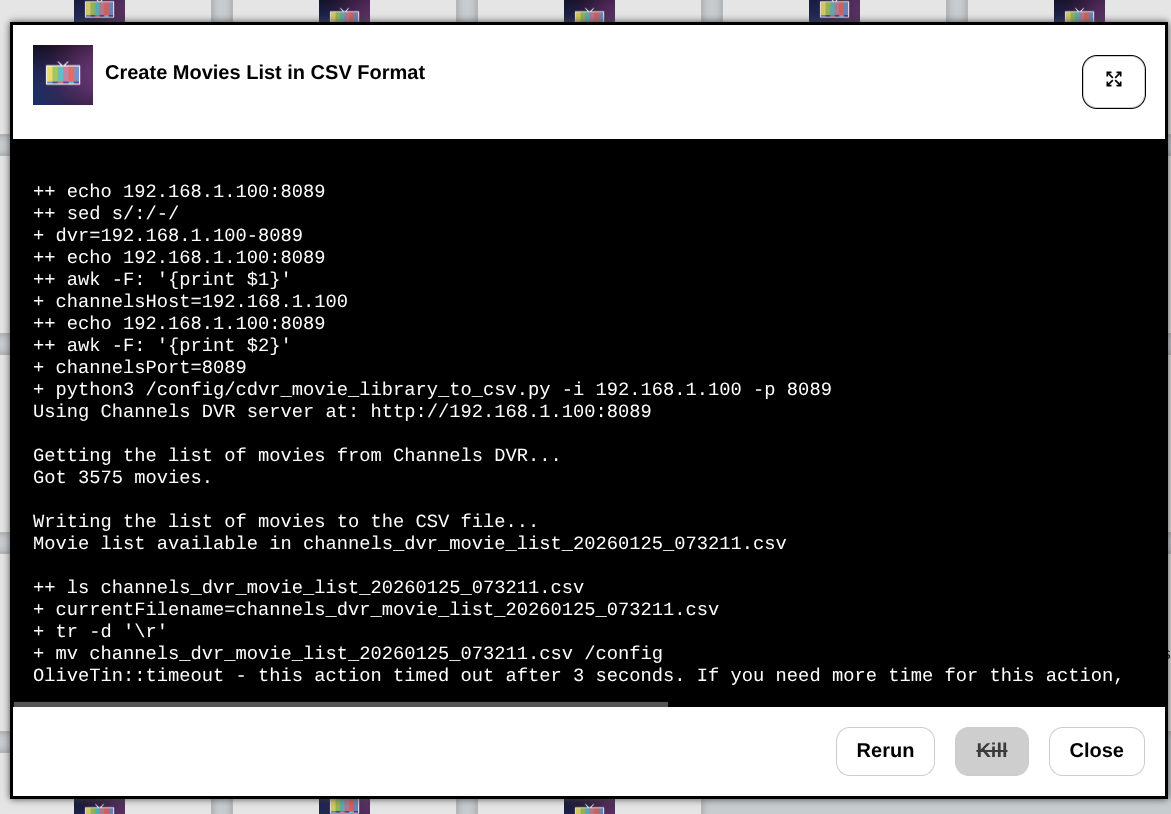
Thanks for posting this screenshot, as there were actually several problems with this particular script. First with the new "xterm" approach to output, debug information should be output to its own file, and shouldn't be mixed in with standard output as we're seeing here.
Also, we don't want to see timeout errors at the end of scripts, like this one shows. I've added an increased timeout to this and its companion CSV script.
Fixes for the above will be pushed in the next update.
As far as needing to refresh the browser, after that first time on updates/installations, I'm not seeing that on any of my test setups. This is on your Chromebook I imagine? It looks like you have quite a few other extensions installed. Would you mind posting a list?
I didn't really pay much attention to the standard output. I see that "flawless" isn't a valid description. I only meant that I got the Movies CSV file I needed to analyze.
As a comparison, I just ran the action directly from Olivetin (still on v.2026.01.23:test) I will say that it took a bit longer than I expected for the action to run. About 19 seconds. That may simply be caused by the $h%tload of movies I have. Timeout error is still there as I haven't updated the Olivetin stack or Tampermonkey scripts.
Yes, this is all from my Chromebook.
Here's the list of extensions on the Chrome browser:
P@yPal Honey
The Camelizer
Capital One Shopping
Retail Me Not
Rakuten
Consumer Reports
Internet Connection Monitor
iGive Button
Bitwarden
Shortcuts for Chrome
Bitmoji
Trustpilot
remove paywalls
m3u8 sniffer
Tampermonkey
Oh, I also run one called shufflepaper which switches and randomizes my wallpaper.
Thanks. None of those jump out at me as a potential conflict, so I'll see if there's anything that can done in the script for best Chromebook compatibility.
In this latest update to OliveTin-for-Channels, only standard output and actual errors should ever be displayed. Debug is routed to a file, in case we need to look at it. Overall though, the output should be greatly reduced. Hopefully, that will encourage a quick look-over to confirm desired function, and check for errors. That's the idea anyway.
Yeah, as you describe, only a single refresh was needed after installation. The menus persisted every time I launched the CDVR GUI. This issue of needing a refresh every time I start the GUI is new since the Tampermonkey script updates yesterday. Something in there must have changed the behavior.
For the Project WebUI+ "testers" that have been running on the test tag -- now's the time to switch back to latest. @TerryD@mackid1993@jsfullam Many thanks for your efforts!
I'm always happy to help and pleased to see the final product. For the times when I need an Olivetin Action, it really is nice to have easy access through the CDVR server GUI.
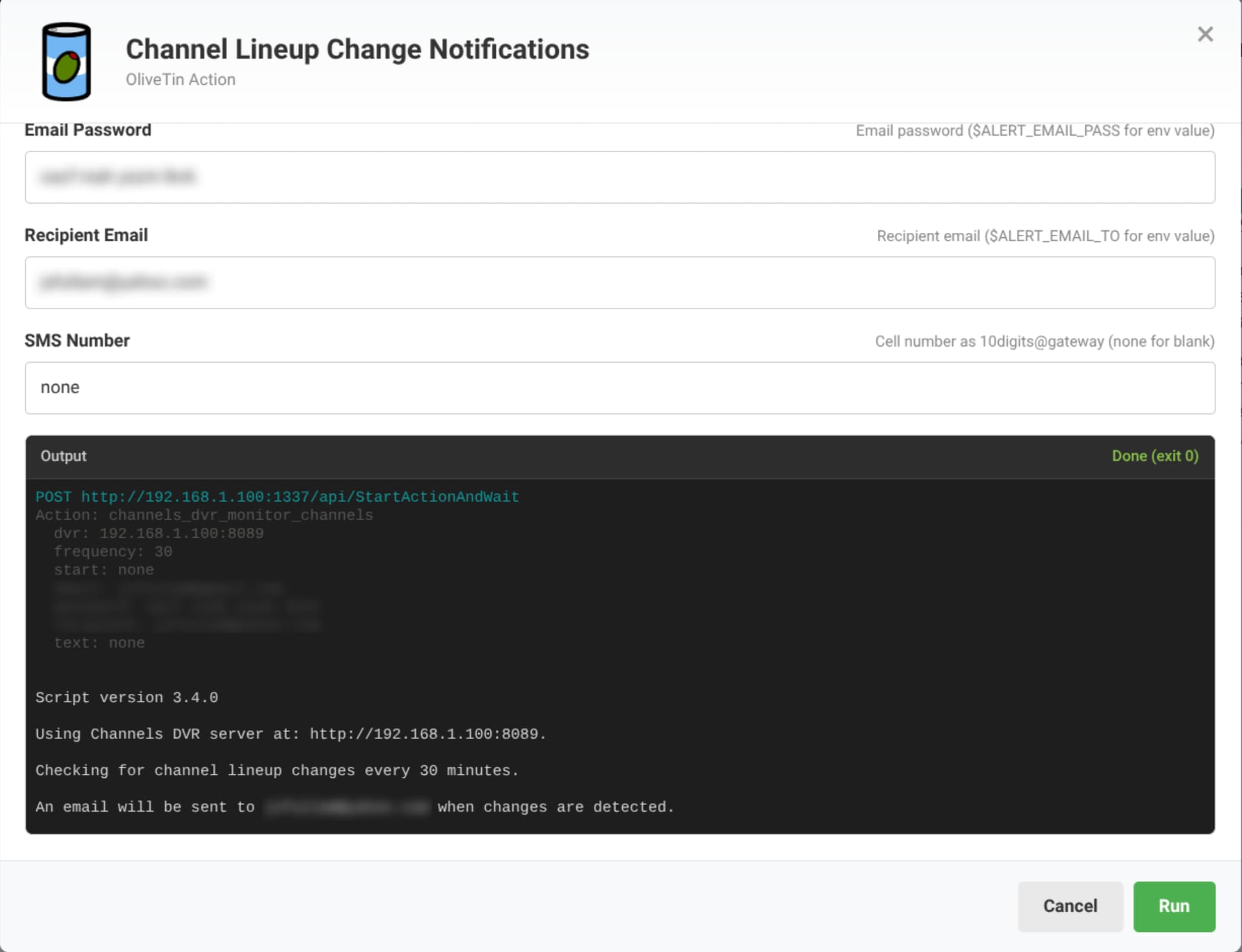
One thing I have noticed recently in my Olivetin GUI page, one of the icons is corrupted. I am actively running the "Channel Lineup Notifications" program. So, the action button on the interface should have the green icon. It has this instead:
I'll try closing the action and re-launching it to see if it updates.
Thanks for reporting this. A few scripts were missed in the transition process. They should be OK now, so Re-pull and redeploy and let me know how it goes.