
I've just updated my docker-compose examples, in OliveTin-for-Channels, for the many excellent container projects that are suitable for use with Channels -- via the WebUI for Docker -- Portainer. I thought I'd post them here as well, for anyone not using OliveTin yet. 
The idea with the way these yamls are structured, is that you shouldn't need to do ANY editing of the yaml itself, all installation specific values should be set via the environment variables in that section of Portainer-Stacks:
In alphabetical order:
ADBTuner
services:
  adbtuner: # This docker-compose typically requires no editing. Use the Environment variables section of Portainer to set your values.
    # 2026.08.31
    # GitHub home for this project with setup instructions: Caution! This project is not open source, and is not available on GitHub
    # Docker Hub home for this project: https://hub.docker.com/u/turtletank99
    image: turtletank99/adbtuner:${TAG:-stable}
    container_name: adbtuner
    dns_search: ${DOMAIN:-localdomain} # Change to the name of your LAN's domain, which is usually local or localdomain
    init: true
    ports:
      - ${HOST_PORT:-5592}:5592 # Use the same port number the container is using, or optionally change it if the port is already in use on your host.
    environment:
      - KNOWN_STREAM_DEFAULT_TIMEOUT=${KNOWN_STREAM_DEFAULT_TIMEOUT:-8}
    volumes:
      - adbtuner:/app/.config
    restart: unless-stopped
volumes:
  adbtuner:
    name: ${HOST_VOLUME:-adbtuner_config}

# A sample set of Environment variables can be found below -- copy and paste into Portainer-Stacks Environment variables section in Advanced mode.
TAG=stable
DOMAIN=localdomain
HOST_PORT=5592
KNOWN_STREAM_DEFAULT_TIMEOUT=8
HOST_VOLUME=adbtuner_config
ah4c (formerly AndroidHDMI-for-Channels)
services:
  # 2026.09.03
  # GitHub home for this project with setup instructions: https://github.com/sullrich/ah4c
  # Docker Hub home for this project: https://hub.docker.com/repository/docker/bnhf/ah4c
  ah4c: # This docker-compose typically requires no editing. Use the Environment variables section of Portainer to set your values.
    image: bnhf/ah4c:${TAG:-latest}
    container_name: ${CONTAINER_NAME:-ah4c}
    hostname: ${HOSTNAME:-ah4c}
    dns_search: ${DOMAIN:-localdomain} # Specify the name of your LAN's domain, usually local or localdomain
    runtime: ${DOCKER_RUNTIME:-runc} # Closed captions only. Set DOCKER_RUNTIME=nvidia for an NVIDIA GPU with the CUDA engine build. Requires the NVIDIA container toolkit.
    devices:
      - ${GPU_DEVICE:-/dev/null} # Closed captions only. Set GPU_DEVICE=/dev/dri to let the Vulkan engine build use an Intel or AMD GPU. Left at the default it passes /dev/null, which always exists and does nothing.
    ports:
      - ${HOST_PORT:-7654}:7654 # Port used by this ah4c proxy
    environment:
      - AH4C_COMPOSE=2026.09.03 # Compose file date stamp - do not change. The startup log flags it when out of date.
      # ── Proxy identity ──────────────────────────────────────────────────────
      - IPADDRESS=${IPADDRESS} # Hostname or IP address of this ah4c extension to be used in M3U file (also add port number if not in M3U)
      # ── Tuners ──────────────────────────────────────────────────────────────
      # One trio per tuner: TUNERn_IP is the box to tune; video comes from CMDn if set, otherwise ENCODERn_URL.
      - NUMBER_TUNERS=${NUMBER_TUNERS} # Number of tuners you'd like defined - add a matching TUNERn_IP, ENCODERn_URL and CMDn trio below for each beyond 9
      - TUNER1_IP=${TUNER1_IP} # Streaming device #1 with adb port in the form hostname:port or ip:port
      - ENCODER1_URL=${ENCODER1_URL} # Tuner #1 source URL (http://hostname/stream). Streamed directly when CMD1 is blank; otherwise referenced by CMD1 as ${ENCODER1_URL}.
      - CMD1=${CMD1} # Optional tuner #1 command; ah4c streams its stdout (end it with "-f mpegts -") instead of fetching ENCODER1_URL. No shell.
      - TUNER2_IP=${TUNER2_IP} # Streaming device #2 with adb port in the form hostname:port or ip:port
      - ENCODER2_URL=${ENCODER2_URL} # Tuner #2 source URL. Streamed directly when CMD2 is blank; otherwise referenced by CMD2 as ${ENCODER2_URL}.
      - CMD2=${CMD2} # Optional tuner #2 command; ah4c streams its stdout instead of fetching ENCODER2_URL. See CMD1.
      - TUNER3_IP=${TUNER3_IP} # Streaming device #3 with adb port in the form hostname:port or ip:port
      - ENCODER3_URL=${ENCODER3_URL} # Tuner #3 source URL. Streamed directly when CMD3 is blank; otherwise referenced by CMD3 as ${ENCODER3_URL}.
      - CMD3=${CMD3} # Optional tuner #3 command; ah4c streams its stdout instead of fetching ENCODER3_URL. See CMD1.
      - TUNER4_IP=${TUNER4_IP} # Streaming device #4 with adb port in the form hostname:port or ip:port
      - ENCODER4_URL=${ENCODER4_URL} # Tuner #4 source URL. Streamed directly when CMD4 is blank; otherwise referenced by CMD4 as ${ENCODER4_URL}.
      - CMD4=${CMD4} # Optional tuner #4 command; ah4c streams its stdout instead of fetching ENCODER4_URL. See CMD1.
      - TUNER5_IP=${TUNER5_IP} # Streaming device #5 with adb port in the form hostname:port or ip:port
      - ENCODER5_URL=${ENCODER5_URL} # Tuner #5 source URL. Streamed directly when CMD5 is blank; otherwise referenced by CMD5 as ${ENCODER5_URL}.
      - CMD5=${CMD5} # Optional tuner #5 command; ah4c streams its stdout instead of fetching ENCODER5_URL. See CMD1.
      - TUNER6_IP=${TUNER6_IP} # Streaming device #6 with adb port in the form hostname:port or ip:port
      - ENCODER6_URL=${ENCODER6_URL} # Tuner #6 source URL. Streamed directly when CMD6 is blank; otherwise referenced by CMD6 as ${ENCODER6_URL}.
      - CMD6=${CMD6} # Optional tuner #6 command; ah4c streams its stdout instead of fetching ENCODER6_URL. See CMD1.
      - TUNER7_IP=${TUNER7_IP} # Streaming device #7 with adb port in the form hostname:port or ip:port
      - ENCODER7_URL=${ENCODER7_URL} # Tuner #7 source URL. Streamed directly when CMD7 is blank; otherwise referenced by CMD7 as ${ENCODER7_URL}.
      - CMD7=${CMD7} # Optional tuner #7 command; ah4c streams its stdout instead of fetching ENCODER7_URL. See CMD1.
      - TUNER8_IP=${TUNER8_IP} # Streaming device #8 with adb port in the form hostname:port or ip:port
      - ENCODER8_URL=${ENCODER8_URL} # Tuner #8 source URL. Streamed directly when CMD8 is blank; otherwise referenced by CMD8 as ${ENCODER8_URL}.
      - CMD8=${CMD8} # Optional tuner #8 command; ah4c streams its stdout instead of fetching ENCODER8_URL. See CMD1.
      - TUNER9_IP=${TUNER9_IP} # Streaming device #9 with adb port in the form hostname:port or ip:port
      - ENCODER9_URL=${ENCODER9_URL} # Tuner #9 source URL. Streamed directly when CMD9 is blank; otherwise referenced by CMD9 as ${ENCODER9_URL}.
      - CMD9=${CMD9} # Optional tuner #9 command; ah4c streams its stdout instead of fetching ENCODER9_URL. See CMD1.
      # ── Streaming app and DVR ───────────────────────────────────────────────
      - STREAMER_APP=${STREAMER_APP} # Streaming device name and streaming app you're using in the form scripts/streamer/app (use lowercase with slashes between as shown)
      - PYATV=${PYATV:-false} # Set to TRUE to run docker-start-pyatv.sh at container start for Apple TV tuners via pyatv, instead of the default docker-start.sh used for adb-based tuners. Case-insensitive; anything else runs the default.
      - CHANNELSIP=${CHANNELSIP} # Hostname or IP address of the Channels DVR server itself
      - FASTCHANNELS_URL=${FASTCHANNELS_URL} # Base URL of your FastChannels container, so the firetv/fastchannels scripts can use its built-in ah4c integration to tune. A URL pre-filled into an exported script overrides this.
      # ── Failure alerts ──────────────────────────────────────────────────────
      # Email via SMTP and/or a webhook GET, sent when a tune fails. Leave blank to disable.
      - ALERT_SMTP_SERVER=${ALERT_SMTP_SERVER} # The domainname:port of the SMTP server you'll be using like smtp.gmail.com:587. This is for sending ah4c alerts if tuning fails.
      - ALERT_AUTH_SERVER=${ALERT_AUTH_SERVER} # The auth server for the e-mail you'll be using like smtp.gmail.com
      - ALERT_EMAIL_FROM=${ALERT_EMAIL_FROM} # The e-mail address you'd like your ah4c failure alert e-mails to show as being from.
      - ALERT_EMAIL_PASS=${ALERT_EMAIL_PASS} # Gmail and Yahoo both support the creation of app-specific e-mail passwords, and this is the way to go! It's NOT recommended to use your everyday e-mail password.
      - ALERT_EMAIL_TO=${ALERT_EMAIL_TO} # The e-mail address you'd like your alert e-mails sent to.
      - ALERT_WEBHOOK_URL=${ALERT_WEBHOOK_URL} # URL to GET when an alert fires (same failures that trigger the e-mail); put $reason in the URL and it's replaced with the URL-encoded message. Blank disables it.
      # ── Guide tuning and content updates ────────────────────────────────────
      - LIVETV_ATTEMPTS=${LIVETV_ATTEMPTS} # For FireTV Live Guide tuning only, set maximum number of attempts at finding the desired channel
      - CREATE_M3US=${CREATE_M3US:-false} # Set to true to create device-specific M3Us for use with Amazon Prime Premium channels -- requires a FireTV device
      - UPDATE_SCRIPTS=${UPDATE_SCRIPTS:-true} # Set to true if you'd like the sample scripts and STREAMER_APP scripts updated whether they exist or not
      - UPDATE_M3US=${UPDATE_M3US:-true} # Set to true if you'd like the sample m3us updated whether they exist or not
      # ── Timezone and session handling ───────────────────────────────────────
      - TZ=${TZ} # Your local timezone in Linux "tz" format
      - SPEED_MODE=${SPEED_MODE:-false} # Set to false if you'd like the target streaming app to be closed after each tuning cycle (limited script support).
      - KEEP_WATCHING=${KEEP_WATCHING} # In supported scripts, set the delay before resending a tuning deeplink to prevent "Are you still watching?" type messages. Examples: Use 4h for 4 hours or 240m for 240 minutes.
      # ── Autocrop (LinkPi encoders only) ─────────────────────────────────────
      - AUTOCROP_CHANNELS=${AUTOCROP_CHANNELS} # Space separated list of channels (by number) with black borders on 4 sides to autocrop while maintaining aspect ratio. Requires LinkPi Encoder!
      - LINKPI_HOSTNAME=${LINKPI_HOSTNAME} # Hostname or IP of the LinkPi Encoder's web API. Required for AUTOCROP_CHANNELS.
      - LINKPI_USERNAME=${LINKPI_USERNAME} # Username for the LinkPi Encoder's web API. Required for AUTOCROP_CHANNELS.
      - LINKPI_PASSWORD=${LINKPI_PASSWORD} # Password for the LinkPi Encoder's web API. Required for AUTOCROP_CHANNELS; not currently read by the bundled scripts, which log in with the LinkPi default password instead.
      # ── Custom startup script ───────────────────────────────────────────────
      - USER_SCRIPT=${USER_SCRIPT} # Path to a custom script to run alongside ah4c at container startup. Blank runs nothing extra.
      # ── Recording continuity and playback timing ────────────────────────────
      # Keep recordings starting on the program and free of gaps within the DVR's 30s tune window.
      - NULL_FRAME_INSERTION=${NULL_FRAME_INSERTION:-false} # Set to TRUE to fill encoder stalls with MPEG-TS NULL packets (PID 0x1FFF) so the DVR never sees a zero-byte gap mid-recording. Case-insensitive (true/True/TRUE all work); anything else, including 1/yes, leaves the feature off.
      - PLAYBACK_DETECTION=${PLAYBACK_DETECTION:-false} # Set to TRUE to hold the stream until the device reports audio playing and the picture moving, then start on a keyframe, so recording begins on the program, not the loading screen. Requires adb; network tuners only. Case-insensitive; anything but true leaves it off.
      - PLAYBACK_STATIC_TIMEOUT=${PLAYBACK_STATIC_TIMEOUT} # Only used with PLAYBACK_DETECTION=TRUE. Seconds the box may keep its prior player/session before the check falls back to gating on motion alone. Default 2 suits Ospreys; apps like DirecTV that hold one player across channel changes need more. 0 or unset uses the default.
      - PLAYBACK_DELAY=${PLAYBACK_DELAY} # Hold every tune this long before handing the DVR the program, so a slow-starting app still records within the DVR's 30s window. Black or a mounted pre-roll fills the wait; the box's own video is never passed through. Accepts a bare number (seconds) or a duration like 30s/1m, capped at 10m. Network tuners only. Empty or 0 disables it.
      - ENCODER_CODEC=${ENCODER_CODEC:-h264} # The video codec your encoder outputs: h264 (default) or h265. Filler black/pre-roll must match it, or playback won't cross to the program at hand-off. Pre-roll video is converted to match; an existing H.265 stream is copied. Leave at h264 unless your encoder is H.265. Case-insensitive; h265/hevc both work.
      - HEARTBEAT_INTERVAL=${HEARTBEAT_INTERVAL:-180} # In supported scripts (currently osprey), seconds between keepalive keyevents sent during playback to stop the app's UI inactivity timer from resetting the stream. Default 180; set to 0 to disable.
      # ── NVIDIA GPU ──────────────────────────────────────────────────────────
      # Used by the CUDA caption engine and any CMDn calling h264_nvenc/hevc_nvenc. Needs the NVIDIA container toolkit.
      - NVIDIA_VISIBLE_DEVICES=${NVIDIA_VISIBLE_DEVICES} # For the CUDA caption engine and/or an NVENC CMDn. Set to all alongside DOCKER_RUNTIME=nvidia to expose an NVIDIA GPU. Empty means no GPU and is the default.
      - NVIDIA_DRIVER_CAPABILITIES=${NVIDIA_DRIVER_CAPABILITIES} # Set to compute,utility for the CUDA caption engine. A CMDn using h264_nvenc/hevc_nvenc also needs video - use compute,utility,video (or all).
    volumes:
      - ${HOST_DIR}/ah4c/scripts:/opt/scripts # pre/stop/bmitune.sh scripts will be stored in this bound host directory under streamer/app
      - ${HOST_DIR}/ah4c/m3u:/opt/m3u # m3u files will be stored here and hosted at http://<hostname or ip>:7654/m3u for use in Channels DVR - Custom Channels settings
      - ${HOST_DIR}/ah4c/adb:/root/.android # Persistent data directory for adb keys
      - ${HOST_DIR}/ah4c/captions:/opt/captions # Closed caption settings, and the speech model, engine and any GPU driver downloaded from the Closed Captions page. Stays empty unless you turn captions on
      - ${PREROLL_FILE:-${HOST_DIR}/ah4c/preroll}:/opt/preroll # A video or still image shown to the DVR instead of NULL packets, during a PLAYBACK_DELAY/PLAYBACK_DETECTION hold or a NULL_FRAME_INSERTION stall. Set PREROLL_FILE to a host path, or drop the file into this directory. Anything ffmpeg reads; prepared once at startup, loops until the real stream is ready
    restart: unless-stopped
TAG=latest
CONTAINER_NAME=ah4c
HOSTNAME=ah4c
DOMAIN=localdomain tailxxxxx.ts.net
DOCKER_RUNTIME=runc
GPU_DEVICE=/dev/dri
HOST_PORT=7654
IPADDRESS=docker6:7654
NUMBER_TUNERS=5
TUNER1_IP=firestick-desk1:5555
ENCODER1_URL=http://linkpi-encoder2:8090/stream0
CMD1=
TUNER2_IP=firestick-desk2:5555
ENCODER2_URL=http://linkpi-encoder2:8090/stream1
CMD2=
TUNER3_IP=firestick-desk3:5555
ENCODER3_URL=http://linkpi-encoder2:8090/stream2
CMD3=
TUNER4_IP=firestick-desk4:5555
ENCODER4_URL=http://linkpi-encoder2:8090/stream3
CMD4=
TUNER5_IP=firestick-desk5:5555
ENCODER5_URL=http://linkpi-encoder2:8090/stream4
CMD5=
TUNER6_IP=
ENCODER6_URL=
CMD6=
TUNER7_IP=
ENCODER7_URL=
CMD7=
TUNER8_IP=
ENCODER8_URL=
CMD8=
TUNER9_IP=
ENCODER9_URL=
CMD9=
STREAMER_APP=scripts/firetv/dtvstreamdeeplinks
PYATV=false
CHANNELSIP=media-server10
FASTCHANNELS_URL=
ALERT_SMTP_SERVER=smtp.gmail.com:587
ALERT_AUTH_SERVER=smtp.gmail.com
[email protected]
ALERT_EMAIL_PASS=xxxxxxxxxxxxxxxx
[email protected]
ALERT_WEBHOOK_URL=
LIVETV_ATTEMPTS=
CREATE_M3US=false
UPDATE_SCRIPTS=true
UPDATE_M3US=true
TZ=America/Denver
SPEED_MODE=false
KEEP_WATCHING=235m
AUTOCROP_CHANNELS=
LINKPI_HOSTNAME=
LINKPI_USERNAME=
LINKPI_PASSWORD=
USER_SCRIPT=
NULL_FRAME_INSERTION=false
PLAYBACK_DETECTION=false
PLAYBACK_STATIC_TIMEOUT=2
PLAYBACK_DELAY=
PREROLL_FILE=
ENCODER_CODEC=h264
HEARTBEAT_INTERVAL=
NVIDIA_VISIBLE_DEVICES=
NVIDIA_DRIVER_CAPABILITIES=
HOST_DIR=/data
channels-app-remote
services:
  dvr-remote: # This docker-compose typically requires no editing. Use the Environment variables section of Portainer to set your values.
    # 2026.08.31
    # GitHub home for this project: https://github.com/nuken/channels-app-remote.
    # Docker container home for this project with setup instructions: https://hub.docker.com/r/rcvaughn2/channels-app-remote.
    image: rcvaughn2/channels-app-remote:${TAG:-latest} # Add the tag like latest or test to the environment variables below.
    container_name: dvr-remote
    ports:
      - ${HOST_PORT:-5000}:5000 # The container port number (to the right of the colon) needs to be left as is. Set the environment variable to the same, or change it if there's a conflict.
    environment:
      - CHANNELS_APP_CLIENTS=${CHANNELS_APP_CLIENTS} # A comma separated list of Channels clients in the form "iPad:192.168.1.2,Apple TV:192.168.1.3"
    restart: unless-stopped

# A sample set of Environment variables can be found below -- copy and paste into Portainer-Stacks Environment variables section in Advanced mode.
TAG=latest
HOST_PORT=5010
CHANNELS_APP_CLIENTS=Family Room TV:192.168.86.35,Master TV:192.168.86.21,Front Door TV:192.168.86.60
channels-app-remote-plus
services:
  dvr-remote: # This docker-compose typically requires no editing. Use the Environment variables section of Portainer to set your values.
    # 2026.08.31
    # GitHub home for this project: https://github.com/nuken/channels-app-remote-plus.
    # Docker container home for this project with setup instructions: https://hub.docker.com/r/rcvaughn2/channels-remote-plus.
    image: rcvaughn2/channels-remote-plus:${TAG:-latest} # Add the tag like latest or test to the environment variables below.
    container_name: channels-remote
    ports:
      - ${HOST_PORT:-5000}:5000 # The container port number (to the right of the colon) needs to be left as is. Set the environment variable to the same, or change it if there's a conflict.
    environment:
      - CHANNELS_DVR_SERVERS=${CHANNELS_DVR_SERVERS}  # A comma separated list of Channels DVRs by ip:port or hostname:port.
    restart: unless-stopped

# A sample set of Environment variables can be found below -- copy and paste into Portainer-Stacks Environment variables section in Advanced mode.
TAG=latest # Add the tag like latest or test to the environment variables below.
HOST_PORT=5020 # The container port number (to the right of the colon) needs to be left as is. Set the environment variable to the same, or change it if there's a conflict.
CHANNELS_DVR_SERVERS=192.168.86.64:8089,192.168.1.100:8090 # A comma separated list of Channels DVRs by ip:port or hostname:port.
Channels DVR
services:
  channels-dvr: # This docker-compose typically requires no editing. Use the Environment variables section of Portainer to set your values.
    # 2026.08.31
    # Docker Hub home for this project: https://hub.docker.com/r/fancybits/channels-dvr
    image: fancybits/channels-dvr:${TAG:-latest}
    container_name: channels-dvr
    #devices:
      #- /dev/dri:/dev/dri
    ports:
      - ${HOST_PORT}:${CHANNELS_PORT}
    environment:
      - CHANNELS_PORT=${CHANNELS_PORT}
      - TZ=${TZ}
    volumes:
      - ${HOST_DIR}/channels-dvr:/channels-dvr
      - ${DVR_SHARE}:${DVR_CONTAINER_DIR}
    #network_mode: host
    restart: unless-stopped
#volumes: # use this section if you've setup a docker volume named channels-dvr, with CIFS or NFS, to bind to /channels-dvr inside the container
  #channels-dvr:
    #external: ${VOL_EXTERNAL}
    #name: ${VOL_NAME}

# A sample set of Environment variables can be found below -- copy and paste into Portainer-Stacks Environment variables section in Advanced mode.
TAG=tve
HOST_PORT=8089
CHANNELS_PORT=8089
TZ=America/Denver
HOST_DIR=/data
DVR_SHARE=/mnt/dvr
DVR_CONTAINER_DIR=/shares/DVR
ChannelWatch
services:
  channelwatch: # This docker-compose typically requires no editing. Use the Environment variables section of Portainer to set your values.
    # 2026.08.31
    # GitHub home for this project: https://github.com/CoderLuii/ChannelWatch.
    # Docker container home for this project with setup instructions: https://hub.docker.com/r/coderluii/channelwatch.
    image: coderluii/channelwatch:${TAG:-latest}
    container_name: channelwatch
    init: true
    ports:
      - ${HOST_PORT:-8501}:8501
    environment:
      - TZ=${TZ:-America/New_York}
      - CHANNELWATCH_SECRET_STORAGE_KEY=${CHANNELWATCH_SECRET_STORAGE_KEY:-}
    volumes:
      - ${HOST_DIR}/channelwatch:/config
    restart: unless-stopped

# A sample set of Environment variables can be found below -- copy and paste into Portainer-Stacks Environment variables section in Advanced mode.
TAG=latest
HOST_PORT=8501
TZ=America/New_York
CHANNELWATCH_SECRET_STORAGE_KEY=
HOST_DIR=/data
cc4c (ChromeCapture-for-Channels)
services:
  cc4c: # This docker-compose typically requires no editing. Use the Environment variables section of Portainer to set your values.
    # 2026.08.31
    # GitHub home for this project: https://github.com/bnhf/chrome-capture-for-channels.
    # Docker container home for this project with setup instructions: https://hub.docker.com/r/bnhf/cc4c.
    image: bnhf/cc4c:${TAG:-latest}
    container_name: cc4c
    shm_size: '1gb'
    #devices:
      #- /dev/dri:/dev/dri # Uncomment for Intel Quick Sync (GPU) access
    ports:
      - ${HOST_PORT:-5589}:${CC4C_PORT:-5589} # cc4c proxy port
      - ${HOST_VNC_PORT:-5900}:5900 # VNC port for entering credentials.
    environment:
      - VIDEO_BITRATE=${VIDEO_BITRATE:-6000000} # Video bitrate in bits per second  [number] [default: 6000000]
      - AUDIO_BITRATE=${AUDIO_BITRATE:-256000} # Audio bitrate in bits per second  [number] [default: 256000]
      - FRAMERATE=${FRAMERATE:-30} # Minimum frame rate  [number] [default: 30]
      - CC4C_PORT=${CC4C_PORT:-5589} # Port number for the server  [number] [default: 5589]
      - VIDEO_WIDTH=${VIDEO_WIDTH:-1920} # Video width in pixels (e.g., 1920 for 1080p)  [number] [default: 1920]
      - VIDEO_HEIGHT=${VIDEO_HEIGHT:-1080} # Video height in pixels (e.g., 1080 for 1080p)  [number] [default: 1080]
      - VIDEO_CODEC=${VIDEO_CODEC:-h264_nvenc} # Video codec (e.g., h264_nvenc, h264_qsv, h264_amf, h264_vaapi)  [string] [default: "h264_nvenc"]
      - AUDIO_CODEC=${AUDIO_CODEC:-aac} # Audio codec (e.g., aac, opus)  [string] [default: "aac"]
      - TZ=${TZ} # Your local timezone in Linux "tz" format.
    volumes:
      - cookies:/home/chrome/chromedata/Default/Cookies # Creates a persistent Docker Volume in /var/lib/docker/volumes for Chrome cookie data.
      - logins:/home/chrome/chromedata/Default/Login Data # Creates a persistent Docker Volume in /var/lib/docker/volumes for Chrome user login data.
      - localstorage:/home/chrome/chromedata/Default/Local Storage # Creates a persistent Docker Volume in /var/lib/docker/volumes for Chrome user local data.
      - prefs:/home/chrome/chromedata/Default/Preferences # Creates a persistent Docker Volume in /var/lib/docker/volumes for Chrome user preferences data.
      - secure:/home/chrome/chromedata/Default/Secure Preferences # Creates a persistent Docker Volume in /var/lib/docker/volumes for Chrome user secure data.
    restart: unless-stopped

volumes:
  cookies:
  logins:
  localstorage:
  prefs:
  secure:

# A sample set of Environment variables can be found below -- copy and paste into Portainer-Stacks Environment variables section in Advanced mode.
TAG=latest
HOST_PORT=5589
CC4C_PORT=5589
HOST_VNC_PORT=5900
VIDEO_BITRATE=9500000
AUDIO_BITRATE=256000
FRAMERATE=60
VIDEO_WIDTH=1920
VIDEO_HEIGHT=1080
VIDEO_CODEC=h264_vaapi
AUDIO_CODEC=aac
TZ=America/Denver
EPlusTV
services:
  eplustv: # This docker-compose typically requires no editing. Use the Environment variables section of Portainer to set your values.
    # 2026.08.31
    # GitHub home for this project with setup instructions: https://github.com/tonywagner/EPlusTV-NEW
    # Docker Hub home for this project: https://hub.docker.com/r/tonywagner/eplustv
    image: tonywagner/eplustv:${TAG:-latest}
    container_name: eplustv
    ports:
      - ${HOST_PORT}:${PORT} # For use with Portainer this port is being mapped to 8185, as Portainer uses port 8000
    environment:
      - START_CHANNEL=${START_CHANNEL} # What the first channel number should be.
      - NUM_OF_CHANNELS=${NUM_OF_CHANNELS} # How many channels to create? This is dependent on the networks you are using. A good number to start with is >= 150 if you are using ESPN+.
      - LINEAR_CHANNELS=${LINEAR_CHANNELS} # Break out dedicated linear channels.
      - BASE_URL=${BASE_URL} # If using a reverse proxy, m3u will be generated with this uri base.
      - PROXY_SEGMENTS=${PROXY_SEGMENTS} # Proxy keyed *.ts files.
      - PUID=${PUID} # Current user ID. Use if you have permission issues. Needs to be combined with PGID.
      - PGID=${PGID} # Current group ID. Use if you have permission issues. Needs to be combined with PUID.
      - PORT=${PORT} # Port the API will be served on. You can set this if it conflicts with another service in your environment.
    volumes:
      - eplustv:/app/config
    restart: unless-stopped
volumes:
  eplustv:
    name: ${HOST_VOLUME}

# A sample set of Environment variables can be found below -- copy and paste into Portainer-Stacks Environment variables section in Advanced mode.
TAG=latest
HOST_PORT=8185
START_CHANNEL=1
NUM_OF_CHANNELS=150
LINEAR_CHANNELS=false
BASE_URL=default
PROXY_SEGMENTS=false
PUID=1000
PGID=1000
PORT=8000
HOST_VOLUME=eplustv_config
FastChannels
services:
  fastchannels: # This docker-compose typically requires no editing. Use the Environment variables section of Portainer to set your values.
    # 2026.09.29
    # GitHub home for this project with setup instructions: https://github.com/kineticman/FastChannels
    # Docker container home for this project: https://github.com/kineticman/FastChannels/pkgs/container/fastchannels
    image: ghcr.io/kineticman/fastchannels:${TAG:-latest}
    container_name: fastchannels
    dns_search: ${DOMAIN:-localdomain}
    ports:
      - ${HOST_PORT:-5523}:5523
    environment:
      - TZ=${TZ:-America/New_York}
      - FASTCHANNELS_SERVER_URL=${FASTCHANNELS_SERVER_URL:-http://192.168.1.50:5523}
      - CHANNELS_DVR_SERVER_URL=${CHANNELS_DVR_SERVER_URL:-http://192.168.1.60:8089}
    volumes:
      - db_data:/data
      - adb_keys:/root/.android
    restart: unless-stopped
volumes:
  db_data:
  adb_keys:

# A sample set of Environment variables can be found below -- copy and paste into Portainer-Stacks Environment variables section in Advanced mode.
TAG=latest
DOMAIN=localdomain
HOST_PORT=5523
TZ=America/New_York
FASTCHANNELS_SERVER_URL=http://192.168.1.50:5523
CHANNELS_DVR_SERVER_URL=http://192.168.1.60:8089
FileBot
services:
  filebot: # This docker-compose typically requires no editing. Use the Environment variables section of Portainer to set your values.
    # 2026.08.31
    # GitHub home for this project: https://github.com/jlesage/docker-filebot
    # Docker Hub home for this project: https://hub.docker.com/r/jlesage/filebot
    image: jlesage/filebot:${TAG:-latest}
    container_name: filebot
    ports:
      - ${HOST_PORT}:5800 # The container port number (to the right of the colon) needs to be left as is. Set the environment variable to the same, or change it if there's a conflict.
    environment:
      - DARK_MODE=${DARK_MODE} # 0=off, 1=on
    volumes:
      - ${HOST_DIR}/filebot:/config:rw # Add the parent directory on your Docker host you'd like to use.
      - ${DVR_SHARE}:/storage:rw # This can either be a Docker volume or a host directory that's connected via Samba or NFS to your Channels DVR network share.
#volumes: # use this section if you've setup a docker volume named channels-dvr, with CIFS or NFS, to bind to /storage inside the container
  #channels-dvr:
    #external: ${VOL_EXTERNAL}
    #name: ${VOL_NAME}

# A sample set of Environment variables can be found below -- copy and paste into Portainer-Stacks Environment variables section in Advanced mode.
TAG=latest
HOST_PORT=5800
DARK_MODE=1
HOST_DIR=/data
DVR_SHARE=/mnt/dvr
free-iptv-channels
services:
  free-iptv-channels:  # This docker-compose typically requires no editing. Use the Environment variables section of Portainer to set your values.
    # 2026.08.31
    # GitHub home for this project: https://github.com/dtankdempse/free-iptv-channels
    # Docker Hub home for this project: https://hub.docker.com/r/dtankdemp/free-iptv-channels
    image: dtankdemp/free-iptv-channels:${TAG:-latest}
    container_name: free-iptv-channels
    ports:
      - ${PORT:-4242}:4242
    environment:
      - TZ=${TIMEZONE:-UTC}
    restart: unless-stopped

# A sample set of Environment variables can be found below -- copy and paste into Portainer-Stacks Environment variables section in Advanced mode.
TAG=latest
PORT=7969
TIMEZONE=America/New_York
FrndlyTV-for-Channels
services:
  frndlytv-for-channels: # This docker-compose typically requires no editing. Use the Environment variables section of Portainer to set your values.
    # 2026.08.31
    # GitHub home for this project: https://github.com/matthuisman/frndlytv-for-channels
    # Matt Huisman's webpage for this project: https://www.matthuisman.nz/2021/11/frndly-tv-for-channels.html
    # Docker Hub home for this project: https://hub.docker.com/r/matthuisman/frndlytv-for-channels
    image: matthuisman/frndlytv-for-channels:${TAG:-latest}
    container_name: frndlytv-for-channels
    ports:
      - ${HOST_PORT}:80
    environment:
      - IP=${IP} # For Geo-locating FrndlyTV to a different area.
      - USERNAME=${USERNAME} # FrndlyTV username (the email you used to sign-up)
      - PASSWORD=${PASSWORD} # FrndlyTV password (the password you chose when you signed-up)
    restart: unless-stopped

# A sample set of Environment variables can be found below -- copy and paste into Portainer-Stacks Environment variables section in Advanced mode.
TAG=latest
HOST_PORT=8183
IP=<yourrealorfakeipforgeolocation>
USERNAME=<yourfrndlytvusername>
PASSWORD=<yourfrndlytvpassword>
FruitDeepLinks
services:
  fruitdeeplinks: # This docker-compose typically requires no editing. Use the Environment variables section of Portainer to set your values.
    # 2026.08.31
    # GitHub home for this project with setup instructions: https://github.com/kineticman/FruitDeepLinks
    # Docker container home for this project: https://github.com/kineticman/FruitDeepLinks/pkgs/container/fruitdeeplinks
    image: ghcr.io/kineticman/fruitdeeplinks:${TAG:-latest}
    container_name: fruitdeeplinks
    hostname: fruitdeeplinks
    shm_size: '2gb'
    ports:
      - ${FRUIT_HOST_PORT:-6655}:6655
    environment:
      - TZ=${TZ:-America/New_York}
      - SERVER_URL=${SERVER_URL:-http://localhost:6655}
      - FRUIT_HOST_PORT=${FRUIT_HOST_PORT:-6655}
      - CC_SERVER=${CC_SERVER:-localhost}
      - CC_PORT=${CC_PORT:-8080}
      - CHANNELS_DVR_IP=${CHANNELS_DVR_IP:-}
      - CHANNELS_SOURCE_NAME=${CHANNELS_SOURCE_NAME:-fruitdeeplinks}
      - FRUIT_DB_PATH=${FRUIT_DB_PATH:-/app/data/fruit_events.db}
      - OUT_DIR=${OUT_DIR:-/app/out}
      - LOG_DIR=${LOG_DIR:-/app/logs}
      - LOG_LEVEL=${LOG_LEVEL:-INFO}
      - FRUIT_LANES=${FRUIT_LANES:-50}
      - FRUIT_LANE_START_CH=${FRUIT_LANE_START_CH:-9000}
      - FRUIT_DAYS_AHEAD=${FRUIT_DAYS_AHEAD:-7}
      - FRUIT_PADDING_MINUTES=${FRUIT_PADDING_MINUTES:-45}
      - FRUIT_PLACEHOLDER_BLOCK_MINUTES=${FRUIT_PLACEHOLDER_BLOCK_MINUTES:-60}
      - FRUIT_PLACEHOLDER_EXTRA_DAYS=${FRUIT_PLACEHOLDER_EXTRA_DAYS:-5}
      - CDVR_DVR_PATH=${CDVR_DVR_PATH:-}
      - CDVR_SERVER_PORT=${CDVR_SERVER_PORT:-8089}
      - CDVR_API_PORT=${CDVR_API_PORT:-57000}
      - HEADLESS=${HEADLESS:-true}
      - NO_NETWORK=${NO_NETWORK:-false}
      - AUTO_REFRESH_ENABLED=${AUTO_REFRESH_ENABLED:-true}
      - AUTO_REFRESH_TIME=${AUTO_REFRESH_TIME:-02:30}
    volumes:
      - ${HOST_DIR:-.}/FruitDeepLinks/data:/app/data
      - ${HOST_DIR:-.}/FruitDeepLinks/out:/app/out
      - ${HOST_DIR:-.}/FruitDeepLinks/logs:/app/logs
      - ${CDVR_DVR_PATH:-/tmp/fruitdeeplinks-novol}:/mnt/dvr
    restart: unless-stopped
    logging:
      driver: json-file
      options:
        max-size: 10m
        max-file: 3

# A sample set of Environment variables can be found below -- copy and paste into Portainer-Stacks Environment variables section in Advanced mode.
FRUIT_HOST_PORT=6655
TZ=America/Denver
SERVER_URL=http://htpc6:6655
CC_SERVER=cc4c2
CC_PORT=5589
CHANNELS_DVR_IP=media-server8
CHANNELS_SOURCE_NAME=FruitDeepLinks
FRUIT_LANE_START_CH=14001
FRUIT_LANES=100
CDVR_DVR_PATH=
CDVR_SERVER_PORT=8089
CDVR_API_PORT=57000
AUTO_REFRESH_ENABLED=true
AUTO_REFRESH_TIME=02:30
HOST_DIR=/data
MediaInfo
services:
  mediainfo: # This docker-compose typically requires no editing. Use the Environment variables section of Portainer to set your values.
    # 2026.08.31
    # GitHub home for this project: https://github.com/jlesage/docker-mediainfo
    # Docker Hub home for this project: https://hub.docker.com/r/jlesage/mediainfo
    image: jlesage/mediainfo:${TAG:-latest} # The version of the container you'd like to run. Typically "latest".
    container_name: mediainfo
    ports:
      - ${HOST_PORT}:5800 # The container port number (to the right of the colon) needs to be left as is. Set the environment variable to the same, or change it if there's a conflict.
    environment:
      - DARK_MODE=${DARK_MODE} # 0=off, 1=on.
    volumes:
      - ${HOST_DIR}/mediainfo:/config:rw # Add the parent directory on your Docker host you'd like to use.
      - ${DVR_SHARE}:/storage:ro # This can either be a Docker volume or a host directory that's connected via Samba or NFS to your Channels DVR network share.
#volumes: # use this section if you've setup a docker volume named channels-dvr, with CIFS or NFS, to bind to /storage inside the container.
  #channels-dvr:
    #external: ${VOL_EXTERNAL}
    #name: ${VOL_NAME}

# A sample set of Environment variables can be found below -- copy and paste into Portainer-Stacks Environment variables section in Advanced mode.
TAG=latest
HOST_PORT=5801
DARK_MODE=1
HOST_DIR=/data
DVR_SHARE=/mnt/dvr
mlbserver
services:
  mlbserver: # This docker-compose typically requires no editing. Use the Environment variables section of Portainer to set your values.
    # 2026.08.31
    # GitHub home for this project: https://github.com/tonywagner/mlbserver
    # Docker Hub home for this project: https://hub.docker.com/r/tonywagner/mlbserver
    image: tonywagner/mlbserver:${TAG:-latest}
    container_name: mlbserver
    ports:
      - ${HOST_PORT}:9999
    environment:
      - TZ=${TZ}
      - data_directory=${DATA_DIRECTORY}
      - account_username=${ACCOUNT_USERNAME}
      - account_password=${ACCOUNT_PASSWORD}
      - fav_teams=${FAV_TEAMS}
      - zip_code=${ZIP_CODE}
    volumes:
      - ${HOST_DIR}/mlbserver:${DATA_DIRECTORY}
    restart: unless-stopped

# A sample set of Environment variables can be found below -- copy and paste into Portainer-Stacks Environment variables section in Advanced mode.
TAG=latest
HOST_PORT=9999
TZ=America/Denver
DATA_DIRECTORY=/mlbserver/data_directory
[email protected]
ACCOUNT_PASSWORD=password
FAV_TEAMS=0
ZIP_CODE=0
HOST_DIR=/data
OliveTin-for-Channels
services:
  olivetin: # This docker-compose typically requires no editing. Use the Environment variables section of Portainer to set your values.
    # 2026.08.31
    # GitHub home for this project: https://github.com/bnhf/OliveTin.
    # Docker container home for this project with setup instructions: https://hub.docker.com/r/bnhf/olivetin.
    image: bnhf/olivetin:${TAG:-latest} # Add the tag like latest or test to the environment variables below.
    container_name: ${OLIVETIN_NAME:-olivetin}${EZ_START}
    hostname: ${OLIVETIN_NAME:-olivetin}${EZ_START}
    dns_search: ${DOMAIN:+${DOMAIN}} # For Tailscale users using Magic DNS, add your Tailnet (tailxxxxx.ts.net) to use hostnames for remote nodes, otherwise use your local domain name.
    ports:
      - ${HOST_PORT:-1337}:1337
    environment:
      - OLIVETIN_COMPOSE=2025.08.25${EZ_START} # Do not change this value.
      - CHANNELS_DVR=${CHANNELS_DVR_HOST}:${CHANNELS_DVR_PORT:-8089} # Add your Channels DVR server in the form CHANNELS_DVR_HOST=<hostname or ip> and CHANNELS_DVR_PORT=<port>.
      - CHANNELS_DVR_ALTERNATES=${CHANNELS_DVR2_HOST:+${CHANNELS_DVR2_HOST}:${CHANNELS_DVR2_PORT}}${CHANNELS_DVR3_HOST:+ ${CHANNELS_DVR3_HOST}:${CHANNELS_DVR3_PORT}} # Space separated list of alternate Channels DVR servers to choose from in the form hostname:port or ip:port.
      - CHANNELS_CLIENTS=${CHANNELS_CLIENTS} # Space separated list of Channels DVR clients you'd like notifications sent to in the form hostname or IP.
      - ALERT_SMTP_SERVER=${ALERT_SMTP_SERVER} # SMTP server to use for sending alert e-mails. smtp.gmail.com:587 for example.
      - ALERT_EMAIL_FROM=${ALERT_EMAIL_FROM} # Sender address for alert e-mails.
      - ALERT_EMAIL_PASS=${ALERT_EMAIL_PASS} # SMTP "app" password established through GMail or Yahoo Mail. Do not use your everyday e-mail address.
      - ALERT_EMAIL_TO=${ALERT_EMAIL_TO} # Recipient address for alert e-mails.
      - UPDATE_YAMLS=${UPDATE_YAMLS:-true} # Set this to true to update config.yaml.
      - UPDATE_SCRIPTS=${UPDATE_SCRIPTS:-true} # Set this to true to update all included scripts.
      - TZ=${TZ} # Add your local timezone in standard linux format. E.G. US/Eastern, US/Central, US/Mountain, US/Pacific, etc.
      - PORTAINER_TOKEN=${PORTAINER_TOKEN} # Generate via <username> dropdown (upper right of WebUI), "My account", API tokens.
      - PORTAINER_HOST=${PORTAINER_HOST:-$CHANNELS_DVR_HOST} # Hostname or IP of the Docker host you're running Portainer on.
      - PORTAINER_PORT=${PORTAINER_PORT:-9443} # https port you're running Portainer on. 9443 is the default.
      - PORTAINER_ENV=${PORTAINER_ENV:-2} # Set this is if you're using an alternate Portainer Environment for some reason. 2 is the default.
      - PORTAINER_NAME=${PORTAINER_NAME:-local} # If you'd like to use a Portainer Environment other than "local", set this value to the environment's name (case sensitive).
      - PERSISTENT_LOGS=${PERSISTENT_LOGS:-false} # For supported Actions, log files are retained on an ongoing basis. false is the default.
    volumes:
      - ${HOST_DIR:-/unused}${HOST_DIR:+/olivetin:/config} # Add the parent directory on your Docker host you'd like to use.
      - ${DVR_SHARE:-/unused}${DVR_SHARE:+:/mnt/${CHANNELS_DVR_HOST}-${CHANNELS_DVR_PORT}} # This can either be a Docker volume or a host directory that's connected via Samba or NFS to your Channels DVR network share.
      - ${LOGS_SHARE:-/unused}${LOGS_SHARE:+:/mnt/${CHANNELS_DVR_HOST}-${CHANNELS_DVR_PORT}_logs} # This can either be a Docker volume or a host directory that's connected via Samba or NFS to your Channels DVR logs network share.
      - ${TUBEARCHIVIST_SHARE:-/unused}${TUBEARCHIVIST_SHARE:+:/mnt/${CHANNELS_DVR_HOST}-${CHANNELS_DVR_PORT}_ta} # This can either be a Docker volume or a host directory that's connected via Samba or NFS to your TubeArchivist videos network share.
      - ${DVR2_SHARE:-/unused}${DVR2_SHARE:+:/mnt/${CHANNELS_DVR2_HOST}-${CHANNELS_DVR2_PORT}} # Note that these volume mounts should always be to /mnt/hostname-port or /mnt/ip-port (dash rather than a colon between).
      - ${LOGS2_SHARE:-/unused}${LOGS2_SHARE:+:/mnt/${CHANNELS_DVR2_HOST}-${CHANNELS_DVR2_PORT}_logs} # This can either be a Docker volume or a host directory that's connected via Samba or NFS to your Channels DVR logs network share.
      - ${TUBEARCHIVIST2_SHARE:-/unused}${TUBEARCHIVIST2_SHARE:+:/mnt/${CHANNELS_DVR2_HOST}-${CHANNELS_DVR2_PORT}_ta} # This can either be a Docker volume or a host directory that's connected via Samba or NFS to your TubeArchivist videos network share.
      - ${DVR3_SHARE:-/unused}${DVR3_SHARE:+:/mnt/${CHANNELS_DVR3_HOST}-${CHANNELS_DVR3_PORT}} # Note that these volume mounts should always be to /mnt/hostname-port or /mnt/ip-port (dash rather than a colon between).
      - ${LOGS3_SHARE:-/unused}${LOGS3_SHARE:+:/mnt/${CHANNELS_DVR3_HOST}-${CHANNELS_DVR3_PORT}_logs} # This can either be a Docker volume or a host directory that's connected via Samba or NFS to your Channels DVR logs network share.
      - ${TUBEARCHIVIST3_SHARE:-/unused}${TUBEARCHIVIST3_SHARE:+:/mnt/${CHANNELS_DVR3_HOST}-${CHANNELS_DVR3_PORT}_ta} # This can either be a Docker volume or a host directory that's connected via Samba or NFS to your TubeArchivist videos network share.
      - /var/run/docker.sock:/var/run/docker.sock
    restart: unless-stopped

  static-file-server:
    image: halverneus/static-file-server:latest
    container_name: ${SFS_NAME:-static-file-server}${EZ_START}
    dns_search: ${DOMAIN}
    ports:
      - ${HOST_SFS_PORT:-0}:8080
    environment:
      - FOLDER=${FOLDER:-/web}
    volumes:
      - ${HOST_DIR:-/unused}${HOST_DIR:+/olivetin/data:${FOLDER:-/web}}
    restart: unless-stopped

#0#volumes: # Remove the #x# to enable. Use this section if you've setup a docker volume named channels-dvr, with CIFS or NFS, to bind to /mnt/dvr inside the container. Set ${DVR_SHARE} to channels-dvr (DVR_SHARE=channels_dvr) in that example.
  #1#channels-dvr:
    #1#external: true
  #2#channels-dvr-logs:
    #2#external: true
  #3#tubearchivist:
    #3#external: true
  #4#channels-dvr2:
    #4#external: true
  #5#channels-dvr2-logs:
    #5#external: true
  #6#tubearchivist2:
    #6#external: true
  #7#channels-dvr3:
    #7#external: true
  #8#channels-dvr3-logs:
    #8#external: true
  #9#tubearchivist3:
    #9#external: true

# A sample set of Environment variables can be found below -- copy and paste into Portainer-Stacks Environment variables section in Advanced mode.
TAG=latest
DOMAIN=localdomain tailxxxxx.ts.net
HOST_PORT=1337
CHANNELS_DVR_HOST=local-server
CHANNELS_DVR_PORT=8089
CHANNELS_DVR2_HOST=another-server
CHANNELS_DVR2_PORT=8089
CHANNELS_CLIENTS=appletv4k firestick-master amazon-aftkrt
ALERT_SMTP_SERVER=smtp.gmail.com:587
[email protected]
ALERT_EMAIL_PASS=xxxxxxxxxxxxxxxx
[email protected]
UPDATE_YAMLS=true
UPDATE_SCRIPTS=true
TZ=America/Denver
HOST_DIR=/data
DVR_SHARE=/mnt/dvr
LOGS_SHARE=/mnt/channelsdvr
TUBEARCHIVIST_SHARE=/mnt/dvr
DVR2_SHARE=
LOGS2_SHARE=
TUBEARCHIVIST2_SHARE=
DVR3_SHARE=
LOGS3_SHARE=
TUBEARCHIVIST3_SHARE=
HOST_SFS_PORT=8080
FOLDER=/web
PORTAINER_TOKEN=xxxxxxxxxxxxxxxxxxxxxxxxxxxxxxxxxxxxxxxx
PORTAINER_HOST=docker-host
PORTAINER_PORT=9443
PORTAINER_ENV=2
PERSISTENT_LOGS=false
Organizr
services:
  organizr: # This docker-compose typically requires no editing. Use the Environment variables section of Portainer to set your values.
    # 2026.08.31
    # GitHub home for this project: https://github.com/causefx/Organizr
    # Docker Hub home for this project: https://hub.docker.com/r/organizr/organizr
    image: organizr/organizr:${TAG:-latest}
    container_name: organizr
    hostname: organizr
    ports:
      - ${HOST_PORT}:80
    environment:
      - PUID=nobody
      - PGID=nobody
      - TZ=${TZ}
    volumes:
      - ${HOST_DIR}/organizr:/config
    restart: unless-stopped

# A sample set of Environment variables can be found below -- copy and paste into Portainer-Stacks Environment variables section in Advanced mode.
TAG=latest
HOST_PORT=80
TZ=America/Denver
HOST_DIR=/data
Pinchflat
services:
  pinchflat: # This docker-compose typically requires no editing. Use the Environment variables section of Portainer to set your values.
    # 2026.08.31
    # GitHub home for this project with setup instructions: https://github.com/kieraneglin/pinchflat
    # Docker container home for this project: https://github.com/kieraneglin/pinchflat/pkgs/container/pinchflat
    image: ghcr.io/kieraneglin/pinchflat:${TAG:-latest} # Add the tag like latest or test to the environment variables below.
    container_name: pinchflat
    environment:
      - TZ=${TZ} # Add your local timezone in standard linux format.
    ports:
      - ${HOST_PORT:-8945}:8945 # Use the recommended port number, or optionally change it if the port is already in use.
    volumes:
      - ${HOST_DIR:-/data}/pinchflat:/config # Add the parent directory on your Docker host you'd like to use.
      - ${VIDEOS_SHARE}:/downloads # This can either be a host directory or a Docker volume that's connected via Samba or NFS to your videos network share.

# A sample set of Environment variables can be found below -- copy and paste into Portainer-Stacks Environment variables section in Advanced mode.
TAG=latest
HOST_PORT=8945
TZ=America/Denver
HOST_DIR=/data
VIDEOS_SHARE=/mnt/videos
Pluto-for-Channels (kineticman)
services:
  pluto-for-channels: # This docker-compose typically requires no editing. Use the Environment variables section of Portainer to set your values.
    # 2026.08.31
    # GitHub home for this project with setup instructions: https://github.com/kineticman/pluto-for-channels
    # Docker container home for this project: https://hub.docker.com/r/kineticman/pluto-for-channels
    image: kineticman/pluto-for-channels:${TAG:-main}
    container_name: pluto-for-channels
    ports:
      - ${HOST_PORT:-7777}:7777 # Map your desired host port to the container's port 7777
    environment:
      - PLUTO_USERNAME=${PLUTO_USERNAME} # Your Pluto TV username. Use single quotes if it contains special characters.
      - PLUTO_PASSWORD=${PLUTO_PASSWORD} # Your Pluto TV password. Use single quotes if it contains special characters.
      - PLUTO_CODE=${PLUTO_CODE:-local,us_east,us_west,ca,uk,fr,de,all} # Optional- Customize the country codes. Default- local,us_east,us_west,ca,uk,fr,de,all.
    restart: unless-stopped

# A sample set of Environment variables can be found below -- copy and paste into Portainer-Stacks Environment variables section in Advanced mode.
TAG=main
HOST_PORT=7777
PLUTO_USERNAME=
PLUTO_PASSWORD=
PLUTO_CODE=local,us_east,us_west,ca,uk,fr,de,all
PrismCast
services:
  prismcast: # This docker-compose typically requires no editing. Use the Environment variables section of Portainer to set your values.
    # 2026.08.31
    # GitHub home for this project with setup instructions: https://github.com/hjdhjd/prismcast.
    # Docker container home for this project: https://github.com/hjdhjd/prismcast/pkgs/container/prismcast.
    image: ghcr.io/hjdhjd/prismcast:${TAG:-latest}
    container_name: prismcast
    hostname: prismcast
    dns_search: ${DOMAIN:-localdomain}
    shm_size: '2gb'
    #devices:
      #- /dev/dri:/dev/dri
    ports:
      - ${HOST_PORT:-5589}:${PORT:-5589}
      - ${HOST_VNC_PORT:-5900}:${VNC_PORT:-5900}
      - ${HOST_NOVNC_PORT:-6080}:${NOVNC_PORT:-6080}
      - ${HOST_HDHR_PORT:-5004}:${HDHR_PORT:-5004}
    environment:
      - PORT=${PORT:-5589}
      - VNC_PORT=${VNC_PORT:-5900}
      - NOVNC_PORT=${NOVNC_PORT:-6080}
      - HDHR_PORT=${HDHR_PORT:-5004}
      - DISPLAY_NUM=${DISPLAY_NUM:-99}
      - SCREEN_WIDTH=${SCREEN_WIDTH:-1920}
      - SCREEN_HEIGHT=${SCREEN_HEIGHT:-1080}
      - SCREEN_DEPTH=${SCREEN_DEPTH:-24}
      - TZ=${TZ:-America/New_York}
      - LIBVA_DRIVER_NAME=${LIBVA_DRIVER_NAME:-iHD} # Override below with LIBVA_DRIVER_NAME=i965 for older Intel GPUs (pre-Gen 9 aka Skylake).
    healthcheck:
      test: ["CMD", "wget", "-q", "--spider", "http://localhost:${PORT:-5589}/health"]
      interval: 30s
      timeout: 10s
      retries: 3
      start_period: 30s
    volumes:
      - prismcast-data:/root/.prismcast
    restart: unless-stopped
volumes:
  prismcast-data:

# A sample set of Environment variables can be found below -- copy and paste into Portainer-Stacks Environment variables section in Advanced mode.
TAG=latest
DOMAIN=localdomain
HOST_PORT=5589
PORT=5589
HOST_VNC_PORT=5900
VNC_PORT=5900
HOST_NOVNC_PORT=6080
NOVNC_PORT=6080
HOST_HDHR_PORT=5004
HDHR_PORT=5004
DISPLAY_NUM=99
SCREEN_WIDTH=1920
SCREEN_HEIGHT=1080
SCREEN_DEPTH=24
TZ=America/New_York
LIBVA_DRIVER_NAME=iHD
Roku-Channels-Bridge
services:
  roku-channels-bridge: # This docker-compose typically requires no editing. Use the Environment variables section of Portainer to set your values.
    # 2026.08.31
    # GitHub home for this project: https://github.com/nuken/roku-bridge
    # Docker Hub home for this project: https://hub.docker.com/r/rcvaughn2/roku-ecp-tuner
    image: rcvaughn2/roku-ecp-tuner:${TAG:-latest} # Add the tag like latest or test to the environment variables below.
    container_name: roku-channels-bridge
    #devices:
      #- /dev/dri:/dev/dri
    ports:
      - ${HOST_PORT:-5006}:5000 # Use the same port number the container is using, or optionally change it if the port is already in use on your host.
    environment:
      - ENCODING_MODE=${ENCODING_MODE:-proxy} # Set a global, default stream handling mode.
      - AUDIO_BITRATE=${AUDIO_BITRATE:-192k} # Set audio quality for reencode mode (e.g., -e AUDIO_BITRATE=192k).
      - AUDIO_CHANNELS=${AUDIO_CHANNELS:-5.1} # Set the number of audio channels (e.g., -e AUDIO_CHANNELS=5.1).
      - ENABLE_DEBUG_LOGGING=${ENABLE_DEBUG_LOGGING:-false} # Set audio quality for reencode mode (e.g., -e AUDIO_BITRATE=192k).
    volumes:
      - roku-bridge-config:/app/config
    restart: unless-stopped
volumes:
  roku-bridge-config:
    name: ${HOST_VOLUME} # This project will store its data in /var/lib/docker/volumes/${HOST_VOLUME}. <project-name_config> is a good name choice.

# A sample set of Environment variables can be found below -- copy and paste into Portainer-Stacks Environment variables section in Advanced mode.
TAG=latest
HOST_PORT=5006
ENCODING_MODE=proxy
AUDIO_BITRATE=192k
AUDIO_CHANNELS=5.1
ENABLE_DEBUG_LOGGING=false
HOST_VOLUME=roku-bridge-config
Samsung-TVPlus-for-Channels
services:
  samsung-tvplus-for-channels: # This docker-compose typically requires no editing. Use the Environment variables section of Portainer to set your values.
    # 2026.08.31
    # GitHub home for this project: https://github.com/matthuisman/samsung-tvplus-for-channels
    # Docker Hub home for this project: https://hub.docker.com/r/matthuisman/samsung-tvplus-for-channels
    image: matthuisman/samsung-tvplus-for-channels:${TAG:-latest}
    container_name: samsung-tvplus-for-channels
    ports:
      - ${HOST_PORT}:80 # Use the same port number the container is using, or optionally change it if the port is already in use on your host.
    environment:
      - REGIONS=${REGIONS} # Vertical bar separated list of regions to use. us|kr|it|in|gb|fr|es|de|ch|ca|at or all supported.
      - TZ=${TZ} # Add your local timezone in standard linux format. E.G. US/Eastern, US/Central, US/Mountain, US/Pacific, etc.
    restart: unless-stopped

# A sample set of Environment variables can be found below -- copy and paste into Portainer-Stacks Environment variables section in Advanced mode.
TAG=latest
HOST_PORT=8182
REGIONS=us
TZ=America/Denver
Stirr-for-Channels
services:
  stirr-for-channels: # This docker-compose typically requires no editing. Use the Environment variables section of Portainer to set your values.
    # 2026.08.31
    # GitHub home for this project with setup instructions: https://github.com/robbiet480/stirr-for-channels
    # Docker Hub home for this project: https://hub.docker.com/r/robbiet480/stirr-for-channels
    image: robbiet480/stirr-for-channels:${TAG:-latest}
    container_name: stirr-for-channels
    ports:
      - ${HOST_PORT}:80 # Use the same port number the container is using, or optionally change it if the port is already in use on your host.
    restart: unless-stopped

# A sample set of Environment variables can be found below -- copy and paste into Portainer-Stacks Environment variables section in Advanced mode.
TAG=latest
HOST_PORT=8181
Stream-Link-Manager-for-Channels
services:
  slm: # This docker-compose typically requires no editing. Use the Environment variables section of Portainer to set your values.
    # 2026.08.31
    # GitHub home for this project with setup instructions: https://github.com/babsonnexus/stream-link-manager-for-channels
    # Docker container home for this project: https://ghcr.io/babsonnexus/stream-link-manager-for-channels
    image: ghcr.io/babsonnexus/stream-link-manager-for-channels:${TAG:-latest}
    container_name: slm
    ports:
      - ${SLM_PORT:-5000}:5000
    environment:
      - TZ=${TIMEZONE:-UTC}
    volumes:
      - ${SLM_HOST_FOLDER:-slm_files}:/app/program_files
      - ${CHANNELS_FOLDER}:/app/channels_folder
    restart: unless-stopped
volumes:
  slm_files:

# A sample set of Environment variables can be found below -- copy and paste into Portainer-Stacks Environment variables section in Advanced mode.
TAG=latest
SLM_PORT=5000
TIMEZONE=America/Denver
SLM_HOST_FOLDER=slm_files
CHANNELS_FOLDER=/mnt/dvr
Tailscale
services:
  tailscale: # This docker-compose typically requires no editing. Use the Environment variables section of Portainer to set your values.
    # 2026.08.31
    # GitHub home for this project: https://github.com/tailscale/tailscale
    # Docker Hub home for this project: https://hub.docker.com/r/tailscale/tailscale
    image: tailscale/tailscale:${TAG:-latest}
    container_name: tailscaled
    cap_add:
      - NET_ADMIN
      - NET_RAW
    devices:
      - /dev/net/tun
    environment:
      - TS_HOSTNAME=${TS_HOSTNAME:-} # Usually not necessary for your hostname to be the same name on the tailscale network.
      - TS_AUTHKEY=${TS_AUTHKEY:-} # Generate auth keys here: https://login.tailscale.com/admin/settings/keys. For standard authentication, check the log for the link after initial container start.
      - TS_AUTH_ONCE=${TS_AUTH_ONCE:-} # Set true to only log in when the node isn't already authenticated.
      - TS_ROUTES=${TS_ROUTES:-} # Creates a subnet router for Tailscale; use your subnet's CIDR in the form 192.168.1.0/24
      - TS_ACCEPT_DNS=${TS_ACCEPT_DNS:-true} # Set to false for Pi-hole Docker setups.
      - TS_SOCKET=${TS_SOCKET:-/var/run/tailscale/tailscaled.sock} # Path to the tailscaled control socket.
      - TS_EXTRA_ARGS=${TS_EXTRA_ARGS:---accept-routes} # Defaults to --accept-routes; add other supported arguments in the docker commandline style, e.g. --advertise-exit-node
      - TS_STATE_DIR=${TS_STATE_DIR:-/var/lib/tailscale} # Required to create a persistent container state that will survive reboots.
    volumes:
      - ${HOST_DIR:-/data}:/var/lib # Creates a tailscale directory under HOST_DIR for persistence.
    network_mode: host
    restart: unless-stopped

# A sample set of Environment variables can be found below -- copy and paste into Portainer-Stacks Environment variables section in Advanced mode.
TAG=latest
TS_SOCKET=/var/run/tailscale/tailscaled.sock
TS_EXTRA_ARGS=--accept-routes
TS_STATE_DIR=/var/lib/tailscale
HOST_DIR=/data
Tubi-for-Channels
services:
  tubi-for-channels: # This docker-compose typically requires no editing. Use the Environment variables section of Portainer to set your values.
    # 2026.08.31
    # GitHub home for this project with setup instructions: https://github.com/jgomez177/tubi-for-channels
    # Docker container home for this project: https://ghcr.io/jgomez177/tubi-for-channels
    image: ghcr.io/jgomez177/tubi-for-channels:${TAG:-latest}
    container_name: tubi-for-channels
    ports:
      - ${HOST_PORT}:${TUBI_PORT} # Use the recommended port number, or optionally change it if the port is already in use on your host.
    environment:
      - TUBI_PORT=${TUBI_PORT} # Change the port this container uses internally.
      - TUBI_USER=${TUBI_USER} # Optional variable to sign into Tubi Account.
      - TUBI_PASS=${TUBI_PASS} # Optional variable to sign into Tubi Account.
    restart: unless-stopped

# A sample set of Environment variables can be found below -- copy and paste into Portainer-Stacks Environment variables section in Advanced mode.
TAG=latest
HOST_PORT=7778
TUBI_PORT=7777
TUBI_USER=
TUBI_PASS=
VLC-Bridge-Fubo
services:
  vlc-bridge-fubo: # This docker-compose typically requires no editing. Use the Environment variables section of Portainer to set your values.
    # 2026.08.31
    # GitLab home for this project: https://gitlab.com/vlc-bridge-fubo-test/vlc-bridge-fubo
    # Docker Hub home for this project: https://hub.docker.com/r/genericchannelsuser/vlc-bridge-fubo
    image: genericchannelsuser/vlc-bridge-fubo:${TAG:-latest}
    container_name: vlc-bridge-fubo
    ports:
      - ${HOST_PORT}:7777 # Use the same port number the container is using, or optionally change it if the port is already in use on your host.
    environment:
      - FUBO_USER=${FUBO_USER}
      - FUBO_PASS=${FUBO_PASS}
    volumes:
      - vlc-bridge-fubo:/app/Config
    restart: unless-stopped
volumes:
  vlc-bridge-fubo:
    name: ${HOST_VOLUME} # This project will store its data in /var/lib/docker/volumes/${HOST_VOLUME}. <project-name_config> is a good name choice.

# A sample set of Environment variables can be found below -- copy and paste into Portainer-Stacks Environment variables section in Advanced mode.
TAG=latest
HOST_PORT=7777
FUBO_USER=<yourfubousername>
FUBO_PASS=<yourfubopassword>
HOST_VOLUME=vlc-bridge-fubo_config
VLC-Bridge-PBS
services:
  vlc-bridge-pbs: # This docker-compose typically requires no editing. Use the Environment variables section of Portainer to set your values.
    # 2026.08.31
    # GitLab home for this project: https://gitlab.com/miibeez/vlc-bridge-pbs
    # Docker container home for this project: https://gitlab.com/miibeez/vlc-bridge-pbs/container_registry
    image: registry.gitlab.com/miibeez/vlc-bridge-pbs:${TAG:-latest}
    container_name: vlc-bridge-pbs
    ports:
      - ${HOST_PORT}:7777
    environment:
      - TZ=${TZ}
    restart: unless-stopped

# A sample set of Environment variables can be found below -- copy and paste into Portainer-Stacks Environment variables section in Advanced mode.
TAG=latest
HOST_PORT=7777
TZ=America/Denver
VLC-Bridge-UK
services:
  vlc-bridge-uk: # This docker-compose typically requires no editing. Use the Environment variables section of Portainer to set your values.
    # 2026.08.31
    # GitLab home for this project: https://gitlab.com/miibeez/vlc-bridge-uk
    # Docker container home for this project: https://gitlab.com/miibeez/vlc-bridge-uk/container_registry
    image: registry.gitlab.com/miibeez/vlc-bridge-uk:${TAG:-latest}
    container_name: vlc-bridge-uk
    ports:
      - ${HOST_PORT}:7777
    environment:
      - ITV_USER=${ITV_USER}
      - ITV_PASS=${ITV_PASS}
    restart: unless-stopped

# A sample set of Environment variables can be found below -- copy and paste into Portainer-Stacks Environment variables section in Advanced mode.
TAG=latest
HOST_PORT=7777
ITV_USER=<youritvusername>
ITV_PASS=<youritvpassword>
Watchtower (for bulk container updating)
services:
  watchtower: # This docker-compose typically requires no editing. Use the Environment variables section of Portainer to set your values.
    # 2026.08.31
    # GitHub home for this project: https://github.com/nicholas-fedor/watchtower
    # Docker Hub home for this project: https://hub.docker.com/r/nickfedor/watchtower
    image: nickfedor/watchtower:${TAG:-latest}
    container_name: watchtower
    environment:
      - PATH=${PATH:-/usr/local/sbin:/usr/local/bin:/usr/sbin:/usr/bin:/sbin:/bin}
      - WATCHTOWER_RUN_ONCE=${WATCHTOWER_RUN_ONCE:-true}
    labels:
      - 'com.centurylinklabs.watchtower.enable=true'
    volumes:
      - /var/run/docker.sock:/var/run/docker.sock

# A sample set of Environment variables can be found below -- copy and paste into Portainer-Stacks Environment variables section in Advanced mode.
TAG=latest
WATCHTOWER_RUN_ONCE=true
WeatherStar 4000+
services:
  weatherstar4k: # This docker-compose typically requires no editing. Use the Environment variables section of Portainer to set your values.
    # 2026.08.31
    # GitHub home for this project with setup instructions: https://github.com/netbymatt/ws4kp
    # Docker container home for this project: https://ghcr.io/netbymatt/ws4kp
    image: ghcr.io/netbymatt/ws4kp:${TAG:-latest}
    container_name: weatherstar4k
    hostname: weatherstar4k
    ports:
      - ${HOST_PORT}:8080
    environment:
      - WSQS_settings-wide-checkbox=${WIDE:-true}
      - WSQS_settings-kiosk-checkbox=${KIOSK:-true}
      - TZ=${TZ}
    restart: unless-stopped

# A sample set of Environment variables can be found below -- copy and paste into Portainer-Stacks Environment variables section in Advanced mode.
TAG=latest
HOST_PORT=8090
TZ=America/Denver
YouTub3r
services:
  youtub3r: # This docker-compose typically requires no editing. Use the Environment variables section of Portainer to set your values.
    # 2026.08.31
    # GitHub home for this project with setup instructions: https://github.com/maddox/youtub3r
    # Docker container home for this project: https://hub.docker.com/r/jonmaddox/youtub3r
    image: jonmaddox/youtub3r:${TAG:-latest} # Add the tag like latest or test to the environment variables below.
    container_name: youtub3r
    environment:
      - SERVER_HOST=${SERVER_HOST} # Host of Channels DVR Server. In the form ip:port or hostname:port.
      - WAIT_IN_SECONDS=${WAIT_IN_SECONDS:-60} # Number of seconds between scans.
    volumes:
      - ${YOUTUBE_SHARE}:/youtube_videos # Bind mount of your YouTube video directory or Docker Volume.

# A sample set of Environment variables can be found below -- copy and paste into Portainer-Stacks Environment variables section in Advanced mode.
TAG=latest
SERVER_HOST=media-server8:8089
WAIT_IN_SECONDS=60
YOUTUBE_SHARE=/mnt/videos
All of these examples are available via this OliveTin Action as well:

via this pull-down:
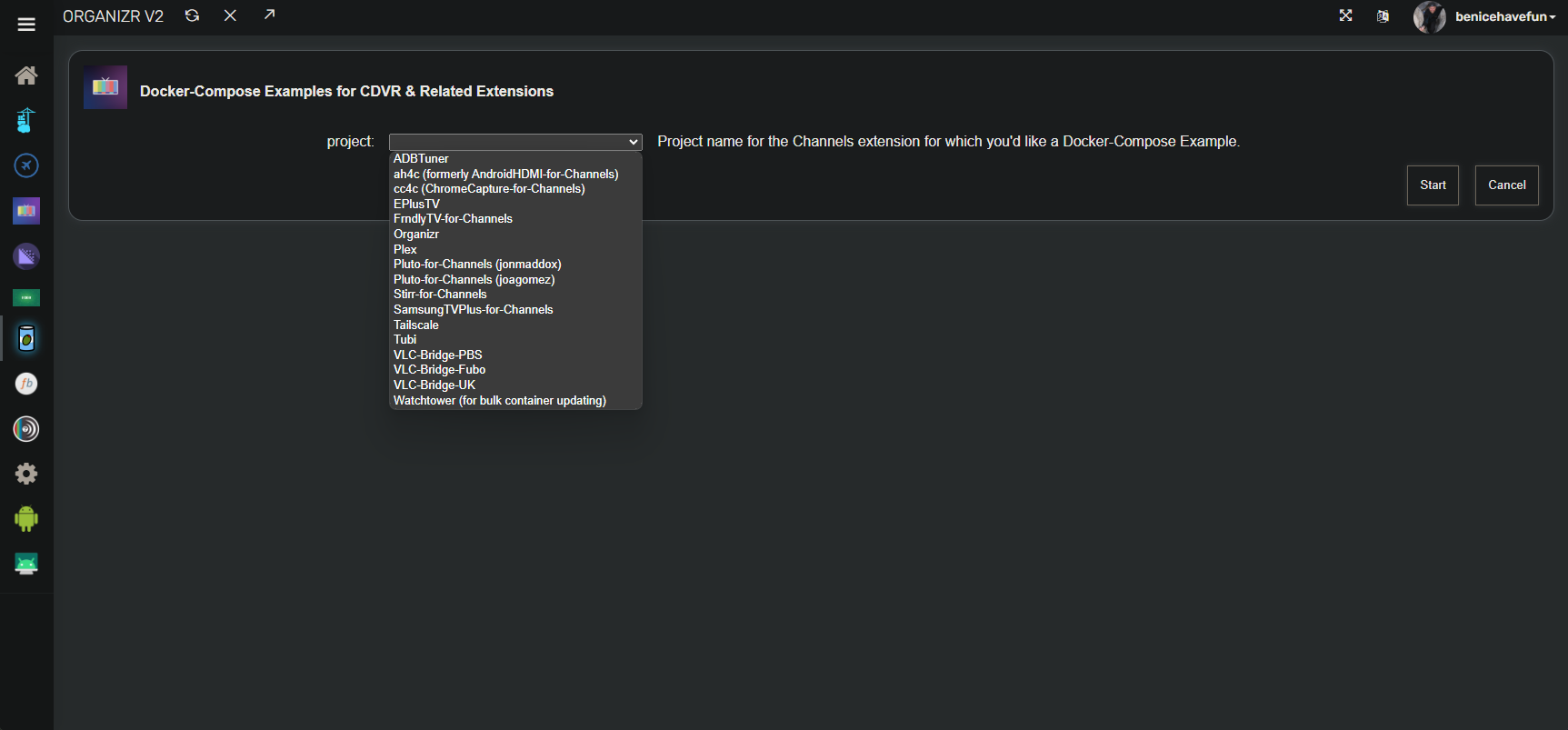
with results shown, as usual, in the log under stdout (the docker-compose itself and environment variable samples for use in that section of Portainer-Stacks -- copy and paste using "Advanced mode"):


